Best AI Tools for Business Card Design: A Quick Guide
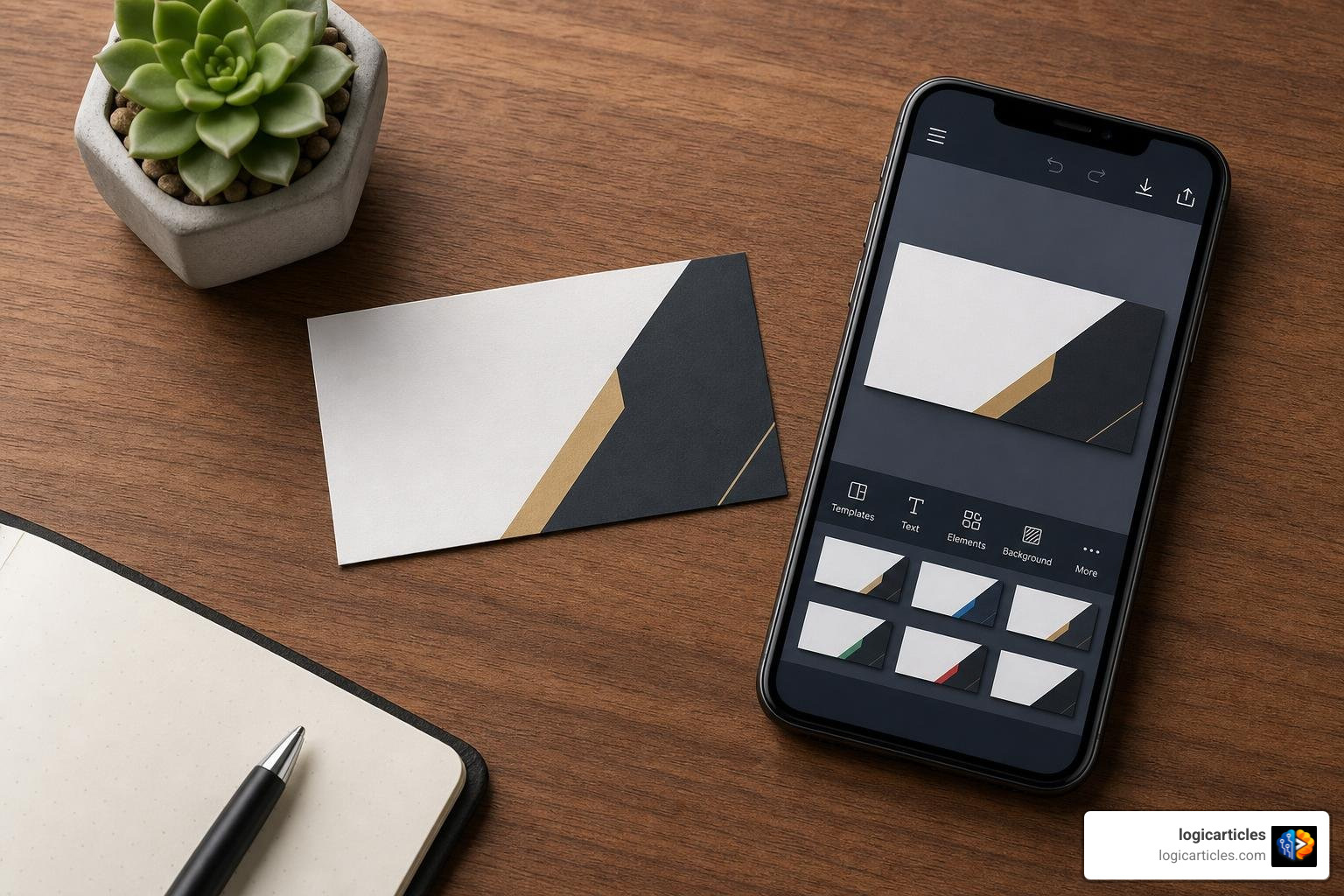
The best ai tools for business card design combine fast prompt-based creation with practical editing, brand controls, and print-ready exports. For most businesses, the strongest choice is not simply the tool that makes the prettiest first image. It is the one that lets you add your real logo, match exact brand colors, fix text, and export a file your printer can use.
AI can turn a short brief into several card concepts in seconds. But the quality varies widely:
- AI-first card generators are best for fast, original layout ideas and style exploration.
- Layer-based AI design tools are best when you need to edit each text, logo, and design element after generation.
- Branding platforms with AI features work well for teams that also need matching logos, social posts, websites, and email signatures.
- Template-based tools with AI assistance offer more predictable manual control, but may require more design work.
A business card is small, so the details matter. The final design should be readable, on-brand, and prepared for its purpose – whether that means a sharp vector PDF for print, a PNG for an email signature, or a real QR code that leads to a mobile-friendly contact page.
This guide compares the leading options, explains where AI helps and where human review is still essential, and shows how to create a card that works in both physical and digital networking.
Key Features of the Best AI Tools for Business Card Design
Selecting the right AI platform requires looking beyond flash and focusing on output quality, editability, and workflow efficiency. Modern platforms utilize generative AI engines trained on graphic design principles, visual hierarchy, and typography rules. When we evaluate software for creating professional contact cards, we look for tools that balance rapid automated generation with strict brand control.
AI Automation vs Traditional Graphic Templates
Traditional platforms like Canva or Adobe Express rely heavily on pre-built templates. While templates offer structure, they often force your content into pre-determined placeholders, leading to a generic appearance. Thousands of professionals end up using identical design layouts.
In contrast, an AI Business Card Generator generates layouts dynamically from descriptive prompts or raw business data. Instead of forcing your name and job title into fixed boxes, machine learning algorithms evaluate the optical weight of each character, adjusting line spacing, padding, and alignment automatically.
Smart AI layout engines evaluate spatial balance so long email addresses or multi-word job titles do not overflow or create awkward line wraps. By understanding whitespace and layout rules, AI tools maintain clean visual order instantly without forcing you to spend hours tweaking bounding boxes manually.
Multi-Layer Editing and Brand Kit Integration
A common shortcoming of basic generative tools is that they produce flat raster images. If an AI generator yields a single flattened file, you cannot adjust text, change a misspelled phone number, or swap out an icon without re-rendering the entire image.
The top tools operate on multi-layer vector canvases. Platforms like Kodo separate background elements, shapes, text layers, and logos. This layer-based architecture allows you to generate a draft using prompts and then manually tweak specific elements—such as adjusting a HEX color code or moving a tagline—without degrading image clarity.
Brand kit integration allows you to upload vector logos (SVG, EPS) and define brand color palettes using exact HEX or CMYK values. Advanced design platforms like Framia allow corporate teams to lock essential brand rules, ensuring that generated cards strictly match established company identity guidelines.
Choosing the Best AI Tools for Business Card Design for Print
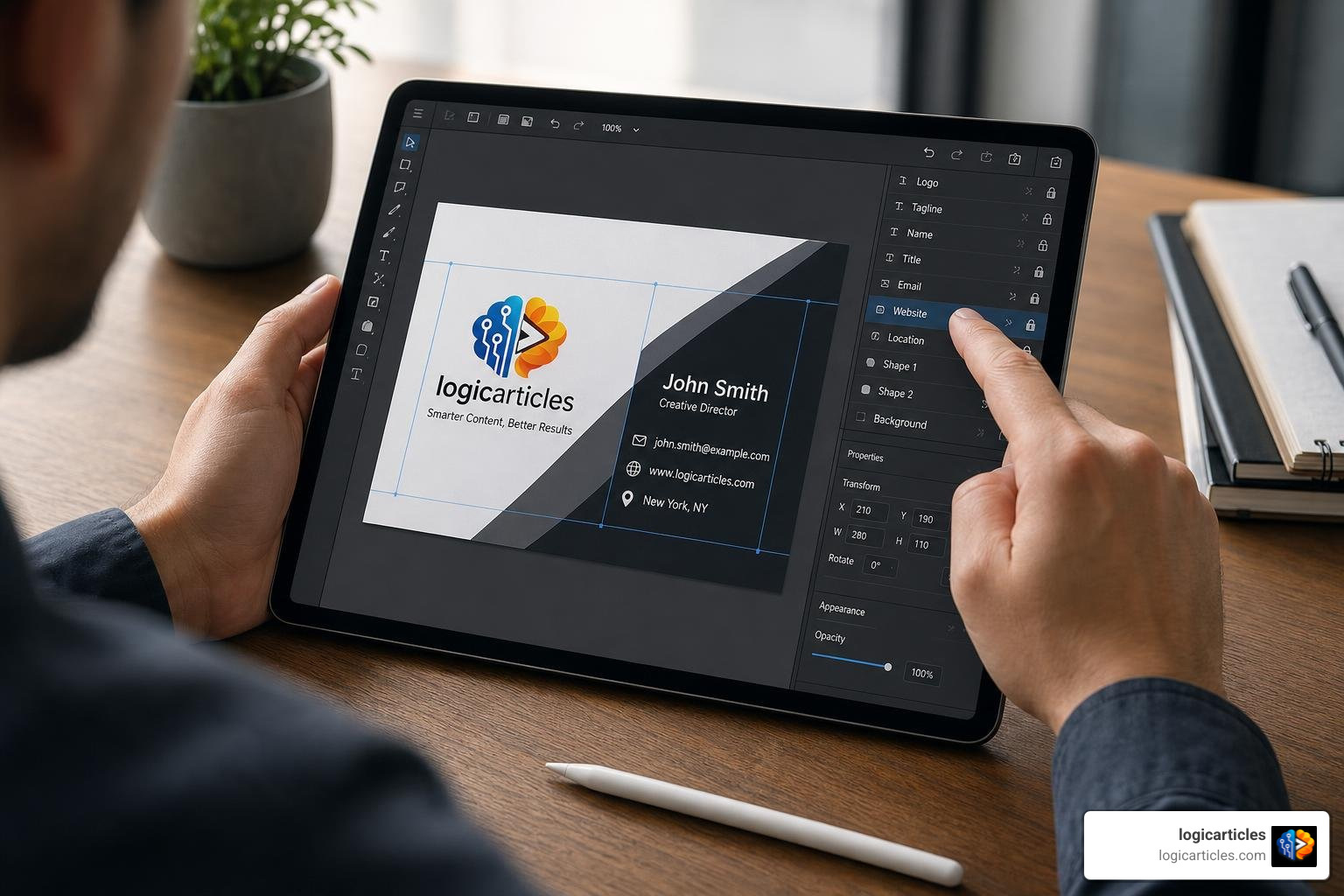
When selecting the best ai tools for business card design, pay close attention to export capabilities, resolution outputs, and credit structures. Some tools operate on credit models where new users receive starter credits (e.g., 40 credits on Kodo, or daily token allocations on platforms powered by open-source models like FLUX or Qwen 2.5), while others charge monthly subscription fees.
To ensure physical durability and a premium tactile feel, consider how the platform prepares files for commercial print shops:
- Vector Layer Support: Ensures line art, typography, and logos retain sharp edges at any print scale.
- Resolution Outputs: Look for exports offering high DPI (300 DPI minimum, or up to 2K resolution raster files) to prevent fuzzy edges.
- Flexible Dimensions: The tool should support landscape, portrait, and square formats alongside international size standards.
- Layer Editing Flexibility: Verify that generated designs can be edited using conversational prompts or direct canvas controls.
Evaluating these features upfront prevents the frustration of creating a stunning card design on-screen only to end up with blurry text when sent to a physical press.
How to Craft Effective Prompts for AI Business Cards
AI generators depend heavily on prompt inputs. Entering a simple request like “modern business card for an accountant” usually yields generic results. Writing detailed, structured prompts gives you precise control over composition, texture, color palettes, and overall mood.
Master Prompting for Visual Aesthetics
To achieve standout visual results, your prompt should specify style descriptors, color schemes, card orientation, and spatial preferences. Treat the prompt input as a concise brief for a professional graphic artist.
Here are tested prompt modifiers that consistently yield clean visual aesthetics:
- Minimalist & Tech: “Minimalist business card for a software engineer, matte dark graphite background, electric teal accent lines, clean sans-serif typography, subtle grid pattern, generous whitespace, landscape 3.5×2 inch layout.”
- Luxury & Executive: “Executive card for a real estate firm, deep emerald green matte paper texture, simulated gold foil lettering, elegant serif typography, clean geometric border, double-sided design.”
- Creative & Studio: “Bold business card layout for an architectural designer, warm concrete gray texture, off-white typography, fine technical rule lines, minimal layout, vertical orientation.”
- Trades & Services: “High-contrast business card for an electrical contractor, deep navy blue background, safety yellow accents, clear bold typography, rounded corners look, functional service highlights.”
When writing prompts, use specific visual terms (such as “charcoal”, “ivory”, “fine line rules”, or “matte finish”) rather than generic praise like “best business card” or “beautiful design”.
Overcoming AI Text Generation and QR Code Limits
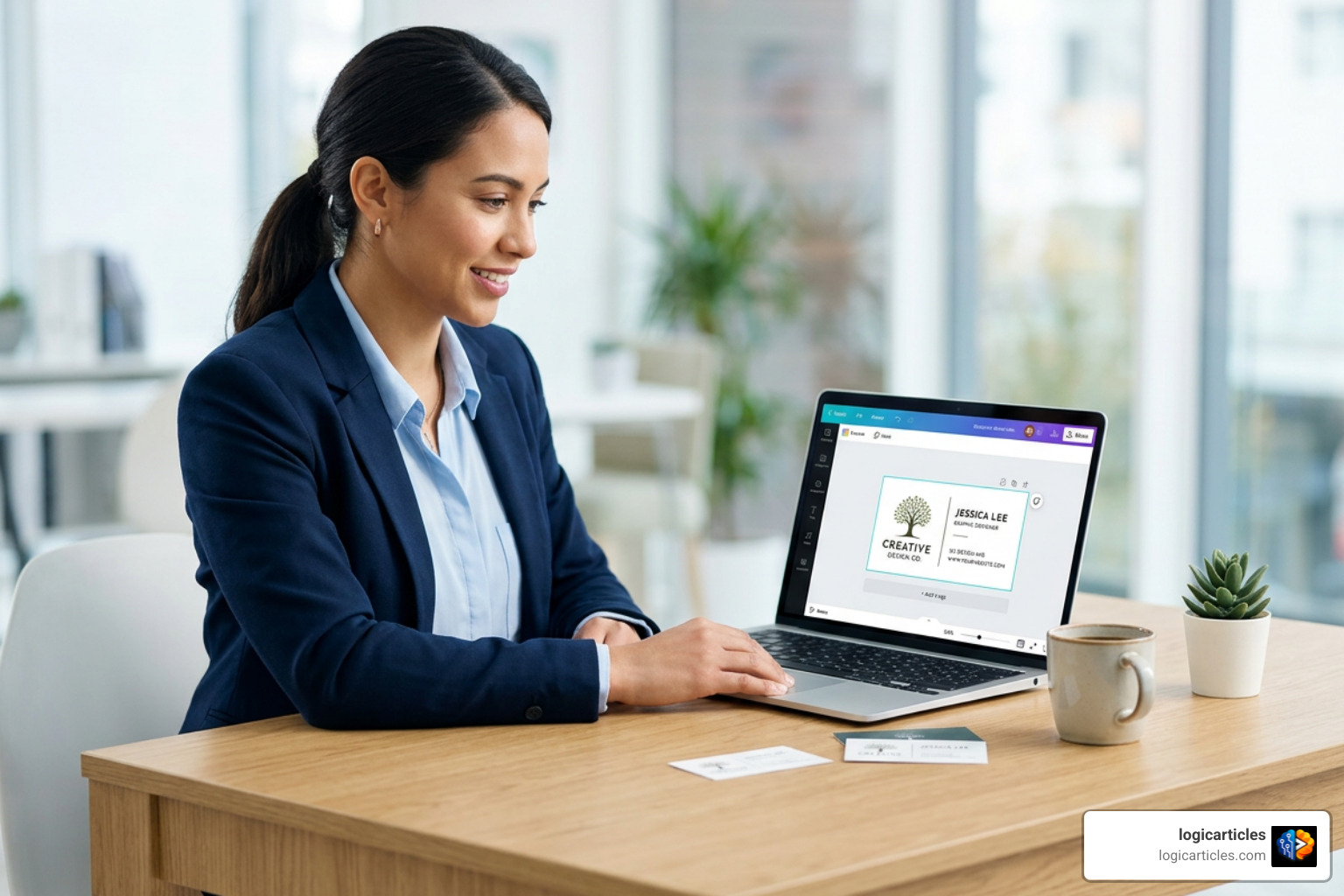
Generative AI models excel at art direction, background creation, and layout synthesis, but text-to-image engines often struggle with fine typographic detail and structured contact information. Long strings of small text like email addresses, telephone numbers, and street addresses can suffer from character distortion when rendered purely as an image.
Furthermore, generated QR codes produced inside AI-rendered images are almost always decorative approximations. They lack the functional data structure needed for mobile device cameras to read them reliably.
The most effective workflow combines AI visual generation with manual post-editing:
- Generate the Base Concept: Use tools like Pixazo or Rewind.ai to generate the aesthetic background, layout, and color theme using descriptive prompts.
- Clear Placeholder Text: Remove any garbled AI text elements or decorative placeholder blocks.
- Overlay Real Vector Text: Insert crisp typography, accurate contact information, and clean brand logos using built-in layered canvas tools or external graphics software.
- Embed Functional QR Codes: Generate a live dynamic QR code using a dedicated tool and place it onto the card as a high-resolution overlay.
This hybrid approach combines the speed of generative design with the absolute accuracy required for real-world contact details.
Technical Print Specifications and Export File Formats
A design that looks brilliant on a bright smartphone screen may suffer in physical print if technical prepress standards are ignored. Print shops require specific margins, resolutions, and color conversions to deliver professional physical results.
Dimensions, Bleed Margins, and Resolution
Standard business card dimensions vary by global region. Using an AI generator that supports customizable dimensions prevents your layout from being stretched or distorted during printing.
Beyond regional trim dimensions, every print file must incorporate strict margin safety rules:
- Bleed Margin (3mm / 0.125 in): Extending background colors and graphic elements 3mm beyond the final cut line prevents thin white unprinted borders if the industrial cutting blade shifts slightly.
- Safe Zone Margin (5mm / 0.20 in): All vital content—including job titles, phone numbers, logos, and QR codes—must remain inside a 5mm buffer from the trim line to prevent accidental clipping.
- Resolution (300 DPI): While digital screens render clearly at 72–96 DPI, commercial offset and digital presses require a minimum resolution of 300 Dots Per Inch (DPI) at full 1:1 print scale. High-res raster exports reaching 2048px on the long edge ensure sharp detail on physical card stock.
Vector Formats and CMYK Color Profiles
The file format you choose determines how cleanly your business card translates to physical paper stock.
| File Format | Primary Use Case | Scale Flexibility | Print Ready? | Vector / Raster |
|---|---|---|---|---|
| PDF (Print) | Professional Offset Press | Unlimited (if vector) | Yes (Supports CMYK & Bleed) | Hybrid / Vector |
| SVG | Scalable Web & Editing | Unlimited | Yes (Requires PDF conversion) | Pure Vector |
| EPS | Commercial Print Shops | Unlimited | Yes | Pure Vector |
| PNG | Digital Sharing & Mobile | Quality degrades when scaled | No (RGB display only) | High-Res Raster |
| JPG / JPEG | Digital Drafts & Proofs | Quality degrades when scaled | No (Lacks transparency) | Compressed Raster |
Monitors display colors using the RGB (Red, Green, Blue) spectrum, whereas physical printing presses combine CMYK (Cyan, Magenta, Yellow, Key/Black) inks. Converting your final design file from RGB to CMYK prevents unexpected color shifts, ensuring that vibrant screen colors do not turn dull or muddy when printed on physical stock (such as 14–16pt standard cardstock or 32pt ultra-thick stock).
Combining Physical Business Cards with Digital Networking
The role of the business card has evolved beyond physical paper exchanges. Modern networking relies heavily on hybrid systems that seamlessly connect physical paper cards with digital contact profiles.
By 2025, 37% of businesses had adopted digital business cards. The digital business card market is projected to reach $513.72 million by 2032, expanding at a 12.2% annual growth rate. Combining physical cards with smart digital profiles ensures you capture every contact opportunity.
Evaluating the Best AI Tools for Business Card Design for Digital Cards
When designing for digital distribution, layout rules shift. Digital business cards must display cleanly on small mobile screens, work as email signature graphics, and integrate smoothly into social messaging channels.
Tools built for digital deployment allow you to export assets formatted for mobile devices. Using consistent color palettes, typography, and logo treatments across both your physical business cards and digital assets—such as virtual contact cards, LinkedIn headers, and email signatures—builds immediate visual recognition across all networking touchpoints.
NFC Chips, Scannable QR Codes, and Digital Integration
One of the most effective ways to upgrade a physical business card is by adding contactless technology. Modern cards often feature embedded Near Field Communication (NFC) chips or scannable dynamic QR codes.
Data shows that NFC-enabled digital cards retain users at a rate 50% higher than traditional QR-code-only cards. A simple phone tap transfers full contact information directly into a recipient’s smartphone address book without requiring an app download.
To maximize conversion rates when combining physical cards with digital channels:
- Avoid Generic Homepage Links: Point QR codes and NFC chips to a mobile-optimized vCard landing page rather than a dense corporate desktop website.
- Offer One-Tap Contact Saving: Ensure your digital landing page allows recipients to download a formatted
.vcffile directly to their phone contacts with a single tap. - Maintain Clear Layout Zones: Reserve the back of physical cards for functional tech elements (such as an NFC target icon or dynamic QR code), keeping the front uncluttered for primary brand presentation.
This physical-to-digital bridge ensures that your physical card triggers immediate digital action and long-term contact retention.
Frequently Asked Questions About AI Business Card Design
Are AI-generated business cards free to use for commercial purposes?
Most platforms grant full commercial usage rights for designs generated on their platforms, allowing you to print, distribute, and promote your cards without additional royalty or licensing fees. However, free usage limits vary. Tools like Rewind.ai provide daily token allocations (e.g., 2,500 to 5,000 free daily tokens), while tools like Kodo grant initial credit packages. Always verify the platform’s specific licensing terms if you intend to resell card designs or use proprietary AI-generated art assets commercially.
Can AI business card generators design double-sided layouts?
Yes. Leading platforms like OpenArt, Pixazo, and Kodo explicitly support double-sided business card creation. Prompts can specify distinct front and back instructions. The recommended design practice is to feature primary visual identity, logo, and brand aesthetic on the front side, while placing detailed contact information, phone numbers, addresses, and scannable QR codes neatly on the back.
What file format is best for high-resolution business card printing?
Vector PDF (with embedded fonts and curves) is the gold standard for high-resolution commercial printing. Vector files maintain crisp, clean line edges at any size, ensuring small text remains easy to read. If vector PDF export is unavailable, download a uncompressed 300 DPI PNG or TIFF file converted to the CMYK color space with 3mm print bleed margins included.
Conclusion
The best ai tools for business card design go far beyond generating attractive visual mockups. They unite natural language prompt generation, multi-layer canvas editing, strict brand kit integration, and precise prepress technical controls into a seamless workflow.
By leveraging AI to explore layout options and combining those renders with accurate text overlays, proper CMYK vector exports, and digital networking links, you can produce business cards that make an immediate, lasting impression.
Whether you are launching a startup, building a personal brand, or refreshing corporate stationery for an entire team, AI tools make high-end design accessible in minutes. Explore more insights on AI Tools to learn how automated workflows can elevate your brand identity across physical and digital media.