What Is Aula Keyboard Software and Where Do You Get It?
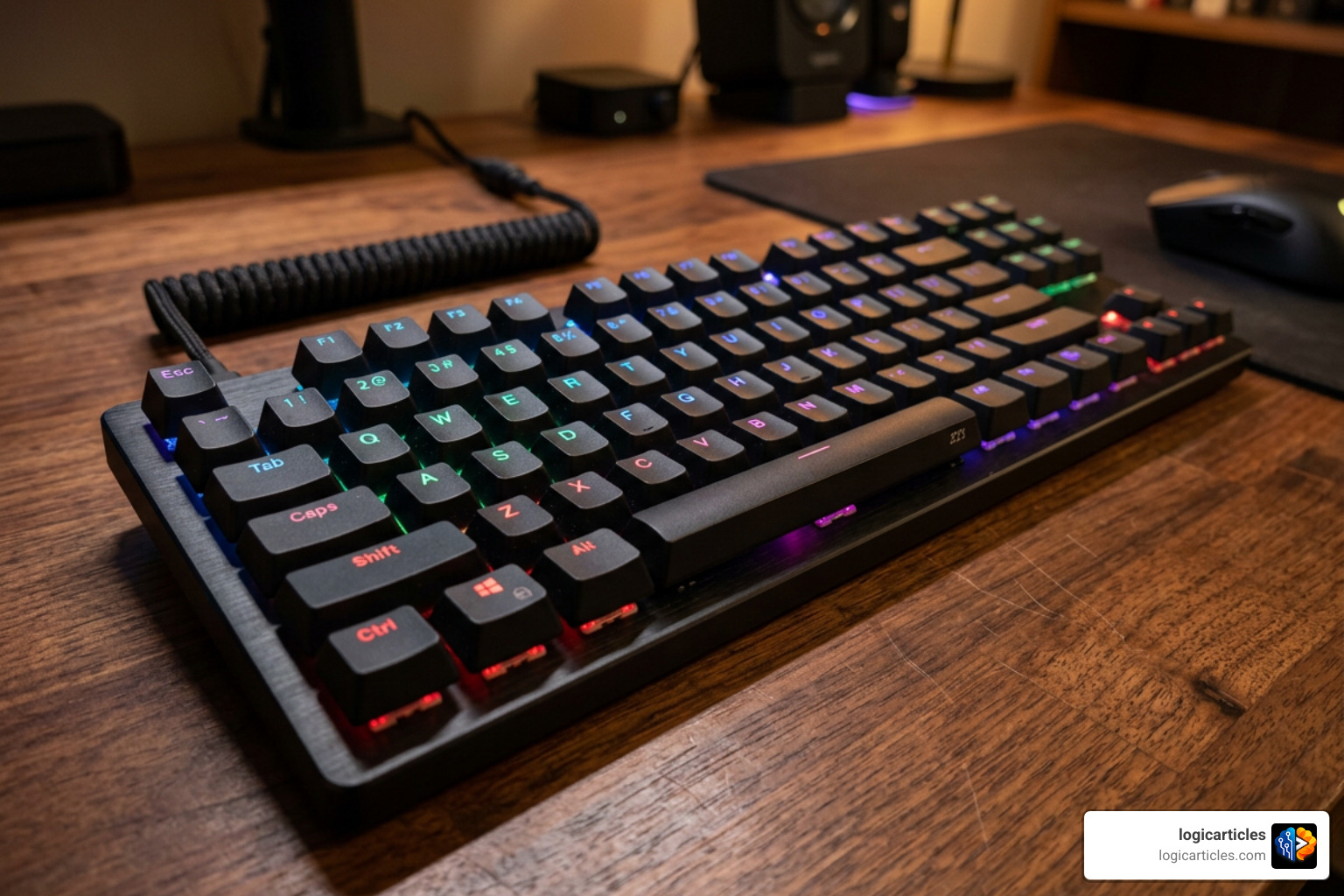
Aula keyboard software lets you customize RGB lighting, program macros, remap keys, and update firmware on your AULA gaming keyboard. Here’s the quick answer:
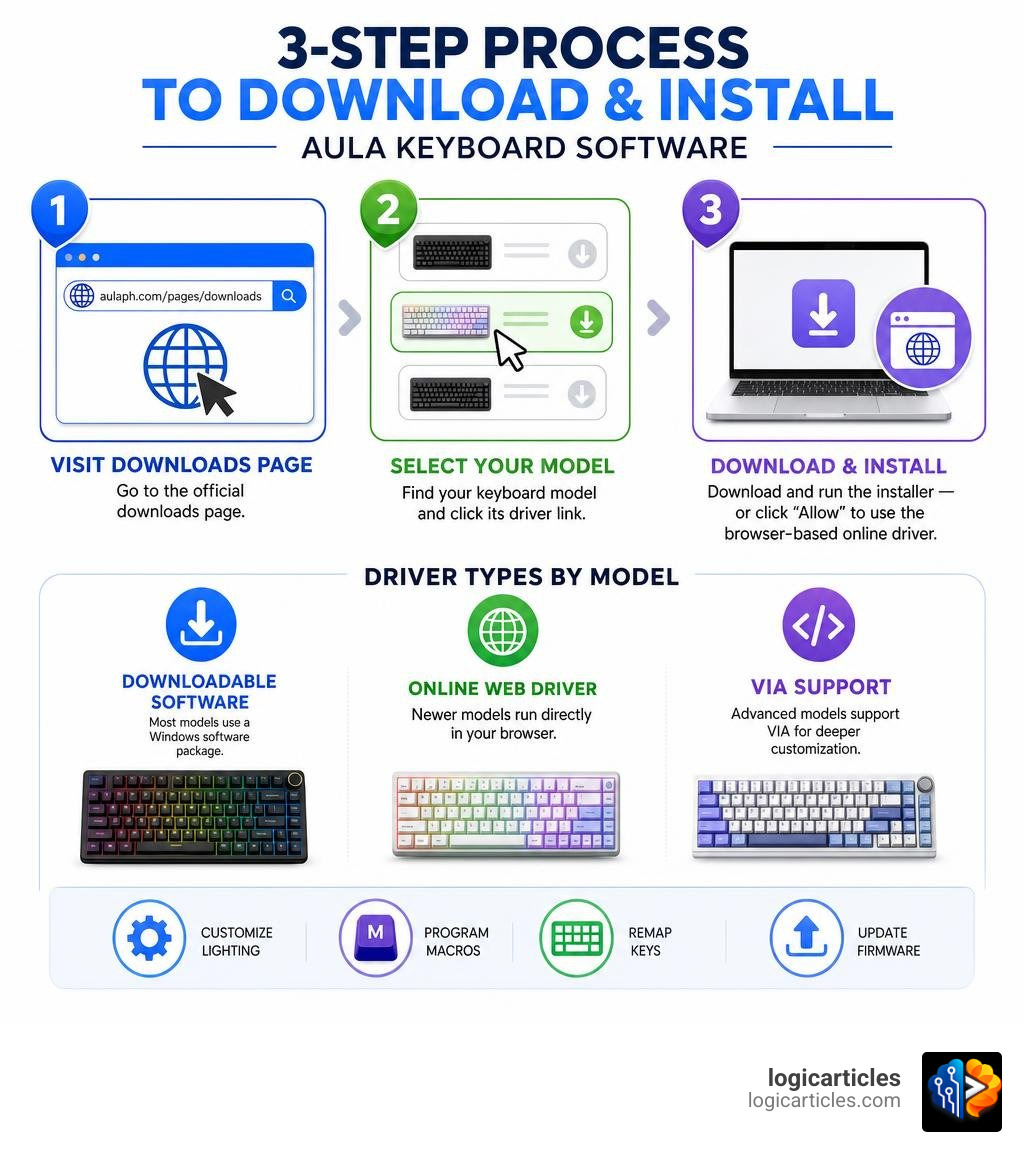
How to download AULA keyboard software in 3 steps:
- Go to the official AULA downloads page (aulaph.com/pages/downloads or aulakeyboard.com)
- Find your keyboard model in the list and click its driver link
- Download and run the installer — or click “Allow” to use the browser-based online driver
That’s it. Most models have a direct download ready to go.
AULA makes a wide range of gaming keyboards — from the F75 and F87 to the F99, F108, and more. Each model may have its own dedicated driver or firmware file. Some newer models like the WIN60HE and WIN68HE use online web drivers that run directly in your browser, while most others use a downloadable software package for Windows.
A handful of models — like the F75 Ultra — go further and support VIA, an open-source tool that lets you remap keys, set up layers, and program macros using a custom JSON file.
Whether you just bought your first AULA keyboard or you’re trying to unlock its full potential, finding and installing the right software is the first step.
Step-by-Step Guide to Download and Install Aula Keyboard Software

Getting your keyboard software set up shouldn’t feel like solving a rubik’s cube in the dark. To make things simple, we have broken down the official download and installation process into three straightforward steps.
Step 1: Visit the Official AULA Download Portals
Because AULA products are distributed globally, there are a few official sites where you can find the correct driver files. The safest and most reliable directories to check are:
- The global driver database: Driver – Aula Keyboard
- The official regional support hub: Download AULA Drivers & Software | Official AULA Philippines
Using these official sources ensures you download clean, virus-free executables tailored specifically to your hardware revision.
Step 2: Locate Your Specific Keyboard Model
Once you are on the download page, use the search bar or scroll through the categorized list. AULA organizes its downloads by device type (Keyboard, Mouse, Headset) and then by model number.
- Look for your exact model (for example, F75, F87 Pro, F99, or F108 Pro).
- Be careful to choose the correct version. If you have an ISO-ES (Spanish layout) keyboard, make sure to download the specific “ISO-ES” driver rather than the standard ANSI version to avoid keymapping confusion.
- Click on the download link or button adjacent to your model.
Step 3: Install the Software on Windows
Most downloadable AULA packages are compressed in .zip or .rar formats to save bandwidth. Here is how to complete the installation:
- Extract the Files: Right-click the downloaded folder and select “Extract All…” to save the files to a local directory on your PC.
- Run the Installer: Double-click the extracted setup file (usually ending in
.exe). - Bypass SmartScreen (if prompted): Windows Defender might occasionally flag lesser-known drivers. If a warning popup appears, click “More Info” and then select “Run anyway”.
- Follow the Setup Wizard: Choose your preferred language, click “Next” through the installation path options, and hit “Finish”.
- Connect Your Keyboard: Ensure your keyboard is plugged in via its wired USB connection during the first launch so the software can detect the hardware and establish a connection.
Supported Models and Customization Features
Modern AULA mechanical keyboards are much more than simple typing tools; they are highly customizable productivity and gaming stations. Just like how What is Productivity Software? optimizes your daily work routine, dedicated keyboard software optimizes your physical interactions with your computer.
With the aula keyboard software installed, you can configure:
- Per-Key RGB Lighting: Choose from dozens of pre-programmed lighting profiles (like Wave, Ripple, or Breathing), adjust brightness levels, speed, hue, and saturation, or paint your own custom static layout.
- Macro Programming: Record complex sequences of keypresses with precise delay timings—perfect for executing rapid-fire combos in games or streamlining repetitive shortcuts in office programs.
- Key Remapping: Reassign any key to perform a different function, launch an application, control media playback, or execute mouse clicks.
- Profile Saving: Save your custom configurations into distinct profiles. You can create one profile for gaming, one for coding, and another for general office work, switching between them on the fly.
To help you understand the landscape of AULA drivers, here is a comparison of the two main software types you will encounter:
| Feature | Downloadable Software (.exe) | Online Web Drivers |
|---|---|---|
| Installation Required | Yes (local Windows installation) | No (runs directly in browser) |
| OS Compatibility | Primarily Windows | Windows, macOS, Linux |
| Offline Access | Yes, once installed | No, requires active internet connection |
| Supported Models | F75, F87 Pro, F99, F108, S98 Pro, etc. | WIN60HE, WIN68HE, HERO68HE, etc. |
| Ease of Updates | Manual download of new installer | Automatic updates via web app |
Finding the Right Driver for Your Model
AULA’s product catalog is massive, and downloading the wrong driver is the number one reason users experience a “Device Not Recognized” error. If you are searching for your model’s specific setup files, you can browse the comprehensive list of model-specific packages at the Software Driver – Aula Keyboard directory.
Commonly supported models include:
- F-Series: F75, F75 Pro, F75 Max, F87, F87 Pro, F99, F99 Pro, F108, F108 Pro, F3261
- S-Series: S75 Pro, S98 Pro, S99, S12 Pro
- Magnetic Switch HE Series: WIN60HE, WIN68HE, HERO68HE (which utilize web drivers for adjusting actuation points)
- L-Series: L99 (featuring dedicated screen customization drivers)
Advanced Customization with Aula Keyboard Software
For power users, the customization goes deep. You can adjust the USB polling rate up to 1000Hz in wired or 2.4GHz wireless modes to minimize latency down to 5-6ms.
If you are a digital artist using the Best Free Drawing Software in 2026 – 7 Top Tools Artists Love, you can map your most-used drawing shortcuts—such as brush resizing, canvas rotation, and undo states—directly to your keyboard’s physical keys or rotary knob. This level of customization turns a standard keyboard into an indispensable creative controller.
Advanced Configurations: VIA, JSON, and Web Drivers
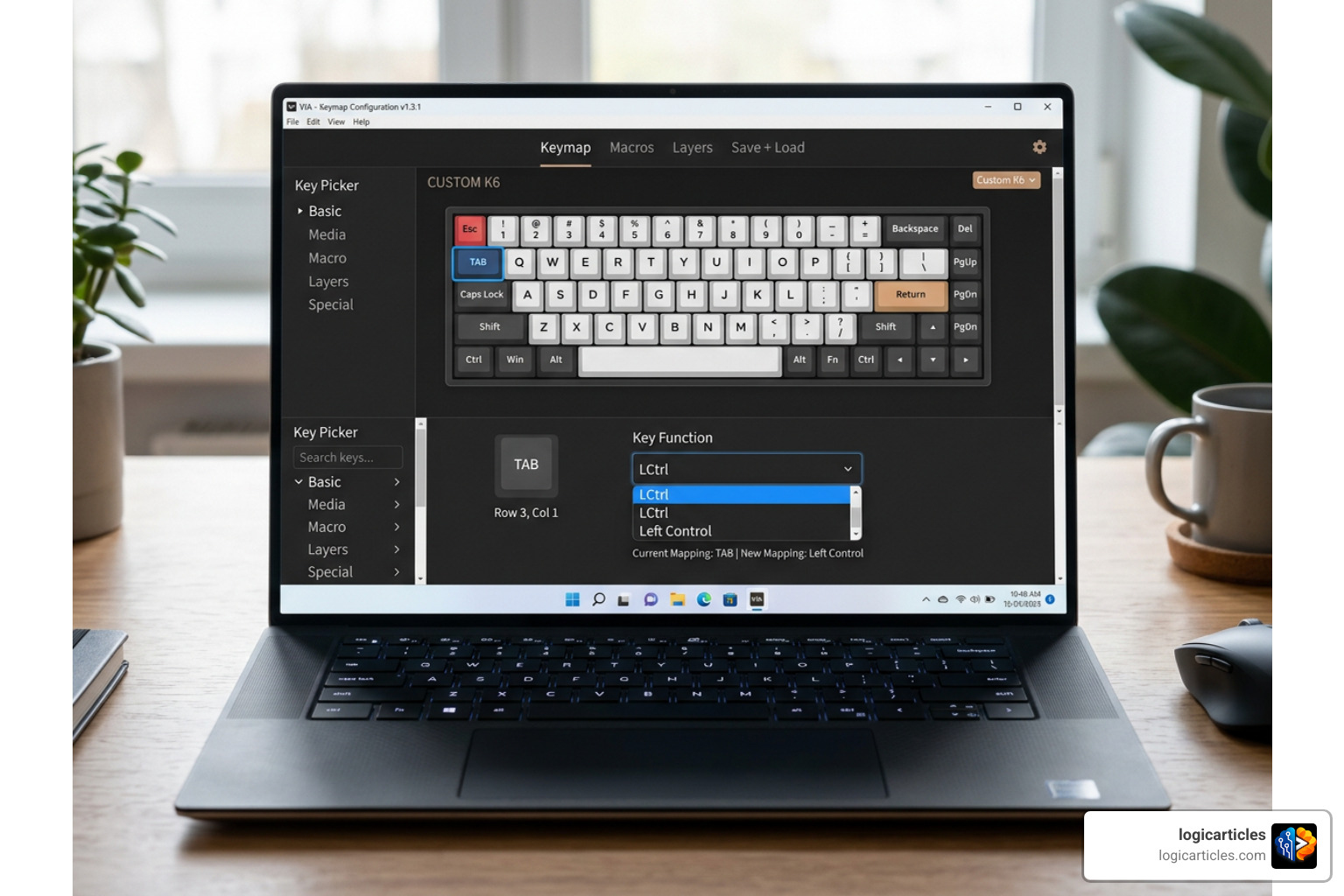
AULA has embraced advanced hobbyist configurations by integrating open-source standards like VIA into their premium lineup. This is a game-changer for cross-platform users who want deep customization without installing bloated background programs.
Configuring the F75 Ultra and VIA-Compatible Keyboards
The AULA F75 Ultra is a prime example of this evolution. Instead of relying on proprietary Windows software, it features robust VIA support. VIA is a web-based utility that configures your keyboard’s layout in real-time, saving your settings directly to the keyboard’s onboard memory.
To configure a VIA-compatible AULA keyboard:
- Download the JSON File: Go to the official AULA product page and download the custom JSON configuration file for your keyboard model.
- Open VIA: Navigate to the official VIA web application (use a Chromium-based browser like Chrome, Edge, or Opera).
- Enable Design Tab: In VIA settings, toggle on the “Show Design tab” option.
- Load the JSON File: Go to the Design tab, click “Load”, and select the JSON file you downloaded.
- Connect and Configure: Click “Authorize device”, select your connected AULA keyboard, and start mapping your keys, multi-function layers, and custom rotary knob actions.
Online Web Drivers vs. Downloadable Aula Keyboard Software
For magnetic switch keyboards like the WIN60HE or WIN68HE, AULA provides online web-based drivers.
The biggest advantage of web-based drivers is portability. Because they run through a browser utilizing WebHID technology, you can customize your keyboard on a Mac or Linux machine without installing local software. These online suites allow you to adjust advanced magnetic switch settings, such as rapid trigger sensitivity, dynamic keystrokes, and custom actuation points down to 0.1mm.
In contrast, downloadable software is ideal for users who prefer offline access, want the software to launch automatically with Windows, or own older models that do not support web-based protocols.
Troubleshooting and Support Resources
Even the best hardware can run into a digital speed bump now and then. If you are struggling to get your software and keyboard to play nice, here are the most common issues and how to fix them:
- Keyboard Not Recognized by Software:
- Ensure you are using a wired connection (USB-C cable) to configure the keyboard. Most AULA software packages cannot update settings or firmware over Bluetooth or 2.4GHz wireless.
- Check that the physical connection switch on the keyboard is set to “USB” or “Off” (which defaults to wired mode).
- Verify that you downloaded the exact software version for your model. A regular F75 driver will not recognize an F75 Pro or F75 Ultra.
- Driver Fails to Install:
- Temporarily disable aggressive third-party antivirus suites.
- Right-click the installer executable and select “Run as Administrator”.
- Firmware Update Failures:
- Never unplug your keyboard or turn off your computer during a firmware flash. Doing so can “brick” your device.
- If a firmware update fails or freezes, close the software, restart your PC, swap to a different USB port (preferably on the back of your motherboard), and run the update tool again.
If you encounter persistent hardware defects or require direct technical assistance, you can reach out to the official support teams:
- After-Sales Support & Repairs:
service@aulastar.com - Business Cooperation & General Inquiries:
kalvin@aulastar.com
Having a reliable keyboard setup is crucial when managing complex workflows. If you are looking to streamline your digital life even further, check out our guide on the Best Task Management Software in 2026 Tested to keep your projects as organized as your new keyboard profiles.
Frequently Asked Questions about Aula Keyboards
Is Aula keyboard software compatible with macOS?
Most standard downloadable AULA keyboard software packages are designed exclusively for Windows (.exe files). However, Mac users can still customize their keyboards:
- Onboard OS Switching: Most AULA keyboards have a physical switch (or hotkey combo like
Fn + WorFn + E) to toggle between Windows and Mac system layouts, swapping the Alt and Windows/Command keys automatically. - VIA & Web Drivers: If you own a VIA-compatible model (like the F75 Ultra) or a magnetic switch model with an online web driver, you can fully customize your keyboard on macOS using any Chromium browser.
- Onboard Memory: You can plug your keyboard into a Windows PC, program your custom profiles and lighting using the downloadable software, and plug it back into your Mac. The settings are saved directly to the hardware.
How do I reset my Aula keyboard to factory settings?
If your keys are behaving erratically or your lighting is acting up, a factory reset usually clears the issue.
- Hardware Reset: Press and hold
Fn + Escsimultaneously for 3 to 5 seconds. The keyboard backlights will flash, indicating that the onboard memory has been wiped and restored to default. - Software Reset: Open the compatible AULA software, navigate to the settings menu, and click “Restore Defaults” or “Reset”.
Where can I find the latest firmware updates and release notes?
The latest firmware updates, screen customization assets (like GIFs for the L99), and software release notes are regularly uploaded to the official Driver – Aula Keyboard page. Check this page periodically to ensure your keyboard is operating with the latest bug fixes and performance improvements.
Conclusion
Configuring your aula keyboard software is the key to unlocking the full potential of your mechanical keyboard. By following our simple three-step download process, you can easily transition from standard typing to advanced macro creation, custom RGB illumination, and ultra-responsive polling rates. Whether you are using a standard Windows executable, an online web driver, or advanced VIA JSON configurations, AULA provides the flexibility to build your perfect desktop setup.
At logicarticles, we love helping you optimize your digital workspace. Once your physical hardware is customized to perfection, take your efficiency to the next level by exploring our curated guides in the Productivity Category. From software reviews to workspace organization tips, we have everything you need to work smarter and play harder.