Why “An Error Occurred While Checking for a Software Update” Stops So Many Users
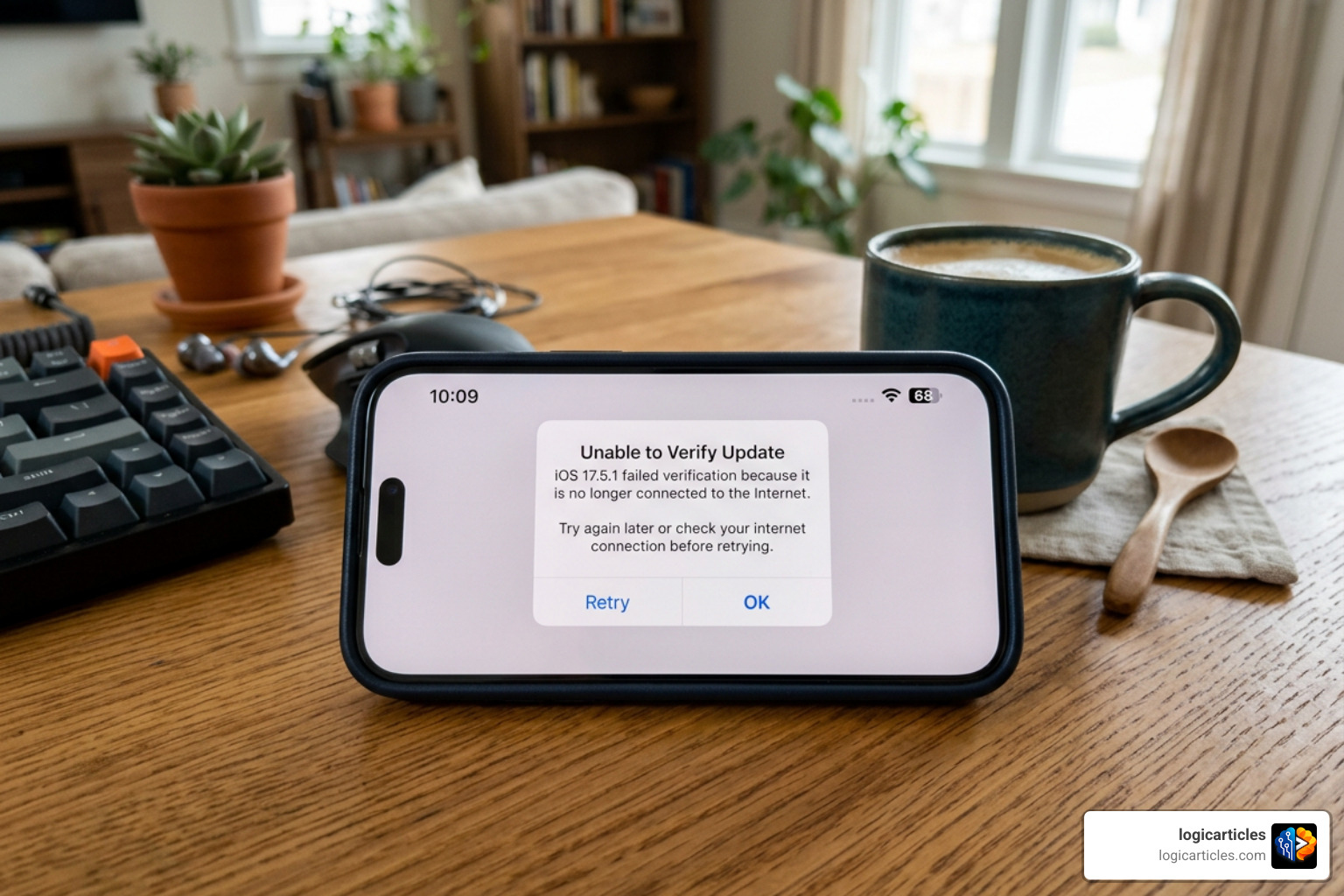
An error occurred while checking for a software update is one of the most common messages iPhone, iPad, and Mac users see when trying to install the latest software — and it almost always has a fixable cause.
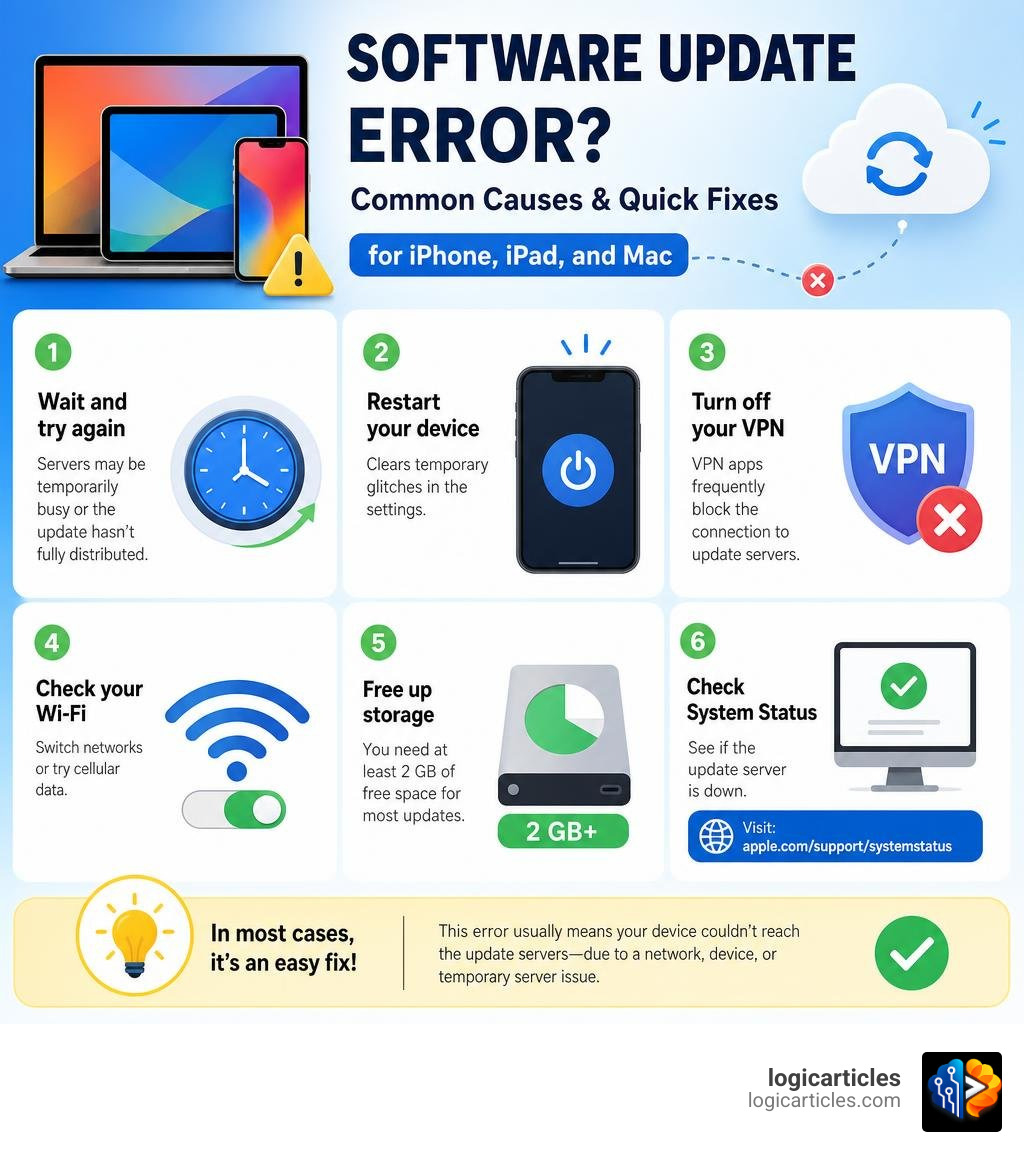
Quick answer — the most common fixes:
- Wait and try again — Apple’s servers may be temporarily overloaded or the update hasn’t fully distributed yet
- Restart your device — clears temporary glitches in the Settings app
- Turn off your VPN — VPN apps frequently block the connection to Apple’s update servers
- Check your Wi-Fi — switch networks or try cellular data
- Free up storage — you need at least 2 GB of free space for most iOS updates
- Check Apple’s System Status — visit apple.com/support/systemstatus to see if the update server is down
In most cases, the error isn’t serious. It means your device couldn’t reach Apple’s software update servers — either because of a network issue on your end, a temporary problem on Apple’s end, or something on your device (like a VPN or low storage) blocking the connection.
Over 100 users reported variations of this error across several Apple Community threads, so if you’re seeing it, you’re definitely not alone.
What Does “An Error Occurred While Checking for a Software Update” Mean?
When you navigate to your system settings and tap “Software Update,” your device sends a request to Apple’s secure servers to check if a newer operating system version is available. If your device receives a garbled response, experiences a network timeout, or cannot establish a secure connection, it throws up the generic “an error occurred while checking for a software update” message.
Essentially, this warning is an umbrella notification for a failed handshake between your hardware and the update server. If you are experiencing this, you might also find that you are unable to check for update error occurred while checking for software update on multiple devices connected to the same network.
To understand why this happens, it is helpful to look at how modern operating systems are structured. When updating a device, you aren’t just changing high-level application code; you are often modifying low-level instructions. Understanding the difference between Firmware vs Software is crucial here, as a failed update check can sometimes be caused by a mismatch in these underlying layers, preventing the update client from verifying your current system state.
Why You See “An Error Occurred While Checking for a Software Update” on iOS
On an iPhone or iPad, this error is typically triggered by one of four culprits:
- Overloaded Apple Servers: When a major new iOS version drops, millions of users ping the servers simultaneously, leading to temporary outages.
- Storage Space Bottlenecks: iOS requires a buffer of free storage to download, unpack, and verify update files. If your storage is packed to the brim, the update check may fail before the download even begins.
- Network Restrictions: Public Wi-Fi networks, firewalls, and active Virtual Private Networks (VPNs) often block the specific ports Apple uses for software distribution.
- Corrupted Temporary Files: Sometimes, a previously failed or interrupted download leaves cached files behind, confusing the update system.
If the system cannot resolve these issues, it can trigger more severe iOS update and restore errors, requiring a computer-based restore. Community data highlights how widespread this is: on a single Apple Community thread in August 2023, over 32 users reported being completely stuck on this screen, while another thread saw 44 users experiencing identical symptoms.
How to Fix “An Error Occurred While Checking for a Software Update” on macOS
On a Mac, the update system is slightly more complex. Starting with macOS Sonoma, updates rely heavily on a secondary background process called bridgeOS, which manages the T2 security chip and Apple Silicon security features.
If you encounter the “Failed to prepare the software update” when trying to update from Sonoma 14.4.1 to 14.5, the issue is rarely a simple network drop. Instead, it is often a bridgeOS prepare failure. When this happens, the main macOS download might reach 100%, but the installer fails to prepare the low-level firmware components.
To fix this on macOS:
- Boot into Safe Mode: This prevents third-party launch agents (like antivirus tools or old VPN drivers) from loading, which frequently block update scripts.
- Use Terminal Commands: You can bypass the graphical System Settings interface entirely by using the command line to fetch the installer directly.
- Run Disk First Aid: Use Disk Utility to ensure there are no file system corruptions blocking the installation scripts.
Step-by-Step Troubleshooting Solutions

When your device refuses to check for updates, we recommend following a structured troubleshooting flow. Rather than jumping straight to nuclear options like resetting your entire device, starting with simple, non-destructive fixes is always the best path.
In the modern landscape of 2026, keeping your personal devices updated is as important as maintaining enterprise-grade infrastructure. If you want to understand how modern digital ecosystems stay secure and functional, reading up on Software Stack Management in 2026 can provide excellent context on why updates are so strictly controlled.
1. Check Apple System Status and Wait
Before changing any settings on your device, check if the problem is on Apple’s end.
Apple hosts its update files on massive Content Delivery Networks (CDNs). When a new software version is released, it takes time to propagate across every global server node. If you try to update the minute a release goes live, you might hit a server that hasn’t fully indexed the update yet.
- Visit the official Apple System Status Page.
- Look for the macOS Software Update or iOS Software Update services.
- If the dot next to these services is yellow or red, Apple is experiencing an outage. All you can do is have patience and wait a few hours for their engineers to resolve the issue.
2. Verify Network Connection and Disable VPN
A stable, uninhibited internet connection is non-negotiable for software updates. If your network drops even a few packets during the handshake phase, the update check will fail.
- Disable Your VPN: This is the most common silent killer of software updates. Even if your VPN is turned off, active VPN configuration profiles in your settings can intercept traffic. Go to Settings > General > VPN & Device Management on iOS, or System Settings > Network > VPN on macOS, and completely disconnect or remove any active configurations.
- Switch Networks: If you are on Wi-Fi, try switching to cellular data (or vice versa). If you are using a slow connection, you might wonder Why is the Uhoebeans Software Update So Slow? — network throttling and DNS blocks are often to blame.
- Reset Network Settings: If your device consistently fails to connect, resetting your network configurations can clear corrupted DNS caches. This will erase your saved Wi-Fi passwords.
- On iOS: Go to Settings > General > Transfer or Reset iPhone > Reset > Reset Network Settings.
If your Mac continues to show connection failures, you may be dealing with deeper configuration conflicts. Many users on Apple discussion forums have noted that they Can’t connect to the Apple Software Update server until they completely uninstall third-party security suites or older firewall utilities.
3. Free Up Device Storage
Your device needs breathing room to perform an update. Although an iOS update package might only be 1.5 GB in size, the system requires up to 3 to 4 times that amount of free space to successfully download, extract, verify, and run the installer.
- The 2GB Golden Rule: For iOS, we recommend having at least 2 GB to 5 GB of free space before checking for an update. If your storage is completely full, the update check routine may abort immediately.
- Enable Offload Unused Apps: Go to Settings > General > iPhone Storage and enable Offload Unused Apps. This removes the app files to free up space while keeping your personal documents and data safe.
- Delete Old Updates: If a previous update download was interrupted, it might be taking up space and blocking new checks. In your storage settings, scroll down to find the iOS update file, tap it, and select Delete Update. Then, go back to the Software Update menu to try again.
Understanding how background storage management and software integrity work is a fascinating field. For instance, if you’ve ever wondered How Does Endbugflow Software Work?, or wanted to explore specialized systems like What is Moxhit4 6 1 Software?, What is Zusiymorp 35 3 Software?, or What is Foxtpax Software?, you’ll find that clean storage allocation is always a foundational requirement for any system to run or update smoothly.
When to Update via Computer (Finder or iTunes)
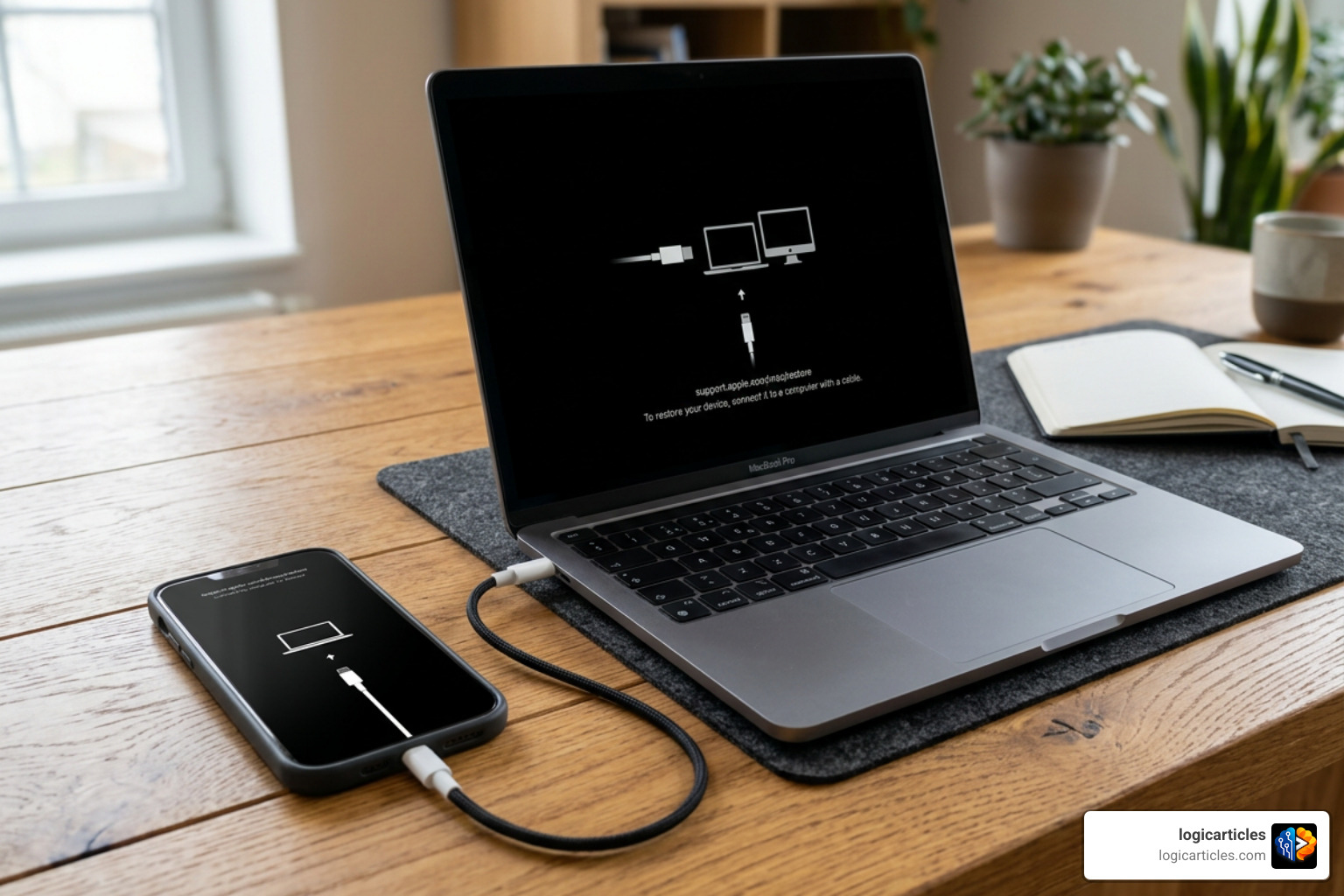
If over-the-air (OTA) updates continue to fail despite trying all the steps above, it is time to use a computer. Updating via a Mac (using Finder) or a Windows PC (using iTunes or the Apple Devices app) bypasses many of the on-device storage and network limitations.
Why Computer Updates Are More Reliable
When you update via a computer, the computer downloads the massive firmware package, unpacks it, and verifies its integrity using its own processor and storage. It then pushes the streamlined, ready-to-install update directly to your mobile device over a physical USB cable.
Step-by-Step: How to Update via Computer
- Connect your device to your computer using an original or Apple-certified USB cable.
- Unlock your device and tap “Trust This Computer” if prompted.
- Open Finder (on macOS Catalina or later) or iTunes/Apple Devices (on Windows or older macOS).
- Select your device from the sidebar.
- In the General/Summary tab, click Check for Update.
- Click Download and Update. Keep your device connected until the process is entirely complete.
Updating via a computer is also the primary way to bypass complex firmware blocks. In software engineering, testing and validation are critical to keeping consumer devices functional. To learn more about how developers prevent these kinds of system failures, check out our What is Testing in Zillexit Software 2026 Guide to Prevent Bugs Downtime Data Loss?.
Frequently Asked Questions about Software Updates
Why does my Samsung phone say “Couldn’t download update”?
While this guide focuses primarily on Apple ecosystems, Android users encounter very similar hurdles. If you are using a Samsung device and get a “Couldn’t download update” message, it is typically caused by a server-side disruption or a localized cache error.
According to users experiencing Issues checking for updates – Samsung Community – 3481764, the most effective fixes include clearing the cache of the “Software Update” system app, switching from Wi-Fi to cellular data, or using Samsung Smart Switch on a computer to apply the firmware manually.
Is it safe to update if I get a “purchased items” warning?
Yes, it is generally safe. When updating via a computer, you might see a warning stating that there are purchased items on your device that have not been transferred to your library.
This warning usually refers to media files, like music purchased from the iTunes Store or PDFs in your Books app, that haven’t synced to your computer’s local drive. As long as your purchases are tied to your Apple ID and you have iCloud sync turned on, these items can easily be re-downloaded from the cloud after the update is complete. To be absolutely safe, perform a standard iCloud backup of your device before clicking “Continue.”
What is the “Failed to prepare the software update” error on Mac?
This error is a common headache for Mac users, particularly on Intel-based iMacs and MacBooks. It indicates that the system successfully downloaded the macOS installer but failed to compile or verify the bridgeOS firmware update required to authorize the installation.
As detailed in several community discussions, including “Failed to prepare the software update” w… – Apple Community, this can sometimes be resolved by booting your Mac into Safe Mode to disable conflicting third-party launch daemons. In extreme cases, you may need to connect your Mac to a second Mac using a USB-C cable and run Apple Configurator to perform a “firmware revive” on the T2 security chip.
Conclusion
Encountering an error occurred while checking for a software update can be incredibly frustrating, but in 2026, the solutions are more accessible than ever. By systematically checking Apple’s server status, disabling problematic network configurations like VPNs, and ensuring your device has adequate storage space, you can resolve the vast majority of update blocks.
Regular system maintenance, clean storage habits, and reliable backups are your best defenses against software failures. If you want to keep all your devices running at peak performance, Explore the best software solutions to find tools that simplify system maintenance, backup management, and network security.