Why CHIRP Radio Software Is the Go-To Tool for Programming Amateur Radios
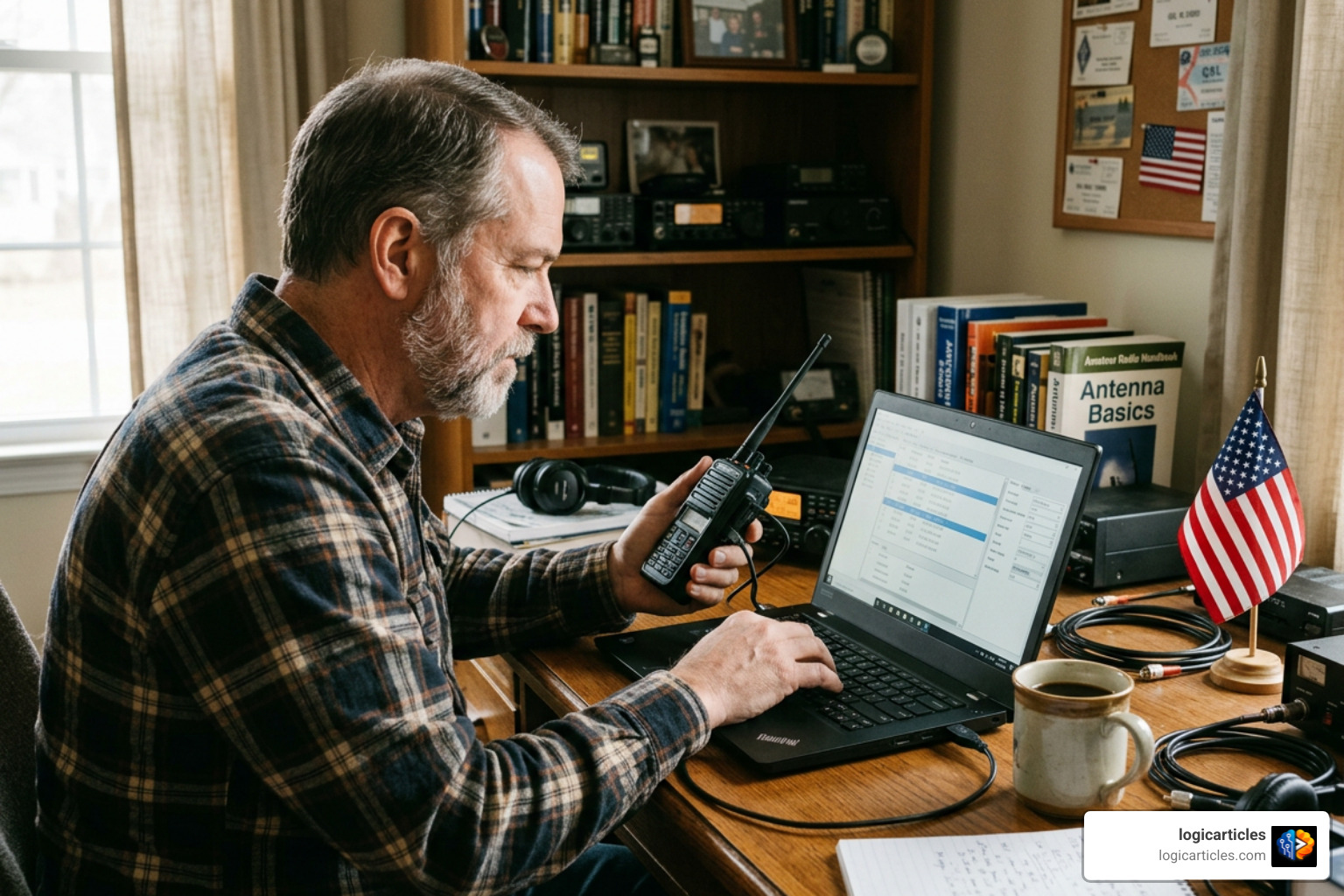
When it comes to the best CHIRP radio software, the answer for most amateur radio operators is straightforward: CHIRP-next is the one to use in 2026.
Here is a quick breakdown:
| Need | Best Choice |
|---|---|
| Most users (Windows 10+, macOS Big Sur+, Linux) | CHIRP-next |
| Older radios not yet in CHIRP-next | CHIRP-legacy (as a fallback only) |
| Paid alternative with dedicated support | RT Systems (~$49 per radio) |
CHIRP is a free, open-source radio programming tool that has been in development since 2008. It supports 737 radio models from manufacturers like Baofeng, Yaesu, Icom, and Kenwood — all in one place, at no cost.
Before CHIRP, programming a radio meant either:
- Navigating a painful menu system on the radio itself, or
- Buying expensive proprietary software for each radio brand
As one forum member put it when discovering how many frequencies a single database import can pull in: “I got well over 5,000 radio stations and it will be a very painful task to go through the entire list.” That kind of experience is common for beginners — but it is also very fixable once you know how CHIRP works.
This guide covers everything: which version to download, how to set it up, how to program your radio step by step, and how it stacks up against paid tools.
What is CHIRP and Why is it the Best Chirp Radio Software?
To understand why CHIRP is widely considered the best CHIRP radio software available, we have to look at the problem it solves. Every handheld transceiver (HT) or mobile radio has an internal memory bank. This bank stores frequencies, offset directions, CTCSS tones, and power levels.
Manually programming these settings using a radio’s physical keypad is incredibly tedious. It requires pressing dozens of buttons in precise sequences just to save a single channel. If you make one mistake, you often have to start over.
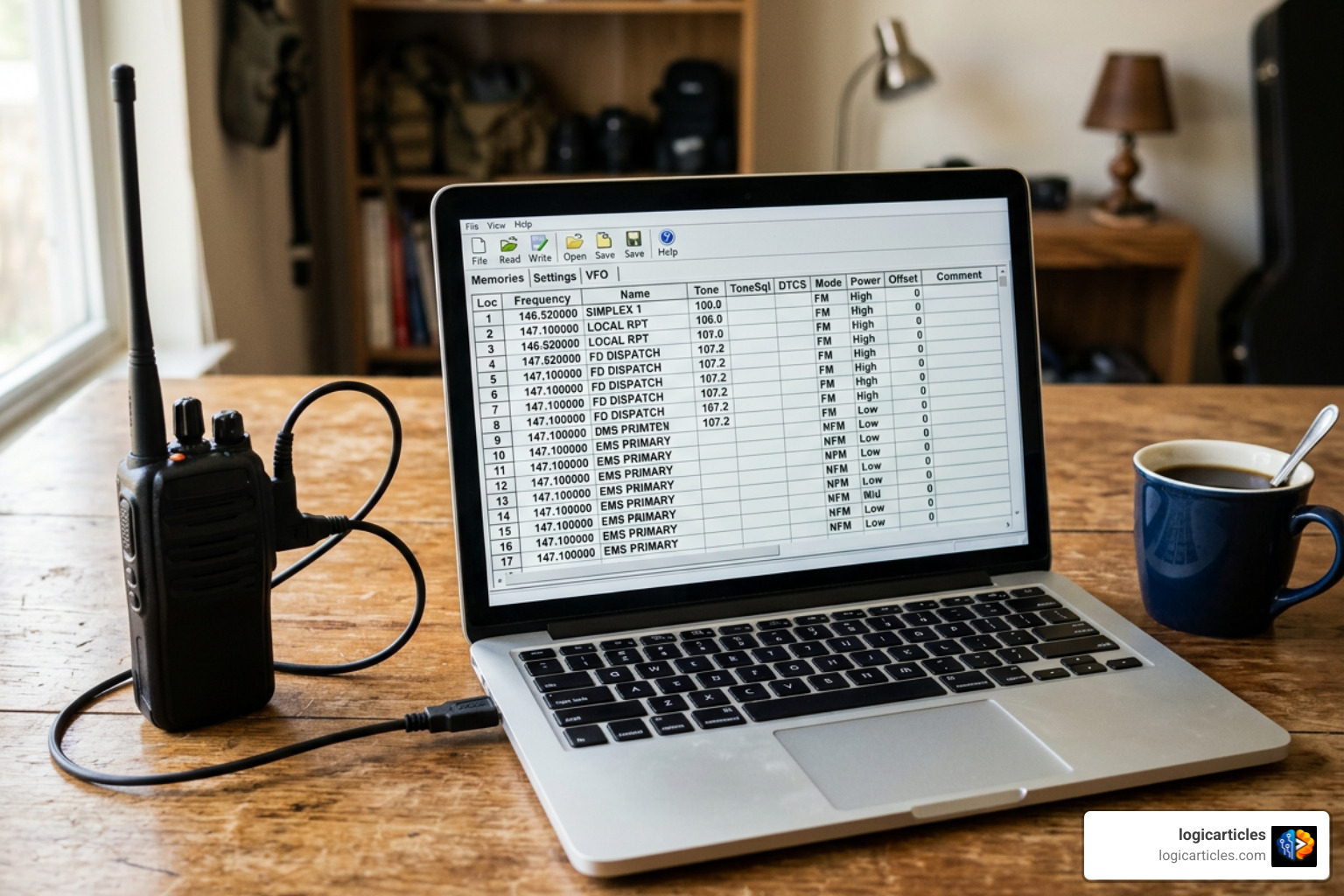
The Home – CHIRP project solves this by presenting your radio’s memory as a clean, simple spreadsheet on your computer. You can type in your frequencies, name your channels, set your tones, and write the entire configuration to your radio in seconds.
What truly makes CHIRP the ultimate tool is its universal compatibility. Instead of downloading separate, clunky software programs from Baofeng, Yaesu, Icom, and Kenwood, you can use CHIRP for almost all of them.
CHIRP is an all-volunteer, open-source project offered completely free of charge. It supports an astonishing 737 total radio models. Whether you are programming a cheap $25 Baofeng UV-5R for emergency preparedness or a high-end Icom mobile rig for your vehicle, CHIRP handles them all through a single, unified interface.
CHIRP-next vs. CHIRP-legacy: Which Version Should You Choose in 2026?
If you visit the official CHIRP website, you will see two main builds: CHIRP-next and CHIRP-legacy. Understanding the difference is critical for a smooth programming experience.
Historically, CHIRP was built using Python 2.7 and a graphical user interface (GUI) library called PyGTK. However, Python 2.7 reached its official End-of-Life (EOL) in 2020. As modern operating systems phased out Python 2.7 support, running the older version of CHIRP became increasingly difficult, especially for macOS and Linux users.
To keep the project alive, volunteer developers launched a massive rewrite to transition the entire program to Python 3 and wxPython. This modern build is called CHIRP-next.
CHIRP-next is the only version of CHIRP that is actively maintained. All new features, bug fixes, and newly supported radio models go directly into this build. It is designed to feel like a native application on modern operating systems, rather than a legacy Linux program running in a compatibility layer.
Here is a detailed comparison to help you choose:
| Feature / Specification | CHIRP-next (Recommended) | CHIRP-legacy (Fallback Only) |
|---|---|---|
| Active Development | Yes (Daily builds versioned by date) | No (Frozen, no new updates) |
| Python Version | Python 3 | Python 2.7 (Deprecated) |
| Windows Support | Windows 10 and later | Windows 2000 through Windows 11 |
| macOS Support | macOS Big Sur and later | macOS Intel & Apple Silicon (Requires Python 2.7) |
| Linux Support | Modern distros with Python 3.8+ | Legacy distros or Flatpak |
| Radio Drivers | 350+ migrated and fully validated | Older drivers not yet ported |
For almost every user in 2026, CHIRP-next is the correct choice. You should only use CHIRP-legacy if you are running an ancient operating system (like Windows XP) or if you own an obscure, older radio model whose driver has not yet been fully validated in the Python 3 build.
For more details on the transition and to grab the modern build, check out the ChirpNextBuild – CHIRP page.
How to Install and Set Up the Best Chirp Radio Software
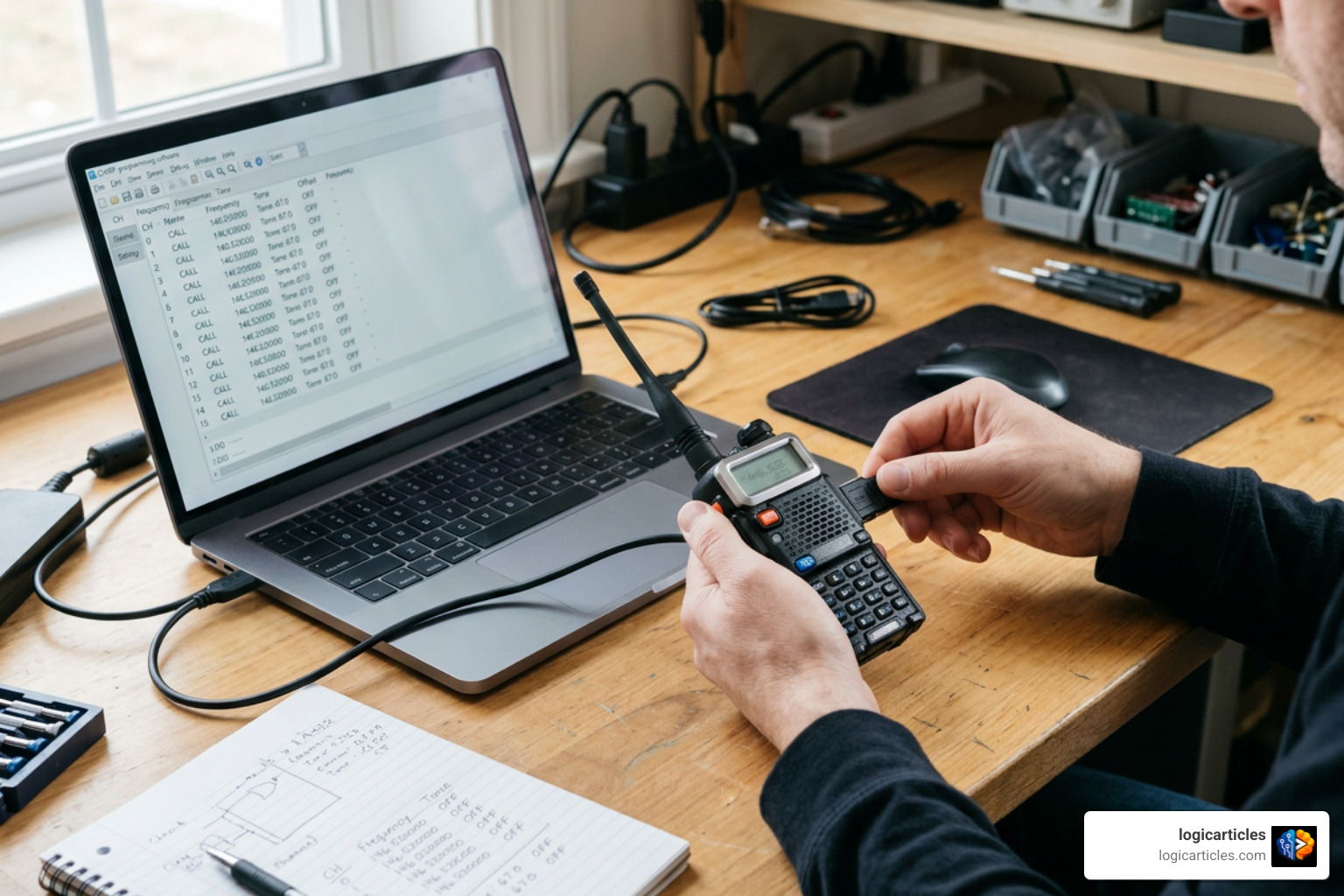
Getting started with CHIRP requires two main components: the software itself and a proper programming cable to bridge your computer and your radio.
System Requirements and Installation for the Best Chirp Radio Software
First, head to the official Download – CHIRP page to get the latest build. CHIRP does not use traditional version numbers. Instead, it is versioned by the date on which the build was automatically created (e.g., chirp-20260715).
- Windows Installation: Download the Windows installer. If you are upgrading from an older version, you do not need to uninstall it first. Simply close the running application and run the new installer to replace it. CHIRP-next also runs beautifully on Windows-on-ARM devices using the built-in compatibility layer.
- macOS Installation: Download the macOS application bundle. Like Windows, you can drag and drop the new version over the old one to update. Ensure your Mac is running macOS Big Sur or later.
- Linux Installation: Linux installation has changed significantly with CHIRP-next. Because modern Linux distributions discourage global pip installations, we use
pipxto isolate CHIRP while still giving it access to system GUI packages.
For detailed Linux steps, refer to ChirpOnLinux – CHIRP. Typically, you will install dependencies like python3-wxgtk4.0 and pipx via your package manager, download the .whl file, and install it using:
pipx install --system-site-packages ./chirp-xxxx-py3-none-any.whl
To avoid “Access Denied” errors when connecting your radio on Linux, you must add your user account to the serial port group (usually dialout or tty):
sudo usermod -a -G $(stat -c %G /dev/ttyUSB0) $USER
Remember to log out and back in for this change to take effect!
Programming Cable Setup and Driver Troubleshooting
The programming cable is the single biggest source of frustration for new CHIRP users. Many cheap cables use counterfeit Prolific or counterfeit FTDI chips.
When Windows or macOS updates its official drivers, these updates are designed to block or disable counterfeit chips, resulting in the dreaded “Error Code 10” in your Device Manager.
To save yourself hours of troubleshooting, we highly recommend purchasing an authentic FTDI programming cable. While they cost a few dollars more than the cheapest clones, they work out of the box without requiring manual driver rollbacks.
Once your cable is plugged into your computer:
- Open your computer’s Device Manager (Windows) or System Information (macOS).
- Look under Ports (COM & LPT) to find the COM port number assigned to your cable (for example,
COM3or/dev/ttyUSB0). - Make sure the cable is firmly seated in the radio. On many handheld radios (especially Baofengs), the two-pin connector requires a very firm push to click fully into place.
Step-by-Step Guide: Programming Your Radio with CHIRP
Now that your software is installed and your cable is connected, you are ready to program your first channel.
The Golden Rule: Always Back Up First
Before you edit a single setting, you must create a backup of your radio’s existing configuration. This is your safety net. If something goes wrong, you can flash this backup image to restore your radio to its factory state.
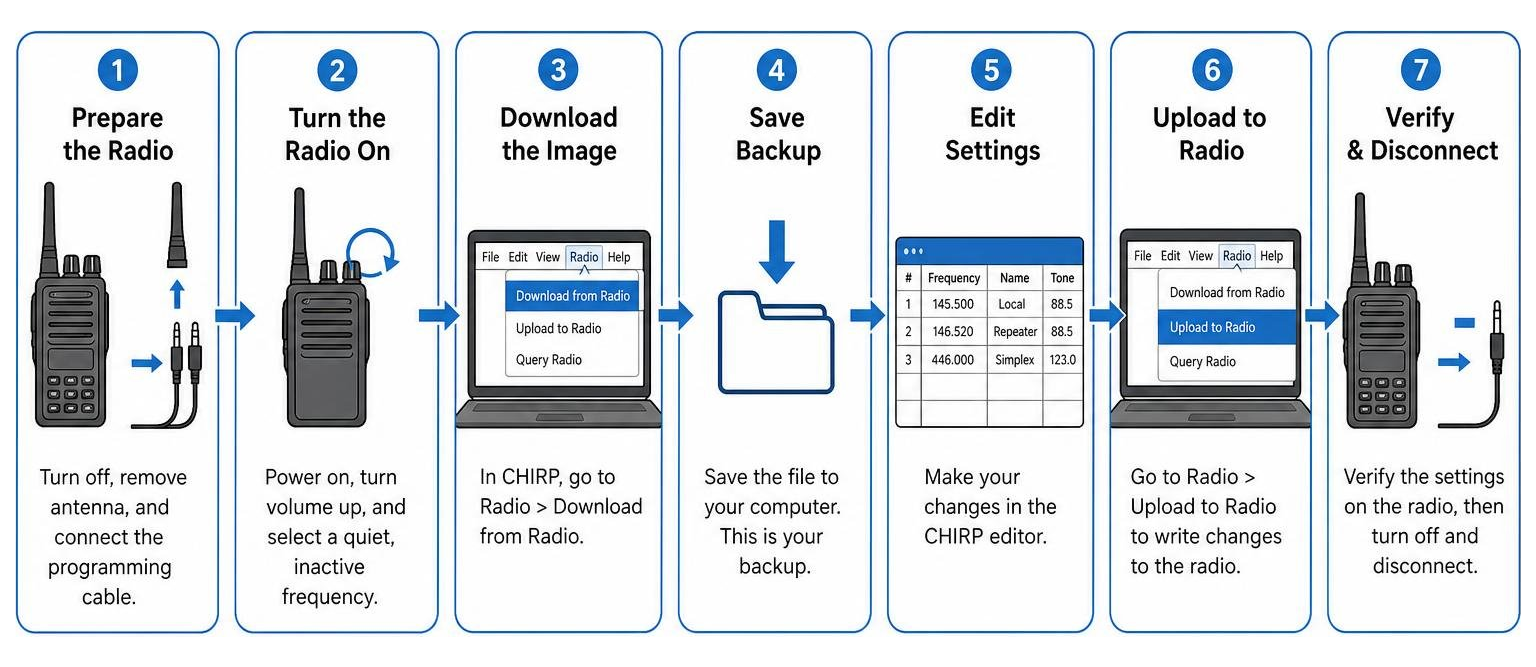
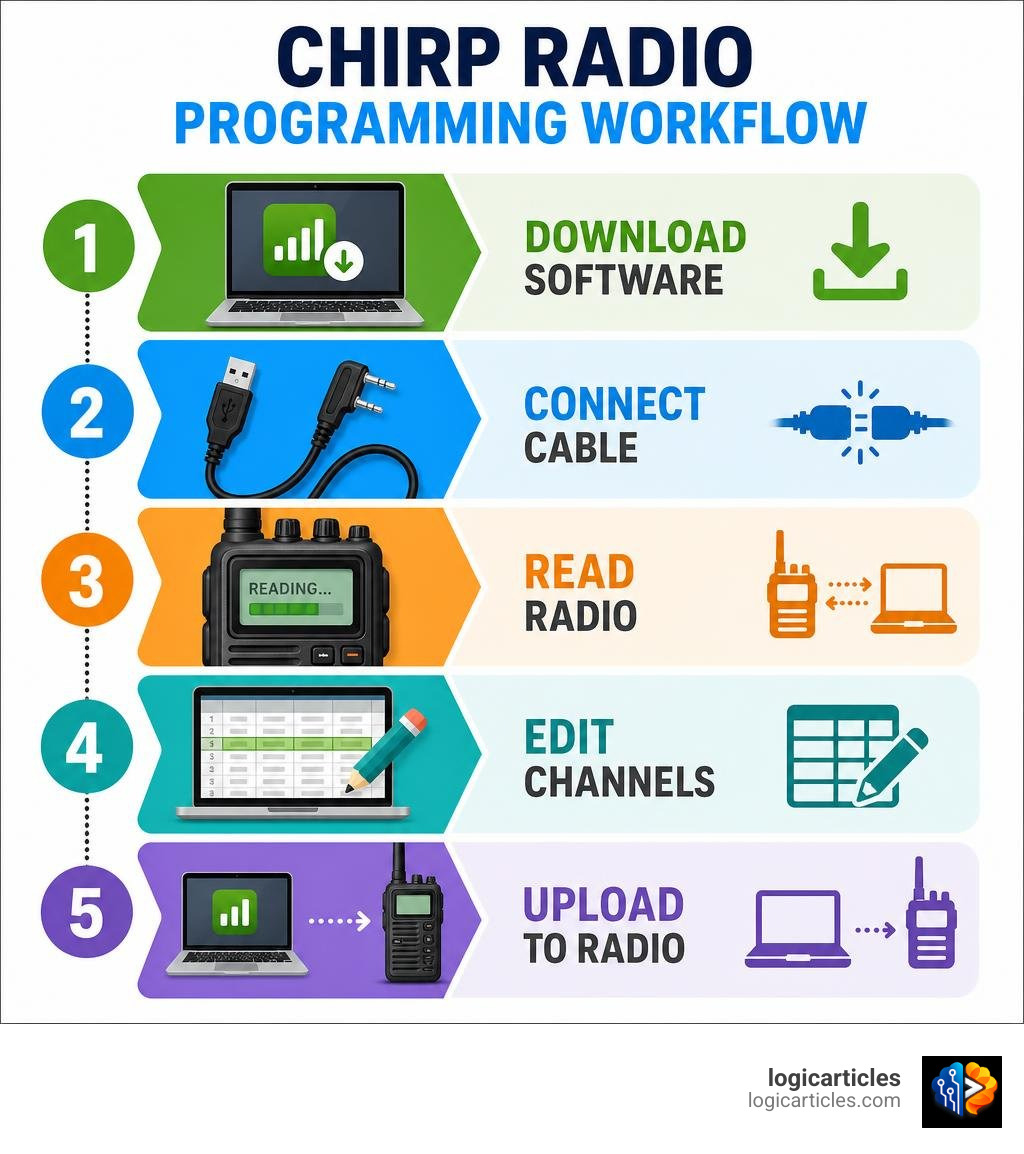
Here is the step-by-step process to download, edit, and upload:
- Prepare the Radio: Turn off your radio. Remove the antenna to prevent any incoming signals from disrupting the data transfer. Connect the programming cable to the computer and the radio.
- Turn the Radio On: Turn the volume knob all the way up to ensure the audio-tone-based data transfer has enough signal strength. Make sure the radio is tuned to a quiet, inactive frequency.
- Download the Image: In CHIRP, click Radio in the top menu and select Download from Radio.
- Select Port and Model: Choose your COM port, your radio manufacturer (e.g., Baofeng), and your specific model (e.g., UV-5R). Click OK.
- Save Your Backup: Once the download completes, a tab will open showing your radio’s current channel list. Immediately go to File > Save As and save this file as
original_backup.img. Store it somewhere safe!
Importing Frequencies from Online Databases
Instead of typing in hundreds of frequencies manually, you can pull live, verified data directly from online databases.
- RepeaterBook: This is a free, crowdsourced directory of amateur radio repeaters. In CHIRP, go to Radio > Import from data source > RepeaterBook. You can query repeaters by your state, county, or zip code, and filter by specific bands (like 2-meter or 70-centimeter) to avoid overloading your radio’s memory.
- RadioReference: If you have a paid Premium subscription to RadioReference, you can log in through CHIRP and import local public safety, marine, and aviation frequencies.
- Stock Configurations: CHIRP comes pre-loaded with essential frequency lists. Go to File > Open stock config to quickly import NOAA Weather Alerts, US VHF/UHF calling frequencies, FRS/GMRS channels, or Marine VHF channels.
Best Practices for Channel Organization and Safety
When organizing your channels, a little planning goes a long way.
- Leave Channel Gaps: Don’t crowd your list. For example, assign channels 1 to 10 for your personal simplex frequencies, start local repeaters at channel 11, and save channel 100+ for weather stations. This prevents you from having to shift your entire list down when you want to add a new contact later.
- Set Duplex to ‘Off’ for Receive-Only Channels: If you program emergency services, railroad, or NOAA weather channels, you must prevent your radio from transmitting on them. Transmitting on these frequencies without authorization is illegal and can disrupt critical communications. In the CHIRP spreadsheet, find the Duplex column for these channels and set it to Off.
- Use the ‘Skip’ Function: For continuous broadcast channels like NOAA weather, set the Skip column to S. This ensures that when you put your radio in scan mode, it won’t get stuck on the continuous weather broadcast, allowing you to scan other active channels.
- Respect Memory Limits: Budget handhelds like the Baofeng UV-5R are hardware-limited to 128 memory channels. Do not try to import a massive regional database of 5,000 frequencies. Filter your imports down to your local area first.
Once your spreadsheet is organized, go to Radio > Upload to Radio to write the new settings to your transceiver.
CHIRP vs. Paid Alternatives: Is Free Software Enough?
While CHIRP is the undisputed king of free programming tools, paid alternatives like RT Systems are highly popular in the amateur radio community.
RT Systems software costs approximately $49 per radio model and typically includes a high-quality, guaranteed-to-work programming cable.
Here is how they compare:
| Feature | CHIRP (Free) | RT Systems (Paid) |
|---|---|---|
| Cost | Completely Free | ~$49 per radio model |
| Cables | BYO (Must avoid counterfeits) | Included / Guaranteed FTDI |
| OS Compatibility | Windows, macOS, Linux | Windows and macOS only |
| Multi-Radio Cloning | Yes (Via CSV export/import) | No (Software is model-specific) |
| Digital Modes (DMR) | Limited / Basic support | Excellent / Full support |
| Ease of Use | Simple, generic interface | Custom-tailored to radio features |
The Verdict on CHIRP vs. RT Systems
For the budget-conscious operator, those running Linux, or those who own a large collection of different radio brands, CHIRP is the clear winner. It allows you to maintain a master frequency list in a CSV file and easily copy it across a Kenwood, a Yaesu, and a Baofeng using a single program.
However, RT Systems is worth every penny if you are programming complex digital radios (like DMR, D-Star, or System Fusion) or high-end HF rigs. RT Systems designs custom software for each specific radio model, allowing you to access advanced menu settings that CHIRP does not support.
Additionally, RT Systems handles firmware updates flawlessly and offers professional, live technical support if you run into connection issues.
Troubleshooting and Advanced Radio Science Tools
If you encounter issues while using the best CHIRP radio software, or if you want to explore advanced radio science, the open-source community has several resources available.
What to Do If Your Radio Model Is Not Supported
Because CHIRP is built by volunteers, some newer or highly obscure radio models may not have validated drivers in CHIRP-next yet.
If your radio isn’t working:
- Go to Help > Show debug log location in CHIRP to locate your
debug.logfile. - Visit the official CHIRP Redmine issue tracker and search to see if someone else has reported the issue.
- If not, open a new support ticket. Be sure to specify your exact radio model in the subject line and attach your
debug.log.
The volunteer developers are incredibly dedicated. They frequently buy obscure radios on eBay or borrow them from community members just to reverse-engineer the protocols and write working drivers!
Advanced Ionospheric Sounding with the Best Chirp Radio Software
It is worth noting that in the broader world of radio science, the term “chirp” also refers to high-frequency (HF) linear-FM signals used to measure the ionosphere.
If you are interested in this advanced scientific side of radio, there are excellent open-source tools available:
- jvierine/chirpsounder2: This is an open-source Python tool designed to detect HF linear-FM chirp sounders in Digital RF recordings. It allows you to convert raw software-defined radio (SDR) data into oblique ionograms, helping you track ionospheric changes and monitor signal propagation from thousands of miles away.
- Andrew Senior – ChirpView: This is a legacy Windows program designed for receiving ionospheric chirp sounders. While it is no longer actively maintained, its source code is available under the GNU General Public License (GPL) and serves as an excellent resource for radio science enthusiasts.
Frequently Asked Questions about CHIRP
Is CHIRP completely free to use?
Yes! CHIRP is a 100% free, open-source project developed entirely by volunteers. There are no hidden fees or premium paywalls. However, hosting and development do cost money. If you find the software useful, consider disabling your adblocker on their website or donating via PayPal to help support the project.
Can I run CHIRP-next and CHIRP-legacy on the same computer?
Yes, you can run both. On Windows, you can install the modern CHIRP-next version normally and run the older CHIRP-legacy build as a standalone .zip file when needed. On macOS, you can keep both .app bundles in your Applications folder; simply rename one (e.g., CHIRP-legacy.app) to prevent them from overwriting each other.
Why does my computer say “Access Denied” when connecting to the radio?
This is almost always caused by one of two issues:
- Driver Conflicts: Your computer is using an incompatible driver for a counterfeit programming cable chip. You will need to roll back the driver or purchase an authentic FTDI cable.
- Linux Permissions: On Linux, your user account does not have permission to access the serial USB port. You must add your user to the
dialoutorttygroup using theusermodcommand.
Conclusion
Programming your amateur radio does not have to be a frustrating chore. With the best CHIRP radio software, you can easily organize your channels, import local repeaters, and keep your configurations backed up safely.
While paid options like RT Systems have their place for complex digital rigs, CHIRP-next remains the ultimate universal tool for the vast majority of ham radio operators in 2026.
For more software guides and deep dives into the best digital tools, check out our Best Software Category at logicarticles. Happy programming, and 73!