The Best Free Image Editing Software for Mac in 2026
The best free image editing software MAC users can download right now includes several strong options, each suited to different skill levels and needs.
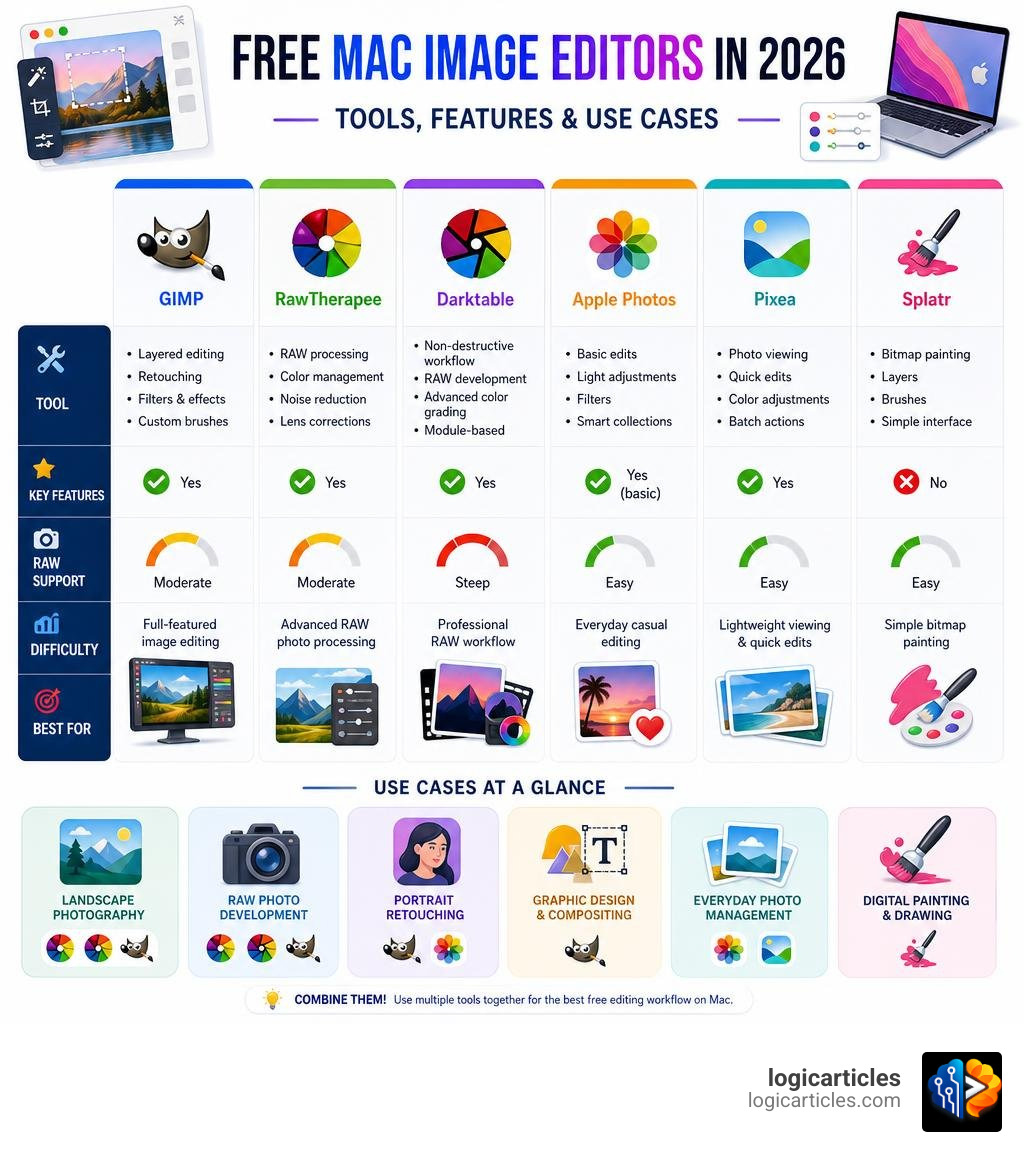
Quick answer — top free image editors for Mac in 2026:
| Software | Best For | RAW Support | Difficulty |
|---|---|---|---|
| GIMP | Full-featured editing | Yes | Moderate |
| RawTherapee | RAW photo processing | Yes | Moderate |
| Darktable | Professional RAW workflow | Yes | Steep |
| Apple Photos | Everyday casual editing | Yes (basic) | Easy |
| Pixea | Lightweight viewing + quick edits | Yes | Easy |
| Splatr | Simple bitmap painting | No | Easy |
Mac users are in a genuinely good position here. Unlike some platforms, macOS has a rich mix of powerful open-source tools, capable built-in apps, and polished native alternatives — all available at no cost.
One blogger who tested these tools put it plainly: Apple’s built-in Photos app is “surprisingly powerful once you open it” — yet dedicated tools like GIMP and RawTherapee go far deeper for photographers and designers who need more control.
Whether you’re retouching travel photos, processing RAW files from a mirrorless camera, or just need to crop a screenshot quickly, there’s a free Mac editor that fits the job.
This guide covers every major option — what each does well, where it falls short, and how to combine them for a powerful zero-cost workflow.
Top Contenders for Free Image Editing Software MAC in 2026
When looking for the perfect free image editing software MAC application, we have to consider how well these programs run on modern macOS releases like macOS 16 Tahoe. Apple Silicon (M1, M2, M3, and M4 chips) has changed the game for performance. A tool that isn’t optimized for ARM64 architecture will feel sluggish, draining your MacBook’s battery via Rosetta translation.
Fortunately, the open-source community and independent Mac developers have stepped up. The top contenders in 2026 offer excellent performance, native Apple Silicon support, and professional-grade toolsets that cost absolutely nothing.
GIMP: The Ultimate Free Image Editing Software MAC Powerhouse
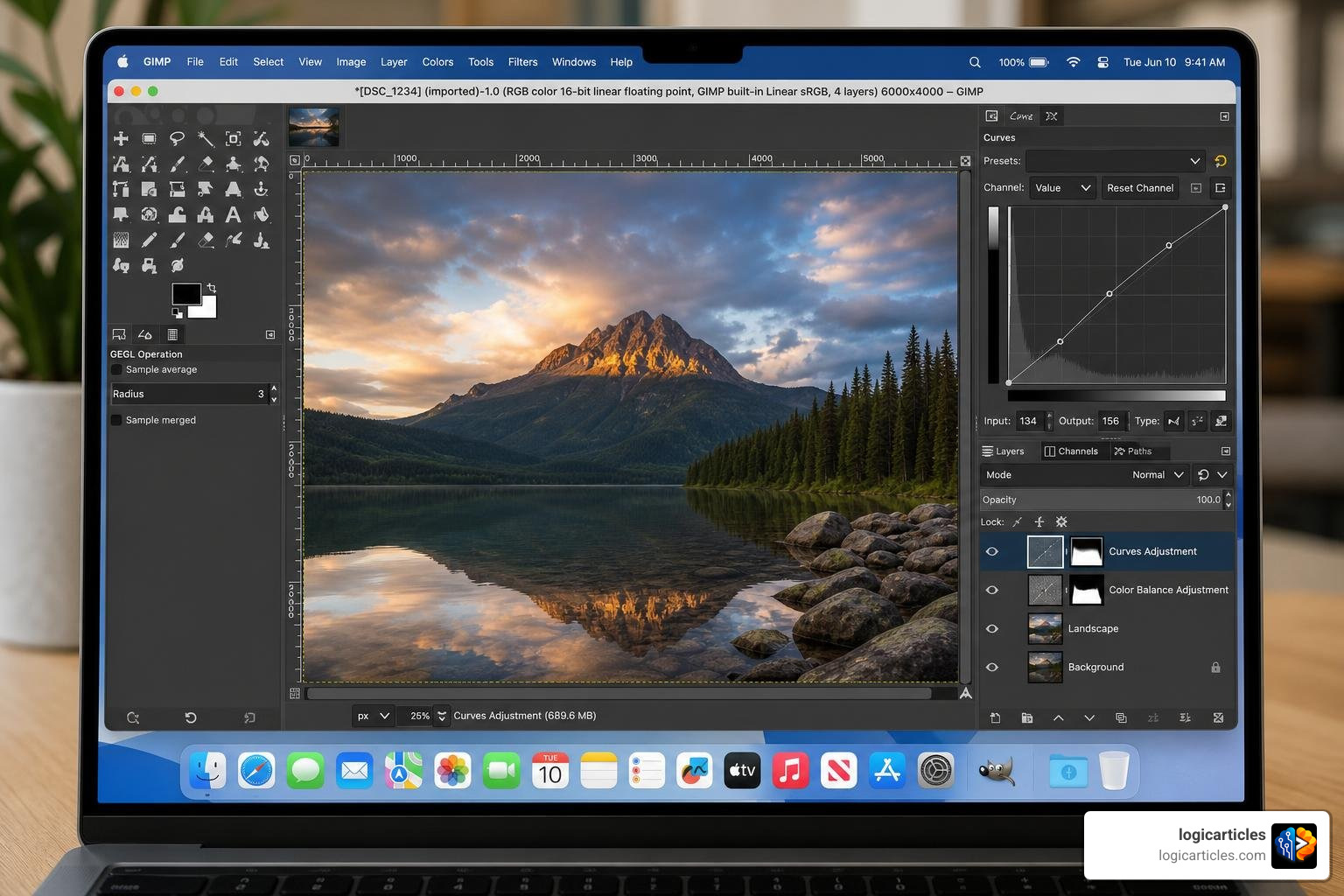
If you are looking for a complete replacement for Adobe Photoshop, GIMP (GNU Image Manipulation Program) remains the undisputed king of open-source raster graphics.
For Mac users, GIMP has evolved significantly. The macOS builds are highly stable, and you can download the latest installers directly from the GIMP macOS Downloads directory.
- File Sizes & Architecture: The GIMP 2.10.38 ARM64 version is highly optimized for Apple Silicon at 281.4 MiB, while the older Intel x86_64 version sits at 302.0 MiB.
- Extensibility: One of GIMP’s greatest strengths is its modular nature. It provides massive extensibility through integration with programming languages like Python, Scheme, and Perl. This allows us to automate complex workflows and run custom scripts.
- Feature Set: GIMP features advanced layer masks, high-fidelity color management, channel manipulation, and customizable brush engines. While it doesn’t support Photoshop plugins natively out of the box with 100% compatibility, many community-made add-ons bridge the gap beautifully.
RawTherapee: Advanced RAW Processing and Free Image Editing Software MAC Workflows
RawTherapee is a powerhouse designed specifically for non-destructive RAW photo development. If your primary goal is to take files directly from your digital camera and adjust exposure, color, and sharp detail, this is one of the best tools available.
- Non-Destructive Engine: Unlike pixel editors, RawTherapee never alters your original file. It saves your edits as a sidecar file, applying them dynamically.
- Color Management & Camera Profiles: It features an incredibly advanced color handling engine, supporting custom ICC and DCP camera profiles to ensure your colors are perfectly accurate.
- The Learning Curve: Because RawTherapee was built by and for imaging purists, its interface can feel a bit clinical. The dark, muted design and dense rows of sliders can look intimidating at first, but the level of granular control over demosaicing and noise reduction is unmatched in the free space.
Darktable: Professional-Grade RAW Development
For those who want an open-source alternative to Adobe Lightroom, Darktable is the premier choice. It acts as both a virtual “lighttable” for organizing your library and a “darkroom” for developing RAW images.
- Local Adjustments and Masking: Darktable features an incredibly sophisticated masking system. You can draw highly specific parametric and drawn masks to apply exposure, contrast, or color changes to very precise regions of an image.
- Database Management: It includes a robust cataloging system, allowing you to tag, star-rate, and filter thousands of images.
- Privacy Protection: Unlike modern commercial editors that require cloud logins and constantly analyze your usage data, Darktable runs entirely locally. It respects your privacy completely, ensuring your photo library remains yours alone.
Pixea and Splatr: Lightweight Native Alternatives
Sometimes you don’t need a heavy, multi-gigabyte application to perform simple edits. That is where lightweight, native Mac apps shine.
- Pixea: At just 158.6 MB, Pixea is a lightning-fast image viewer and editor built specifically for macOS. It works wonderfully with modern formats like HEIC, JPEG XL, PSD, RAW, and WebP. It even includes surprisingly powerful AI tools like ML-based super-resolution (2x/4x upscaling) and intelligent object removal.
- Splatr: If you miss the simplicity of classic MS Paint but want a modern, native macOS experience, Splatr is a fantastic choice. Built entirely with Swift, SwiftUI, and AppKit, it is a lightweight bitmap editor requiring macOS 13.0 (Ventura) or later. You can check out its development and download releases directly on the Splatr on GitHub) page. Splatr includes 16 essential tools (like Brush, Airbrush, Eraser, and Color Picker) and avoids all the bloat, accounts, and cloud integration of modern software.
Built-In Photos App vs. Dedicated Free Editors
Many Mac users overlook the software that is already sitting in their Dock. Apple’s Photos app has grown from a simple media organizer into a highly competent editor. But how does it hold up against dedicated open-source tools?
| Feature | Apple Photos | GIMP | RawTherapee / Darktable |
|---|---|---|---|
| Target Audience | Casual users & hobbyists | Graphic designers & retouchers | RAW photographers |
| iCloud Integration | Seamless syncing across Apple devices | None | None |
| Layer Support | No | Yes (Advanced) | No (Uses local adjustment masks) |
| RAW Processing | Basic sliders | Needs a plugin/pre-processor | Advanced demosaicing and profiling |
| User Friendliness | Extremely easy | Moderate to steep | Steep |
| AI Features | Basic subject isolation | Limited (Manual plugins) | None |
Apple Photos excels at quick, global adjustments. Its sliders for light, color, and definition are intuitive, and it syncs flawlessly across your Apple ecosystem. If you are editing iPhone photos on the go, it is incredibly convenient.
However, once you need to perform advanced tasks — like removing a complex object from a background, working with multiple layers, or editing local areas of a photo with precise color curves — Apple Photos hits a wall. That is when you need to transition your work to a dedicated editor like GIMP or Darktable.
Open-Source vs. Commercial Mac Image Editors
To understand the value of free image editing software MAC options, we have to look at how they compare to the commercial giants on macOS.
The commercial landscape on Mac is dominated by subscription models like Adobe Photoshop and Lightroom, alongside popular paid native apps. For instance, Pixelmator Pro on the App Store (which is a 570.2 MB Universal app optimized for Apple Silicon supporting over 750 RAW cameras) and the classic Acorn 8 Photo Editor (which requires macOS 14 Sonoma or later and features AI subject selection) are excellent paid options.
While these commercial apps offer incredibly polished user interfaces and cutting-edge machine learning tools, open-source software holds several major advantages:
- No Subscriptions or Hidden Fees: Commercial software can easily cost hundreds of dollars over a few years. Open-source tools like GIMP, Darktable, and RawTherapee are entirely free forever.
- Cross-Platform Consistency: If you work on both macOS and Linux or Windows, open-source tools look and behave exactly the same across all platforms.
- Control Over Updates: Commercial apps can change their licensing terms or push updates that break your workflow. With open-source tools, you control when and how you upgrade.
Of course, there are trade-offs. Open-source software often has a steeper learning curve, less cohesive user interface design, and slower support for brand-new camera RAW formats compared to multi-billion-dollar commercial suites.
If your creative interests extend beyond photo editing into digital art or multi-dimensional design, you might also want to explore our guides on the Best Free Drawing Software In 2026 7 Top Tools Artists Love to find complementary tools for your Mac.
Advanced Workflows: Combining Free Tools on macOS
You don’t have to limit yourself to just one application. In fact, some of the best results come from combining the unique strengths of different free tools.
Here is a highly effective, professional-grade workflow you can use on macOS without spending a single penny:
- Organization & RAW Development in Darktable: Import your camera’s RAW files into Darktable. Use its virtual lighttable to organize and tag your shoot. Then, move to the darkroom module to correct exposure, balance the white point, and apply lens corrections.
- Lossless Export (TIFF): Once your RAW adjustments are complete, export your image using a high-quality, lossless format. We recommend exporting as a 16-bit TIFF file. This preserves all the color depth and detail without introducing JPEG compression artifacts.
- Advanced Retouching in GIMP: Open your exported TIFF file in GIMP. Here, you can perform advanced pixel-level editing. Use layer masks for selective adjustments, apply GIMP’s cloning and healing tools to remove blemishes, or add text and graphic design elements.
- Batch Processing with Pixea: If you have a large folder of completed images that need to be resized or converted for the web, open Pixea. Use its batch editor to quickly convert your TIFF files into WebP or JPEG formats while applying a watermark in one quick step.
By utilizing this multi-app pipeline, you get the absolute best RAW processing engine combined with the most powerful free layered pixel editor available. For those interested in expanding their digital media creation pipeline even further, check out our analysis of the Best 3D Animation Software to see how free tools are transforming other creative industries.
Frequently Asked Questions about Mac Image Editors
Does macOS have a built-in free image editor?
Yes! macOS includes two highly capable built-in utilities: Apple Photos and Preview. Photos is excellent for color corrections, cropping, and managing your personal library. Preview, while primarily a document viewer, includes surprisingly robust “Markup” tools that allow you to resize images, crop them, extract backgrounds using “Instant Alpha,” and add shapes or annotations.
Can GIMP replace Photoshop on Apple Silicon Macs?
For 90% of users, yes. GIMP supports advanced layers, masks, blending modes, and custom brushes. Because it has native ARM64 builds, it runs incredibly fast on M1, M2, M3, and M4 Macs. However, if your daily professional workflow relies heavily on Photoshop-specific features like CMYK print profiles, native PSD smart objects, or Adobe’s proprietary cloud AI tools, you may find the transition challenging.
Which free Mac image editors support RAW files?
RawTherapee and Darktable are the premier free choices for RAW development on Mac. Additionally, the lightweight image viewer Pixea supports viewing and basic adjustments of RAW files, and Apple’s built-in Photos app can import and edit RAW images natively using macOS’s system-level RAW engine.
Conclusion
Finding the right free image editing software MAC application doesn’t mean you have to compromise on quality. Whether you choose the sheer power of GIMP, the photographic precision of Darktable, or the lightweight simplicity of Splatr, the macOS ecosystem in 2026 offers incredible tools for every creative project.
We encourage you to experiment with these free tools to build a workflow that fits your creative style. If you want to discover more ways to optimize your digital workspace and boost your output, explore our curated resources in our productivity category here at logicarticles.