Why the Best Gaming Software Matters for Every PC Gamer
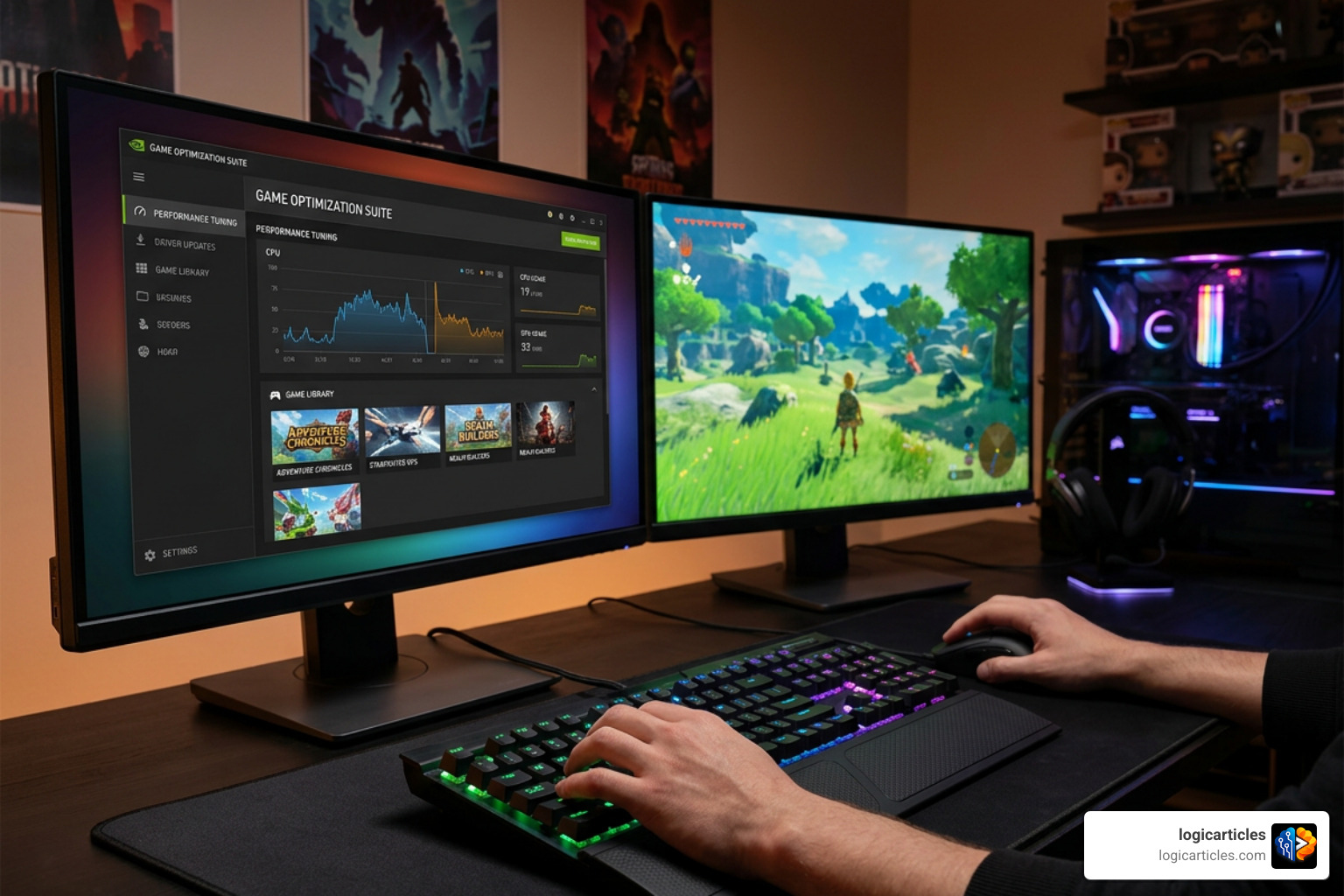
If you’re looking for the best gaming software right now, here’s a quick answer:
Top Gaming Software by Category (2026)
| Category | Best Tool(s) |
|---|---|
| Driver updates & GPU control | NVIDIA App, AMD Adrenalin |
| Hardware monitoring & overclocking | MSI Afterburner, HWMonitor |
| Game library management | Steam, Playnite, Razer Cortex |
| Performance & FPS boost | Razer Cortex, Process Lasso |
| Visual enhancements | ReShade, NVIDIA Freestyle |
| Latency reduction | ExitLag |
| Macros & keybinds | AutoHotkey |
| RGB & peripheral control | Corsair iCUE |
| Handheld PC optimization | ZenDeck |
Your hardware can only take you so far. The software running behind the scenes — drivers, monitors, boosters, launchers — is what turns a good gaming PC into a great one.
Think about it: Steam has over 120 million monthly active users. NVIDIA GeForce Experience (now the NVIDIA App) has over 100 million monthly active users. MSI Afterburner is trusted by more than 10 million gamers for GPU tuning. These aren’t niche tools. They’re the backbone of modern PC gaming.
But with so many options across so many categories, it’s easy to feel overwhelmed. Do you need a game booster and a hardware monitor? Is free software good enough, or is paid worth it? Can running too many tools at once hurt performance?
This guide breaks it all down — clearly, without the jargon.
Key Categories of the Best Gaming Software
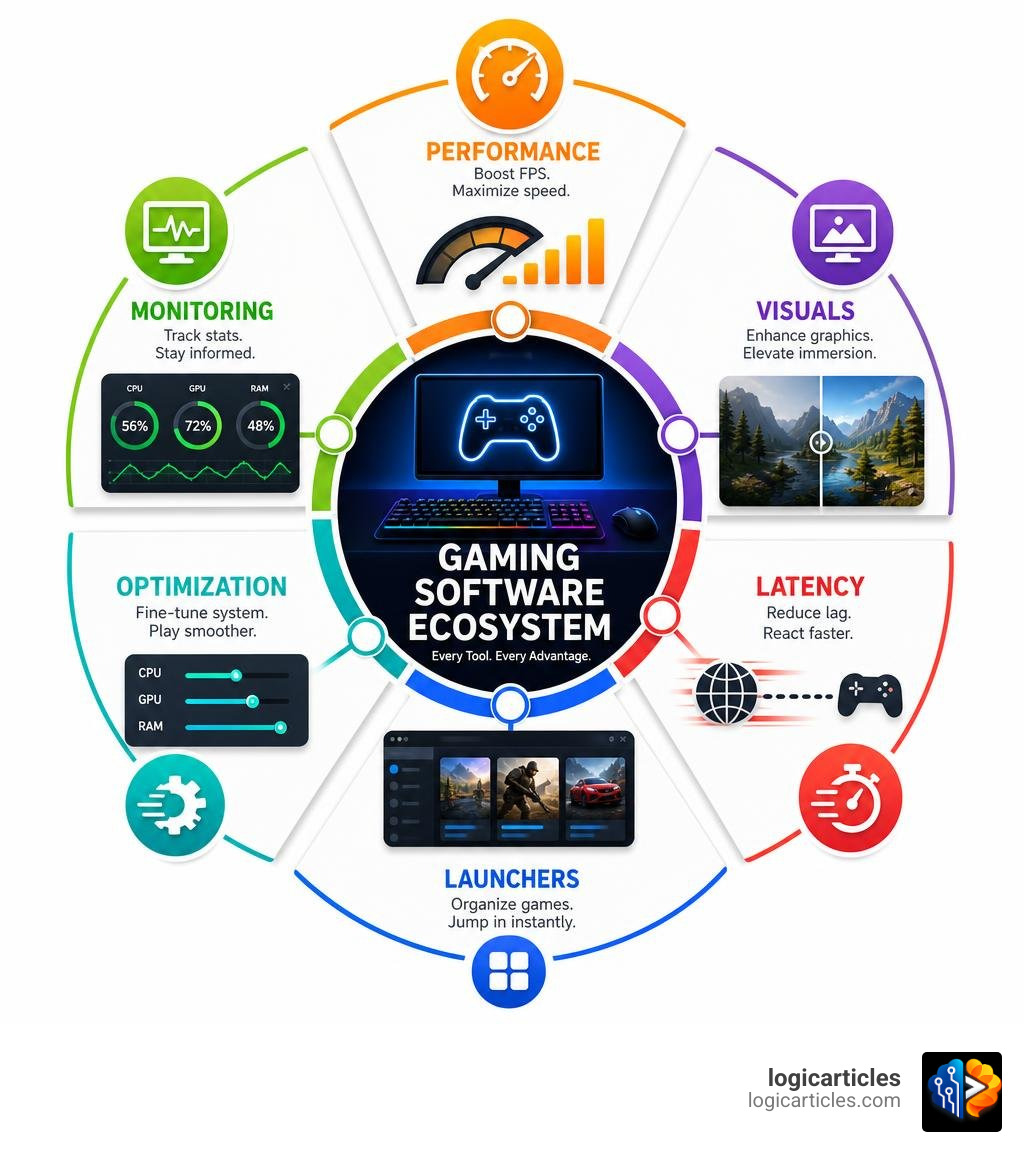
To understand how the best gaming software can elevate your setup, it helps to look at the landscape as an ecosystem. Different tools solve different bottlenecks. If your hardware is the muscle, your gaming software is the central nervous system coordinating every movement.
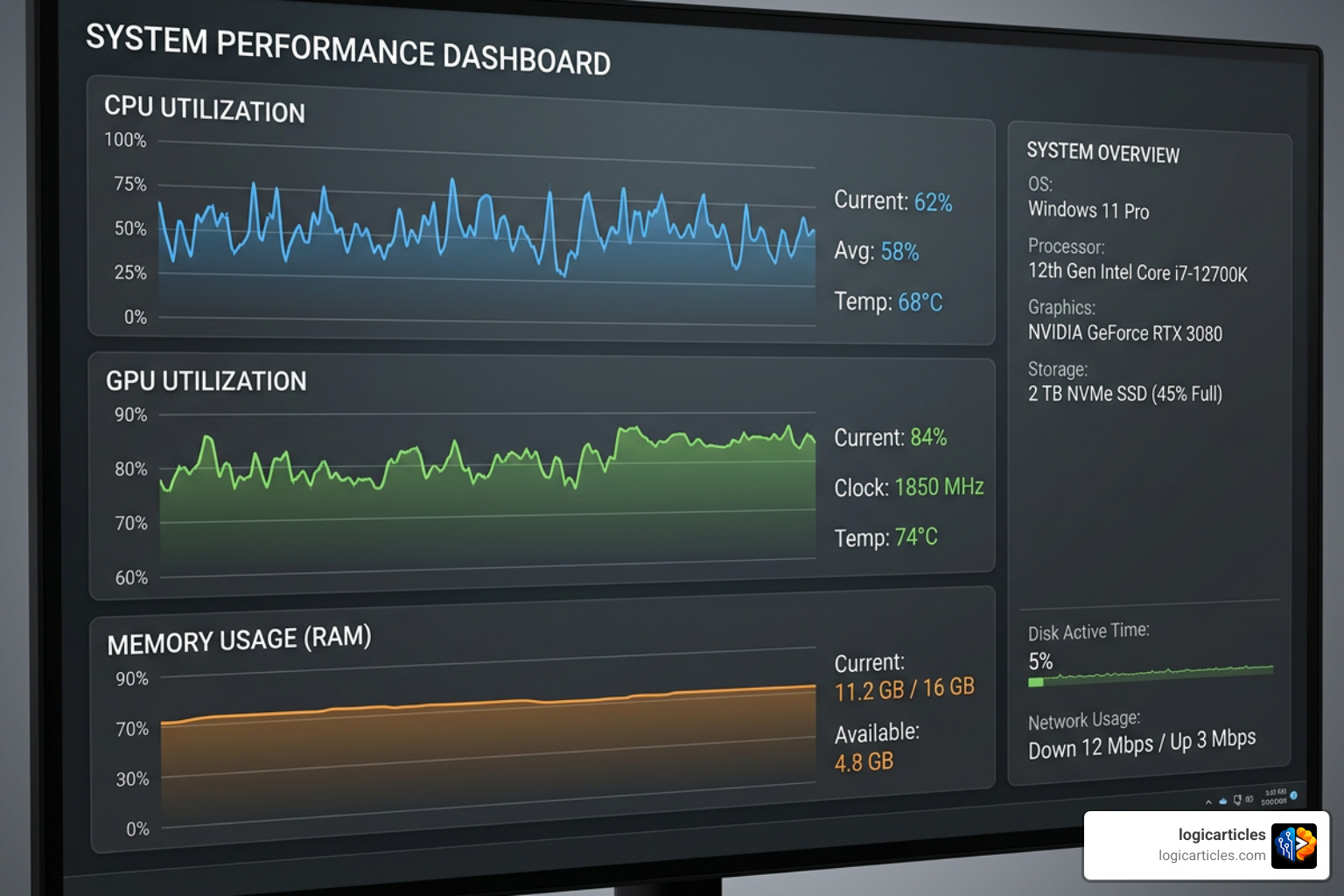
Here are the primary categories of gaming software that we rely on in 2026:
- Performance Optimization: These utilities focus on squeezing every frame out of your hardware. They do this by prioritizing game processes, cleaning up RAM, adjusting CPU affinity, or managing your system’s power states.
- System Monitoring: Heat is the ultimate enemy of performance. Monitoring software tracks your CPU and GPU temperatures, fan speeds, voltages, and frame times. This data helps you spot thermal throttling before it ruins your match.
- Graphics Control and Enhancements: Beyond standard driver updates, graphics software lets you inject custom post-processing filters, upscale resolutions, or enable AI-powered visual upgrades like HDR on older titles.
- Latency and Connection Reduction: For competitive online games, frame rate is only half the battle; the other half is ping. Latency software optimizes how your network packets travel to game servers, minimizing jitter and packet loss.
- Library Consolidation: With games scattered across multiple store clients, library managers bring all your installed titles into a single, unified dashboard.
- Automation and Peripheral Control: These tools handle everything from custom macro keybindings to syncing the RGB lighting across your desktop components.
As we look toward the future, we are also seeing deep integration of artificial intelligence in these tools. To see how AI is reshaping software as a whole, check out our guide on the AI tools you should know in 2026.
Top Proprietary Tools for Performance and Customization
Proprietary software is built directly by hardware manufacturers or established software brands. Because these companies have direct access to hardware blueprints and massive development budgets, their utilities are highly reliable, regularly updated, and packed with advanced features.
Below is a quick look at how the top proprietary options compare across key categories:
| Software Tool | Primary Purpose | Key Benefit | Resource Footprint | Best For |
|---|---|---|---|---|
| NVIDIA App | Driver updates & GPU tuning | AI visual filters & seamless recording | Medium | NVIDIA GPU owners |
| AMD Adrenalin | All-in-one GPU control | One-click HYPR-RX performance boost | Medium | AMD GPU owners |
| Corsair iCUE | RGB & system monitoring | Unified peripheral and fan control | High | Corsair ecosystem users |
| Razer Cortex | System optimization | Automatic RAM and processor boosting | Low to Medium | Budget/mid-range PCs |
Let’s dive deeper into these major categories and look at the standout proprietary tools you should install today.
Graphics Control and the Best Gaming Software for Drivers
Your graphics card is the heart of your gaming rig, but without the right drivers, it’s just an expensive paperweight. Both major GPU manufacturers have consolidated their driver and tuning tools into incredibly powerful suites.
NVIDIA App
In 2026, the unified NVIDIA App has officially replaced the older GeForce Experience and the legacy Control Center. It is the definitive companion for anyone running a GeForce RTX card.
- The Pros: It combines driver updates, GPU overclocking, and game settings optimization into a single, snappy interface that does not require a mandatory login. The app features AI-powered visual enhancements like RTX HDR, which brings high-dynamic-range lighting to older DirectX and Vulkan games. It also features RTX Dynamic Vibrance to make colors pop without crushing details. For content creators, ShadowPlay supports recording up to 8K HDR at 30 fps or 4K HDR at 120 fps using the highly efficient AV1 codec.
- The Cons: It still requires a decent amount of system storage, and its advanced AI features are locked behind newer RTX hardware.
AMD Software: Adrenalin Edition
If you are running a Radeon GPU, the AMD Software: Adrenalin Edition™ Application is your command center. AMD has long integrated all tuning, recording, and driver options into a single application.
- The Pros: Adrenalin is incredibly feature-rich. It offers one-click performance profiles via HYPR-RX, which automatically enables AMD Fluid Motion Frames (AFMF 2.1) for massive frame-rate generation, Radeon Anti-Lag for ultra-low input latency, and Radeon Super Resolution upscaling. It also includes built-in performance tuning (overclocking and undervolting) and local AI tools like AMD Chat, a locally run chatbot.
- The Cons: The sheer number of sliders, toggles, and performance metrics can be highly intimidating for casual gamers.
Hardware Monitoring and Optimization Utilities
Once your drivers are sorted, you need to make sure your hardware is running cool and performing efficiently.
MSI Afterburner
MSI Afterburner is the gold standard of GPU overclocking and monitoring, used by over 10 million gamers worldwide. Despite its name, it works flawlessly with graphics cards from any manufacturer (not just MSI).
- The Pros: It is completely free, lightweight, and incredibly stable. It allows you to adjust GPU core clocks, memory clocks, voltages, and power limits safely. It also features a customizable fan curve editor. When paired with RivaTuner Statistics Server (RTSS), it provides the best in-game overlay for tracking real-time FPS, frame times, and temperatures.
- The Cons: The interface looks a bit dated, and there is a slight learning curve if you want to set up custom on-screen displays.
Corsair iCUE
If you have Corsair fans, memory, coolers, or peripherals, the iCUE Software | Drivers | Software | CORSAIR acts as your central hub.
- The Pros: It excels at unified RGB lighting through features like iCUE Murals, which syncs your entire room’s smart lighting (including Philips Hue and Nanoleaf) to your screen’s visuals. It also allows you to set custom fan curves based on internal temperature sensors, calibrate mouse DPI, set keyboard macros, and customize audio equalizers.
- The Cons: It is a resource-heavy application. Running iCUE in the background can consume noticeable CPU cycles, which might impact performance on budget gaming systems.
Speaking of advanced hardware visualization, if you are also interested in creating digital assets or 3D environments, check out our guide on the best 3D animation software.
Game Launchers and Library Managers
With games spread across Steam, Epic Games Store, GOG, and Xbox, keeping track of your library can feel like a part-time job.
Steam
No gaming PC is complete without Steam, The Ultimate Online Game Platform. With over 120 million monthly active users, it is far more than just a digital storefront.
- The Pros: Steam offers seamless automatic game updates, cloud saves, robust controller configuration support, and the Steam Workshop for easy game modding. Its in-game overlay lets you chat with friends, browse the web, and broadcast your gameplay with a single click.
- The Cons: The desktop client can occasionally feel bloated with community features and store advertisements if you just want to launch a game.
Razer Cortex
If your system needs a performance boost before launching a game, Razer Cortex: Game Launcher | Razer United States offers a unique solution. It acts as both a library consolidator and a system booster.
- The Pros: Razer Cortex features a “Game Booster” mode that temporarily shuts down unnecessary background processes, frees up system RAM, and prioritizes your CPU’s focus on the game. Internal benchmarks show it can improve FPS by up to 53% and reduce load times by up to 63% on resource-constrained systems. It also features “Booster Prime,” which uses machine learning to optimize game settings based on your specific hardware configuration.
- The Cons: On high-end gaming PCs with plenty of RAM and CPU threads, the performance gains are minimal.
Open-Source and Community-Driven Solutions
While big-budget proprietary tools are fantastic, some of the best gaming software utilities are created by passionate gamers and developers in the open-source community. These tools are typically completely free, free of ads or data tracking, and incredibly lightweight because they don’t carry corporate bloat.
Open-Source Alternatives: The Best Gaming Software for Customization
If you love tailoring your PC experience exactly to your liking, these community-driven tools are essential additions to your desktop.
Playnite
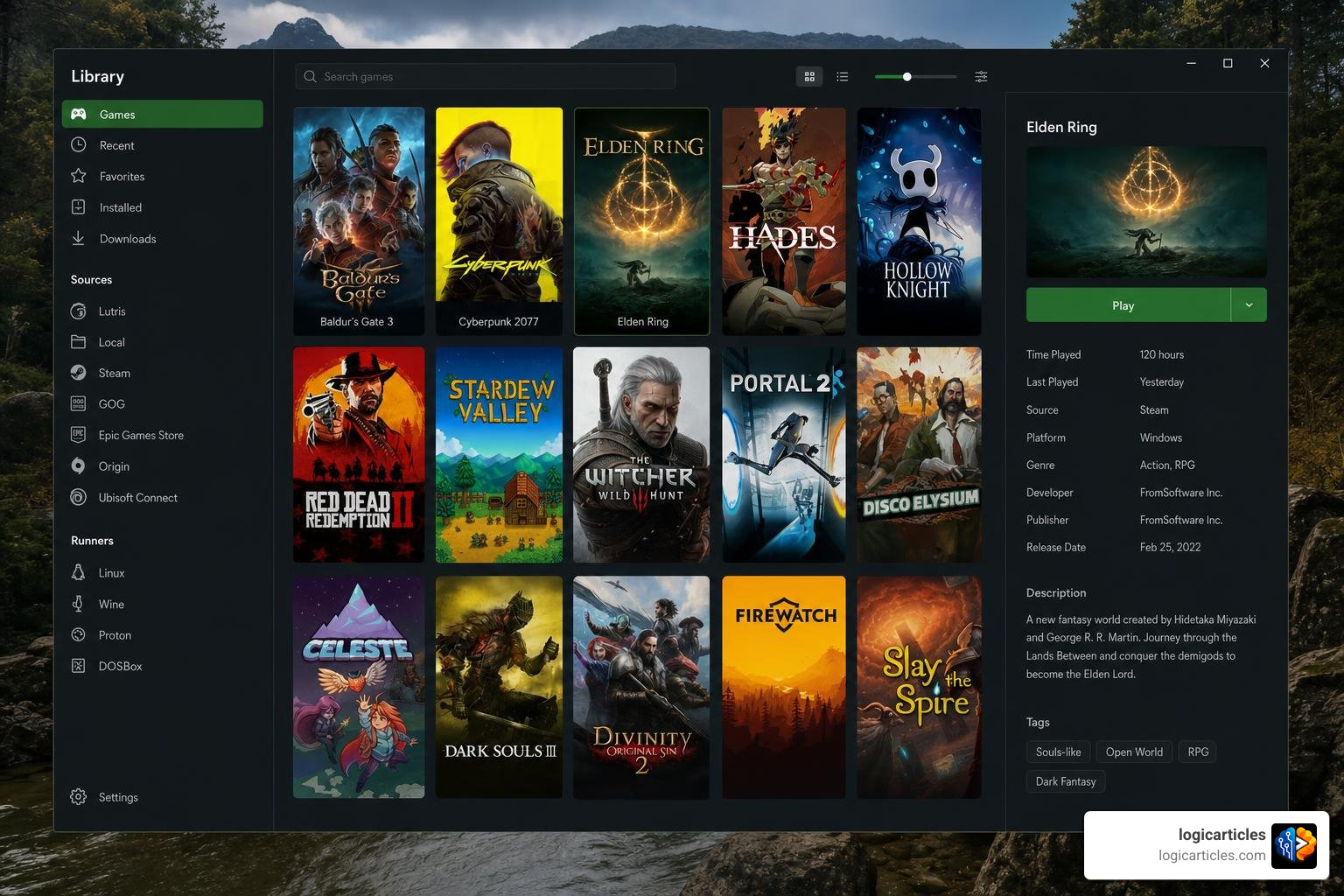
If you want to escape launcher fragmentation without the resource overhead of proprietary launchers, Playnite is the ultimate open-source game library manager.
- Why Gamers Love It: Playnite imports games from Steam, Epic, GOG, Ubisoft, EA, and even emulators into one clean, highly customizable interface. It supports fully custom themes, metadata scraping (bringing in box art, descriptions, and playtimes), and has a “Fullscreen Mode” that lets you navigate your library easily with a controller.
- The Verdict: It is incredibly lightweight and stays completely out of the way while you play.
Fan Control
Many proprietary peripheral suites are notorious for hogging system resources. Fan Control is a lightweight, open-source alternative that does one thing perfectly: controls your PC’s fans.
- Why Gamers Love It: It allows you to mix and match temperature sensors (CPU, GPU, motherboard, and even custom sensor files) to create highly specific PWM fan curves. This means you can keep your system whisper-quiet during light tasks and perfectly cooled during intense gaming sessions.
AutoHotkey (AHK)
For players of MMOs, RPGs, or strategy games, AutoHotkey is a powerful open-source scripting language for Windows.
- Why Gamers Love It: It allows you to remap keys, write custom macros, and automate repetitive tasks. Because it runs as a tiny background process, it has zero impact on your game’s performance. (Just be careful to avoid using complex automation in competitive multiplayer games with strict anti-cheat software!)
If you appreciate the power of free, community-driven software, you might also enjoy our roundups of the best free drawing software in 2026 or the best free image editing software for Mac in 2026.
Handheld Optimization and Console Experiences
With the massive rise of Windows-based handheld gaming PCs (like the ROG Ally, Lenovo Legion Go, and MSI Claw), specialized software has emerged to make Windows feel like a seamless console.
ZenDeck
For handheld gamers, ZenDeck — Windows gaming, as it should be. is a game-changing optimization utility designed to eliminate the friction of playing PC games on a small, controller-based device.
- Key Features: ZenDeck features “AutoPilot,” which automatically configures game settings based on real-time hardware monitoring. Its “Dynamic TDP” feature adjusts your device’s power usage on the fly—raising power when a game gets demanding and lowering it during simple scenes to save battery life.
- The Console Feel: It also features “Smart Profiles” that apply community-validated graphics, FSR, and upscaling settings with a single tap, alongside “ZenCard” functionality that makes SD cards behave like plug-and-play console game cartridges.
Best Practices for Managing Multiple Gaming Tools
Installing the best gaming software can work wonders, but running too many background utilities at the same time can lead to software conflicts, micro-stutters, and high resource usage.
To keep your system running at peak performance, follow these best practices:
- Avoid Overlapping Boosters: Never run multiple game boosters (like Razer Cortex and Windows Game Mode) simultaneously. They will fight over the same system resources and process priorities, which can cause frame drops.
- Consolidate Overlay Software: Keep your in-game overlays to a minimum. Running Steam, Discord, NVIDIA App, and MSI Afterburner overlays all at once is a recipe for game crashes. Choose one or two essential overlays and disable the rest in their respective settings.
- Manage Startup Programs: Use Windows Task Manager to disable gaming apps from launching automatically when you boot your PC. Only open heavy suites like Corsair iCUE or Razer Cortex when you actually plan to use them.
- Keep Drivers Updated: Outdated graphics drivers are the leading cause of poor performance in new game releases. Set your GPU control center to notify you when new game-ready drivers are available.
- Perform Clean Driver Installations: When upgrading your graphics drivers, use a tool like Display Driver Uninstaller (DDU) in Safe Mode once or twice a year to wipe away old driver remnants and prevent performance degradation.
Just like maintaining a healthy gaming rig, keeping your business tools optimized is key to success. If you’re building a brand or launching a new project, check out our guide on the best startup growth tools for 2026.
Frequently Asked Questions about Gaming Software
What is the difference between free and paid gaming software?
Most essential gaming software—including driver suites, library managers, and hardware monitors—is completely free. However, specialized paid tools like ExitLag offer premium value by addressing network routing.
While free tools optimize your local PC hardware, paid network optimization tools map out custom, real-time routes to game servers to bypass congested internet pathways, reduce ping, and eliminate packet loss. For competitive players, the subscription cost of a tool like ExitLag is often worth the stability it brings to online matches.
Can using multiple gaming tools cause performance issues?
Yes. Running multiple background utilities can create “software bloat.” If you have multiple programs trying to monitor hardware sensors, capture gameplay, or override system fan speeds at the same time, they can cause micro-stuttering, high CPU usage, and even system instability. We recommend using a single, unified tool for each specific task.
How do I ensure my gaming software is secure?
Always download gaming software directly from the official developer or hardware manufacturer websites. Avoid third-party “driver updater” tools, which are often packed with adware or malware. Additionally, make sure your software is kept up to date to patch security vulnerabilities, and run periodic system scans using built-in Windows Security.
Conclusion
Building a great gaming setup is only half the battle; keeping it optimized with the best gaming software is what ensures you get the absolute most out of your hardware. Whether you are squeezing out extra frames with the NVIDIA App or AMD Adrenalin, organizing your library with Playnite, or turning your handheld PC into a console with ZenDeck, the right software setup makes all the difference.
Ready to optimize the rest of your digital life? explore our comprehensive software guides to find the best tools for productivity, creativity, and performance!