Why Choosing the Right 3D Modeling Software for 3D Printing Matters
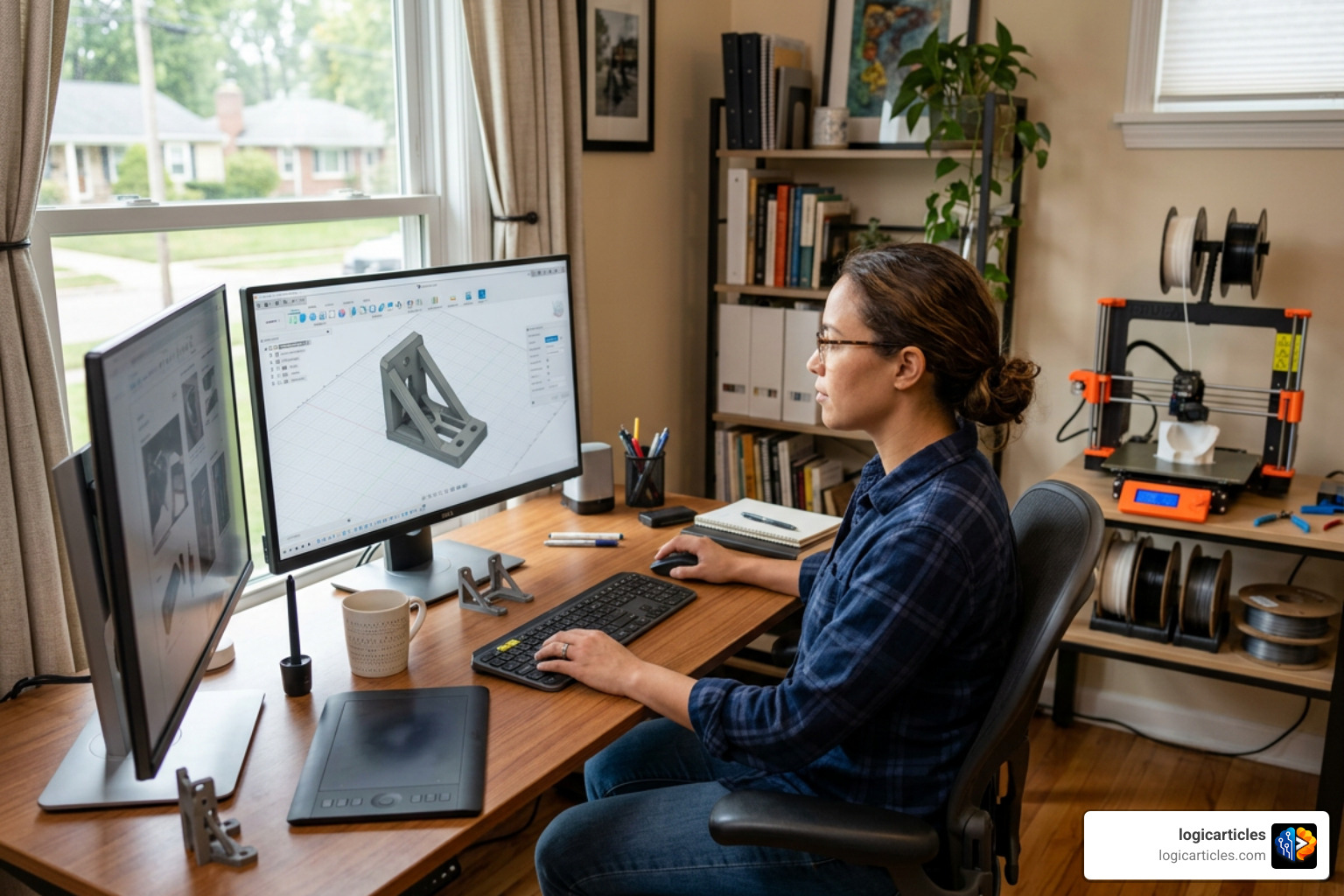
The best 3D modeling software for 3D printing depends on your experience level and what you’re building. Here’s a quick overview:
| Software | Best For | Price | Skill Level |
|---|---|---|---|
| Tinkercad | Simple prints, beginners | Free | Beginner |
| Shapr3D | Precision CAD, fast workflow | From $299/year | Beginner–Pro |
| SelfCAD | All-in-one with integrated slicer | From $139/year | Beginner |
| SketchUp | Easy 3D modeling | From $129/year | Beginner |
| Autodesk Fusion | Parametric CAD, engineering | From $680/year | Intermediate–Pro |
| Blender | Organic shapes, artistic design | Free | Beginner–Intermediate |
| FreeCAD | Open-source precision | Free | Tech-savvy users |
| SOLIDWORKS | Mechanical engineering | From $2,820/year | Expert |
| Rhino | Organic and freeform shapes | From $995 (perpetual) | Beginner–Intermediate |
| CATIA | Advanced additive manufacturing | From $2,268/quarter | Expert |
A few years ago, getting started with 3D printing meant downloading someone else’s model and hitting print. That was fine — until you needed something custom.
Maybe it’s a replacement bracket that doesn’t exist online. A product prototype. A perfectly sized phone mount for your specific car vent. That’s when you realize: you need to design it yourself.
And that’s where most people hit a wall.
There are dozens of 3D modeling tools out there — some free, some expensive, some built for engineers, some built for kids. Picking the wrong one wastes time and creates headaches before you’ve printed a single layer.
The good news? There’s a tool for every skill level and use case. Tinkercad alone has been used by over 100 million people and has powered more than 800 million designs. Meanwhile, newer AI-powered tools can turn a plain-text description into a print-ready model in seconds.
This guide breaks down every major option clearly, so you can pick the right tool and start designing with confidence.
Key Categories of 3D Modeling Software for 3D Printing
When we start exploring 3D design, we quickly realize that not all modeling tools work the same way. Just as we wouldn’t use a paintbrush to tighten a bolt, we shouldn’t use a mesh modeler to design a high-precision mechanical gear.
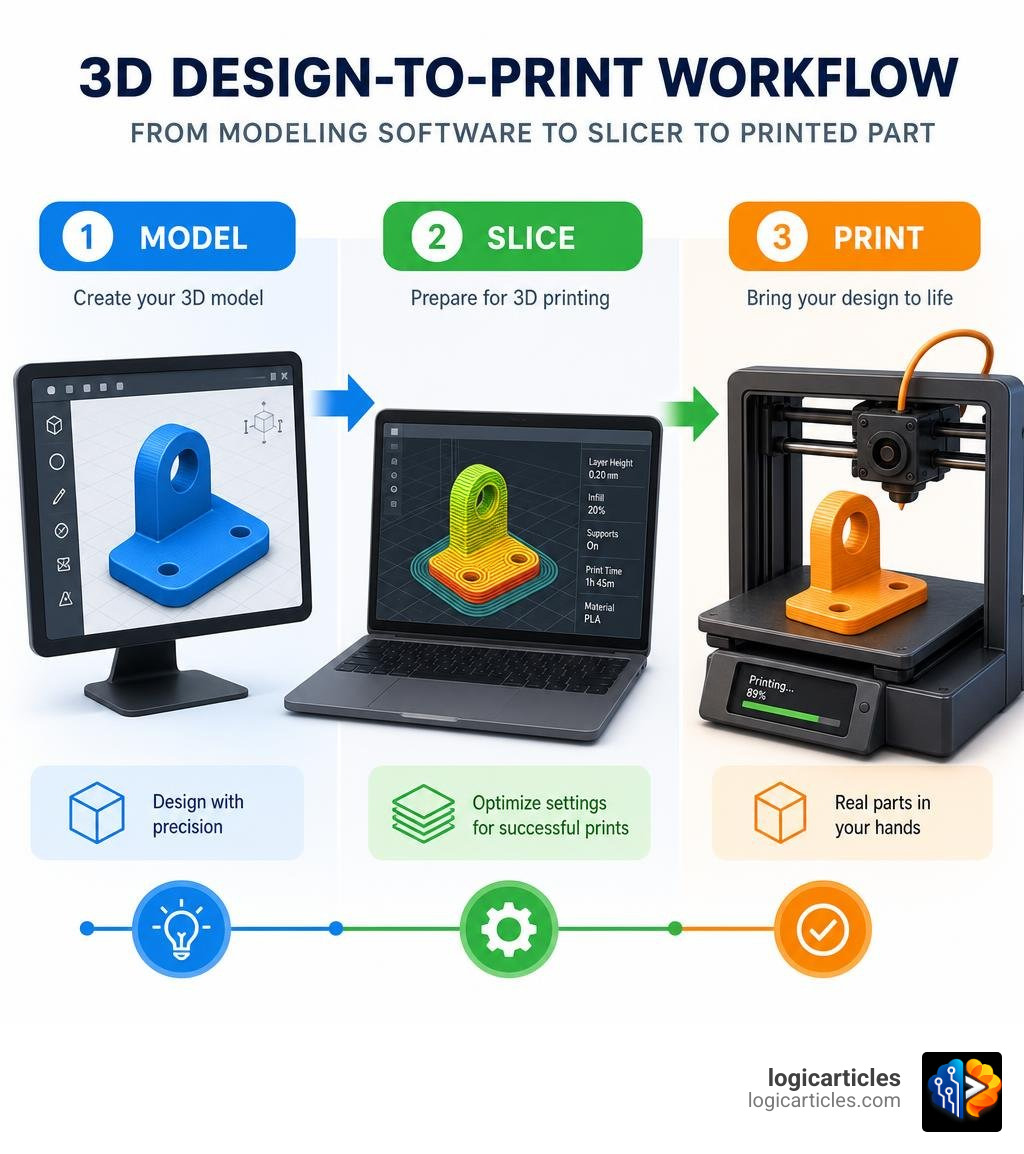
Understanding the core categories of 3D modeling software for 3D printing is the first step toward successful prints. Generally, these tools fall into three main buckets: parametric CAD, mesh-based modeling, and direct modeling. Each category serves a distinct purpose, whether you are drafting a mechanical bracket or sketching a fantasy character. For those who want to practice their artistic eye before jumping into three dimensions, exploring the Best Free Drawing Software In 2026 7 Top Tools Artists Love can be a fantastic way to build your fundamental design skills.
Parametric CAD vs. Mesh Modeling
To choose the right path, we must look at the fundamental differences between parametric CAD and mesh modeling:
- Parametric CAD (Computer-Aided Design): This approach is history-based. The software records every single step of your design in a “history tree” or “feature tree.” If you design a custom enclosure and realize at the very end that the screw holes need to be 4mm instead of 3mm, you don’t have to start over. You simply go back to the early step in your history tree, change the parameter, and the software automatically updates the rest of the model. Parametric CAD uses boundary representation (B-rep) to define solid, mathematically perfect shapes, making it incredibly precise and ideal for functional, mechanical parts.
- Mesh Modeling: Instead of mathematically perfect solids, mesh modeling represents the surface of an object using thousands of tiny triangles, quadrilaterals, or polygons. The corners of these shapes are called vertices. Think of it like digital clay: you can grab, pull, and sculpt the vertices to create highly organic, artistic shapes. However, because there is no history tree tracking your steps, making precise dimensional adjustments later can be incredibly tedious.
For 3D printing, the golden rule is that your model must be watertight and have manifold geometry. This means the model must have a clearly defined “inside” and “outside” with no gaps, holes, or zero-thickness walls. Parametric CAD naturally excels at producing watertight solids, whereas mesh modeling often requires extra care to ensure that your digital clay doesn’t have tiny, invisible tears that will confuse your slicer.
The Rise of AI-Powered 3D Modeling Software for 3D Printing
As we look at the landscape in 2026, one of the most exciting shifts is the integration of artificial intelligence into the design workflow. Traditional CAD requires manual sketching, extruding, and fine-tuning. For beginners, this learning curve can feel like climbing a mountain.
AI-powered design tools are changing the game by offering Text-to-CAD generation. Instead of spending hours learning how to use a sketch plane, you can use natural language to describe what you want.
A prime example is Nora3d, an innovative platform built specifically for additive manufacturing. Unlike older AI tools that merely output messy, uneditable static meshes, platforms like Nora3d generate editable B-Rep CAD data.
This means you can type a prompt like “design a desk cable organizer with 6 slots and a snap-fit base,” receive a highly usable 3D model in under 10 seconds, and then easily modify its dimensions, wall thicknesses, or clearances. AI is not replacing traditional CAD; rather, it is acting as a massive accelerator, reducing the time it takes to go from a rough concept to a print-ready file by up to 90%.
Top 3D Modeling Software Options Compared
To help you navigate the sea of options, let’s take a closer look at how the top tools stack up against one another in terms of workflow, learning curve, and target audience.
Beginner-Friendly 3D Modeling Software for 3D Printing
If you are new to making, starting with an overly complex engineering suite is a recipe for frustration. We recommend starting with tools that prioritize accessibility without sacrificing printability.
- Tinkercad (G2 Rating: 4.5/5 stars): Trusted by over 100 million people worldwide, Tinkercad is the ultimate starting point. It is a free, browser-based tool that uses a constructive solid geometry (CSG) approach. You build models by combining basic shapes (cubes, cylinders, spheres) or subtracting them to create holes. Tinkercad also includes “Codeblocks” for block-based parametric design. It is incredibly safe, educational, and perfect for simple, functional prints.
- Shapr3D (G2 Rating: 4.8/5 stars): If you want something that feels modern and incredibly smooth, Shapr3D is a masterpiece. It runs beautifully on iPads (with Apple Pencil support), macOS, and Windows. Powered by the industrial-grade Siemens Parasolid kernel, it offers a direct modeling “push-pull” interface. It is highly intuitive for beginners, yet precise enough for professional engineers who need to sketch ideas on the shop floor.
- SelfCAD (G2 Rating: 4.3/5 stars): SelfCAD is a unique option because it bridges the gap between modeling and printing. It features an integrated slicer, meaning you can design your model and prepare it for your printer without ever leaving the application. This streamlined workflow is incredibly helpful for beginners who want to avoid juggling multiple software packages.
- SketchUp (G2 Rating: 4.5/5 stars): Long favored for architectural sketches, SketchUp is highly accessible for quick, direct modeling. However, because it is primarily surface-based, users often struggle with non-manifold geometry and “leaky” meshes that require repair before printing.
Intermediate to Professional CAD Tools
When your designs require extreme precision, complex assemblies, or physical simulations, it is time to step up to professional-grade software.
- Autodesk Fusion (G2 Rating: 4.5/5 stars): Formerly known as Fusion 360, this is the undisputed king of intermediate CAD for makers and engineers. It offers robust parametric modeling, mesh editing, generative design, and direct simulation tools. Fusion’s manufacturing-aware features can automatically optimize designs for additive manufacturing, making it incredibly powerful for iterative prototyping.
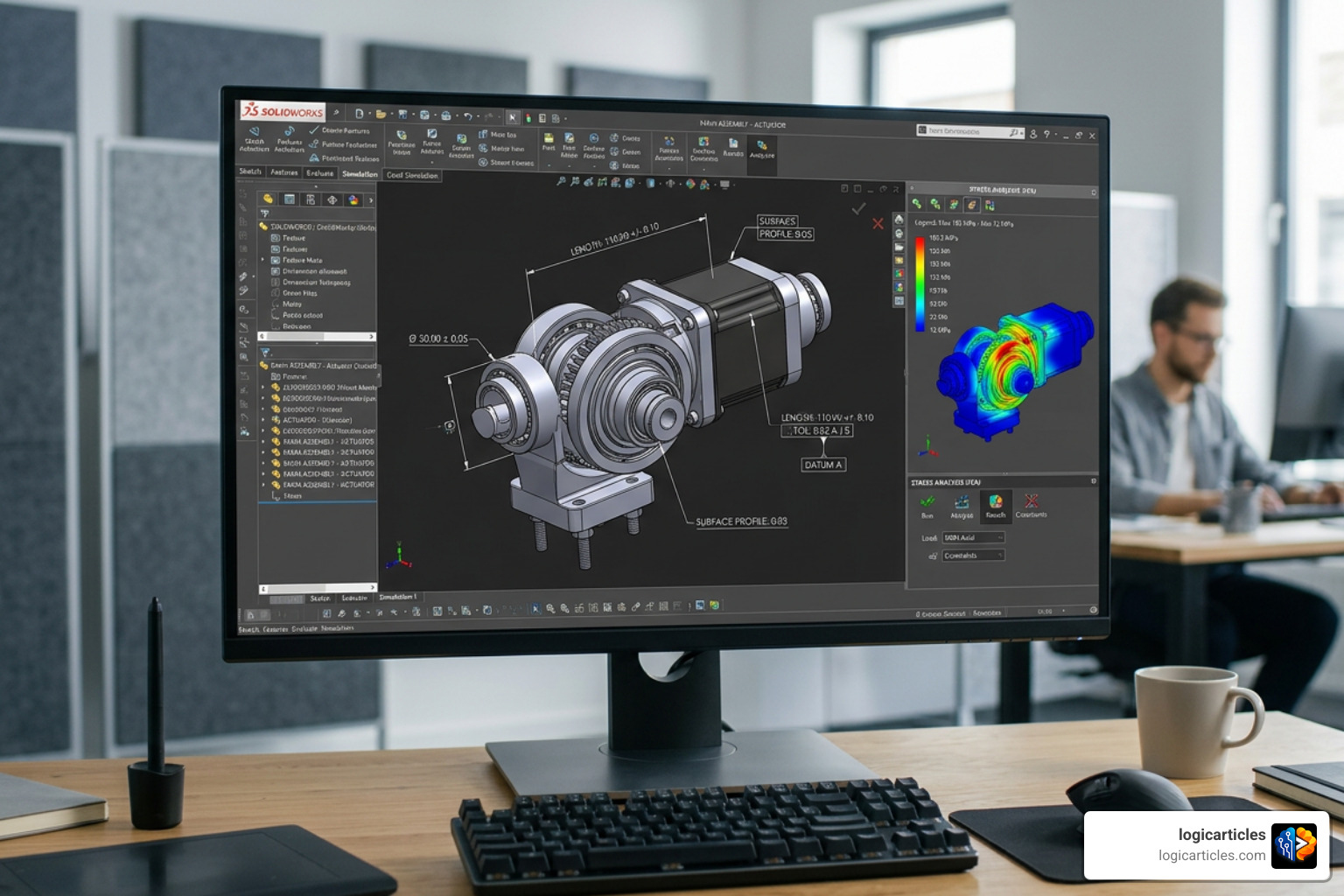
- SOLIDWORKS (G2 Rating: 4.4/5 stars): The industry standard for mechanical engineering. SOLIDWORKS is incredibly powerful but comes with a steep learning curve and a premium price tag. It is best suited for expert users designing complex mechanical assemblies.
- FreeCAD (G2 Rating: 4.1/5 stars): For the open-source enthusiast, FreeCAD is a completely free, parametric modeler. While its workbench-based user interface can feel a bit clunky and unpolished compared to commercial options, its active community and powerful feature set make it a favorite for tech-savvy makers.
- Rhinoceros 3D (Rhino) (G2 Rating: 4.4/5 stars): Rhino excels at freeform, organic shapes using NURBS geometry. It is highly favored by jewelry designers and industrial designers. With features like “ShrinkWrap” introduced in recent versions, Rhino can instantly turn complex, messy models into watertight, print-ready skins.
Essential Features to Look For in Design Software
When selecting your primary design tool, look beyond the marketing hype and focus on the features that directly impact your 3D printing success:
- Precision and Tolerance Control: A 3D printer is a physical machine with mechanical limits. Your software must allow you to design with precise dimensions down to the fraction of a millimeter. More importantly, you need to build in tolerances (clearances) so that interlocking parts, like a peg in a hole, actually fit together after printing.
- Simulation and Testing: Advanced tools like Autodesk Fusion offer simulation extensions. These allow you to apply virtual loads to your model to check for weak points before wasting filament on a print that will immediately snap under pressure.
- Slicer and Printer Integration: Some modern design programs feature direct integration with slicer software, allowing you to export your model to your slicing queue with a single click.
For those who want to clean up screenshots or create beautiful textures to wrap around their 3D models, pairing your CAD tool with the Best Free Image Editing Software For Mac In 2026 is a highly effective way to expand your creative toolkit.
File Export Formats and Slicer Compatibility
Once your model is complete, you must export it in a format that your slicer can understand. The format you choose dictates how much detail is preserved:
- STL (Standard Tessellation Language): The oldest and most universally supported format. It converts your smooth CAD geometry into a mesh of triangles. While reliable, STL files do not store unit information, color, or material data, and highly detailed curves can end up looking pixelated if the export resolution is set too low.
- 3MF (3D Manufacturing Format): The modern standard. Unlike STL, 3MF files are highly compressed XML archives that store the model’s geometry as a mesh, along with crucial project metadata, unit measurements, color information, and material settings.
- STEP (Standard for the Exchange of Product Model Data): Unlike mesh-based exports, a STEP file preserves mathematically perfect curves (NURBS). Modern slicers like PrusaSlicer and UltiMaker Cura can import STEP files directly, slicing the mathematically perfect curves on the fly for incredibly smooth prints.
To understand how these files are processed on the development side, you can explore the open-source codebases of these slicing giants via the Ultimaker/Cura GitHub repository or the PrusaSlicer GitHub repository. Keeping your slicing engine updated is critical; for instance, the release of Cura 5.13 introduced advanced lightning support infill controls that significantly reduce printing times and material usage.
Common Challenges When Designing Your Own Printable Parts
Transitioning from downloading pre-made models to designing your own parts is an exciting leap, but it comes with a few common hurdles.
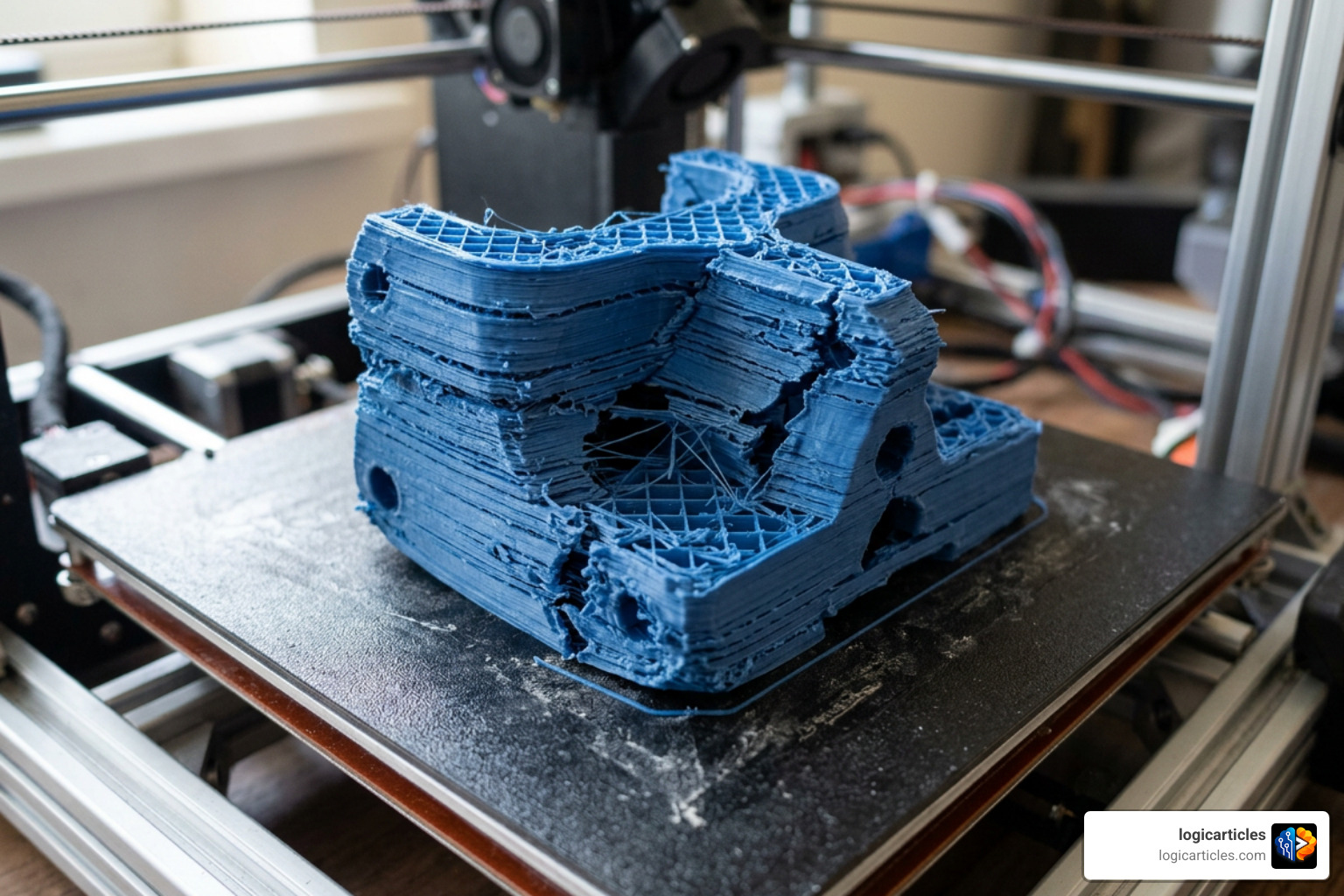
- Non-Manifold Geometry: This is the number one enemy of successful 3D prints. If your model has “broken” geometry, overlapping faces, or holes in its outer shell, the slicer won’t know what is solid and what is empty space, leading to bizarre print failures.
- Ignoring the Laws of Gravity (Overhangs): 3D printers build objects layer by layer, from the bottom up. You cannot print in thin air! When designing, we must keep overhang angles in mind (usually keeping them under 45 to 50 degrees) or design parts to be printed in multiple orientations to minimize the need for messy support structures.
- Shrinkage and Material Tolerances: Plastics shrink slightly as they cool. If you design a peg to be exactly 10mm and a hole to be exactly 10mm, they will not fit together. We must build in a clearance tolerance (typically 0.15mm to 0.3mm depending on printer calibration) to ensure moving parts function smoothly.
If your design dreams lean more toward cinematic storytelling, complex rigging, or character movement rather than physical manufacturing, checking out our guide on the Best 3D Animation Software will point you in the right direction.
Frequently Asked Questions about 3D Design for Additive Manufacturing
Which 3D modeling software is best for beginners?
For absolute beginners who want to learn the basics of spatial design, Tinkercad is the undisputed champion due to its zero-cost, browser-based interface. If you want to learn professional CAD concepts without the overwhelming learning curve, Shapr3D offers an incredibly smooth, modern interface that makes direct modeling feel natural and fun.
What is the difference between STL and 3MF files?
An STL file only describes the surface geometry of a 3D object as a raw, uncolored triangle mesh, often losing dimensional accuracy during export. A 3MF file is a modern, lightweight package that preserves exact dimensions, color, material settings, and multi-part assemblies, making it far superior for modern 3D printing workflows.
How do I fix non-manifold or broken models before printing?
If your model has tiny gaps or broken geometry, many modern slicers (like Bambu Studio or PrusaSlicer) offer built-in auto-repair tools. Alternatively, you can open the file in Microsoft 3D Builder on Windows, which automatically detects and repairs non-manifold meshes with a single click, or use Rhino’s ShrinkWrap feature to encase the broken model in a perfectly watertight skin.
Conclusion
Mastering the right 3D modeling software for 3D printing is the ultimate superpower for any maker, hobbyist, or professional engineer. It transforms your 3D printer from a novelty machine that prints plastic trinkets into a personal factory capable of bringing your unique physical inventions to life.
Whether you start with the simple, blocks-based world of Tinkercad, accelerate your workflow with the AI-driven power of Nora3d, or dive deep into the parametric precision of Autodesk Fusion, the key is to choose the tool that matches your current goals and grow from there.
Ready to explore more expert software recommendations and step-by-step tech guides? Head over to our Best Software Category to find the perfect tools for your next creative project!