What FORScan Software Does — and Why Ford Owners Love It
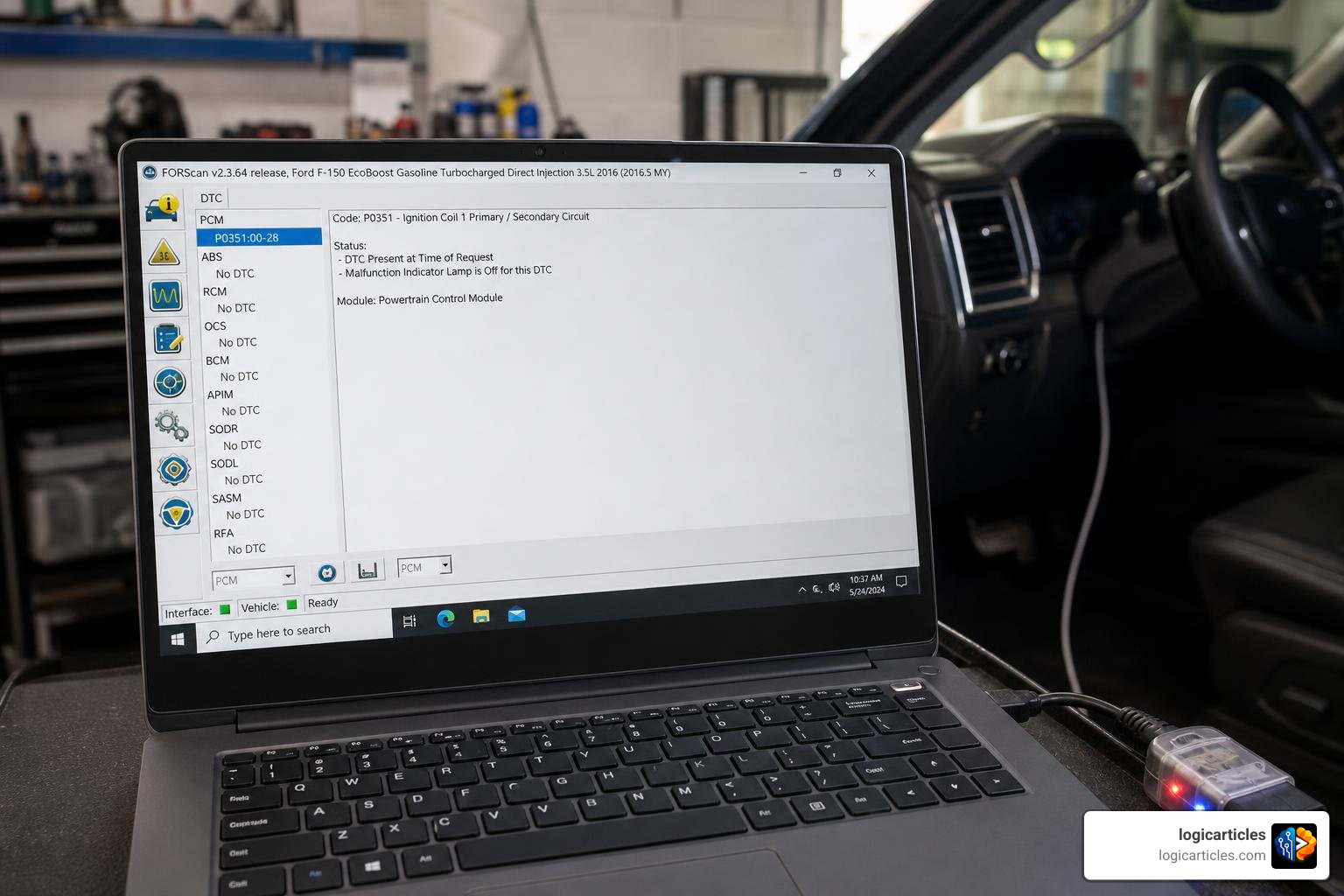
FORScan software is a specialized diagnostic tool built for Ford, Mazda, Lincoln, and Mercury vehicles. Unlike generic OBD2 scanners, it can access hidden modules, read manufacturer-specific trouble codes, and even reprogram vehicle settings.
Quick answer — here’s what you need to know:
- What it is: A free Windows app (with iOS/Android Lite versions) for deep Ford/Mazda/Lincoln/Mercury diagnostics
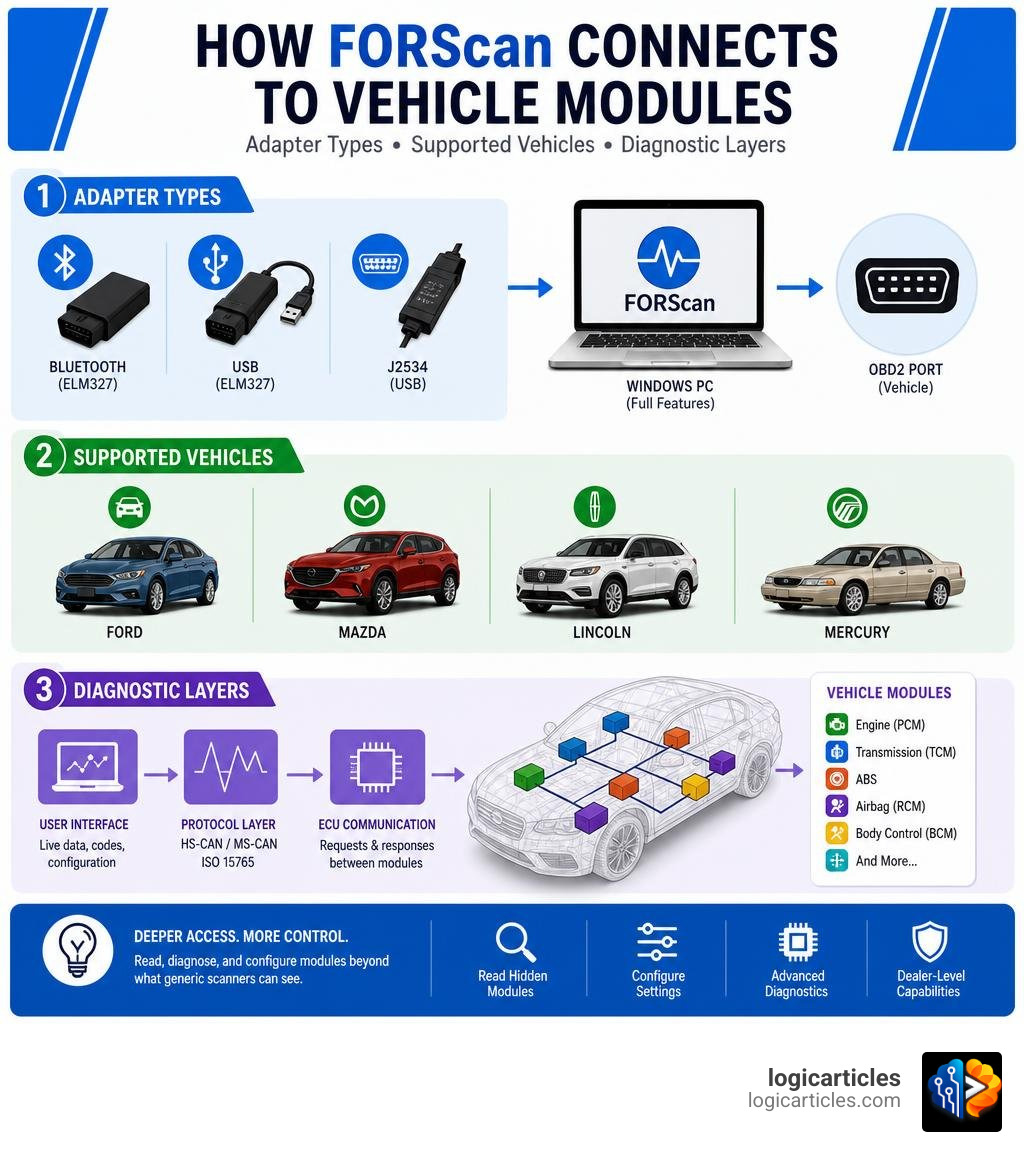
- What you need: A compatible OBD2 adapter (ELM327 or J2534) and a Windows PC for full features
- What it costs: The software is free; an Extended License for programming costs a small fee (2-month trial available free)
- Best adapters: OBDLink EX, OBDLink MX+, or vLinker FS — avoid cheap clone adapters
- Download it: From forscan.org — the latest stable version as of June 2026 is v2.3.71
Think of it this way: a regular OBD2 scanner sees only what your car wants to show. FORScan sees everything — modules, codes, and settings that most tools simply miss.
It’s become a go-to tool for DIY Ford owners and enthusiasts who want dealer-level diagnostics without dealer-level prices.
What is the FORScan Software and How Does It Work?
To understand why the forscan software is so highly regarded, we must first look at how standard OBD2 scanners operate. Most off-the-shelf diagnostic tools you buy at a local auto parts store are generic. They speak a universal language designed to read basic emissions-related data. If your check engine light comes on because of a loose gas cap or a failing oxygen sensor, a generic scanner works fine.
However, modern vehicles are essentially supercomputers on wheels. They do not rely on a single computer; instead, they use dozens of individual microprocessors called modules. There is a module for your brakes (ABS), your instrument cluster (IPC), your steering column (PSCM), your body control (BCM), and even your seats.
Generic OBD2 scanners are completely blind to these modules because they lack the proprietary manufacturer protocols required to communicate with them. This is where the forscan software shines. It was built from the ground up to speak the exact native language of Ford, Mazda, Lincoln, and Mercury vehicles.
By utilizing these specialized manufacturer protocols, FORScan can bypass the generic diagnostic layer. It scans deep into the vehicle’s network, uncovering hidden modules and retrieving manufacturer-specific Diagnostic Trouble Codes (DTCs) that standard readers cannot see. Additionally, it allows you to view Parameter IDs (PIDs) — real-time sensor readings from any module — and run proprietary tests and service procedures.
To explore the official features directly from the development team, you can visit the FORScan Home page.
Supported Vehicles and Modules
FORScan is incredibly versatile, but it is highly specialized. It is designed exclusively for:
- Ford
- Mazda
- Lincoln
- Mercury
In terms of model years, the software natively supports vehicles from 1996 through 2022MY (Model Years), with partial or experimental support extending into newer models up to 2026. Some older vehicles from 1994 to 1995 are also supported, provided they have a physical OBD2 port.
However, there are a few exceptions to keep in mind. For example, Mazda 7G models (such as the newer Mazda 3, CX-30, MX-30, and CX-50) are only partially supported or, in some cases, not supported at all due to changes in Mazda’s proprietary architecture.
Where FORScan truly excels is in its ability to navigate the complex dual-bus communication systems used by Ford. Most Ford vehicles utilize two distinct networks:
- HS-CAN (High-Speed Controller Area Network): Used for critical, fast-acting modules like the engine control unit (PCM) and transmission.
- MS-CAN (Medium-Speed Controller Area Network): Used for cabin comfort, body control, and accessory modules.
Standard scanners only connect to the HS-CAN network. FORScan can communicate with both HS-CAN and MS-CAN simultaneously (provided you use a compatible adapter), giving you access to nearly every module on the vehicle.
If you love optimizing tools and are curious about how specialized software architectures differ from daily office programs, check out our guide on What is Productivity Software? to see how custom-built applications streamline complex workflows.
Key Features of the FORScan Software
FORScan is far more than a simple code reader. It is a comprehensive service and customization suite. Here are the primary features that make it indispensable:
- Deep Module Detection: Automatically maps out every module connected to the vehicle’s onboard networks.
- Comprehensive DTC Reading and Resetting: Shows manufacturer-specific trouble codes with detailed descriptions, and lets you clear them after making repairs.
- Live PID Monitoring & Dashboard: Stream up to 30 custom sensor parameters simultaneously in real time. You can monitor transmission temperatures, cylinder misfires, individual wheel speeds, and fuel trim levels.
- Built-in Oscilloscope: For advanced troubleshooting, you can graph up to 8 PIDs simultaneously on a live, highly responsive timeline. This is incredibly helpful for diagnosing intermittent electrical faults or sensor drops.
- Proprietary Service Procedures: Run dealer-level service functions such as an ABS Service Bleed (essential after replacing brake calipers), steering angle sensor calibration, DPF static regeneration, or front camera alignment.
For an in-depth dive into the legacy features and structural layout of the software, you can read the official FORScan documentation v1.3.x.
Comparing Platform Versions of the FORScan Software
FORScan is available in two main formats: the full-featured Windows version and the mobile FORScan Lite version (available for iOS and Android).
While both versions are excellent, they serve very different purposes. The Windows version is the “powerhouse.” It is the only version that supports advanced configuration, module programming, and complex service procedures.
FORScan Lite, on the other hand, is designed for quick diagnostics, sensor monitoring, and basic error clearing on the go. The iOS app has a file size of 83.1 MB, requires iOS 9.0 or later, and has a 3.1 out of 5 rating based on 184 user reviews. To make diagnostics accessible worldwide, FORScan Lite is localized in 7 languages: English, German, Hungarian, Italian, Polish, Russian, and Spanish.
To help you decide which version is right for your needs, we have put together this comparison table:
| Feature / Specification | FORScan for Windows (Full) | FORScan Lite (Android / iOS) |
|---|---|---|
| Primary Use Case | Deep diagnostics, programming, module configuration | On-the-go diagnostics, PID streaming, trip monitoring |
| Platform Compatibility | Windows 2000, XP, Vista, 7, 8, 10, 11 | Android, iOS (9.0 or later) |
| App Size / Cost | Free (Extended License required for programming) | Paid (~$6.99), 83.1 MB on iOS |
| Module Configuration | Yes (As-Built and Plain English editing) | No |
| PATS Key Programming | Yes | No |
| DTC Read / Reset | Yes | Yes |
| Live Data Graphing | Yes (Oscilloscope up to 8 PIDs) | Yes (Basic graphing) |
| Language Support | Multiple | 7 Languages (EN, DE, HU, IT, PL, RU, ES) |
Just as choosing the right creative tool depends on your specific workflow—which you can read about in our breakdown of the Best Free Drawing Software in 2026: 7 Top Tools Artists Love—selecting the correct version of FORScan ensures you have the right technical capabilities for your vehicle.
Choosing the Right Hardware and Adapters
You cannot run the forscan software without a physical bridge between your computer and your car. This bridge is your OBD2 adapter.
Choosing the right adapter is the single most important step in setting up FORScan. If you buy a low-quality or incompatible adapter, the software will fail to connect, hide critical modules, or worse, corrupt data while writing to your vehicle’s computers.
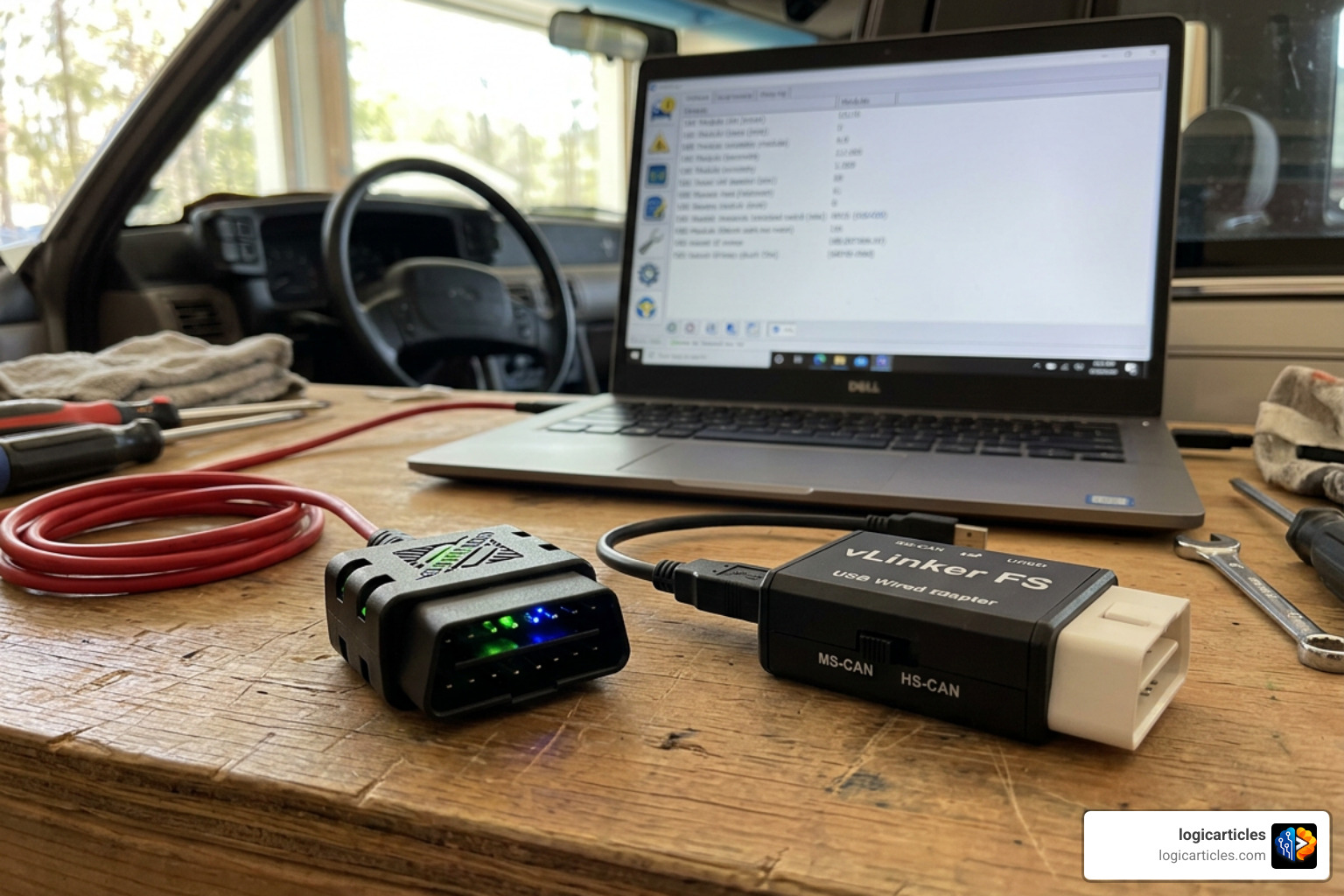
Historically, users had to buy cheap ELM327 adapters and physically wire a manual toggle switch onto them to flip between the HS-CAN and MS-CAN networks. Thankfully, in 2026, those days are long gone. Modern, recommended adapters feature automatic electronic switching, allowing the software to jump between networks seamlessly.
For community discussions, real-user troubleshooting, and compatibility updates on new hardware releases, check out the Adapters & Connection – FORScan forum.
Recommended vs. Non-Recommended Adapters
To ensure a stable connection and prevent data loss, we highly recommend sticking to officially approved hardware.
The Gold Standards (Highly Recommended):
- OBDLink EX (USB): This is the absolute best wired adapter for Windows users. It was designed specifically for FORScan, features automatic HS/MS-CAN switching, and offers blazing-fast data transfer speeds with zero latency.
- vLinker FS (USB): A highly reliable, cost-effective wired alternative to the OBDLink EX. It features automatic electronic switching and full support for J2534 Pass-Thru protocols.
- OBDLink MX+ (Bluetooth): The ultimate wireless adapter. It is incredibly fast, highly secure, and works flawlessly across Windows, iOS, and Android devices.
- vLinker FD BLE (Bluetooth): An excellent, budget-friendly Bluetooth option optimized for mobile devices running FORScan Lite.
Why You Should Avoid Cheap Clones:
It can be tempting to buy a $10 “ELM327” adapter from an online marketplace. However, these cheap clones almost always use bootleg microchips that cannot handle the high baud rates (data transfer speeds) required by FORScan.
These clones frequently drop connections, fail to read the MS-CAN network, and can freeze during critical service procedures. If your adapter drops its connection while you are programming a module, you risk bricking the vehicle’s computer, resulting in an expensive tow to a dealership.
How to Download FORScan and Install It in 5 Steps
Now that you understand how the software works and have selected your adapter, let’s walk through the step-by-step process of installing and setting up FORScan on your device.

Step 1: Check Vehicle Compatibility and Function Availability
Before spending money on an adapter or a paid license, you should verify exactly what FORScan can do for your specific vehicle.
You can download the software and run it in Demo Mode or use the online compatibility viewer. This allows you to load a mock vehicle configuration to see which modules, service procedures, and PIDs are available for your model year.
Just as complex rendering engines require specific system checks—which we discuss in our guide on the Best 3D Animation Software—verifying vehicle compatibility beforehand saves you time and ensures your hardware can handle the tasks you want to perform.
Step 2: Download the Correct Version for Your Device
Head over to the official download pages to grab the software.
- For the official, stable Windows release (v2.3.71 as of mid-2026), go to the main Download FORScan page.
- If you are setting up an older ELM327 USB adapter and need matching driver packages, manuals, or legacy setups, you can check the FORScan ELM327 Software Download -Support-ELM327 USB resource page.
For mobile users, search for “FORScan Lite” directly on the Apple App Store or Google Play Store.
Step 3: Install Drivers and Connect Your Adapter
If you are using a USB adapter (like the OBDLink EX or vLinker FS), you must install the correct USB-to-Serial drivers on your Windows laptop before plugging the adapter in. Most modern adapters use the CH340 or FTDI chipsets.
- Download and install the driver package (such as the CH340 USB driver).
- Plug the adapter into your laptop’s USB port.
- Open the Windows Device Manager and verify that the adapter is recognized under “Ports (COM & LPT)”.
- Open FORScan, go to Settings > Connection, and set the Connection Type to “Auto” (or select your specific COM port and set the baud rate to the highest supported level for maximum speed).
Step 4: Obtain Your Licensing and Extended License
While the standard version of FORScan is free and allows you to read codes and stream live data, you will need an Extended License if you want to perform configuration, module programming, or PATS key programming.
The FORScan team offers a free 2-month trial Extended License to all users. To obtain it:
- Open FORScan on your Windows PC and navigate to the About tab.
- Copy your unique Hardware ID.
- Go to the official FORScan forum license generator, paste your Hardware ID, and enter your details.
- Download the registry key file provided and load it into FORScan to unlock all premium features.
If you plan to use the software long-term, you can purchase a 1-year, 3-year, 5-year, or lifetime Extended License for a highly affordable fee.
Step 5: Connect to Your Vehicle and Run Diagnostics
With your software licensed and your adapter drivers installed, you are ready to connect to your car!
- Locate your vehicle’s OBD2 port (usually under the dashboard on the driver’s side).
- Plug your adapter firmly into the OBD2 port, and connect the other end to your laptop or mobile device.
- Turn your vehicle’s ignition to the ON position (do not start the engine unless you are planning to run live engine tests).
- Open FORScan and click the Connect icon (the two-plug icon in the bottom-left corner).
- Watch the log window. The software will automatically detect your vehicle, read its VIN, scan for connected modules across both HS-CAN and MS-CAN networks, and load your vehicle profile.
- Navigate to the DTC tab to run a full vehicle scan and read any active or historic trouble codes.
Frequently Asked Questions about FORScan
What is the latest version of FORScan available in 2026?
As of June 2026, the current stable release for Windows is version 2.3.71. This version includes updated SSL security certificates, major fixes for PATS key programming, and added service procedures for newer Ford models.
For advanced users looking to test the absolute newest features, the version 2.4.22 beta is also available, which introduces preliminary support for next-generation vehicle architectures.
Can I use FORScan on a Mac or mobile device?
FORScan is natively designed for Windows, Android, and iOS. There is no native macOS application. However, Mac owners can successfully run the full Windows version of FORScan on their Mac laptops using compatibility layers like CrossOver, or by setting up a Windows virtual machine via Boot Camp or Parallels.
If you’re looking for other creative tools that run smoothly on Apple’s operating system, take a look at our curated list of the Best Free Image Editing Software for Mac in 2026.
Why is a specific module like the IPC missing in my scan?
If you connect to your vehicle and notice that a major module like the Instrument Panel Cluster (IPC) is completely missing from your configuration tab, it is usually caused by one of three things:
- Adapter Limitations: You are using an adapter that does not support MS-CAN, or your adapter’s automatic electronic switch is failing.
- Profile Corruption: FORScan sometimes loads an outdated or cached vehicle profile. To fix this, go to the connection settings, delete all saved vehicle profiles, disconnect, and run a fresh connection scan from scratch.
- Software Version Bugs: Occasionally, a software update can cause a module to disappear from view.
To read how other Ford owners solved this specific bug, check out the community discussion on the IPC Module in FORScan Missing – FORScan forum.
Conclusion
The forscan software is an incredibly powerful, dealer-level diagnostic tool that belongs in the digital toolkit of every Ford, Mazda, Lincoln, and Mercury owner. Whether you are troubleshooting a tricky ABS light, calibrating a new steering sensor, or custom-coding your truck’s instrument cluster, FORScan makes the process straightforward and highly affordable.
At logicarticles, we love helping you find and master the best tools to make your life easier. If you want to keep your DIY projects, car maintenance schedules, and daily tasks highly organized, check out our reviews of the Best Task Management Software in 2026 Tested.
Ready to discover more game-changing applications? Explore more top tools on logicarticles to stay ahead of the curve!
Hello!
My car is MAZDA 6, Skyactiv, yearmodel 2015, 6 gear AT. I was hoping to be able to reset the memory of TCM and make some gear learning procedures if needed. I can only find a tool to reboot TCM and nothing else. Am I right that there is no tools to do those in ForScan?