Why Programming Your CORSAIR Mouse Can Transform Your Gaming
How do I program my CORSAIR mouse? — here’s the short answer:
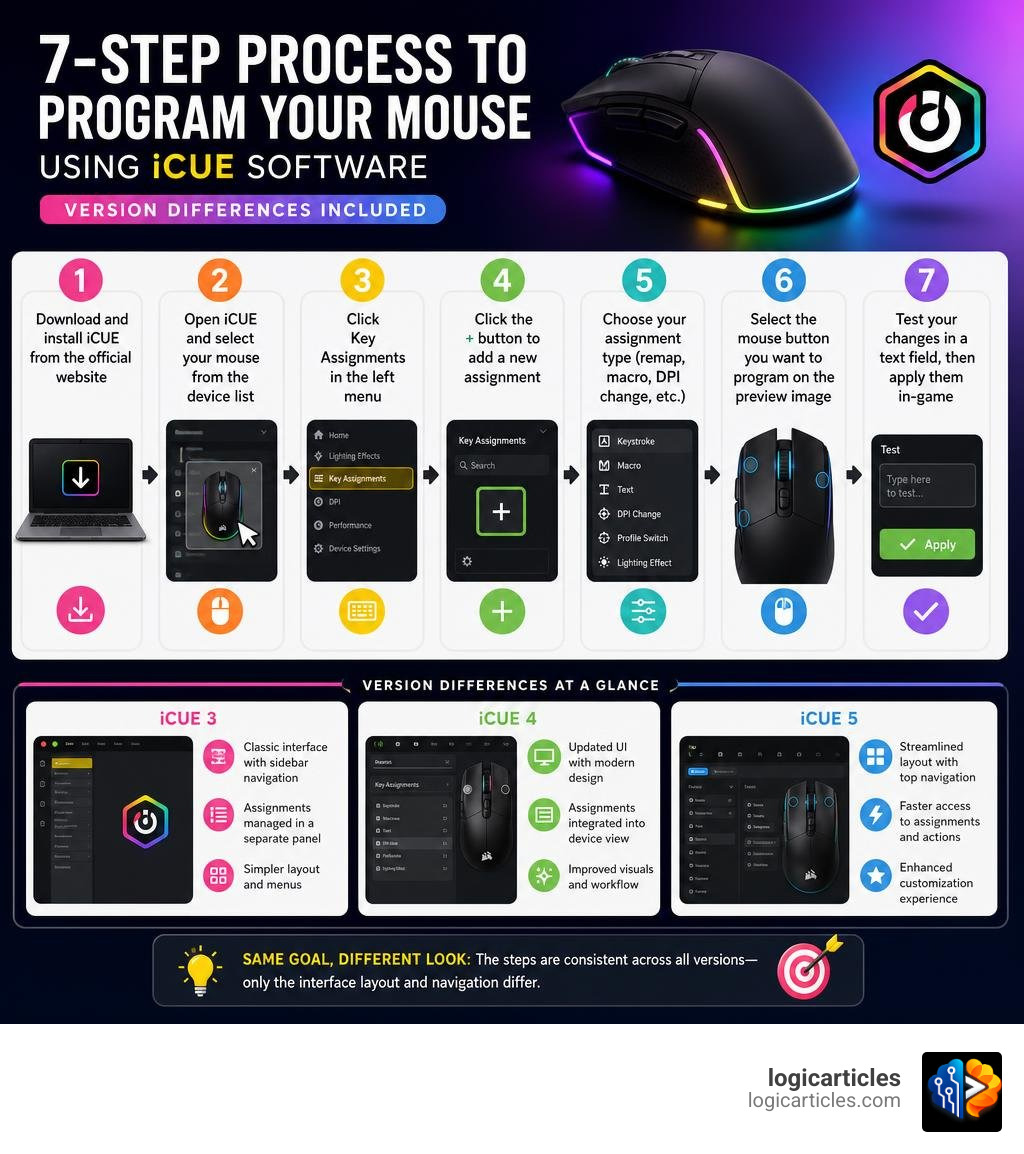
- Download and install iCUE from CORSAIR’s official website
- Open iCUE and select your mouse from the device list
- Click Key Assignments in the left menu
- Click the + button to add a new assignment
- Choose your assignment type (remap, macro, DPI change, etc.)
- Select the mouse button you want to program on the preview image
- Test your changes in a text field, then apply them in-game
That’s the core process. The exact steps vary slightly depending on which version of iCUE you’re running — but the logic is the same across all versions.
CORSAIR mice come with several extra buttons beyond left and right click. Most people never use them. That’s a missed opportunity.
With CORSAIR’s free iCUE software, you can map any of those buttons to a keyboard key, a macro, a DPI switch, or even a lighting effect. It takes just a few minutes to set up — and it can make a real difference in how you play or work.
Whether you’re remapping the back button to trigger an in-game ability, or building a multi-step macro for a strategy game, iCUE gives you full control over how your mouse behaves.
This guide walks you through all 7 steps clearly, with instructions for iCUE versions 3, 4, and 5.
What is iCUE and Why Do You Need It?
To truly customize your gaming gear, you need a centralized control center. For CORSAIR peripherals, that control center is iCUE (CORSAIR Utility Engine). But what exactly is iCUE, and why is it mandatory if you want to know how do I program my CORSAIR mouse?
Essentially, iCUE is a unified software suite that connects all your compatible CORSAIR devices under a single interface. While your mouse will work perfectly fine as a plug-and-play device for basic left-clicking, right-clicking, and scrolling, its advanced features remain locked without iCUE.
Here is why iCUE is indispensable for your setup:
- Deep Button Customization: It allows you to remap any button (including the scroll wheel click, DPI switches, and side buttons) to perform virtually any keyboard stroke, mouse function, or shortcut.
- Macro Creation: You can record complex sequences of keystrokes and mouse clicks, complete with customizable delays, and trigger them with a single press.
- Ecosystem-Wide RGB Integration: With features like iCUE Murals, you can synchronize your mouse’s RGB lighting with your keyboard, PC fans, ambient lighting strips, and even third-party smart home devices like Philips Hue.
- Performance Calibration: You can fine-tune your sensor’s DPI (dots per inch) sensitivity stages, adjust the polling rate, and calibrate the sensor to your specific mouse pad surface.
- System Monitoring: iCUE reads temperature sensors from your CPU, motherboard, and graphics card, allowing you to set up your mouse’s lighting to change colors based on system heat levels.
If you are interested in how iCUE stacks up against other utility suites in the industry, check out our comprehensive guide on the Best Gaming Software In 2026.
How Do I Program My CORSAIR Mouse? The 7-Step Guide
Programming your mouse does not require a degree in computer science. It is a straightforward, logical workflow. However, because CORSAIR has updated its software suite over the years, the visual interface looks different depending on whether you are running the legacy iCUE v3, the updated iCUE v4, or the modern iCUE v5 (which is the standard as of June 2026).
To help you navigate the interface, here is a quick comparison table outlining how key features are organized across these versions:
| Feature / Action | iCUE v3 (Legacy) | iCUE v4 | iCUE v5 (Modern) |
|---|---|---|---|
| Main Navigation | Device tabs at the top | Modular home dashboard | Unified dashboard with dynamic modules |
| Button Remapping Menu | “Actions” list in left sidebar | “Key Assignments” in left menu | “Key Assignments” in left menu |
| Hardware Saving | “Onboard Profiles” tab | “Hardware Key Assignments” | “Device Settings” -> Onboard Memory |
| Firmware Updates | Settings -> Device -> Update | Settings (Gear Icon) -> Device Settings | Settings (Gear Icon) -> Software/Firmware Updates |
Now, let’s dive into the step-by-step guide to programming your mouse.
Step 1: Download iCUE (How Do I Program My CORSAIR Mouse?)
The very first step is getting the correct software on your computer. Without it, your side buttons will default to basic web-browsing commands (like Forward and Back) and you will not be able to customize them.
- Go to the official CORSAIR website and navigate to their downloads page.
- Select the latest version of CORSAIR iCUE (currently iCUE 5.x).
- Download the installer for your operating system (Windows or macOS).
- Run the installer and follow the on-screen prompts. ICUE 5 uses a modular installer, meaning it will only download the specific plugins required for the hardware you currently have plugged into your system. This keeps the software lightweight and fast.
- Once installed, restart your computer to ensure all virtual device drivers load correctly.
For more detailed context on how CORSAIR handles software deployment, you can refer to the official CORSAIR guide on How to: Set up your gaming mouse in iCUE 4 or newer – Corsair .
Step 2: Select Your Device and Open Key Assignments
Once your computer reboots, launch the iCUE software.
- Ensure your CORSAIR mouse is securely plugged into a USB port (or connected via its wireless USB dongle if you are using a wireless model).
- On the iCUE home screen, you will see a list of connected devices. Hover over your mouse’s tile and click it to open its dedicated configuration panel.
- Look at the left-hand menu. Depending on your software version, click on:
- Key Assignments (iCUE v4 and v5)
- Actions (iCUE v3)
- A 3D interactive preview of your mouse will load in the center of the screen. You can rotate and zoom this image to see exactly which physical buttons are available for programming.
Step 3: Remap a Button to a Key (How Do I Program My CORSAIR Mouse?)
Let’s look at a practical, real-world example: How do I program my CORSAIR mouse to trigger an in-game action by mapping the mouse’s physical Back Button to the keyboard key ‘P’?
This is incredibly useful if you want to bind a hard-to-reach keyboard shortcut to a fast, accessible button right under your thumb.
For iCUE v5.14 or Newer:
- Under the Key Assignments tab, locate the Assignments box on the bottom left and click the + button.
- In the Assignment Type column, select Keyboard under the Remap category.
- In the setting panel that appears, press the P key on your keyboard (or click it on the virtual keyboard shown on screen).
- Go to the 3D preview image of your mouse and click on the Back Button (often labeled as Button 4).
- The software will instantly link the key ‘P’ to that button.
For iCUE v4:
- Click Key Assignments in the left menu.
- Click the + button under the Assignments list.
- In the lower-middle panel, change the assignment type to Keyboard (under the Remap section).
- Select P as your target key.
- Click the physical Back Button on the interactive mouse image to apply the map.
For iCUE v3:
- Open the Actions menu on the left side.
- Click the + icon to create a new Action.
- In the dropdown menu for action type, change it to A-Z KEYS under the REMAP category.
- Select P from the alphabet list.
- Click on the Back Button on the visual representation of your mouse.
For a deeper dive into alternative layouts and direct support documents, you can consult Assigning Mouse Buttons with iCUE – Corsair .
Step 4: Test Your Remapped Button
Before you jump headfirst into a competitive gaming match, it is highly recommended to verify that your remapping was successful. You don’t want to find out your button isn’t working while in the middle of a firefight!
The easiest way to test your configuration is using a simple text editor:
- Open Notepad (on Windows) or TextEdit (on Mac).
- Click inside the blank document so your typing cursor is active.
- Press the physical Back Button on your CORSAIR mouse.
- If configured correctly, the letter ‘p’ should print on your screen just as if you had pressed it on your keyboard.
If the letter appears, congratulations! Your button is successfully programmed at the software level.
Step 5: Bind the Remapped Key In-Game
Now that your mouse is sending the keyboard command ‘P’ when you click the side button, you need to tell your game what to do with that input.
- Launch your game of choice.
- Navigate to the game’s Settings or Options menu, then open Control Bindings (sometimes called Keyboard/Mouse Settings).
- Find the action you want to control (for example, throwing a grenade, opening your inventory, or activating a voice chat push-to-talk key).
- Click to change the bind for that action, and when prompted to press a key, press your mouse’s physical Back Button.
- The game will register the input as ‘P’.
Now, whenever you click that side button on your mouse, the mouse outputs ‘P’, and the game instantly triggers your bound action. This two-step process bypasses games that do not natively recognize extra side mouse buttons.
Step 6: Configure Macros, DPI, and RGB Lighting
Remapping keys is just the tip of the iceberg. iCUE allows you to customize almost every physical and aesthetic aspect of your mouse.
Creating Advanced Macros
If you play MMOs or RTS games, you might want a single button to execute a long string of actions.
- In the Key Assignments menu, click + and choose Macro as your assignment type.
- Click the red Record button to start capturing your inputs.
- Type your sequence (e.g., press ‘1’, wait, press ‘Ctrl+F’, click left mouse).
- Stop the recording and edit the delays between actions if needed to make them faster or slower.
- Assign this macro to any mouse button by clicking it on the 3D preview. Note: If you are using specialized MMO mice like the Scimitar series, you can read the specialized guide on how to Assign key remaps and macros for the Scimitar RGB Elite – Corsair .
Tweaking Your DPI Stages
DPI controls how fast your cursor moves across the screen. Most CORSAIR mice support up to 5 individual DPI stages that you can cycle through using a dedicated button on top of the mouse.
- Go to the DPI tab in the left-hand menu.
- You will see colored sliders representing each stage. Drag the sliders to your preferred sensitivity.
- You can enable or disable individual stages by toggling the switch next to them. This is great if you only want to switch between two speeds (like a fast speed for general play and a slow speed for sniping) instead of cycling through five.
- You can also configure a dedicated Sniper Mode DPI, which temporarily drops your sensitivity to an ultra-low level only while you hold down a specific “Sniper” button.
Customizing RGB Lighting
- Click on Lighting Effects in the left menu.
- Click the + button to add a layer.
- Select an effect from the library (such as Color Wave, Rain, or a solid static color).
- Select the specific lighting zones on the mouse image (like the scroll wheel, palm logo, or side accents) where you want that effect to apply.
Step 7: Manage Profiles, Onboard Memory, and Firmware Updates
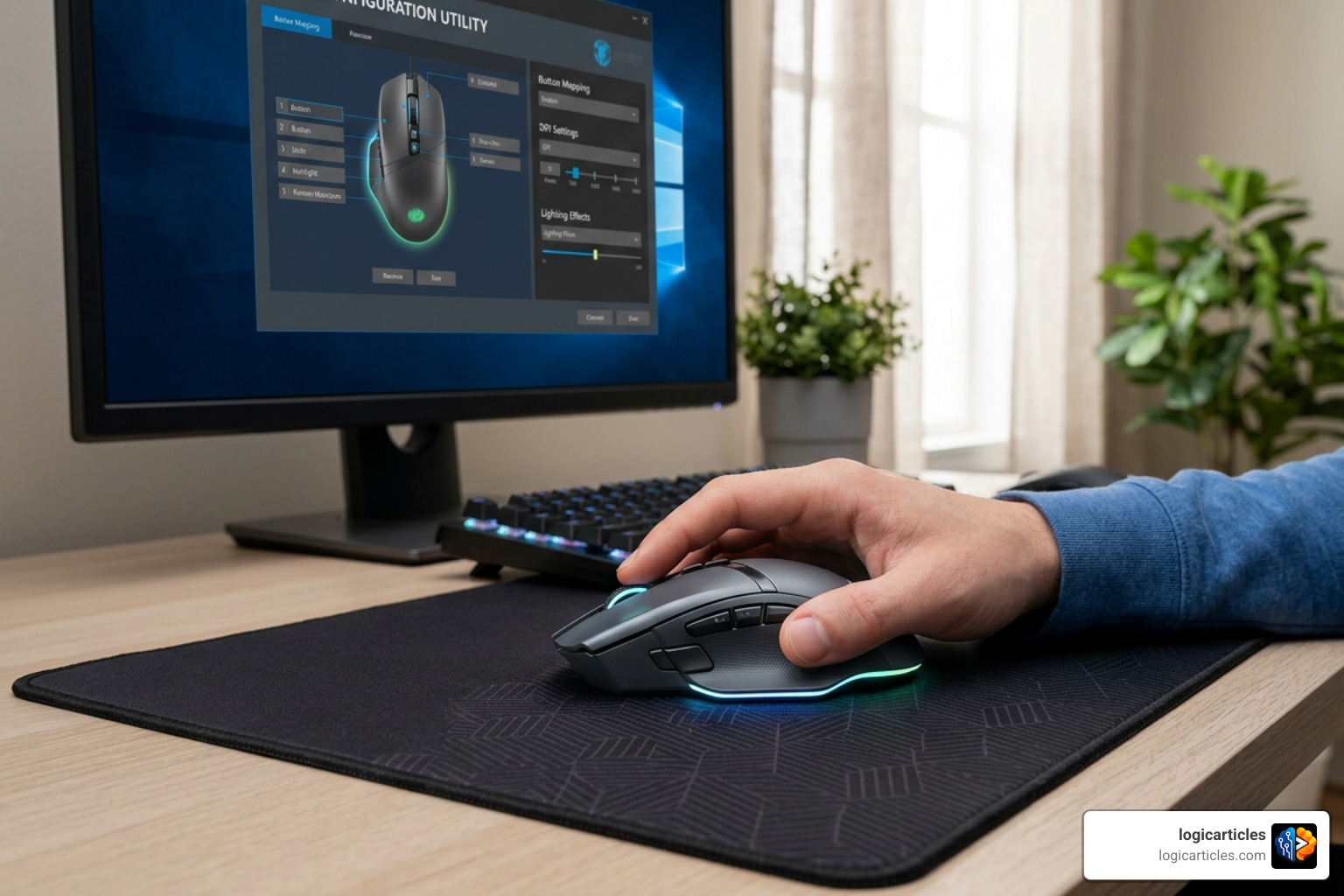
To keep your mouse running smoothly and make your settings portable, you need to manage your profiles and hardware settings.
Software Profiles vs. Hardware Profiles
- Software Profiles: These run through the iCUE software on your computer. They are incredibly powerful, allowing you to link specific profiles to launch automatically when a particular game or application opens. For example, your mouse can automatically switch to a high-DPI, red-lit layout when you launch an FPS game, and switch back to a clean, blue-lit layout for web browsing when you close the game.
- Hardware Profiles: These are saved directly onto your mouse’s physical onboard memory chip. This means your custom key assignments, macros, and lighting profiles will work on any computer, even if that computer does not have iCUE installed (like a tournament PC or a work laptop).
Saving to Onboard Memory
- In iCUE v5, click the Device Settings (gear icon) for your mouse.
- Scroll down to the Onboard Memory section.
- Select an available slot and choose the profile you want to save directly to the device.
- Click Save to overwrite the onboard memory.
Keeping Firmware Updated
Device firmware is the internal software that runs on your mouse’s hardware. Keeping it updated prevents tracking issues, improves wireless stability, and fixes bugs.
- Click the Settings (Gear Icon) in the top right corner of iCUE.
- Go to Software Updates or Device Settings.
- Locate your mouse and click Check for Updates.
- If an update is available, follow the prompts. Crucial: If your mouse is wireless, make sure both the mouse and its USB dongle are plugged directly into your PC’s motherboard USB ports during the update process to prevent corruption.
Frequently Asked Questions about CORSAIR Mouse Programming
Can I program my CORSAIR mouse without iCUE running?
Yes, but with limitations. You must use iCUE at least once to program the mouse and save your settings to a Hardware Profile on the mouse’s onboard memory. Once saved, you can close iCUE, uninstall it, or plug your mouse into a completely different computer.
Your remapped buttons and basic lighting profiles will continue to work flawlessly. However, advanced features like dynamic system temperature lighting, application-linked profile switching, and complex software-based macros will require iCUE to be actively running in the background.
How do I update my CORSAIR mouse firmware?
To update your firmware, open iCUE, click the Settings gear icon in the top-right corner, and select Device Settings. Choose your mouse from the list and click Check for Update.
Ensure your mouse is connected via a secure USB cable (not just wireless) and do not unplug it or turn off your PC while the update utility is running.
Why is my remapped mouse button not working in-game?
If your custom binds work in text editors like Notepad but fail once you launch a game, there are three common culprits:
- Administrator Privileges: Some games run with elevated system permissions, which blocks standard background software like iCUE from sending keystrokes. Try closing iCUE, right-clicking the iCUE desktop shortcut, and selecting Run as Administrator.
- Profile Auto-Switching Conflicts: If you set up a custom profile linked to a game’s
.exefile, ensure iCUE is detecting the game correctly. If the game launches in borderless windowed mode, iCUE might think you are still on your desktop and fail to switch profiles. - Anti-Cheat Interference: Highly restrictive anti-cheat software in certain multiplayer games occasionally blocks simulated keystrokes (macros) to prevent cheating. If this is the case, try remapping your mouse buttons to standard, simple keyboard keys rather than complex, multi-key macros.
Conclusion
Programming your CORSAIR mouse is one of the quickest ways to elevate your gaming performance and streamline your daily productivity workflows. By mastering CORSAIR’s iCUE software, you unlock the true potential of your hardware — turning a standard pointing device into a highly customized command station tailored perfectly to your hand and playstyle.
Don’t be afraid to experiment with different DPI stages, multi-step macros, and custom profile configurations. If you find yourself needing to optimize other areas of your digital setup, Explore the best gaming and productivity software in our curated software roundups. Happy gaming!