Why Wiping Your Hard Drive the Right Way Actually Matters

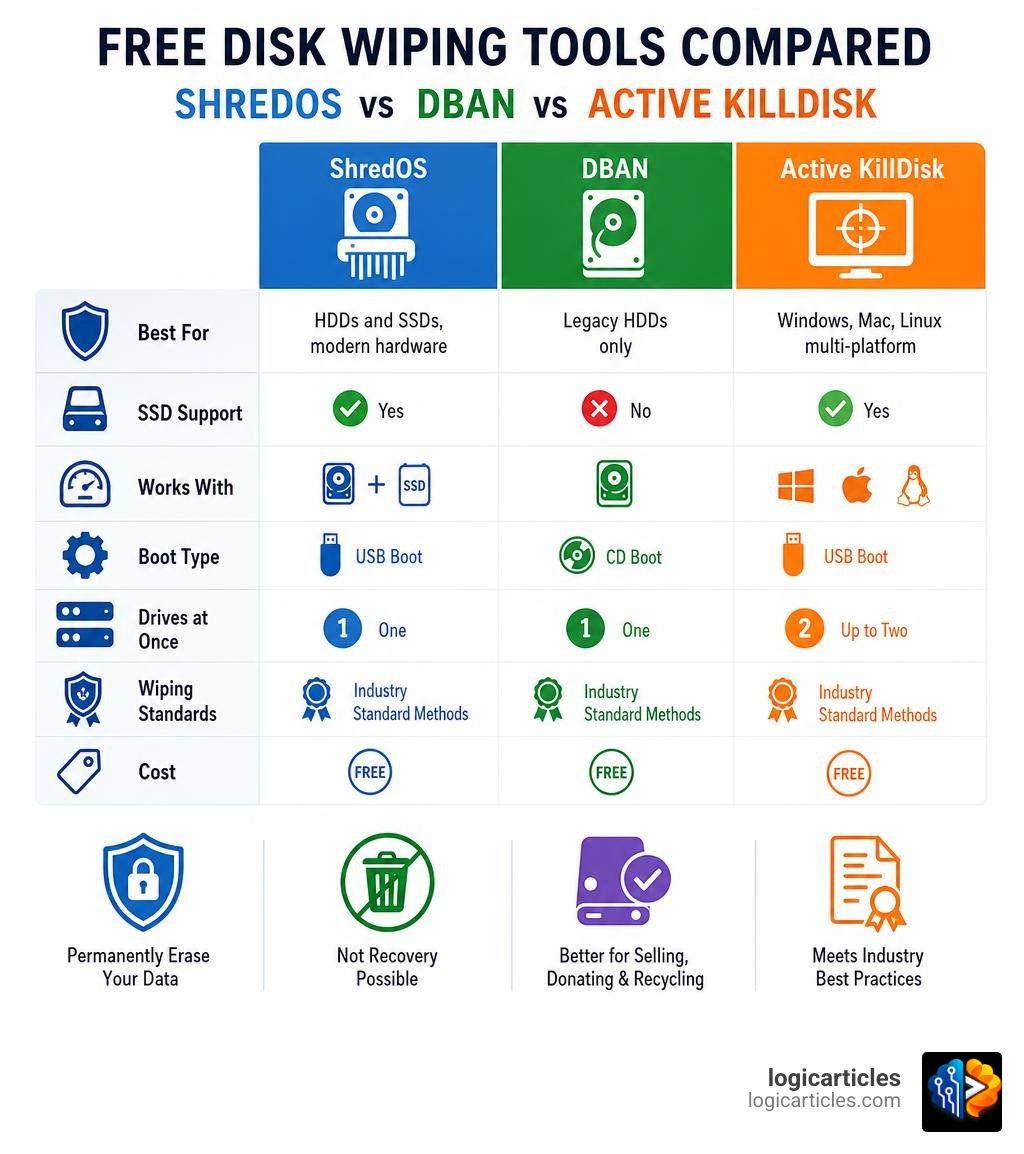
Is there a free software to wipe a hard drive? Yes — and there are several good ones. Here are the top free options:
| Tool | Best For | SSD Support | Cost |
|---|---|---|---|
| ShredOS | HDDs and SSDs, modern hardware | Yes | Free |
| DBAN | Legacy HDDs only | No | Free |
| Active@ KillDisk Freeware | Windows/Mac/Linux, 2 drives at once | Yes | Free |
| FastBorn | Zero-touch automated wiping | Yes | Free |
Most people think deleting files — or even formatting a drive — is enough to protect their data. It isn’t.
When you delete a file, your operating system simply removes the reference to it. The actual data stays on the drive until something new overwrites it. That means anyone with basic recovery software can bring it back.
The same problem applies to a quick format. It rewrites the file system header but leaves your personal data sitting on the disk, fully recoverable.
Secure disk wiping is different. It overwrites every sector of the drive with random data, zeros, or patterns designed to make the original data unreadable — permanently.
This matters most when you’re selling, donating, or recycling an old computer. It also matters for businesses that need to prove data was properly destroyed.
The good news? You don’t need to spend money to do this properly.
Is there a free software to wipe a hard drive?
If you are preparing to recycle an old PC or hand down a laptop in June 2026, the question is highly practical: Is there a free software to wipe a hard drive?
The short answer is a resounding yes. There is a rich ecosystem of open-source software and freeware utilities designed specifically for data sanitization. These tools bypass the standard operating system limitations to overwrite your storage media directly.
When we talk about “wiping,” we are moving far beyond a standard file deletion or a quick format. A true data sanitization tool ensures that every single block of addressable storage is systematically overwritten.
For those looking for a modern, robust, and completely free solution, ShredOS – Free Secure Disk Wiping & Data Erasure Tool stands out as an exceptional choice. It is a lightweight, bootable operating system designed specifically to run independently of your primary OS, giving it direct, unhindered access to the drive hardware.
Is there a free software to wipe a hard drive for SSDs?
Solid-State Drives (SSDs) require a completely different approach to data destruction than traditional mechanical hard drives. Because SSDs rely on flash memory, they utilize a built-in controller that manages how data is written across physical blocks.
To prolong the life of the flash cells, the controller uses a technique called wear-leveling. This process distributes writes evenly across the drive, meaning that when software attempts to overwrite a specific logical sector, the controller might redirect that write to a different physical cell. Consequently, traditional block-by-block overwriting utilities can leave remnants of your private data completely untouched in “over-provisioned” or reserved blocks.
To securely erase an SSD without wearing out the drive unnecessarily, you must invoke hardware-level firmware commands:
- ATA Secure Erase: A command sent directly to the SATA SSD controller that instructs it to apply a voltage spike to all physical storage cells, resetting them to an empty state in a matter of seconds.
- NVMe Secure Erase (or Crypto Erase): A command for modern PCIe-based drives that either deletes the internal cryptographic keys (rendering all stored data instantly unreadable) or performs a low-level flash block clear.
For a free tool capable of handling these advanced commands, SecureWipe: Cross-Platform Secure Data Wiping Solution is a fantastic open-source project. It leverages a minimal Linux environment to interact directly with SSD controllers, safely executing factory-standard secure erase protocols without degrading your drive’s lifespan.
Is there a free software to wipe a hard drive for legacy HDDs?
Traditional Hard Disk Drives (HDDs) store data magnetically on spinning platters. Because they write data to fixed physical sectors, they are highly susceptible to simple overwriting methods. If you write a stream of zeros across every single sector of a magnetic disk, the original data is gone.
For decades, the undisputed king of legacy HDD wiping was DBAN. Short for Darik’s Boot and Nuke, Darik’s Boot and Nuke – DBAN – Darik’s Boot And Nuke became the default tool for IT professionals and home users alike. DBAN runs as a bootable environment, meaning you burn it to a disc or write it to a USB drive, boot your computer from it, and let it overwrite the entire drive.
However, DBAN has significant limitations in June 2026. Because its development officially stopped back in 2015, it lacks the modern drivers required to detect newer SATA controllers, NVMe drives, or USB 3.0 interfaces. While it remains highly reliable for older magnetic disks, it should not be used for modern SSDs, as it cannot detect or safely sanitise them.
Top Free Disk Wiping Tools Compared
To help you choose the right utility for your specific hardware, we have compared the most reliable free options available today:
| Feature | ShredOS | DBAN | Active@ KillDisk Freeware | Fastborn |
|---|---|---|---|---|
| Primary Target | Modern HDDs, SSDs & NVMe | Legacy HDDs only | Cross-platform (Win/Mac/Linux) | Automated, zero-touch wiping |
| SSD Compatibility | Yes (via hdparm / nvme-cli) | No | Yes | Yes (via modern Linux kernel) |
| Active Development | Yes (Highly active) | No (Discontinued in 2015) | Yes | Yes |
| Interface | TUI (Text User Interface) | Text Command Line | GUI & Console | Automated Boot (Interactive/Auto) |
| Simultaneous Wiping | Yes (Parallel multi-drive) | Yes | Yes (Up to 2 drives in free version) | Yes (All connected drives) |
| Wipe Certificate | Yes (PDF & TXT logs) | No | Yes (Basic certificate) | Yes (JSON logging to USB) |
If you are using a Windows-based machine and your system performance has been sluggish lately, you might be tempted to wipe your drive just to get a fresh start. Before taking such a drastic step, you may want to check out our guide on More info on fixing slow startup on Windows to see if your system can be saved without losing your files.
ShredOS: The Modern Open-Source Standard
For anyone seeking a true successor to DBAN, ShredOS is the gold standard. Under the hood, ShredOS is a highly optimized, lightweight Linux distribution that boots in seconds. It runs nwipe—a modern fork of DBAN’s original dwipe command-line utility.
Because it is built on a modern Linux kernel, ShredOS has built-in driver support for almost all contemporary hardware, including NVMe drives, USB 3.2 controllers, and legacy SATA/IDE setups. It allows you to wipe multiple drives simultaneously, displaying real-time progress bars for each operation. It also includes critical command-line utilities like hdparm and nvme-cli for triggering hardware-level secure erases on solid-state drives.
To grab the latest build, you can check out the official repository at PartialVolume/shredos.x86_64, which offers pre-compiled .img and .iso files ready to be flashed to a USB drive.
Active@ KillDisk Freeware: Cross-Platform Versatility
If you prefer a tool that can run directly inside your existing operating system (or via a dedicated boot disk), Active@ KillDisk Freeware is an excellent choice. Available for Windows, Linux, and macOS, this utility offers a polished graphical user interface (GUI) that makes selecting and wiping drives straightforward for beginners.
The freeware edition allows for the parallel erasure of up to two disks at the same time, offering entirely independent erase and wipe sessions. It supports the standard “One Pass Zeros” method, which is perfectly adequate for general data security before disposing of a computer.
If you are a Mac user trying to clean up an older machine, you should also read our articles on More info on fixing a slow Mac to see if a simple cleanup can restore its speed before you decide to wipe the drive entirely.
To download the free version for personal use, visit Active@ KillDisk Freeware (Windows, Linux, MacOS X) for Home & Personal Use.
Fastborn: Zero-Touch Automation
For scenarios where you have to wipe multiple computers quickly—such as resetting a school computer lab, cleaning out PCs in an internet cafe, or preparing a stack of office laptops for donation—manual configuration is tedious. This is where Fastborn shines.
Fastborn is an open-source, zero-touch bootable USB disk-wiping tool. Developed as a modern, automated alternative to DBAN, its workflow is incredibly simple: plug the USB in, boot the machine, and walk away.
Upon boot, Fastborn features a 3-second GRUB timeout before automatically launching into its wiping routine. It runs entirely from RAM (using a tiny ISO of only about 20MB), automatically excludes the bootable USB itself from the wipe list, and begins overwriting all connected drives in parallel. It features a “Quick” mode (1-pass zero fill taking 15–20 minutes for an 80GB drive) and a “Full” mode (DoD 7-pass standard). Once finished, it generates structured JSON logs and writes them back to the USB drive for verification.
You can explore the project and download the ISO directly from badursun/Fastborn.
How to Create a Bootable USB and Wipe Your Drive
Because your operating system locks active system files while running, you cannot wipe your primary boot drive from within Windows or macOS. To bypass these locks, you must create a bootable USB drive containing your chosen sanitization software.
Here is a step-by-step guide to doing this safely:
- Download the Software: Download the
.isoor.imgfile for your chosen tool (such as ShredOS or Fastborn). - Get a Flashing Tool: Download a free USB writing utility like Rufus (for Windows) or BalenaEtcher (for macOS and Linux).
- Flash the Drive: Insert a spare USB flash drive (at least 2GB in size). Open Rufus, select your USB drive, choose the downloaded ISO/IMG file, and click Start. Note: This will erase all existing data on the USB drive.
- Configure BIOS/UEFI: Restart your target computer and press the boot menu key (usually F12, F11, F8, or Esc) or enter the BIOS/UEFI settings (usually Del or F2). Change the boot order so that your computer boots from the USB drive first.
- Boot and Select Your Method: Once the software loads, carefully select the drive you want to wipe.
- Choose a Sanitization Standard:
- NIST SP 800-88 Rev. 1: The modern standard. It recommends a single-pass overwrite (writing zeros or random data) for modern hard drives, which is highly secure and saves time.
- DoD 5220.22-M: A legacy US Department of Defense standard. It requires three passes (writing zeros, then ones, then random characters) to ensure complete destruction on older magnetic media.
- Confirm and Wipe: Double-check that you have selected the correct target drive. Once confirmed, initiate the process and wait for it to finish.
Limitations and Risks of Free Disk Wiping Software
While free utilities are incredibly powerful, they do come with distinct trade-offs and risks that you should keep in mind:
- Risk of Accidental Data Loss: These tools do not have an “undo” button. If you select your external backup drive by mistake instead of your old internal drive, your data is gone forever. Always disconnect any external storage devices you want to keep safe before booting into a wiping tool.
- Lack of Official Compliance Certificates: If you run a business subject to strict regulatory frameworks (like HIPAA or GDPR), simply wiping a drive is not enough; you must prove it was wiped. Free tools rarely provide the tamper-proof, cryptographically signed PDF certificates required for official audits, which are typically reserved for paid enterprise solutions.
- Hardware Compatibility Issues: Although ShredOS has excellent modern hardware support, some proprietary RAID controllers or highly specific motherboard configurations may still fail to recognize drives properly.
- Operating System Reinstallation: Wiping your drive deletes everything, including your operating system, recovery partitions, and drivers. If you plan to reuse the computer, you will need a separate installation media (like a Windows bootable USB) to reinstall the OS from scratch.
If you are a Mac user preparing to wipe your machine due to persistent startup issues, make sure you have exhausted all troubleshooting options first. Check out our guide on More info on fixing slow boot on Mac to see if a simple software adjustment can resolve the issue.
Additionally, if you are on Windows and suspect a malware infection is slowing you down, running the Microsoft Windows Malicious Software Removal Tool might clean your system and save you the hassle of a complete wipe and reinstall.
Frequently Asked Questions about Free Disk Wiping
Can DBAN wipe modern SSDs?
No. DBAN was built in an era dominated by mechanical hard drives. It cannot reliably communicate with the internal controller of an SSD to trigger an ATA or NVMe Secure Erase. Furthermore, attempting to use DBAN’s block-by-block logical overwrites on an SSD will not guarantee complete data sanitization due to wear-leveling algorithms, and it will cause unnecessary write wear on the drive’s flash cells.
Is a single-pass overwrite secure enough?
Yes. For modern magnetic platter hard drives (HDDs), a single-pass overwrite of zeros or random data (as recommended by the NIST SP 800-88 guidelines) is more than sufficient to prevent any commercial or laboratory-grade data recovery. The older practice of overwriting a drive 35 times (the Gutmann method) was designed for ancient hard drives from the 1980s and early 1990s and is entirely unnecessary for modern storage technology.
How long does it take to wipe a hard drive?
The duration depends heavily on the drive’s capacity, its connection speed, and the wiping standard you choose. A quick single-pass zero-fill on a modern 1TB HDD usually takes between 2 to 4 hours. However, if you choose a 3-pass DoD standard, that time will triple. SSDs, on the other hand, can be wiped in a matter of seconds to minutes when using hardware-level Secure Erase commands.
Conclusion
When it comes to protecting your personal privacy or company data, relying on basic file deletion is a major security risk. Fortunately, answering the question “Is there a free software to wipe a hard drive?” reveals a variety of powerful, open-source, and freeware tools capable of professional-grade data destruction.
Whether you opt for the modern hardware compatibility of ShredOS, the cross-platform ease of Active@ KillDisk, or the automated efficiency of Fastborn, you can easily secure your digital footprint before parting with your old hardware.
For more helpful guides on choosing the right tools for your digital life, Explore the best software guides on our site!