Why Is My AMD Cleanup Utility Not Finishing?
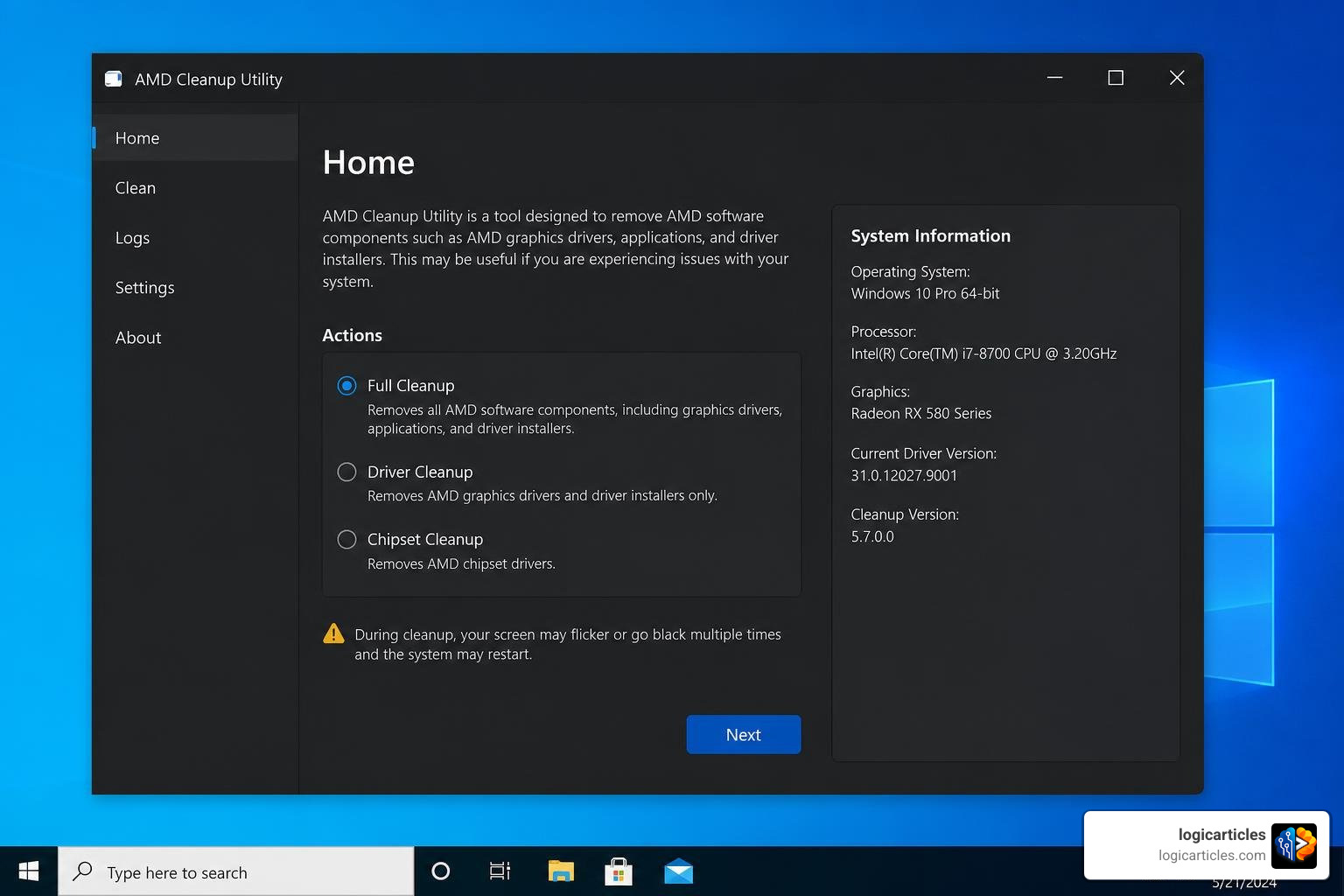
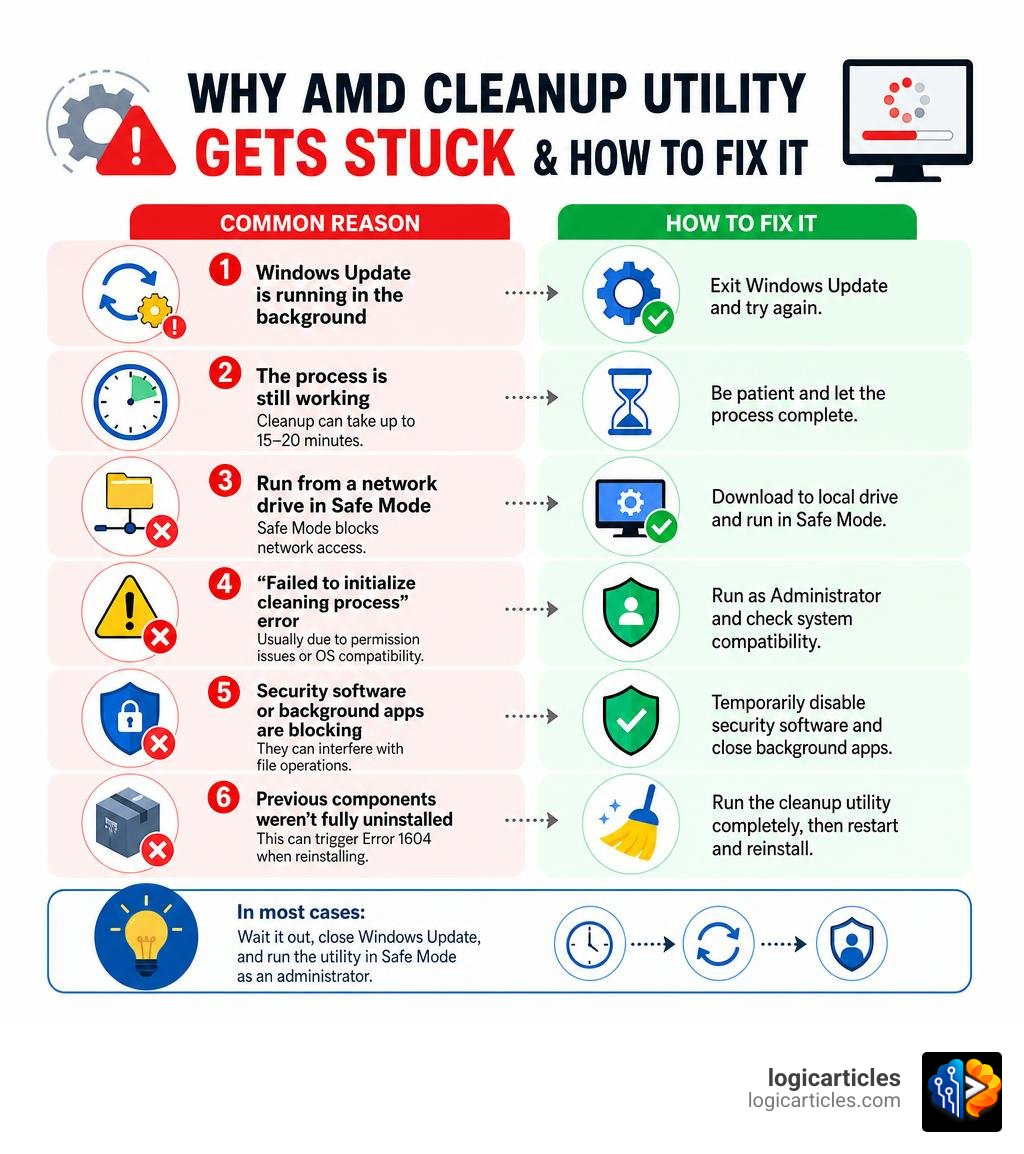
If you’re wondering why is my AMD Cleanup Utility not finishing, the most common reasons are listed below:
- Windows Update is running in the background — the utility will stop and prompt you to exit Windows Update first
- The process is still working — cleanup can take up to 15–20 minutes, even if the screen looks frozen
- The utility was run from a network drive in Safe Mode — Safe Mode blocks network access, so the tool can’t load
- A “Failed to initialize cleaning process” error — usually caused by permission issues or OS compatibility
- Security software or background apps are blocking file operations
- Previous AMD components weren’t fully uninstalled — triggering Error 1604 when trying to reinstall
In most cases, the fix is simple: wait it out, close Windows Update, and run the utility in Safe Mode as an administrator.
One frustrated user described opening their PC after using the AMD Cleanup Utility only to find themselves stuck in Safe Mode — locked out with no familiar login screen and no way to enter a PIN or picture password. It’s a jarring experience, and it’s more common than you’d think.
The AMD Cleanup Utility is a powerful tool. It doesn’t just uninstall AMD software — it digs into driver files, registry entries, services, and installer remnants. That thoroughness is exactly what makes it useful, and also what makes it risky when something goes wrong.
This guide walks you through every major failure scenario and how to fix it.
Why is my AMD Cleanup Utility not finishing?
When you double-click that executable, you expect a quick, painless process. Instead, you are met with a progress bar that refuses to budge. Why does this happen?
The primary culprit is background system activity. The AMD Cleanup Utility is designed to sweep your system clean of Radeon graphics drivers, AMD software components, and HDMI audio drivers. To do this, it must modify deep system directories and registry keys. If another process is trying to access or modify those same files at the same time, a system deadlock occurs.
Windows Update is notorious for this. If Windows is quietly installing a generic display driver in the background while the cleanup utility is trying to delete it, the utility will often hang indefinitely. In fact, if you attempt to run the tool while Windows Update is active, it may terminate abruptly and prompt you to either exit Windows Update or allow the updates to finish before proceeding.
Common Causes Behind “Why is my AMD Cleanup Utility not finishing?”
Beyond Windows Update, several other system bottlenecks can freeze the cleanup process:
- System File Corruption: If your core Windows system files are damaged, the utility may get stuck trying to read or modify system directories. This is highly similar to the issues we see when troubleshooting general system performance, such as when dealing with a troubleshooting slow startup on Windows.
- Aggressive Security Software: Third-party antivirus programs often flag deep driver deletion as suspicious behavior. They may silently sandbox or block the utility mid-process without showing you a notification.
- Run from Network Drives: If you saved the utility on a shared network folder or an external drive and booted into Safe Mode, the tool will fail. Safe Mode disables network drivers by default, meaning the utility suddenly loses access to its own executable files.
How Long Should the Cleanup Process Actually Take?
Patience is a virtue, especially in driver management. One of the most common mistakes users make is force-closing the utility because they think it has crashed.
In reality, the AMD Cleanup Utility can take up to 15-20 minutes to complete depending on the speed of your storage drive and the sheer volume of old driver files accumulated over the years. During this time, the utility is performing several heavy tasks:
- It creates a dedicated Windows System Restore Point so you can roll back if things go south.
- It stops active display services, which will cause your display to flicker or temporarily go black.
- It systematically deletes files from the System32 folder and cleans out complex registry hives.
If you relaunch the tool because you think it is stuck, it will actually display a prompt explicitly warning you that the process may take up to 15-20 minutes. If your screen is flickering and the hard drive activity light is blinking, leave the computer alone and let it do its job.
How to Safely Run AMD Cleanup Utility in Safe Mode
For the best and cleanest results, we always recommend running the utility in Windows Safe Mode. Safe Mode loads only the bare minimum drivers and services, which prevents active AMD background processes from locking the files you are trying to delete.
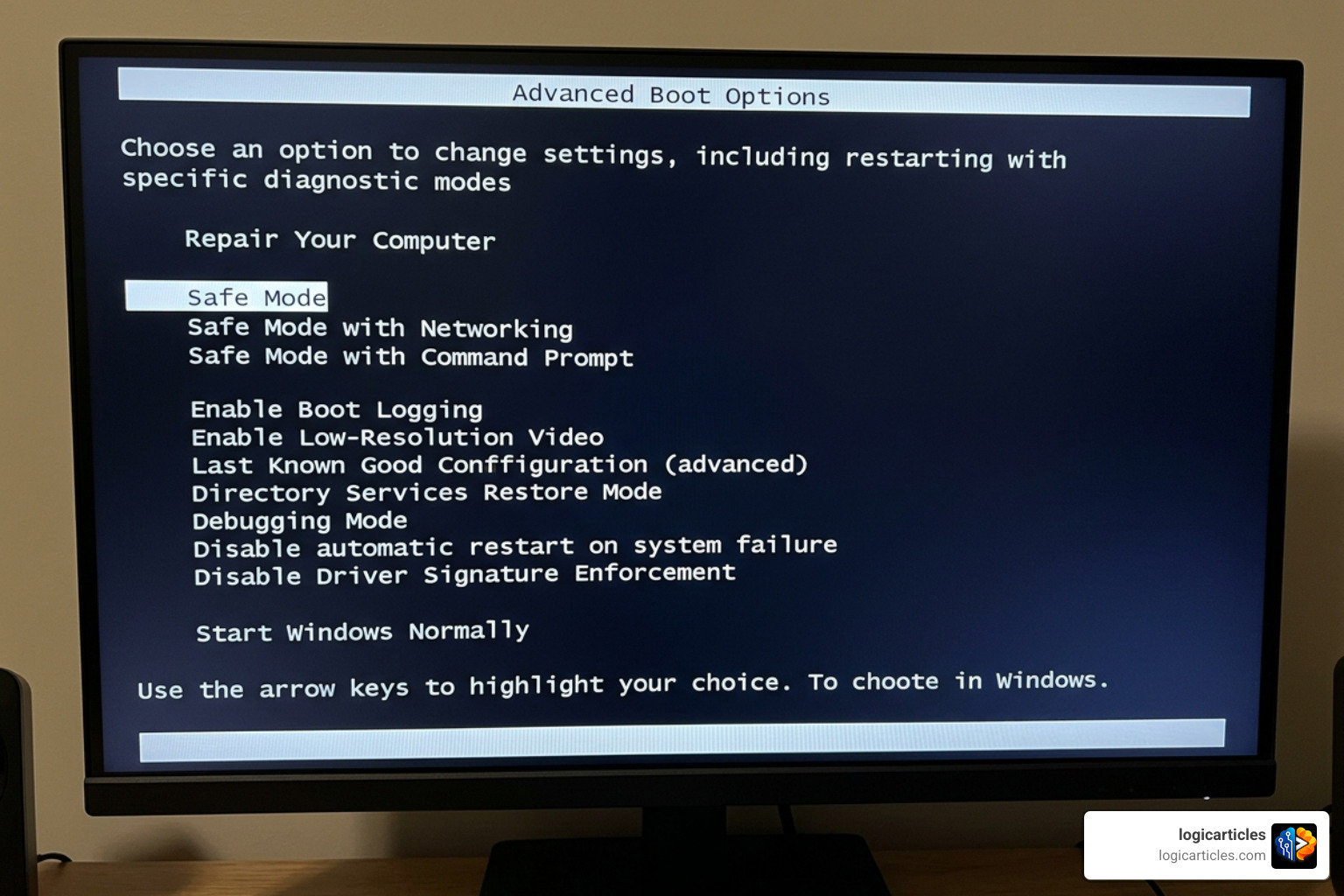
To run the utility safely, follow these steps:
- Download the latest version from the official AMD Cleanup Utility official download page. Make sure you save it to your local C: drive (such as your Downloads folder) rather than a network or external drive.
- Open the tool. It will automatically detect that you are in normal mode and show a prompt asking if you want to reboot into Safe Mode. Click Yes.
- Your PC will restart into Safe Mode, and the utility should launch automatically.
- If it does not start automatically, navigate to your local folder, right-click the executable, and select Run as Administrator.
- Once the cleanup is complete, click Finish and allow your PC to reboot back into normal Windows.
What to Do If the Utility Hangs in Safe Mode
If the utility still freezes even after booting into Safe Mode, you are likely dealing with a network path issue or a locked system file.
First, ensure you are not running the utility from a cloud-synced folder like OneDrive or Dropbox. Since Safe Mode disables internet access, these virtual folders can become unresponsive. Copy the file directly to C:\Temp and run it from there.
Second, if the utility continues to hang, you may need to perform a clean boot before entering Safe Mode. Open the System Configuration tool by typing msconfig in the Windows search bar. Under the Services tab, check Hide all Microsoft services, then click Disable all. This ensures that no third-party software can interfere when Windows restarts.
For those who also manage macOS systems and find themselves dealing with similar slow-downs and optimization hurdles, we have put together helpful guides on How to Fix a Slow Mac and How to Fix Slow Boot on Mac to keep all your devices running smoothly.
Troubleshooting Initialization Failures and Immediate Closures
Sometimes, the utility won’t even give you the chance to wait 15 minutes. You double-click the icon, a command window flashes for a microsecond, and then nothing happens. Or worse, you are greeted with a blunt error message: “Failed to initialize cleaning process.”
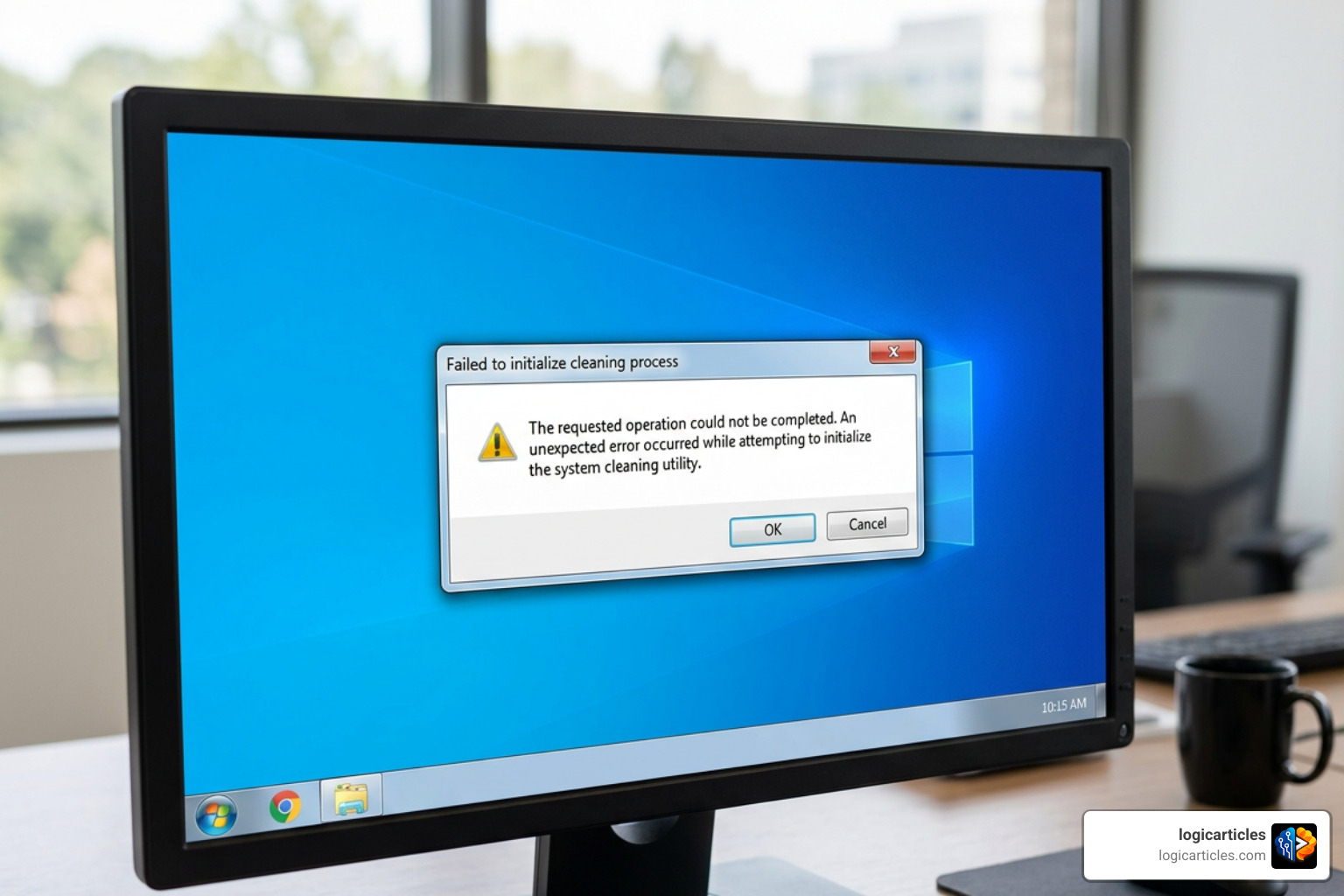
This issue is often tied to incomplete previous installations or permission blocks. If a previous driver update crashed halfway through, it can leave behind orphaned registry entries that confuse the utility’s startup check. This is highly comparable to the installation blocks discussed in our guide on HP Software and Driver Downloads Official Guide to Fix Update Install Drivers.
Resolving “Why is my AMD Cleanup Utility not finishing?” Due to Initialization Errors
If you are dealing with initialization failures or the notorious Error 1604 (which indicates that previous AMD software applications failed to correctly uninstall), you need to bypass the standard uninstaller.
To resolve this, we recommend using the official Microsoft Program Install and Uninstall troubleshooter. This tool is designed to repair corrupted registry keys that block programs from being installed or removed. Follow this process:
- Download the troubleshooter from Microsoft’s support site.
- Select Uninstalling when prompted.
- Look for specific AMD components in the list, such as AMD WVR64, AMD DVR64, or Branding64.
- Apply the fix to remove these stubborn remnants. You may need to run the troubleshooter multiple times to clean up each individual component.
- Once these specific files are cleared, restart your PC and try running the AMD Cleanup Utility again.
This targeted approach is the most reliable way to clear out the underlying errors that cause software installers to fail. If you run into other update-related issues on your system, you can read our guide on how to handle when An Error Occurred While Checking for a Software Update for additional troubleshooting methods.
For official steps regarding installer conflicts, you can also consult the AMD Error 1604 troubleshooting guide.
Fixing the Appx Package Right-Click Menu Bug
A particularly annoying bug reported by users in the AMD right-click menu bug report involves the Windows desktop right-click context menu. Even after running a successful cleanup, a broken “AMD Software” option or a persistent “Loading…” delay can remain on your right-click menu.
This happens because the cleanup utility sometimes fails to remove modern Windows Appx packages, specifically one named AdvancedMicroDevicesInc-RSXCM.
To completely purge this leftover package, you can use PowerShell:
- Right-click the Windows Start button and select Terminal (Admin) or PowerShell (Admin).
- Type the following command exactly as written and press Enter: Get-AppxPackage -AllUsers -Name “AdvancedMicroDevicesInc-RSXCM” | Remove-AppxPackage -AllUsers
- Close PowerShell and restart your computer. The context menu should now be completely clean.
Recovering from Black Screens, Low Resolution, and Unresponsive Peripherals
Because the AMD Cleanup Utility works by stripping away your display and chipset drivers, the immediate aftermath of running it can sometimes look like a disaster. You might reboot only to find your screen set to a stretched, low resolution, or worse, completely black.
On some older motherboard chipsets, users have even reported that their USB mouse and keyboard stop working entirely after running the cleanup. This happens because the utility occasionally removes essential motherboard USB controller drivers along with the graphics drivers.
Restoring USB and Input Functionality
If your mouse and keyboard are unresponsive after a cleanup, don’t panic. Your hardware isn’t broken; Windows has simply lost the driver instructions telling it how to talk to your USB ports.
Try these recovery steps:
- Switch USB Ports: Unplug your mouse and keyboard and plug them into different ports. Specifically, try moving them from blue USB 3.0 ports to black USB 2.0 ports, as USB 2.0 ports are more likely to run on basic, generic Windows drivers.
- Use a PS/2 Device: If you have an older motherboard with a circular PS/2 port, plug in an old PS/2 keyboard. These legacy ports do not require USB drivers to function.
- Reinstall Chipset Drivers: Once you regain control of your input devices, immediately download and install your motherboard’s official chipset drivers. This will restore proper power management and communication to your USB ports. For step-by-step guidance on driver reinstalls, check out our HP driver installation guide.
Safe Mode Lockout Recovery via Command Prompt
If the utility forces your PC into Safe Mode and you find yourself locked out because Windows won’t accept your password or PIN without network access, you will need to use a bootable Windows installation USB to repair your boot configuration.
- Insert a bootable Windows installation USB into your PC and boot from it.
- On the installation screen, select Repair your computer instead of Install now.
- Go to Troubleshoot, then select Command Prompt.
- We need to identify your Windows drive letter. Type diskpart and press Enter. Then type list volume and press Enter. Look for the drive letter where Windows is installed (it may not be C: in this recovery environment; let’s assume it is E: for this example). Type exit to leave diskpart.
- To fix the boot configuration and force Windows to boot normally instead of being stuck in Safe Mode, type the following command and press Enter: bcdboot E:\Windows /s C: /f ALL (Replace E: with your actual Windows volume letter if different).
- Restart your computer, remove the USB drive, and Windows should boot back into normal mode, allowing you to log in.
Best Alternatives to AMD Cleanup Utility
If the official AMD tool continues to fail or freeze on your system, you don’t have to keep fighting with it. There are excellent, highly reliable alternatives available that can achieve the same clean slate for your graphics drivers.
| Method | Best For | Pros | Cons |
|---|---|---|---|
| Display Driver Uninstaller (DDU) | Thorough, deep driver uninstalls | Highly reliable; removes NVIDIA, Intel, and AMD remnants completely | Requires manual Safe Mode boot; third-party tool |
| Device Manager | Quick rollbacks and simple updates | Built directly into Windows; very safe | May leave behind registry keys and leftover installer files |
| Windows Settings (Apps & Features) | Standard software removal | Easy to use; no special boot modes required | Often leaves behind deep driver files and context menu entries |
For most enthusiasts, Display Driver Uninstaller (DDU) is the gold standard. It is incredibly robust and rarely suffers from the freeze-ups that can plague the official AMD utility. If you want to read more about various troubleshooting solutions, you can check out the AMD Cleanup Utility – Problems and Solutions – DroidViews article or find a safe version of the official tool via Download AMD Cleanup Utility for Windows 11/10 (2025) .
If you are curious about community-tracked bugs and source code discussions regarding clean uninstalls, you can also browse the Search code, repositories, users, issues, pull requests… page on GitHub.
When to Consider a Clean Windows Reinstall
We always prefer to troubleshoot and fix a system rather than wiping it. However, there comes a point where the time spent troubleshooting outweighs the time it takes to start fresh.
If you have run the AMD Cleanup Utility, DDU, and the Microsoft troubleshooter, and you are still experiencing persistent blue screens, driver installation crashes, or missing system files, your Windows registry may be corrupted beyond simple repair.
If you find yourself unable to install any display drivers at all, or if your USB controllers remain entirely unresponsive even in Safe Mode, it is time to back up your personal files and perform a clean installation of Windows. A fresh install ensures that all corrupted registry paths, conflicting driver remnants, and broken system files are wiped away, giving your hardware a clean, stable foundation to work with.
Frequently Asked Questions about AMD Cleanup Utility
Does AMD Cleanup Utility remove chipset drivers?
No, the AMD Cleanup Utility is specifically designed to target graphics and audio drivers. It does not remove or modify AMD chipset drivers (such as PCI, SATA, or processor drivers). However, on older systems, it has occasionally been known to inadvertently affect USB controller drivers, which is why keeping your motherboard’s chipset drivers handy is always a good practice.
What should I do if my screen goes black during cleanup?
A temporary black screen or display flicker is completely normal during the cleanup process. The utility must temporarily disable your active display driver to delete its files. When this happens, Windows will fall back to the Microsoft Basic Display Adapter. If the black screen persists for more than 20 minutes, restart your PC in Safe Mode to verify if the process has finished.
Can I run AMD Cleanup Utility in normal Windows mode?
Yes, you can launch the utility in normal Windows mode. However, upon opening, the tool will display a prompt recommending that you reboot into Safe Mode for the best results. We highly recommend accepting this prompt to prevent active background applications from blocking the cleanup process.
Conclusion
When your graphics drivers start acting up, tools like the AMD Cleanup Utility are incredibly helpful—provided they actually finish running. By understanding the 15-20 minute timeframe, closing background processes like Windows Update, and knowing how to recover if your peripherals or boot settings get stuck, you can safely navigate any driver installation hurdle.
If you want to keep your system optimized and learn more about managing your software environment, explore our extensive library of productivity software guides here at logicarticles. Happy troubleshooting!