Why the Microsoft Windows Malicious Software Removal Tool Belongs on Every Windows PC
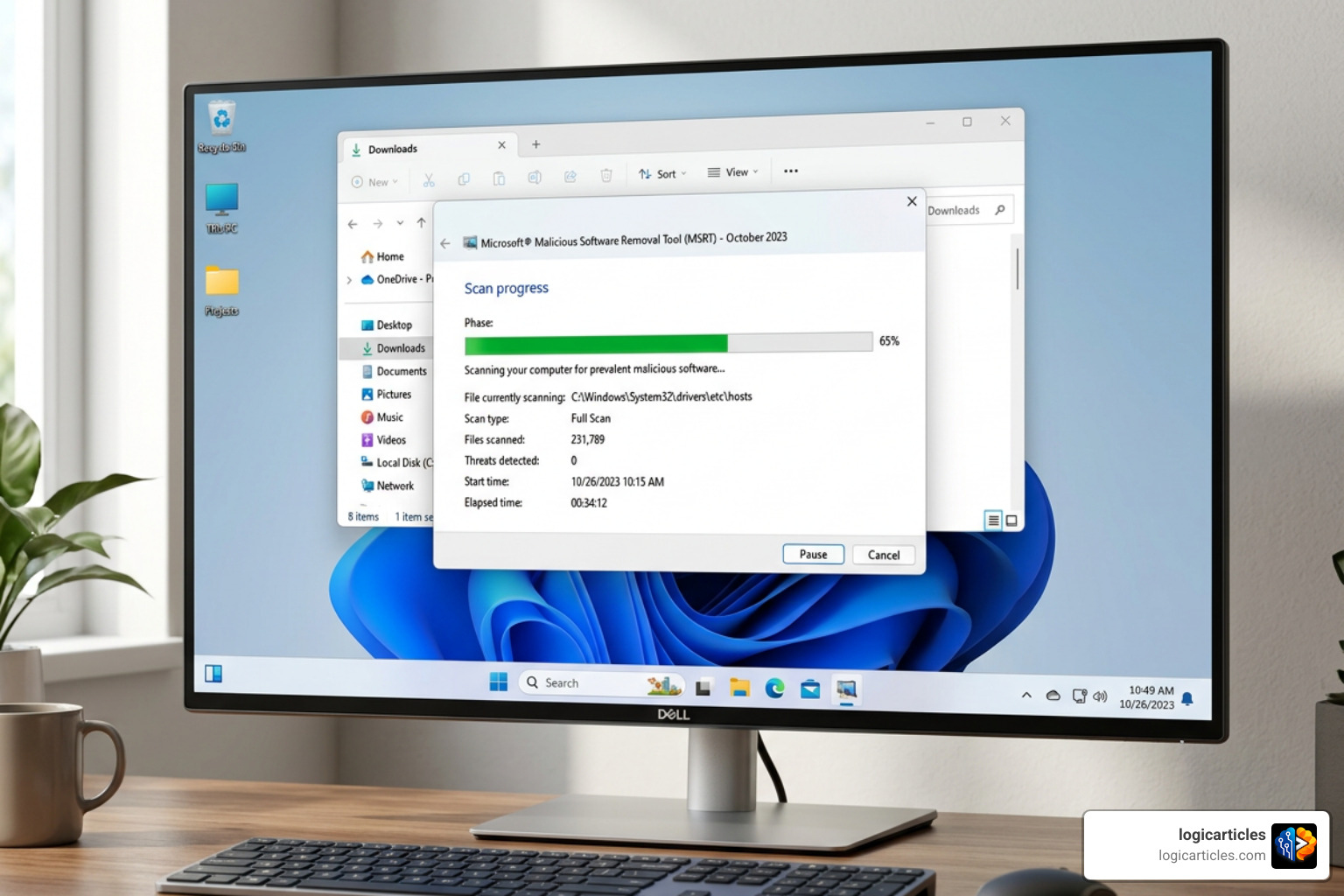
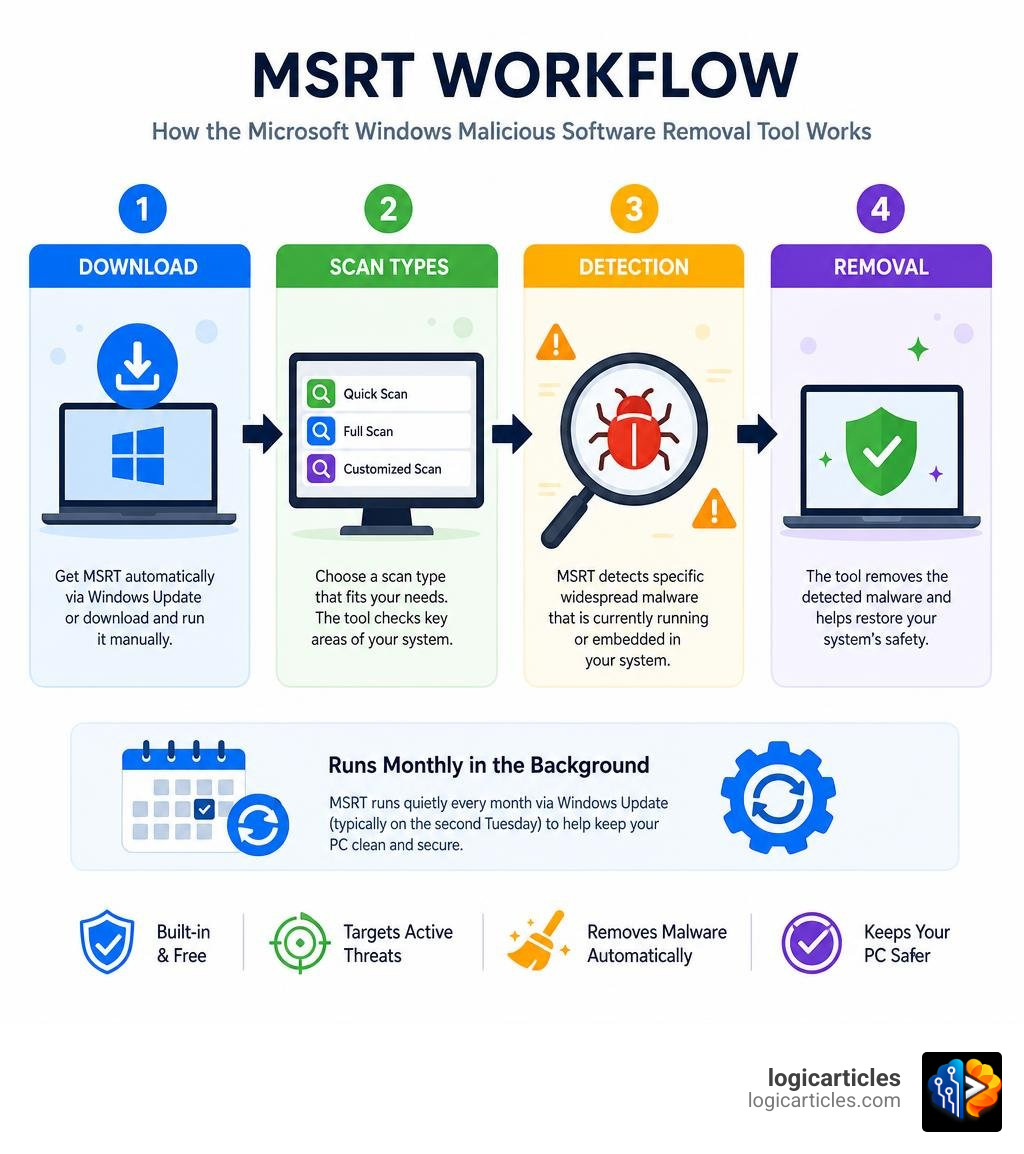
The Microsoft Windows Malicious Software Removal Tool (also called MSRT or MRT) is a free, built-in Windows utility that scans your PC for specific widespread malware and removes it. It is not a full antivirus — it is an on-demand cleanup tool that runs quietly in the background each month via Windows Update.
Here’s how to get it in 3 steps:
- Automatic (recommended): Enable Windows Update — MSRT is delivered automatically every second Tuesday of the month.
- Manual download: Visit the Microsoft Download Center and download the 64-bit or 32-bit standalone installer.
- Run it directly: Press
Win + R, typemrt, and press Enter to launch the tool already on your system.
Since its launch on January 13, 2005, MSRT has been executed roughly 2.7 billion times on at least 270 million unique computers. It has removed over 16 million malware instances — averaging one cleanup for every 311 computers it runs on. Those are not small numbers.
The tool targets the most damaging and prevalent malware families — including backdoor Trojans, worms, and rootkits. It focuses only on active threats, meaning malware that is currently running or embedded in your system.
One important thing to know upfront: MSRT is not a replacement for antivirus software. It works best alongside a real-time solution like Windows Defender Antivirus. Think of it as a monthly deep-clean, not an ongoing guard.
What is the Microsoft Windows Malicious Software Removal Tool?
To understand how to keep your PC secure, we first need to look at what the Microsoft Windows Malicious Software Removal Tool (MSRT) actually does. At its core, MSRT (which runs via the executable file MRT.exe) is an on-demand, post-infection removal utility developed by Microsoft. First introduced in early 2005, it is released under the Knowledge Base article number KB890830.
Unlike standard cybersecurity programs, MSRT does not sit in your system tray actively blocking incoming threats. Instead, it is designed to step in after an infection has occurred to identify, disable, and clean up specific, highly prevalent malware families.
The tool operates by looking for active, running processes of known malware families. If a threat is found, MSRT halts the process, removes the associated malicious files, and reverses the registry changes and system modifications made by the threat.
Historically, MSRT has been highly effective at mitigating massive cyber outbreaks. For example, back in August 2013, MSRT was updated to target the Sefnit botnet by deleting old, vulnerable versions of the Tor client that the botnet relied on. By October of that year, the tool had successfully cleaned approximately two million hosts.
To build a robust defense architecture for your personal computer or business network, it is helpful to Learn more about cybersecurity software requirements to understand where tools like MSRT fit into your security stack.
MSRT vs. Windows Defender Antivirus
Many Windows users find themselves asking: “If I already have Windows Defender running in the background, why do I need the Malicious Software Removal Tool?”
It is a great question. The short answer is that they serve two entirely different phases of system protection. Windows Defender is a proactive, real-time security suite. It constantly monitors your system, checks downloaded files, and blocks threats before they can execute. MSRT, on the other hand, is a reactive, post-infection cleanup tool.
| Feature | Microsoft Windows Malicious Software Removal Tool (MSRT) | Windows Defender Antivirus |
|---|---|---|
| Primary Role | Post-infection malware removal (on-demand cleanup) | Real-time threat prevention and continuous protection |
| Active Monitoring | None. Runs once a month or when manually triggered | Continuous real-time scanning of files, memory, and downloads |
| Threat Scope | Targets specific, highly prevalent malware families | Targets all known malware, spyware, adware, and PUPs |
| Update Frequency | Monthly (typically on Patch Tuesday) | Daily (or multiple times per day) |
| Execution State | Focuses strictly on active, currently running threats | Scans inactive files, archives, and system memory |
Because MSRT only looks for active malware, it does not scan for inactive files or non-threatening adware. For a complete look at how Microsoft manages these security layers, you can read the official Antivirus and antimalware software FAQ.
Supported Operating Systems and Requirements
As of June 2026, the microsoft windows malicious software removal tool supports modern, active Windows operating systems, including:
- Windows 11
- Windows 10
- Windows Server 2022
- Windows Server 2019
- Windows Server 2016
- Windows Server 2012 and 2012 R2
Please note that Microsoft has retired support for older operating systems. For example, support for Windows Server 2008 and Windows Server 2008 R2 ended in May 2025.
To run MSRT, you must log in with local administrator privileges. Additionally, since November 2019, Microsoft has required all MSRT updates to be SHA-2 signed. If you are running legacy systems that do not support SHA-2 code signing, the tool will not install or run correctly. If you are curious about how low-level system instructions interact with operating system tools like MSRT, you can Understand the difference between firmware vs software.
How to Download and Run MSRT
For the vast majority of users, the easiest way to get MSRT is to do nothing at all! By default, Windows Update automatically downloads and runs the tool in “quiet mode” every second Tuesday of the month (known in the tech world as “Patch Tuesday”).
When MSRT runs automatically via Windows Update, it performs a quick scan in the background. If it does not find any infections, it exits silently without showing any pop-ups or notifications. You will only see an alert if the tool successfully detects and removes a threat from your machine.
However, background scans can occasionally consume system resources. If you notice your computer dragging during update cycles, or if you want to troubleshoot general performance issues, check out our guide on Is your laptop running slow? to optimize your hardware.
How to Download the Microsoft Windows Malicious Software Removal Tool Manually
If you suspect your computer is infected, or if you have automatic Windows updates turned off, you can download MSRT manually as a standalone utility.
Follow these steps to download and run the standalone tool:
- Determine whether your operating system is 64-bit or 32-bit (most modern systems are 64-bit).
- Download the appropriate version directly from the official Microsoft Download Center:
- Locate the downloaded file (usually named
Windows-KB890830-x64.exeor similar) in your Downloads folder. - Right-click the file and select Run as administrator. If prompted by User Account Control (UAC), click Yes.
Running a Scan and Choosing Scan Types
Once you launch the manual standalone tool, you will be greeted by the welcoming Microsoft wizard interface. Click Next to proceed to the scan selection screen.
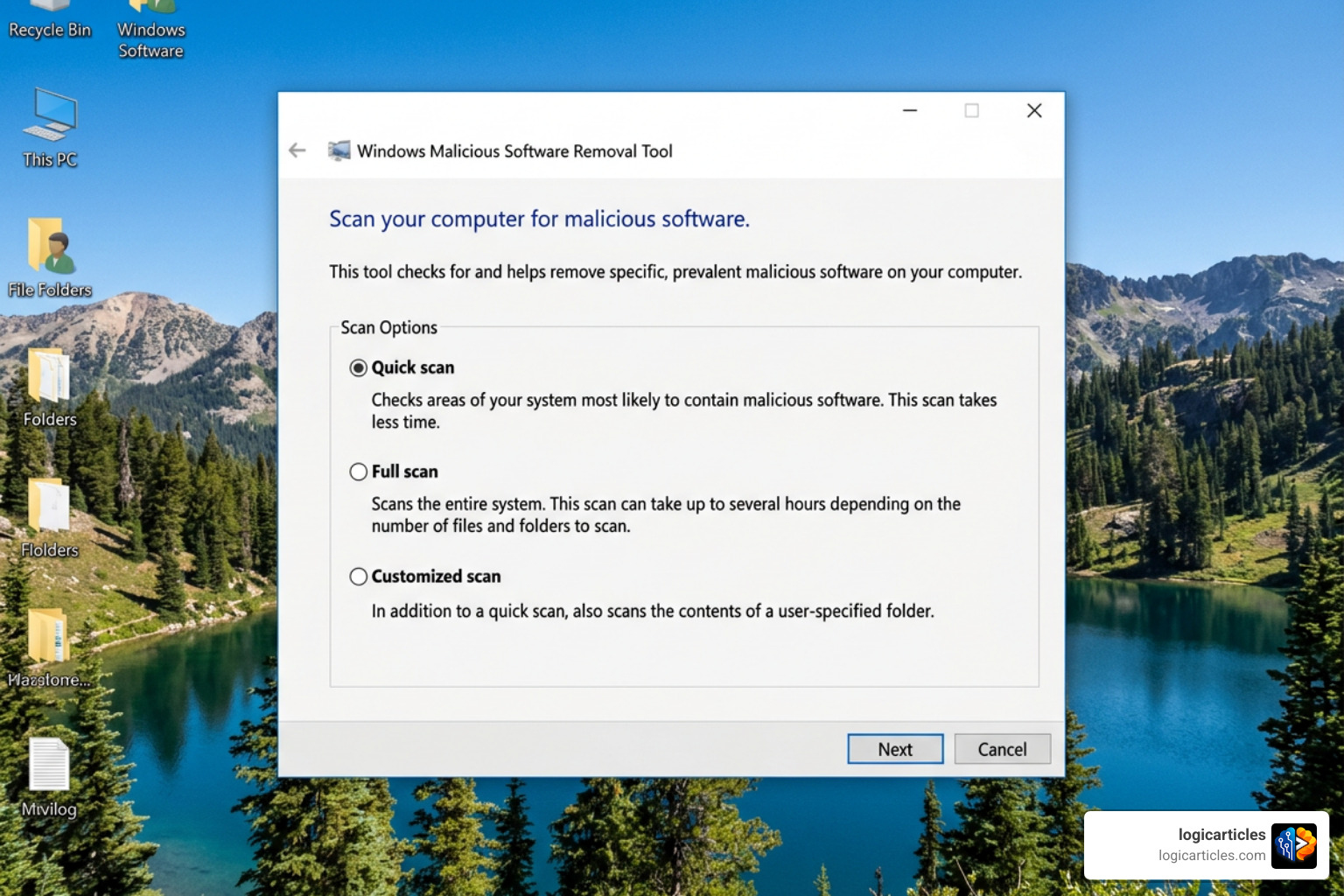
You can choose from three distinct scan types depending on your needs:
- Quick Scan: This scan targets the areas of your operating system most likely to harbor active malware (such as system directories, startup folders, and active memory). It usually takes only a few minutes to complete.
- Full Scan: This option performs a comprehensive scan of all fixed and removable drives on your computer. Because it inspects every single file and folder, a full scan can take several hours to complete.
- Customized Scan: This scan performs a quick scan first, then allows you to specify a particular folder or external drive to scan.
If your computer is taking an unusually long time to boot up before you can even launch a scan, you may want to learn How to fix slow startup on Windows to clear out startup bottlenecks.
Advanced Usage and Enterprise Deployment
For network administrators, managing cybersecurity across hundreds or thousands of workstations requires automation. MSRT is designed to integrate seamlessly into corporate environments, allowing IT professionals to deploy, configure, and monitor the tool without manual user intervention.
To keep your organization’s defenses aligned with the latest threat intelligence, make sure to Stay updated with Droven Io cybersecurity updates.
Running the Microsoft Windows Malicious Software Removal Tool via Command Line
If you prefer using Command Prompt or PowerShell, or if you are writing automated maintenance scripts, MSRT supports several command-line switches. To run these, you must open an elevated Command Prompt (Run as Administrator).
Here are the most common switches you can use with MRT.exe:
/qor/quiet– Runs the tool in quiet mode. This suppresses all user interfaces, wizard dialogs, and progress bars./f– Forces a full scan of the computer./q /f– Combines quiet mode with a forced full scan. This is ideal for automated nightly maintenance scripts./n– Runs the tool in scan-only mode. It will detect malware but will not attempt to remove any threats.
For a full breakdown of deployment commands, registry values, and update packages, refer to the official support documentation: Remove specific prevalent malware with Windows Malicious Software Removal Tool (KB890830).
Deploying MSRT in Enterprise Environments
In large networks, IT administrators do not manually run executable files on every machine. Instead, they use deployment consoles like Windows Server Update Services (WSUS) or Microsoft Endpoint Configuration Manager (SCCM).
When deploying MSRT across an enterprise environment:
- WSUS Integration: MSRT is categorized under “Definition Updates” or “Security Updates.” Administrators can approve KB890830 for automatic deployment to specific computer groups.
- Silent Execution: The tool runs silently in the background of target workstations during their designated update windows.
- Bandwidth Optimization: Because the standalone tool is relatively small (around 80-85 MB), it does not congest network bandwidth during deployment.
Understanding the MSRT Log File and Registry Keys
Every time MSRT runs—whether automatically via Windows Update or manually by a user—it records its findings in a local text log file.
The MSRT log file is located at: C:\Windows\debug\mrt.log
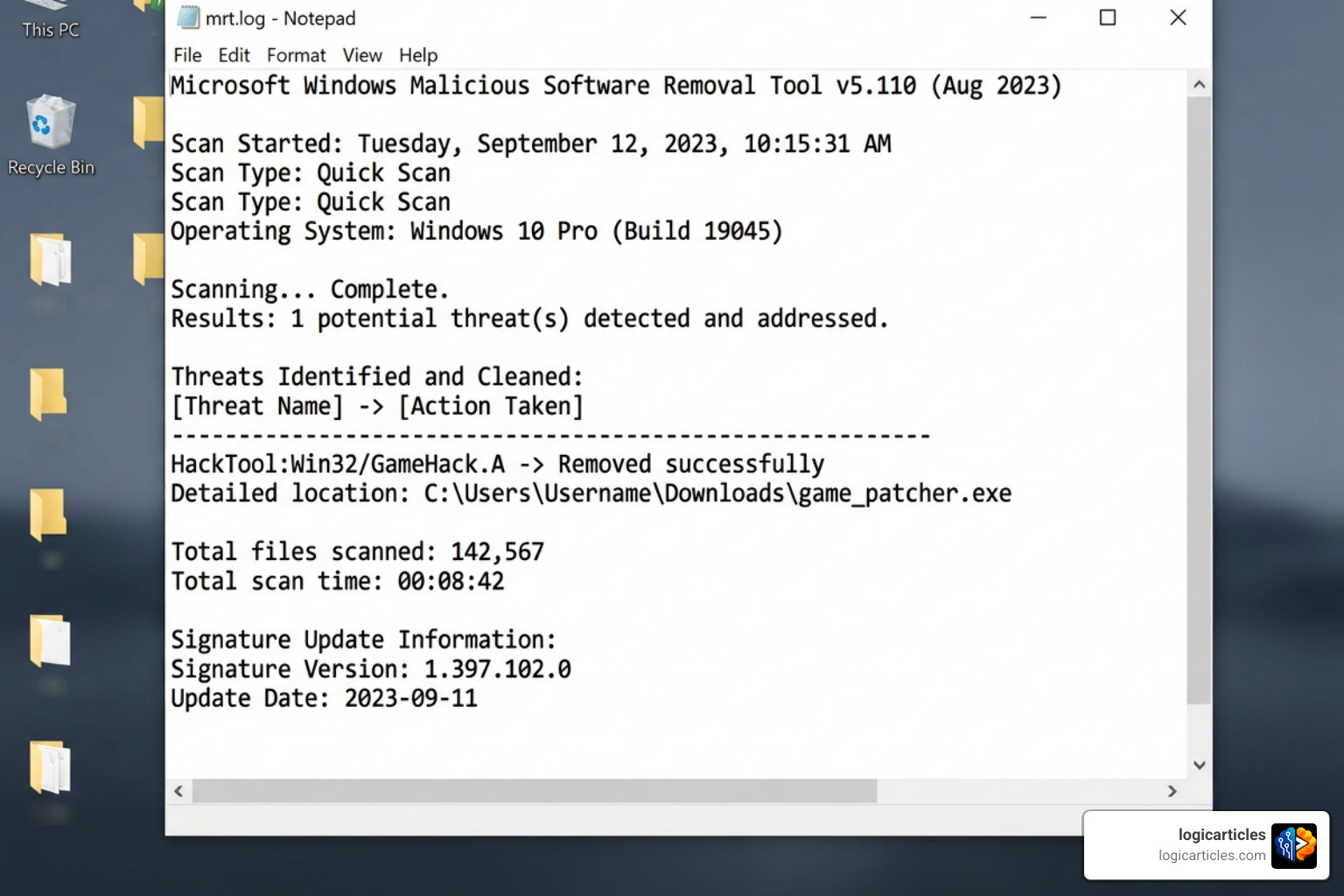
When you open mrt.log in Notepad, you will see a chronological list of every scan performed on your system. Each entry includes:
- The date and time of the scan.
- The version of the MSRT engine used.
- The return code (e.g.,
Return code: 0means no malware was found). - A list of scanned threat signatures and their operational results.
Additionally, administrators can verify if the tool has run on a machine by checking the Windows Registry. Navigate to: HKEY_LOCAL_MACHINE\SOFTWARE\Microsoft\RemovalTool
Here, you will find registry string values indicating the last run time, the version of the tool used, and whether any threats were detected.
Frequently Asked Questions about MSRT
Does MSRT replace my regular antivirus software?
No, MSRT does not replace your regular antivirus. It is an on-demand, post-infection cleanup tool that only scans your system when triggered. It lacks real-time protection shields, meaning it cannot stop a virus from infecting your computer in real-time. We strongly recommend running a dedicated, real-time antivirus like Windows Defender alongside MSRT.
Where is the MSRT log file located on my computer?
The log file is named mrt.log and is stored in the %windir%\debug\ folder (which translates to C:\Windows\debug\mrt.log on most computers). You can open this file with Notepad to view a history of all scans and detected threats.
What data does MSRT report back to Microsoft?
By default, if MSRT detects a threat, it sends anonymized telemetry data back to Microsoft to help track global malware prevalence. This data includes the name of the detected malware, the success rate of the removal, and basic system configuration details. No personally identifiable information is collected. If you wish to disable this reporting, you can add a DWORD value named DontReportInfectionInformation set to 1 in the registry path: HKLM\SOFTWARE\Policies\Microsoft\MRT.
Conclusion
We hope this guide has helped demystify the Microsoft Windows Malicious Software Removal Tool! While it may run quietly in the background, MSRT is an essential component of the Windows security ecosystem, helping keep millions of computers free from active, widespread threats.
For maximum protection, keep Windows Update enabled so your PC always receives the latest monthly MSRT definitions, and ensure you are running a real-time antivirus solution. If you want to explore more ways to optimize your digital setup, browse our curated software resources and Explore the best software categories to find the perfect tools for your workflow!