Why a Slow Windows Startup Is Costing You More Than You Think
If you want to fix slow startup Windows issues fast, here are the five core steps:
- Diagnose your boot time using Event Viewer (look for Event ID 100 and 101)
- Disable unnecessary startup apps in Task Manager
- Configure Fast Startup — turn it off if you’re on an modern SSD
- Repair system files by running SFC and DISM scans
- Adjust virtual memory settings or upgrade to an SSD if software fixes don’t help
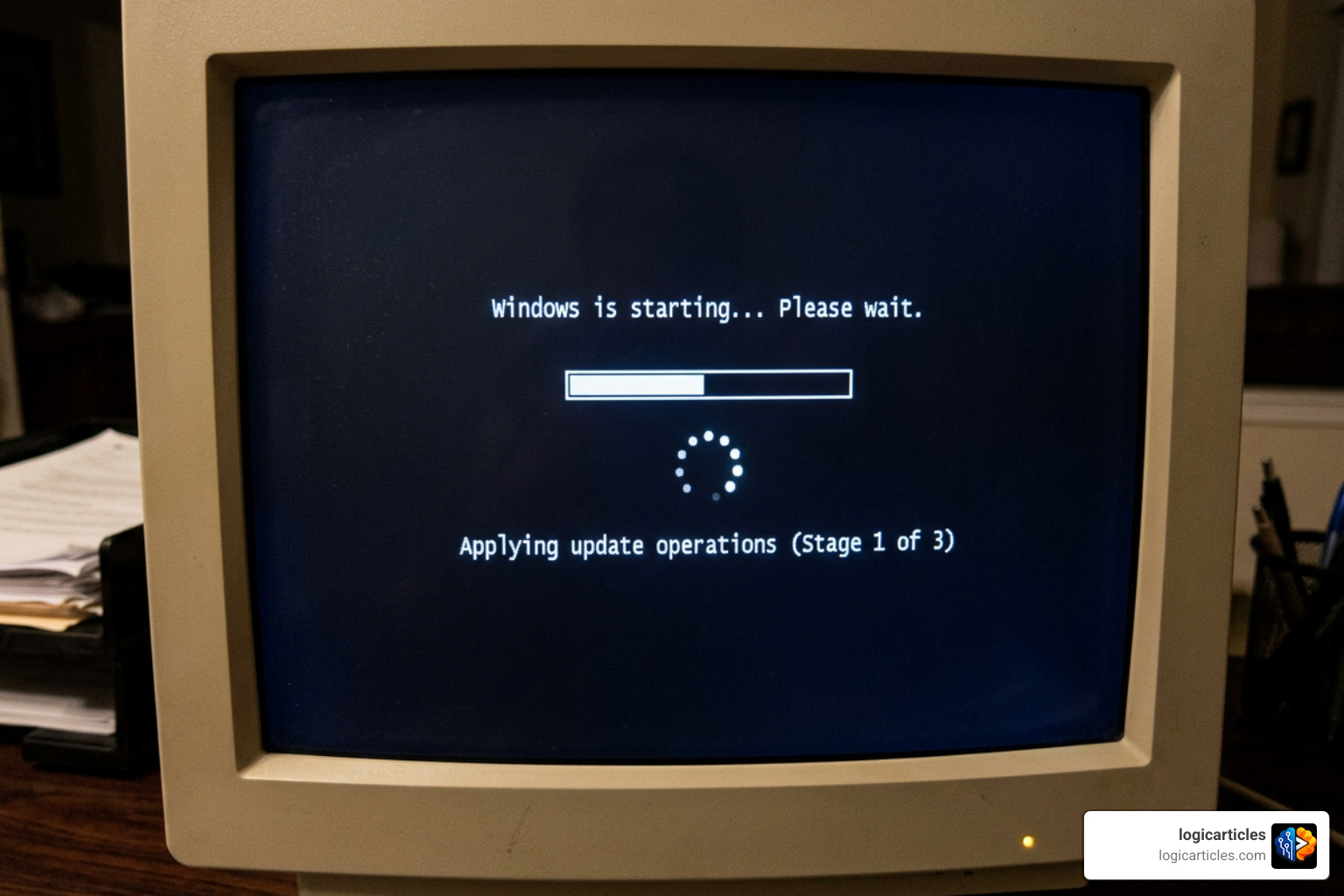
You press the power button. You wait. You wait some more. Maybe you’ve started leaving your PC on for days just to avoid the painful boot process.
You’re not alone — and you’re not imagining it.
Slow startup is one of the most common Windows problems in 2026. And it’s not always obvious what’s causing it. It could be too many apps launching at login. It could be a corrupted system file. It could even be a feature called Fast Startup that’s supposed to speed things up — but often makes things worse.
The good news? Most slow boot problems are completely fixable without buying new hardware. Even if your PC is a few years old, the right software tweaks can cut your boot time dramatically.
This guide walks you through five clear steps — from diagnosing the exact cause to applying the right fix — so you stop guessing and start seeing results.
How to Fix Slow Startup Windows: Step-by-Step Guide
Before we dive into the steps, we need to establish a golden rule of PC troubleshooting: measure first, then change one thing at a time.
If you change ten settings at once, you won’t know which one worked, or worse, which one caused a new issue. If you are also running macOS alongside Windows, you might want to read our guide on How To Fix Slow Boot On Mac to keep all your systems running at peak performance.
Let’s begin with our step-by-step checklist to optimize your Windows boot process.
Step 1: Diagnose and Measure Your Boot Performance
Instead of relying on guesswork, we can use built-in Windows diagnostic tools to find out exactly why your PC is dragging its feet. Windows automatically logs boot performance details every single time you turn on your machine.
To find these hidden logs, we use the Windows Event Viewer:
- Press the Windows Key + R, type
eventvwr.msc, and press Enter. - In the left sidebar, navigate to: Applications and Services Logs > Microsoft > Windows > Diagnostics-Performance > Operational.
- In the middle pane, you will see a list of events. We want to focus on two specific Event IDs:
- Event ID 100 (Boot Diagnostics – Startup): This shows your total boot time in milliseconds. For example, a value of 30,000 means your PC took 30 seconds to boot.
- Event ID 101 (Boot Diagnostics – Degradation): This is the goldmine. It pinpoints the exact application, driver, or service that delayed your system’s startup, complete with the exact millisecond delay.
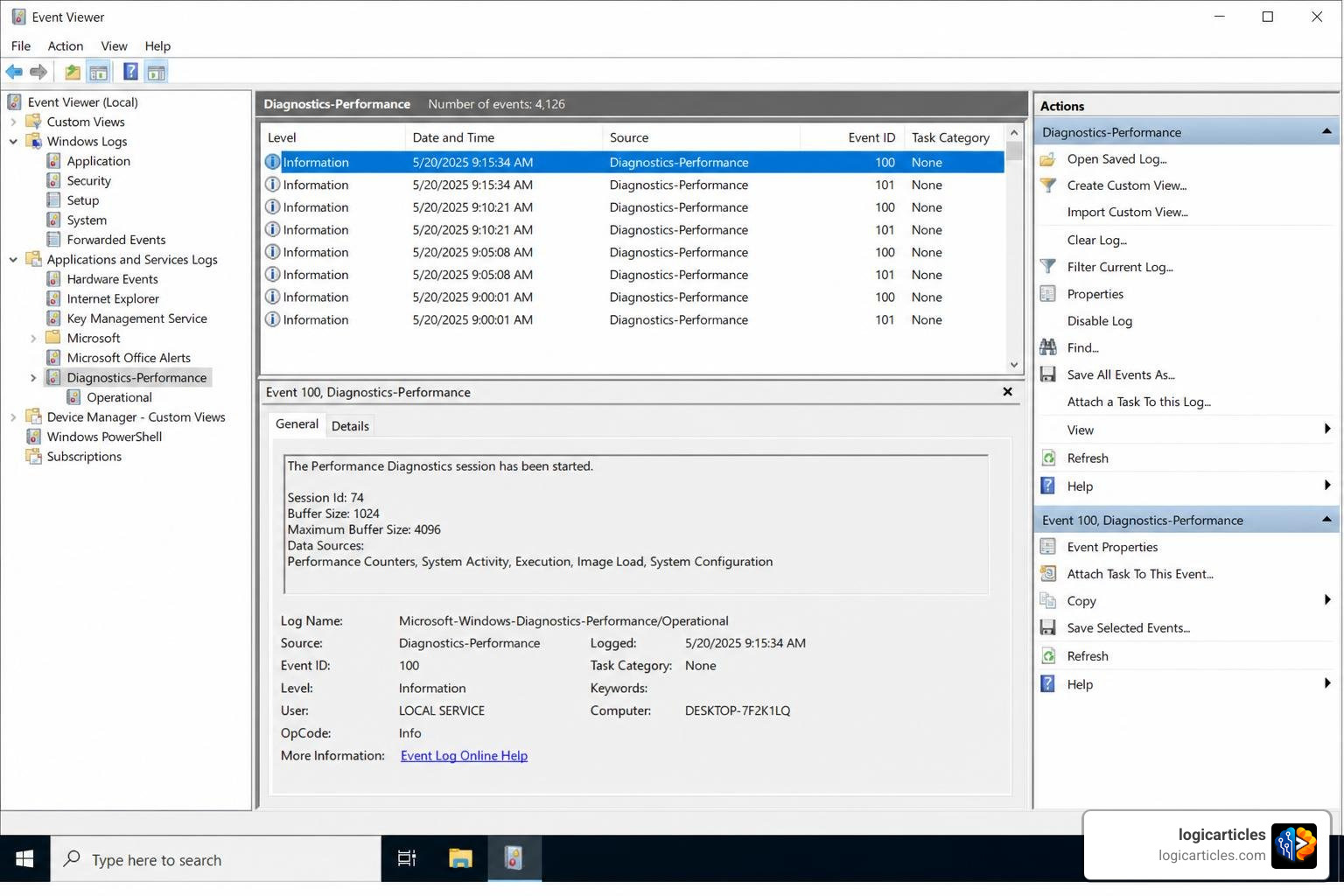
If you see an application in an Event ID 101 log with a degradation time of 3,000ms or higher, that app is adding a full three seconds to your boot time.
For advanced users who want to map out their entire boot timeline down to the microsecond, Microsoft recommends using the Windows Performance Analyzer (WPA). This tool captures a highly detailed trace of your system load phase, allowing you to see exactly which drivers or background services are bottlenecking your CPU during startup.
To learn more about analyzing these metrics, check out this guide on how Windows already logs why your PC starts up slowly — you just have to check it.
Step 2: How to Fix Slow Startup Windows by Disabling Startup Apps
The single biggest win for most users is trimming down the list of programs that launch automatically when you sign in. Over time, software installers quietly add themselves to your startup routine. Before you know it, your PC is trying to launch game launchers, chat clients, cloud sync folders, and update assistants all at the exact same moment.
To manage these apps using Task Manager:
- Press Ctrl + Shift + Esc to open the Task Manager.
- Click on the Startup apps tab (the speedometer icon on the left sidebar in Windows 11).
- Click the Startup impact column header to sort the apps by their resource usage (High, Medium, Low).
- Right-click any non-essential application (like Spotify, Discord, or third-party updaters) and select Disable.
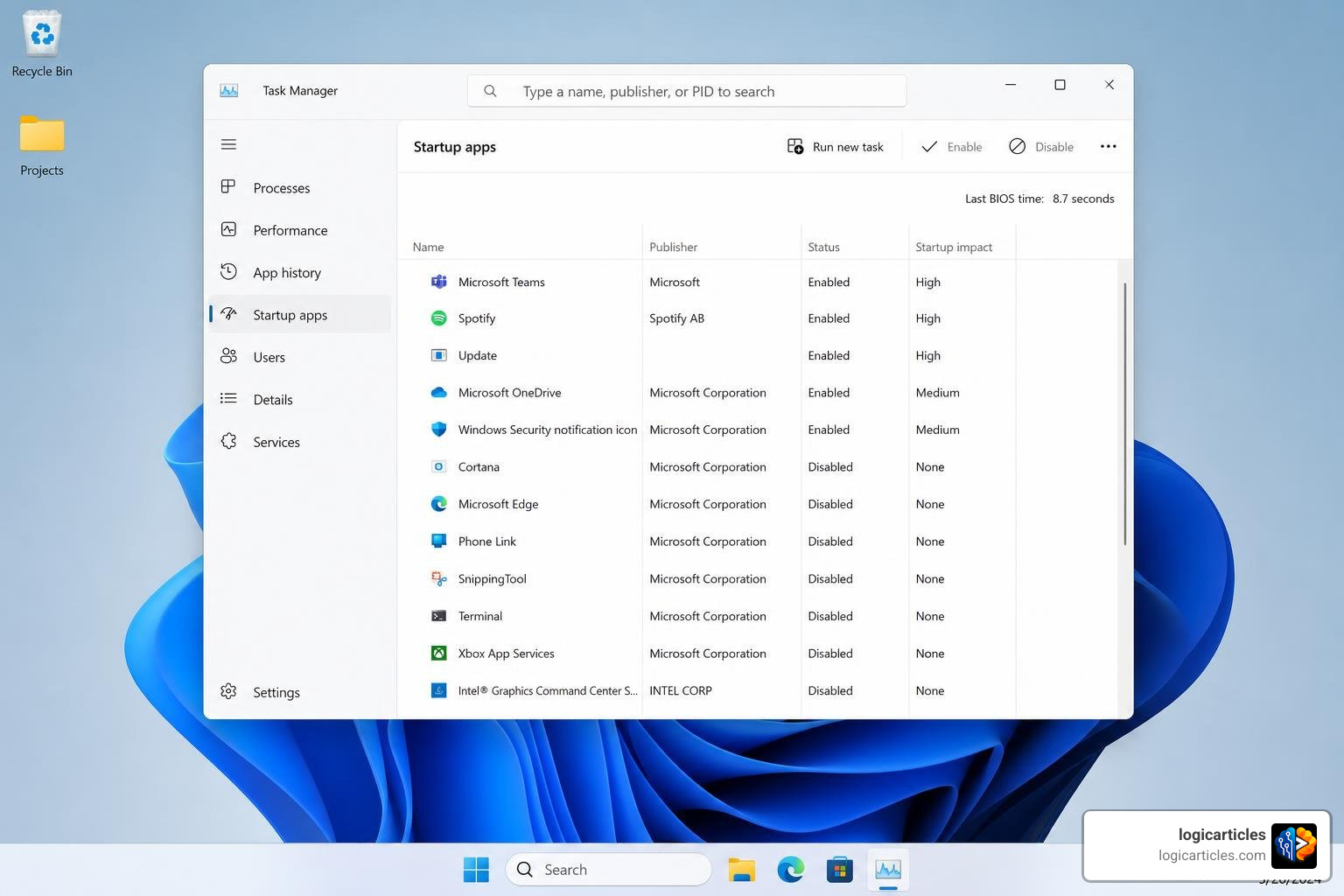
Note: Disabling an app here does not uninstall it. It simply prevents it from running automatically when you turn on your computer. You can still launch it manually whenever you need it.
The Hidden Startup Apps Task Manager Misses
Task Manager is incredibly useful, but it only shows a fraction of startup locations. It primarily monitors specific registry keys and the classic Startup folder. It often misses scheduled tasks, background services, and system drivers.
To find these hidden boot items, we can use a built-in PowerShell command. Right-click your Start button, select Terminal (Admin) or PowerShell (Admin), and run the following command:
Get-CimInstance Win32_StartupCommand | Select-Object Name, Command, Location
This command lists every single process registered to run at boot. If you want a complete, power-user interface to manage these entries, we highly recommend downloading Sysinternals Autoruns (a free official Microsoft utility). It shows everything—including background services and browser helper objects.
A Note on Windows Subsystem for Linux (WSL)
If you have Windows Subsystem for Linux (WSL) installed, it can occasionally delay your boot times if it attempts to initialize virtual networks or mount drives at startup. If you do not actively use Linux command-line tools on your PC, disabling WSL under “Turn Windows features on or off” can shave valuable seconds off your boot process.
For those curious about how these background productivity tools impact your system resources, you can read our overview on What Is Productivity Software. To ensure you aren’t wasting resources elsewhere, take a look at how Your Windows laptop is probably wasting performance on startup — here’s where to look.
Advanced Software Tweaks for Faster Boot Times
If disabling startup apps didn’t fully solve your issue, the bottleneck might lie deeper within the operating system’s configuration, power plans, or system files.
Step 3: Configure Fast Startup and Power Settings
It sounds counterintuitive, but the feature designed to speed up your PC can actually cause a slow startup.
Fast Startup works by saving a snapshot of your Windows kernel and loaded drivers to a hibernation file (hiberfil.sys) when you shut down. When you turn your PC back on, Windows loads this image into RAM instead of performing a cold boot.
However, Fast Startup has several major drawbacks:
- It can corrupt its own hibernation cache over time, leading to massive boot delays.
- It carries over system errors and memory leaks from your previous session, preventing Windows from ever truly starting “fresh.”
- On modern NVMe SSDs, the time saved is negligible (often less than two seconds), making the potential for system glitches simply not worth the trade-off.
This issue became particularly prominent during recent feature rollouts, as detailed in this breakdown of How to Fix Windows 11 Slow Boot After 24H2 Update (7 Proven Methods) – FixItClick.
How to Disable (or Reset) Fast Startup:
- Open the Control Panel and navigate to Power Options.
- Click on Choose what the power buttons do in the left-hand column.
- Click Change settings that are currently unavailable (requires administrator privileges).
- Uncheck the box next to Turn on fast startup (recommended).
- Click Save changes.
Troubleshooting Tip: If your Fast Startup cache is corrupted and you want to completely rebuild it, open Command Prompt as an administrator and type powercfg /h off to disable hibernation and delete the cache file. Restart your PC, then run powercfg /h on to rebuild a clean version if you wish to use hibernation features.
Step 4: Repair System Files and Update Drivers
Corrupted system files and outdated hardware drivers are notorious for causing long boot delays. If Windows encounters an error loading a critical system driver, it may hang for several minutes before timing out and proceeding with the boot.
1. Run the Built-In Repair Commands
We can use three essential Command Prompt tools to scan, verify, and repair your system files and hard drive health.
To run these, search for cmd in your Start menu, right-click Command Prompt, and choose Run as administrator. Execute these commands one by one:
- DISM (Deployment Image Servicing and Management): This tool checks the integrity of your local Windows recovery image against Microsoft’s online servers.
DISM /Online /Cleanup-Image /RestoreHealth - SFC (System File Checker): This command scans all protected system files and replaces corrupted or missing files with the healthy copies retrieved by DISM.
sfc /scannow - CHKDSK (Check Disk): This utility scans your hard drive’s file system for logical and physical errors.
chkdsk c: /f /r(You may be prompted to schedule this scan for your next system restart. TypeYand press Enter.)
2. Update Graphics and Storage Drivers
Outdated graphics card drivers (especially NVIDIA, AMD, or Intel) can cause severe post-login black screens or lag. Always download driver updates directly from the official manufacturer’s website rather than relying entirely on generic Windows Update drivers.
3. The Hidden AMD GPU Fix: Disable ULPS
If you are running an AMD graphics card in a dual-GPU laptop or desktop configuration, you may experience a persistent black screen delay of 1 to 2 minutes during boot. This is often caused by ULPS (Ultra-Low Power State), an aggressive power-saving feature.
To disable ULPS in your registry:
- Press Windows Key + R, type
regedit, and press Enter. - Press Ctrl + F and search for
EnableUlps. - Double-click the registry value and change its data from
1to0. - Restart your computer.
Understanding the relationship between your system’s underlying firmware and the operating system is crucial for these advanced tweaks. To learn more, read our deep dive on Firmware Vs Software.
Hardware Upgrades and Virtual Memory Adjustments
If your software is fully optimized but your startup still feels sluggish, it is time to look at your hardware resources and virtual memory allocation.
Step 5: How to Fix Slow Startup Windows with Paging File Settings
Virtual memory (also known as the paging file or pagefile) is a reserved portion of your storage drive that Windows uses as secondary RAM when your physical system memory runs low. If your paging file configuration is misconfigured or fragmented, it can cause severe boot bottlenecks.
To optimize your paging file settings:
- Press the Windows Key, type
advanced system settings, and select View advanced system settings. - Under the Advanced tab, click the Settings button in the Performance section.
- In the Performance Options window, go to the Advanced tab and click Change in the Virtual memory section.
- For the vast majority of modern systems, we recommend checking the box next to Automatically manage paging file size for all drives. This allows Windows to dynamically scale the pagefile as needed without causing structural conflicts.
- If you must set a custom size (for example, if you are running low on SSD space), ensure the Initial size is set to at least the “Recommended” value displayed at the bottom of the window, and the Maximum size is set to no more than 1.5 to 2 times your physical RAM capacity.
For a broader perspective on how custom memory allocations can dramatically improve performance on older machines, take a look at the diagnostic steps outlined in How to Fix Slow Startup Windows Fast in 2026 .
Upgrading to an SSD and Performing a Windows Reset
Sometimes, the best software optimization in the world cannot overcome the physical limitations of legacy hardware.
If your operating system is still installed on a traditional mechanical hard disk drive (HDD), upgrading to a Solid-State Drive (SSD) is the single most impactful upgrade you can make. It transforms your daily computing experience.
| Storage Drive Type | Average Windows Boot Time | Performance Status |
|---|---|---|
| Traditional HDD | 2 to 3+ Minutes | Extremely Slow (Unsuitable for modern OS) |
| SATA SSD | 30 to 45 Seconds | Good / Standard |
| NVMe M.2 SSD | 10 to 15 Seconds | Excellent / Ultra-Fast |
Upgrading from an older HDD to a modern NVMe SSD can reduce your boot time from several agonizing minutes to roughly 15 seconds. SSD prices have dropped significantly, making this upgrade highly accessible.
The Last Resort: Perform a Windows Reset
If your boot times remain slow and you have exhausted all other software troubleshooting steps, your Windows installation may have deep-seated registry corruption.
Performing a clean Windows Reset can restore your system to a pristine, out-of-the-box state:
- Go to Settings > System > Recovery.
- Click Reset PC.
- Choose Keep my files (which preserves your personal documents but removes installed applications) or Remove everything for a completely clean slate. Always back up your critical personal data to an external drive or cloud storage before proceeding.
Common Causes of Slow Startup on Windows 10 and Windows 11
Understanding the root causes of boot delays can help you prevent them from happening again. Most startup slowdowns fall into one of two categories: physical hardware bottlenecks or software clutter.
Hardware Limitations and Fragmented Drives
Mechanical hard drives are simply too slow to handle the complex background tasks of modern operating systems like Windows 10 and Windows 11. HDDs suffer from file fragmentation, where pieces of system files are scattered across a physical spinning platter, forcing the drive head to seek them manually during boot.
Additionally, if your computer only has 4GB of RAM, Windows is forced to constantly write data to the slow virtual paging file on your storage drive, creating a massive system-wide bottleneck right at startup. We strongly recommend having at least 8GB of RAM (ideally 16GB) for smooth daily performance.
To check if your storage health or system resources are causing hidden bottlenecks, read through the diagnostic checklist in Your Your Windows 11 PC is slower than it should be. Here’s what to check | PCWorld .
Software Bloat and Post-Login Storms
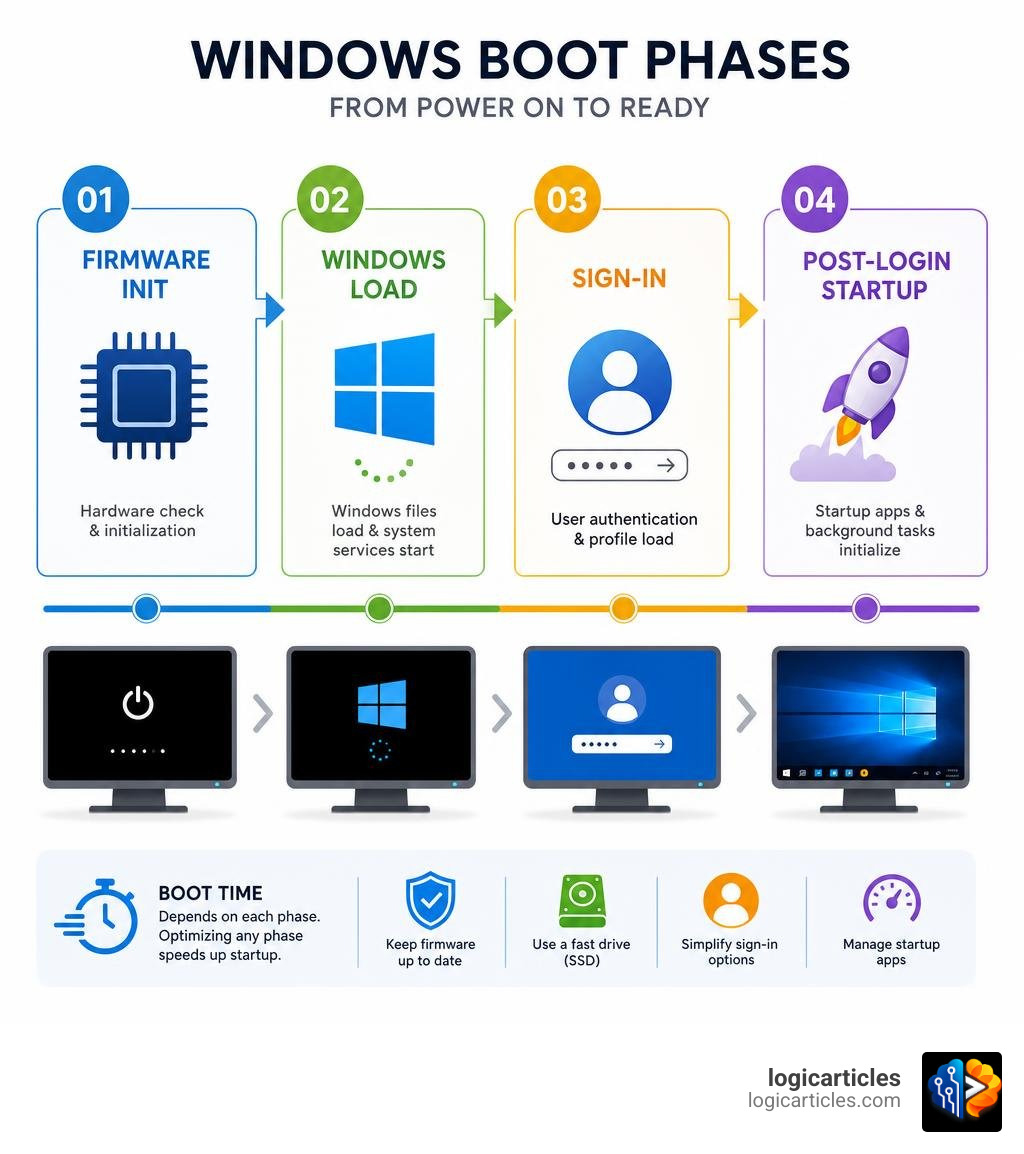
There are actually two distinct phases of a “slow boot”:
- Pre-Login Sluggishness: The time it takes for your PC to show the lock screen after you press the power button.
- Post-Login Startup Flood: The frustrating period where your desktop is fully visible, but your mouse cursor lags, apps refuse to open, and your hard drive runs at 100% utilization for several minutes.
This post-login storm is almost always caused by third-party application updaters, cloud synchronization tools, and telemetry services attempting to launch simultaneously.
For a complete, structured checklist on how to safely isolate and resolve these post-login software conflicts without breaking core Windows functions, check out the comprehensive Windows 11 Startup Is Slow? The Clean “Boot Faster” Checklist That Fixes the Real Causes | MalwareTips Forums .
Frequently Asked Questions about Slow Windows Boot Times
Why is my Windows 11 startup so slow after an update?
Immediately after a major cumulative Windows update (such as the 24H2 update), Windows must perform several critical background tasks. These include rebuilding system caches, optimizing .NET frameworks, and indexing system files.
This process can temporarily consume significant CPU and disk resources. We recommend restarting your PC 1 to 2 times and letting it run idle for an hour. If the slowdown persists, check your startup apps or run an SFC scan to fix any system files that may have been corrupted during the update process.
Is Fast Startup good or bad for SSDs?
In 2026, the general consensus among hardware experts is that Fast Startup should be disabled on systems using SSDs.
Because modern SSDs are already exceptionally fast, Fast Startup only saves 1 to 2 seconds of boot time. However, it writes gigabytes of hibernation data to your drive during every shutdown, which can slightly increase drive wear over several years. More importantly, it prevents a clean system shutdown, which can lead to driver conflicts, update installation errors, and stability issues.
How often should I run Disk Cleanup?
We recommend running the built-in Disk Cleanup utility (or configuring Storage Sense) once a month. This safely removes temporary system files, old Windows installation leftovers, and browser caches that can clutter your system drive.
To automate this, go to Settings > System > Storage and toggle on Storage Sense to automatically clean up temporary files when your drive space runs low.
Conclusion
A slow booting computer is a massive drain on your daily productivity. By taking a systematic approach—measuring your boot times, disabling high-impact startup programs, managing your Fast Startup settings, and repairing corrupted system files—you can easily restore your PC to its original speed.
If you have completed all the software steps and are still waiting minutes for your PC to load, upgrading to an SSD is the best investment you can make for your setup.
For more practical guides on optimizing your operating system and streamlining your workflow, Explore more productivity tips here at logicarticles!