Is Your Laptop Running Slow? Here’s How to Fix It Fast
If you want to how to fix slow laptop performance quickly, here are the most effective steps you can take right now:
- Restart your laptop – clears RAM and flushes temporary files
- Disable startup programs – open Task Manager > Startup tab and turn off unnecessary apps
- Free up storage space – keep at least 20% of your drive free
- Switch your power plan – change from Battery Saver to High Performance (when plugged in)
- Run a malware scan – use Windows Security for a full system scan
- Clean your browser – close extra tabs and remove unused extensions
- Update Windows and drivers – outdated software is a common hidden cause
A slow laptop never feels slow in just one obvious way. It boots late. Apps take forever to open. The fan spins loudly. You click something and wait. And wait.
The frustrating part? Most slowdowns are fixable – often for free, without buying new hardware.
The causes usually come down to a handful of culprits: too many programs running in the background, a nearly full hard drive, dust clogging the vents, or simply never restarting the machine. In some cases, just switching off Battery Saver mode can unlock noticeably faster performance – because it can quietly cap your CPU speed by up to 50%.
This guide walks you through 7 practical steps to get your laptop running fast again, from the quickest free fixes to hardware upgrades worth considering.
Why is My Laptop Running Slow? (Common Causes)
When a laptop begins to lag, it is rarely because the hardware is physically “broken.” Instead, it is almost always bottlenecked. A bottleneck occurs when one specific component—be it your processor, memory, or storage drive—reaches 100% capacity, forcing the rest of the system to wait.
As of June 2026, modern operating systems like Windows 11 and macOS have become increasingly resource-intensive. If your laptop is running older hardware, or if you have accumulated years of digital clutter, those bottlenecks become much more apparent.
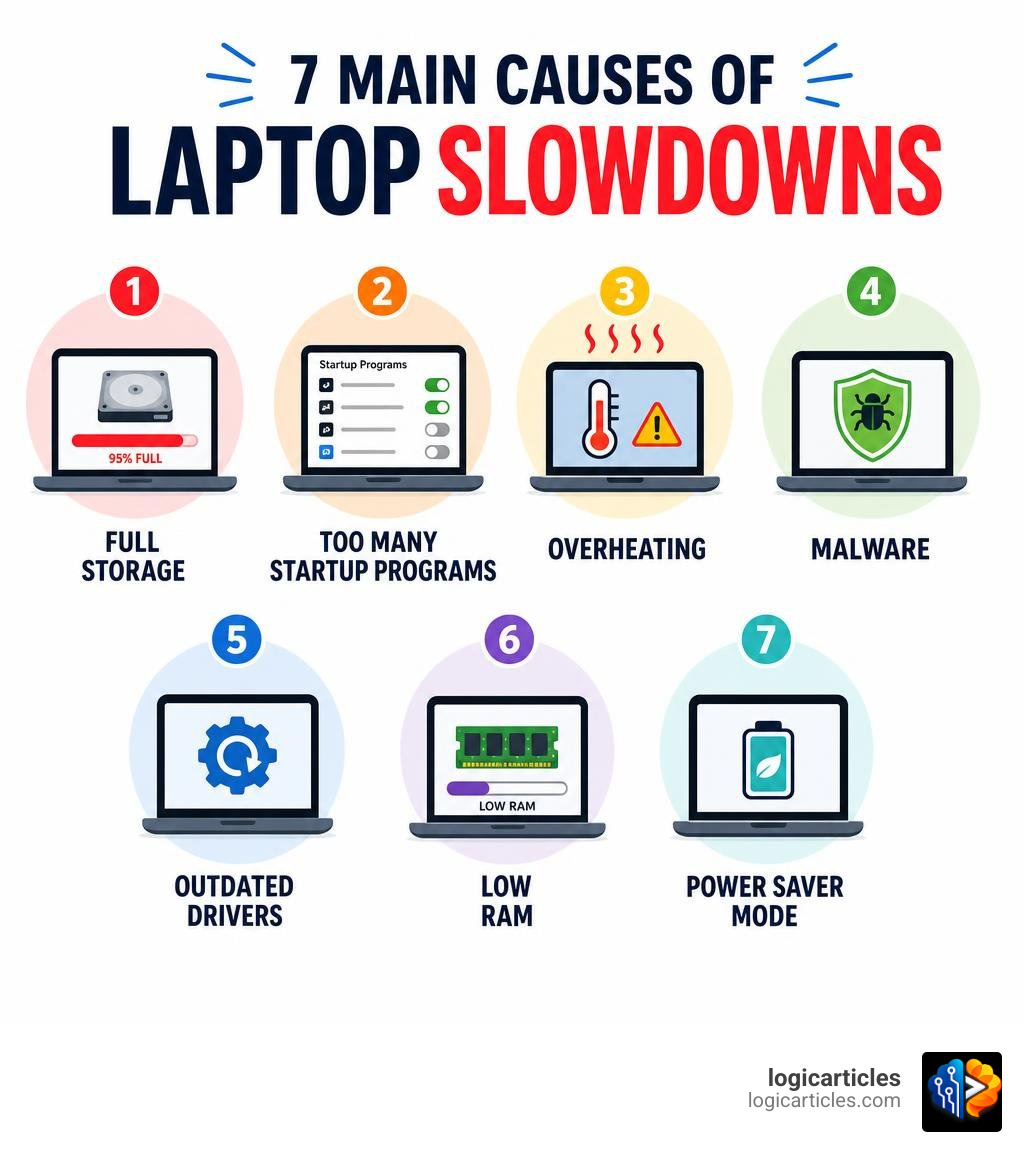
Common causes of a slow laptop include:
- Too many startup programs: Apps that automatically launch when you boot up consume valuable RAM and CPU cycles.
- Low storage space: When your main drive has less than 15% to 20% free space, the operating system struggles to manage temporary cache files.
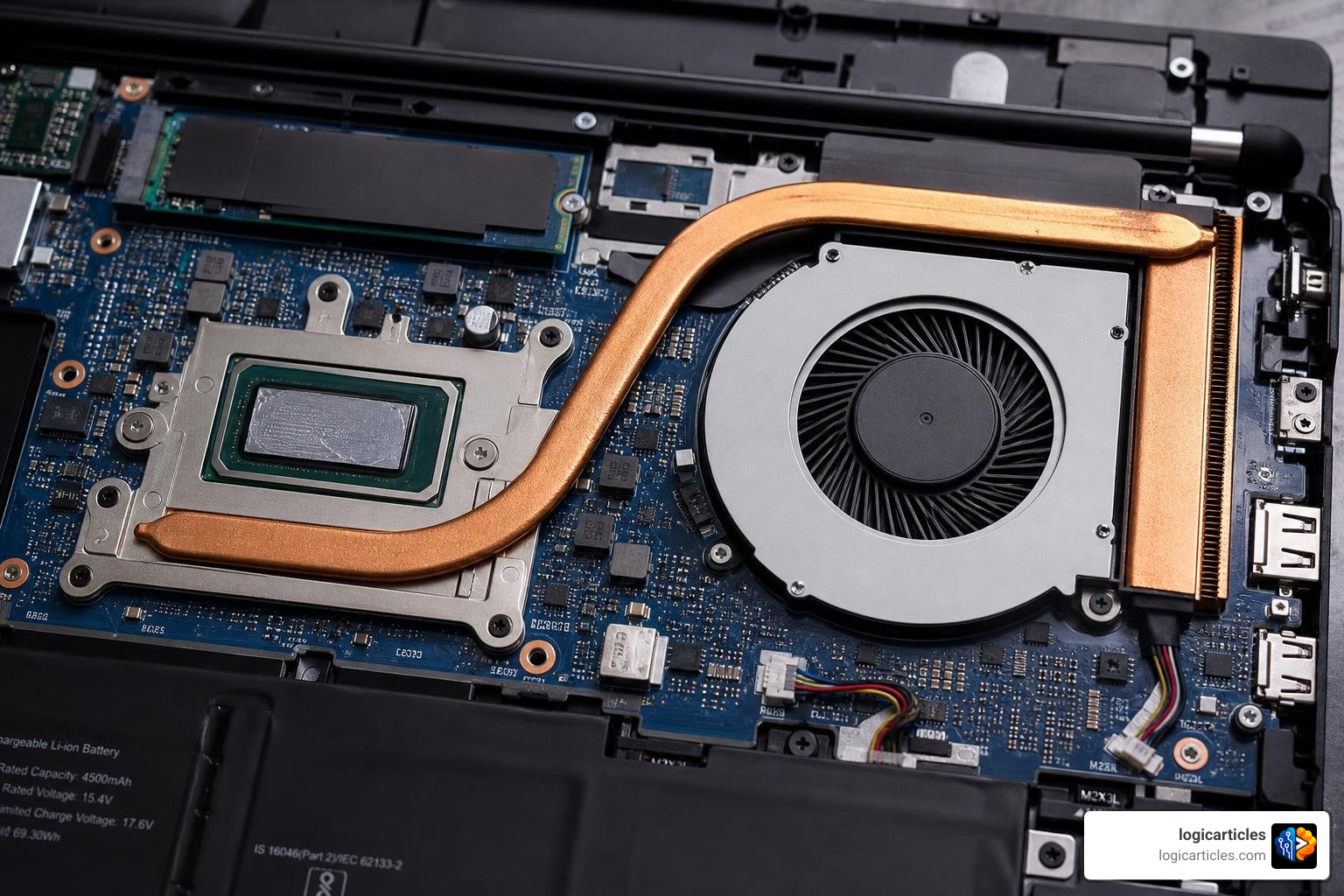
- Thermal throttling: If your laptop gets too hot, it intentionally slows down its processor to prevent permanent heat damage.
- Outdated software or driver conflicts: Corrupted or outdated drivers can cause system-wide lag.
- Malware or background bloatware: Unwanted programs may be stealthily running in the background, eating up resources.
To understand the big picture of what might be failing under the hood, check out this Troubleshooting laptop performance issues resource to help isolate hardware failures from simple software bugs.
Identifying Hardware Bottlenecks vs. Software Bloat
Before changing any settings, we need to diagnose exactly where the clog is happening. Guessing will only lead to wasted time.
On Windows, press Ctrl + Shift + Esc to open the Task Manager. If you are using a Mac, open Finder, go to Applications > Utilities, and launch the Activity Monitor.
Look closely at the following metrics:
- CPU Usage: If this is constantly sitting above 80% even when you aren’t doing heavy work, a background program or system update is hogging your processing power.
- Memory (RAM): If your RAM usage is consistently near 80% to 90%, your laptop is running out of physical memory. It will start using your hard drive as “virtual memory,” which is significantly slower.
- Disk Active Time: On Windows, if your disk usage is constantly at 100%, you are likely running an older mechanical Hard Disk Drive (HDD) that cannot keep up with modern write speeds, or a background process is heavily reading/writing data.
For a deeper dive into why these resources get clogged up over time, you can read about why your Windows PC gets slower over time (and how to fix it).
How to Tell If Your Laptop is Overheating
Laptops are incredibly thin, meaning they have very little space to dissipate heat. When dust accumulates inside the chassis, or when the thermal paste between the processor and the heatsink dries out, the laptop will experience thermal throttling.
You are likely dealing with overheating if:
- The laptop fan spins at maximum speed and makes a loud, vacuum-like noise even during basic web browsing.
- The bottom of the laptop feels uncomfortably hot to the touch.
- Your laptop starts out fast when you first turn it on, but becomes progressively slower after 15 to 20 minutes of use.
- The system suddenly freezes or shuts down without warning.
To confirm this, you can download a free temperature monitoring utility like HWMonitor. If your CPU temperatures are idling above 60°C or spiking past 90°C under light workloads, your laptop is throttling its performance to cool down.
Step-by-Step Guide: How to Fix Slow Laptop Performance
Now that you understand the root causes, let’s look at the actionable steps you can take to speed up your machine.
Step 1: Restart Your Laptop Regularly
It sounds incredibly simple, but restarting your laptop is one of the most effective ways to maintain performance.
When you keep your laptop on for weeks at a time—simply closing the lid to put it to sleep—temporary files, system caches, and minor software memory leaks accumulate. Restarting your laptop at least once a week completely flushes your RAM, terminates runaway background processes, and allows pending system updates to install cleanly.
Step 2: Clean Up Startup Programs and Background Processes
Many applications—such as cloud storage tools, chat apps, and software update helpers—quietly configure themselves to launch the moment you turn on your computer. This drastically increases your boot times and eats up system resources before you even open your browser.
To disable these startup items:
- On Windows 10 & 11: Press Ctrl + Shift + Esc to open Task Manager. Click on the Startup apps tab (the speedometer or puzzle icon on the left). Look for apps with a “High” startup impact that you don’t need immediately. Right-click them and select Disable.
- On macOS: Go to System Settings > General > Login Items, and remove unnecessary apps from opening at login.
For more detailed tips on managing these settings, check out this guide on how to speed up a slow laptop without upgrading hardware.
Step 3: Free Up Storage Space and Optimize Your Drive
Operating systems require temporary breathing room to function. As a general rule of thumb, you should keep at least 20% of your system drive free. If your drive is nearly full, your laptop will crawl to a halt because it cannot write temporary virtual memory or cache files.
- Windows Storage Sense: Go to Settings > System > Storage. Turn on Storage Sense to automatically clean up temporary files, empty your Recycle Bin, and manage local cloud content.
- Drive Optimization:
- If your laptop has a traditional mechanical HDD, search for “Defragment and Optimize Drives” in the Start menu. Running this utility consolidates fragmented files so the physical drive head doesn’t have to work as hard to read data.
- If your laptop has a modern Solid State Drive (SSD), do not defragment it (this causes unnecessary wear). Instead, Windows will run a TRIM command to optimize the drive blocks automatically.
To understand how storage bottlenecks slow down your system, you can read this diagnostic breakdown on Hone Blog’s guide to computer running slow issues.
Step 4: Adjust Power Settings for Maximum Performance
To preserve battery life, laptops default to a “Balanced” or “Power Saver” power plan. While this is great when you are working on an airplane, it deliberately limits your CPU’s maximum speed.
- On Windows: Click the battery icon in your taskbar or go to Settings > System > Power & battery. Change your Power mode to Best performance (or “Ultimate Performance” if available).
- Note: Ensure you switch back to Balanced when running on battery power if you want your charge to last.
- On macOS: Go to System Settings > Battery, and ensure “Low Power Mode” is turned off when you need maximum speed.
Step 5: Scan for Malware and Remove Bloatware
Malware, spyware, and adware are notorious resource hogs. They run silently in the background, mining cryptocurrency, tracking your data, or sending spam, which leaves very little processing power for your actual work.
- Run a Deep Scan: Open Windows Security (or your preferred reputable antivirus software) and select Virus & threat protection. Run a Full Scan rather than a quick scan.
- Remove Bloatware: Many PC manufacturers pre-install promotional trial software (bloatware). Go to Settings > Apps > Installed apps, and uninstall any pre-packaged software, trial antivirus programs, or toolbars you do not use. Always opt for “Custom” or “Advanced” installation when downloading new software to avoid accidentally installing bundled junk.
Step 6: Optimize Your Web Browser
Sometimes, what feels like a slow laptop is actually just a congested web browser. Modern browsers like Google Chrome and Microsoft Edge are incredibly resource-heavy.
- Enable Memory Saver: In Google Chrome, go to Settings > Performance and toggle on Memory Saver. This automatically frees up RAM from inactive tabs.
- Limit Extensions: Every browser extension you install runs as a separate background process. Remove any extensions you don’t actively use.
- Clear Cache and Cookies: Periodically clear your browsing data to prevent bloated cache databases from slowing down page load times.
Step 7: Update Your Operating System and Drivers
Outdated system files and device drivers can introduce performance bugs and security vulnerabilities.
- Windows Update: Go to Settings > Windows Update and click Check for updates. Install all cumulative updates and restart your machine.
- Update Graphics and Chipset Drivers: If you notice stuttering while watching videos or playing games, visit your laptop manufacturer’s support site (such as Dell, HP, or Lenovo) to download the latest GPU and chipset drivers. For Dell users, you can read the official documentation on why Dell laptops run slower over time and how to speed them up.
Hardware Upgrades: Should You Add RAM or Upgrade to an SSD?
If you have tried all of the software optimization steps above and your laptop still feels sluggish, your hardware might simply be reaching the end of its useful lifespan. Fortunately, you don’t necessarily have to buy a brand-new computer. Upgrading just one or two internal components can make an aging laptop feel brand new.
| Component | Standard HDD | SATA SSD | NVMe SSD |
|---|---|---|---|
| Boot Time | 60–90 seconds | 15–20 seconds | Under 10 seconds |
| Read/Write Speed | ~80–120 MB/s | ~500–550 MB/s | ~2,000–7,000 MB/s |
| Lifespan / Reliability | Vulnerable to physical drops | Highly durable | Highly durable |
| Best For | Cheap, high-capacity backup | Upgrading older laptops | Modern, high-performance tasks |
How to fix slow laptop performance by upgrading RAM
Random Access Memory (RAM) is your computer’s short-term working memory. As of 2026, 8GB of RAM is the absolute bare minimum for smooth everyday multitasking, while 16GB is highly recommended if you regularly use video conferencing apps, keep dozens of browser tabs open, or edit photos.
If your Task Manager consistently shows memory usage above 80%, your laptop is bottlenecked. Upgrading your RAM allows your processor to access files instantly rather than swapping them back and forth to your slow storage drive. Check your laptop’s specifications to see if the RAM is upgradeable or soldered to the motherboard.
Why upgrading to an SSD is the ultimate how to fix slow laptop solution
If your laptop still uses a mechanical Hard Disk Drive (HDD) with spinning platters, it is bottlenecking your entire system. Mechanical drives are up to 50 to 100 times slower than modern Solid State Drives (SSDs).
Replacing an old HDD with an SSD is the single most transformational upgrade you can make. It can drop your boot times from over a minute to under 15 seconds, make applications launch instantly, and eliminate the frustrating “100% disk usage” freezes. For a complete look at these hardware upgrades, check out IT Cares’ 9 fixes for a slow laptop.
Advanced Troubleshooting: When to Reset Your OS
When a laptop’s operating system has gone through years of software installations, uninstalls, registry changes, and minor corruptions, manual cleanups might not be enough. In these cases, wiping the digital slate clean is the best path forward.
Reinstalling Windows vs. macOS Troubleshooting
Before reinstalling your operating system, always back up your critical files to an external hard drive or a cloud service like OneDrive, Google Drive, or iCloud.
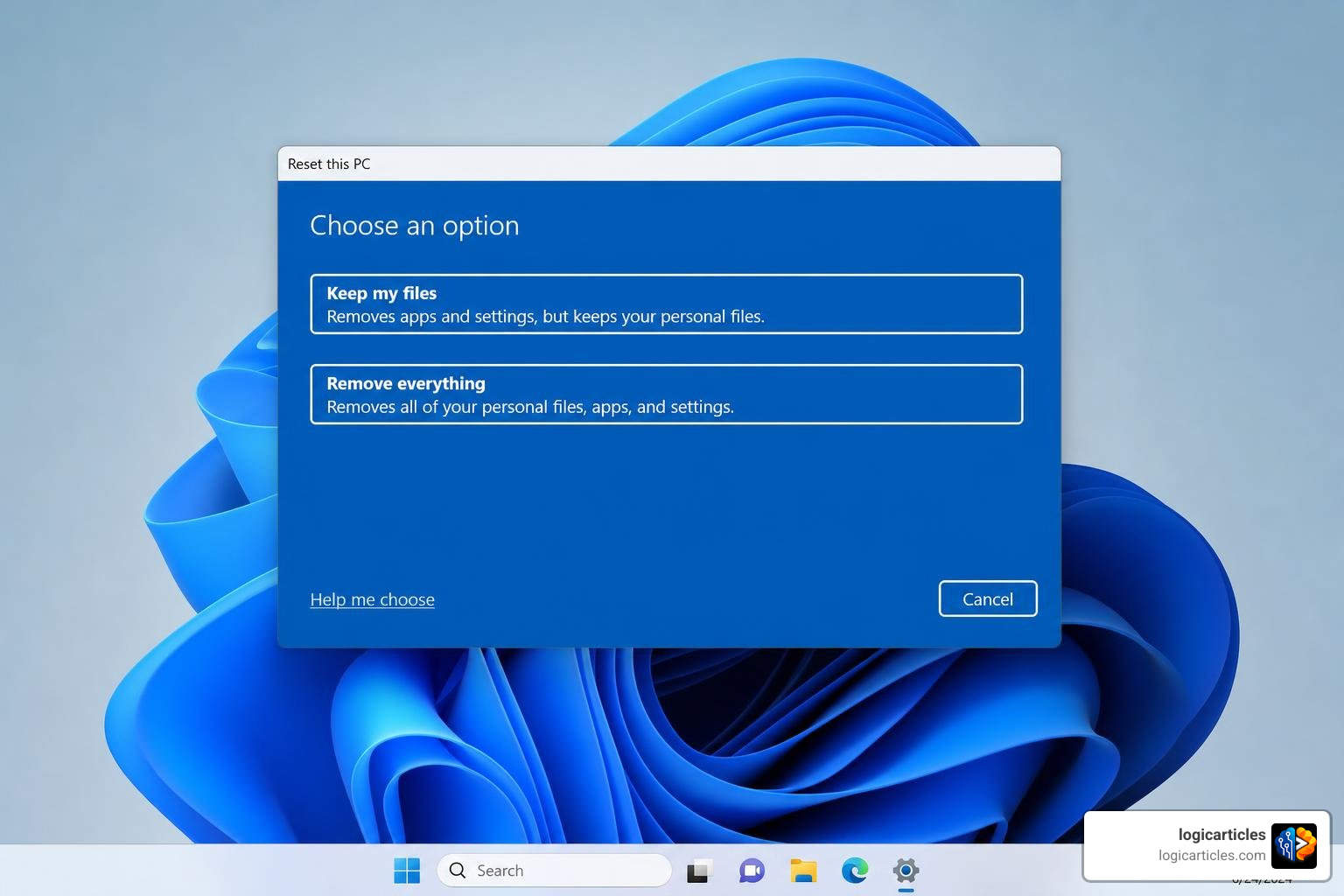
- For Windows: Go to Settings > System > Recovery and click Reset PC. You will be given the option to “Keep my files” (which removes apps and settings but preserves your personal documents) or “Remove everything” (for a complete factory fresh start).
- For macOS: If your Apple computer is struggling to boot up or load macOS quickly, you can read our guide on How To Fix Slow Boot On Mac for platform-specific recovery steps.
Uninstalling Stubborn Software and Leftover Files
Sometimes, simply dragging an application to the trash or clicking “Uninstall” leaves behind gigabytes of hidden cache files, library folders, and registry entries. These leftover files can continue to run background update services that slow down your system.
If you are a Mac user trying to clean up stubborn software that refuses to uninstall cleanly, we have written a step-by-step walkthrough on How To Uninstall Shotscribus On Mac which details how to hunt down and destroy hidden system files.
Frequently Asked Questions About Laptop Performance
Why is my laptop so slow all of a sudden?
A sudden drop in speed is usually caused by an active background task, such as a major Windows Update installing in the background, a sudden malware infection, or thermal throttling due to a blocked cooling fan. Open your Task Manager or Activity Monitor to identify the resource-hogging process.
Does running a laptop on battery make it slower?
Yes. To extend battery life, operating systems automatically lower the processor’s clock speed and disable power-hungry background tasks when unplugged. To fix this, connect your laptop to a wall outlet or adjust your power settings to “Best Performance” while on battery.
How often should I physically clean my laptop?
We recommend cleaning your laptop’s cooling vents with a can of compressed air every 3 to 6 months. This prevents dust buildup from insulating the internal components and causing thermal throttling.
Conclusion
Learning how to fix slow laptop performance doesn’t have to be an expensive or overwhelming process. By systematically working through software cleanups—such as managing your startup programs, keeping your storage drive under 80% capacity, and maintaining cool operating temperatures—you can easily extend the life of your machine.
If software optimizations aren’t enough, upgrading to an SSD or adding more RAM can breathe entirely new life into your hardware for a fraction of the cost of a new computer.
Ready to optimize the rest of your digital workflow? Boost your productivity with logicarticles for more expert guides, hardware troubleshooting tips, and software tutorials!