Why So Many Beginners Struggle to Find the Right Free CAD Tool for 3D Printing
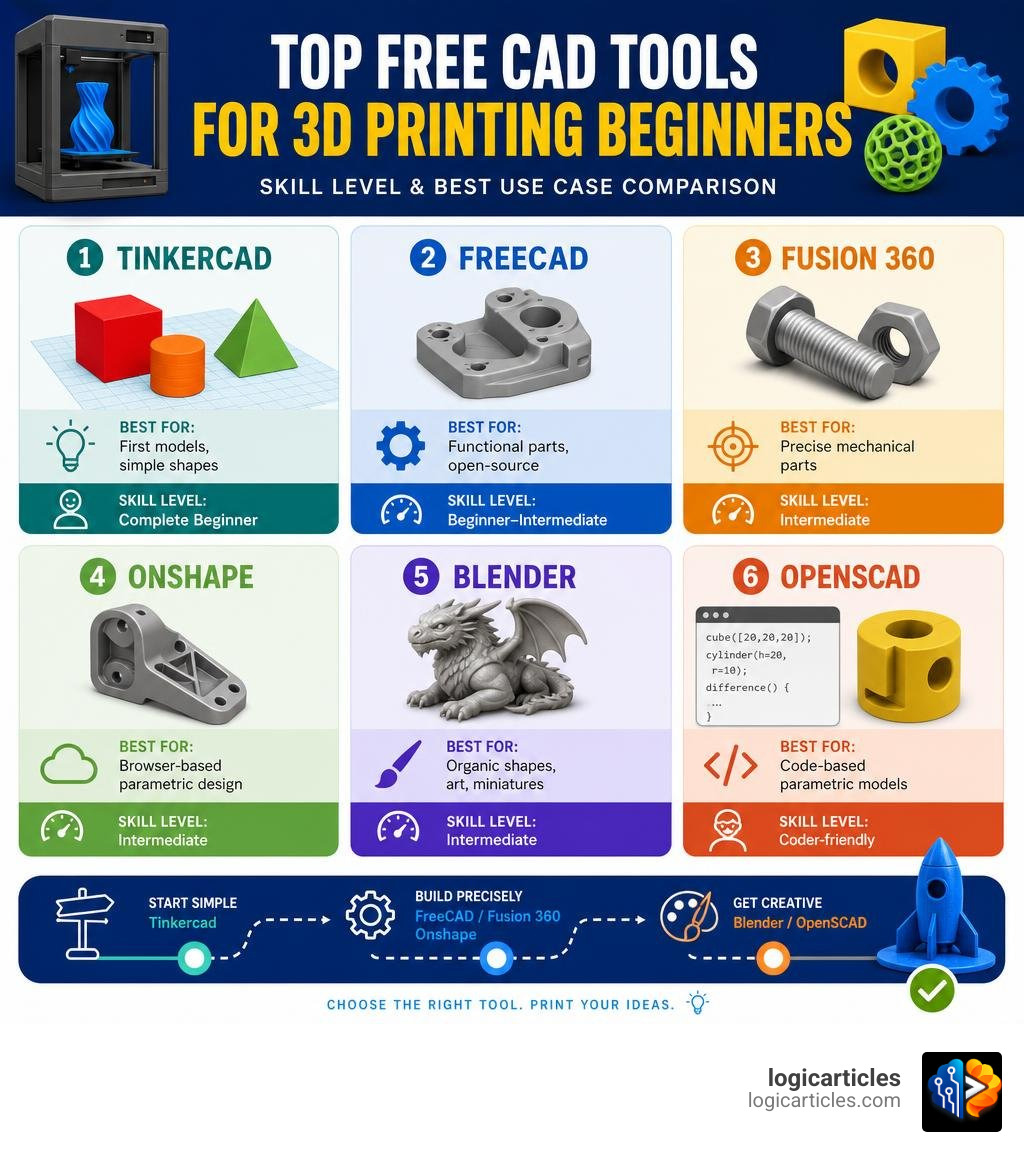
The best free CAD software for beginners 3d printing is not a single answer — it depends on what you’re making and how fast you want to learn.
Here’s a quick breakdown to help you decide right now:
| Tool | Best For | Truly Free? | Skill Level |
|---|---|---|---|
| Tinkercad | First models, simple shapes | Yes, always | Complete beginner |
| FreeCAD | Functional parts, open-source | Yes, forever | Beginner–Intermediate |
| Fusion 360 | Precise mechanical parts | Free for personal use only | Intermediate |
| Onshape | Browser-based parametric design | Free (public files only) | Intermediate |
| Blender | Organic shapes, art, miniatures | Yes, forever | Intermediate |
| OpenSCAD | Code-based parametric models | Yes, forever | Coder-friendly |
Most beginners land on one of three paths:
- Start in Tinkercad — drag-and-drop blocks, printable STL in about 30 minutes.
- Jump to FreeCAD or Fusion 360 — for parts that need exact dimensions and must fit together.
- Try Blender — for sculpted, artistic, or organic designs.
But choosing the wrong tool early can waste hours. A user in one 3D printing community put it bluntly: learning CAD is like a five-year-old learning to ride a bike — you just have to keep trying. The trick is picking the right bike for your size.
This guide walks through each major free option — what it’s actually good at, what it costs in the long run, and when to switch tools.
What Makes the Best Free CAD Software for Beginners 3D Printing?
When we look for the best free cad software for beginners 3d printing, we aren’t just looking for a price tag of zero. We need to evaluate how easily a complete newcomer can transform an idea in their head into a physical, real-world object.
For a tool to be beginner-friendly, it needs an intuitive user interface that doesn’t feel like navigating an airplane cockpit. But beyond ease of use, there is a technical baseline required for 3D printing: the software must reliably output “watertight” models. In 3D printing terms, a watertight model is a fully closed, solid 3D mesh with no missing faces, holes, or zero-thickness edges. If a model isn’t watertight, your slicing software will get confused, resulting in failed prints or bizarre toolpaths.
Additionally, the software must support standard export formats. The most common formats you need to know are:
- STL (Standard Tessellation Language): The classic, universal format accepted by every slicer. It simplifies your design into a mesh of triangles.
- 3MF (3D Manufacturing Format): A modern, superior format that stores not just the 3D geometry, but also color, material data, and print settings in a much smaller, highly compressed file.
- STEP: A high-fidelity format that preserves exact mathematical curves rather than translating them into flat triangles. This is crucial if you plan to share your designs with other CAD users for editing.
Parametric vs. Direct Modeling for Functional Parts
Understanding the difference between parametric and direct modeling is a major milestone for any 3D printing hobbyist.
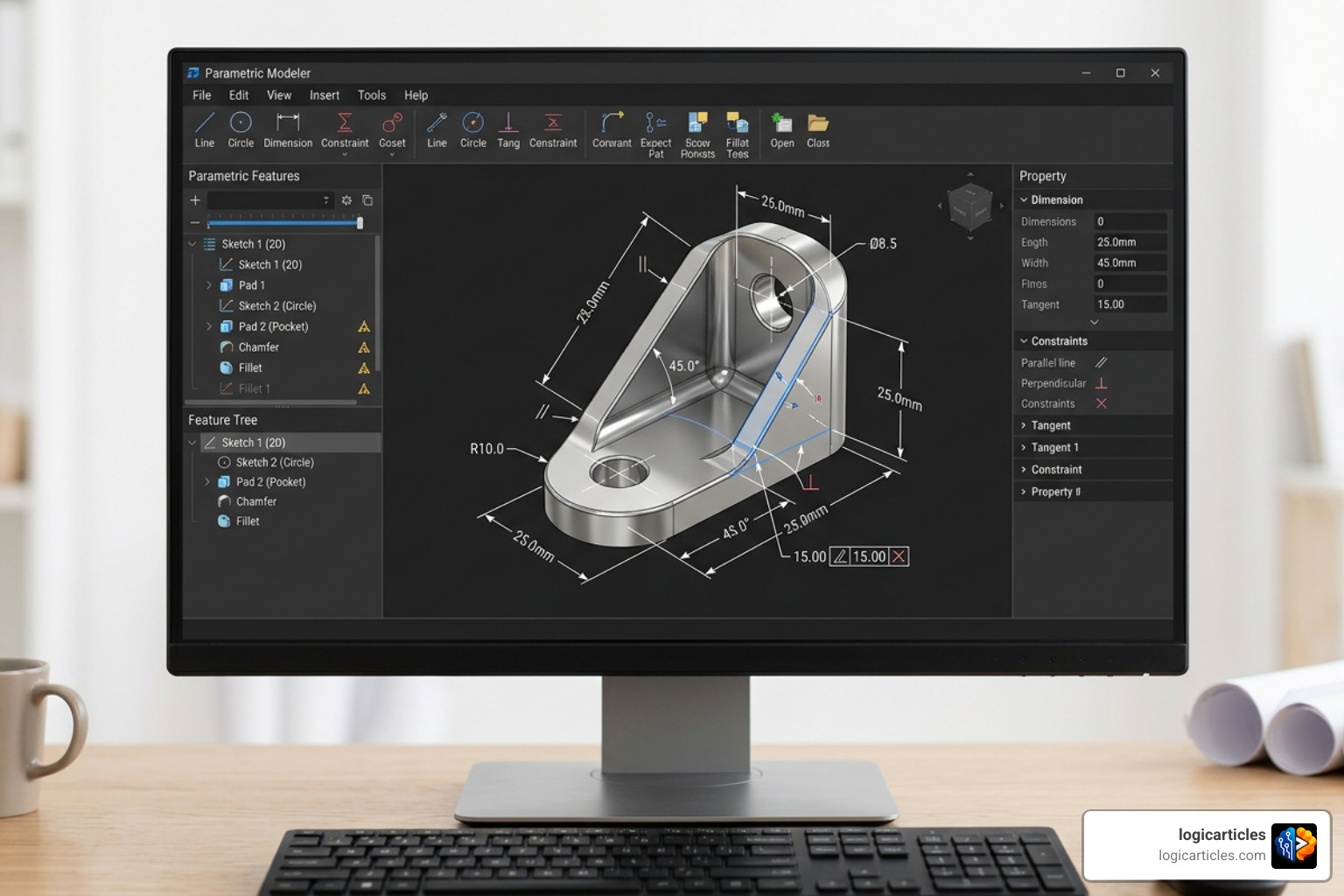
Parametric modeling is a dimension-driven approach. You start by drawing a 2D sketch, applying exact dimensions and geometric constraints (such as making two lines parallel or equal in length), and then extruding that sketch into 3D space. The defining feature of parametric CAD is its design history. The software records every single step you take. If you design a complex bracket and realize three days later that a mounting hole needs to be 5mm instead of 3mm, you simply double-click that step in your design timeline, change the number, and the entire model automatically updates. This approach is absolutely essential for functional parts, gears, brackets, or anything that must align perfectly with real-world objects.
Direct modeling (often associated with mesh modeling) is more like working with digital clay. You push, pull, stretch, and directly manipulate the geometry on your screen. While direct modeling is incredibly fast for organic shapes, miniatures, and artistic designs, it lacks a structured history. Making precise dimensional adjustments later can be a nightmare. If you are building functional parts where millimeter-level accuracy is non-negotiable, parametric modeling is the clear winner.
Cloud-Based vs. Local CAD Software
Where your software lives and runs has a massive impact on your workflow, privacy, and file ownership.
Cloud-Based CAD (e.g., Onshape, Tinkercad):
- Pros: Runs entirely inside your web browser. You do not need a powerful graphics card or a high-end computer; the heavy calculations are handled by remote servers. You can access your files from any computer, tablet, or operating system instantly.
- Cons: You must have a reliable internet connection to work. Furthermore, free tiers of cloud CAD often come with privacy trade-offs. For example, Onshape’s free plan requires all of your designs to be saved in a public database where anyone can search, view, and copy them.
Locally Installed CAD (e.g., FreeCAD, Fusion 360 – partially):
- Pros: Your designs stay yours. Files are saved directly to your local hard drive, giving you complete privacy and data security. You can work offline, whether you’re on a plane or in a remote workshop.
- Cons: You are limited by your own computer’s hardware. If your processor or graphics card is outdated, large assemblies may lag. You are also responsible for backing up your own files.
Top Free CAD Tools for 3D Printing Beginners
Finding a tool that is truly free can be surprisingly tricky. Many software companies lure you in with “free trials” or hide restrictive limitations behind paywalls. When choosing the best free cad software for beginners 3d printing, we must distinguish between open-source programs (which are entirely free for anyone, forever) and commercial platforms offering limited free tiers for personal, non-commercial use.
Tinkercad: The Best Free CAD Software for Beginners 3D Printing to Start Fast
If you have never touched a 3D modeling program before, Tinkercad is the undisputed starting point. Developed by Autodesk, Tinkercad runs entirely in your web browser and requires no installation.
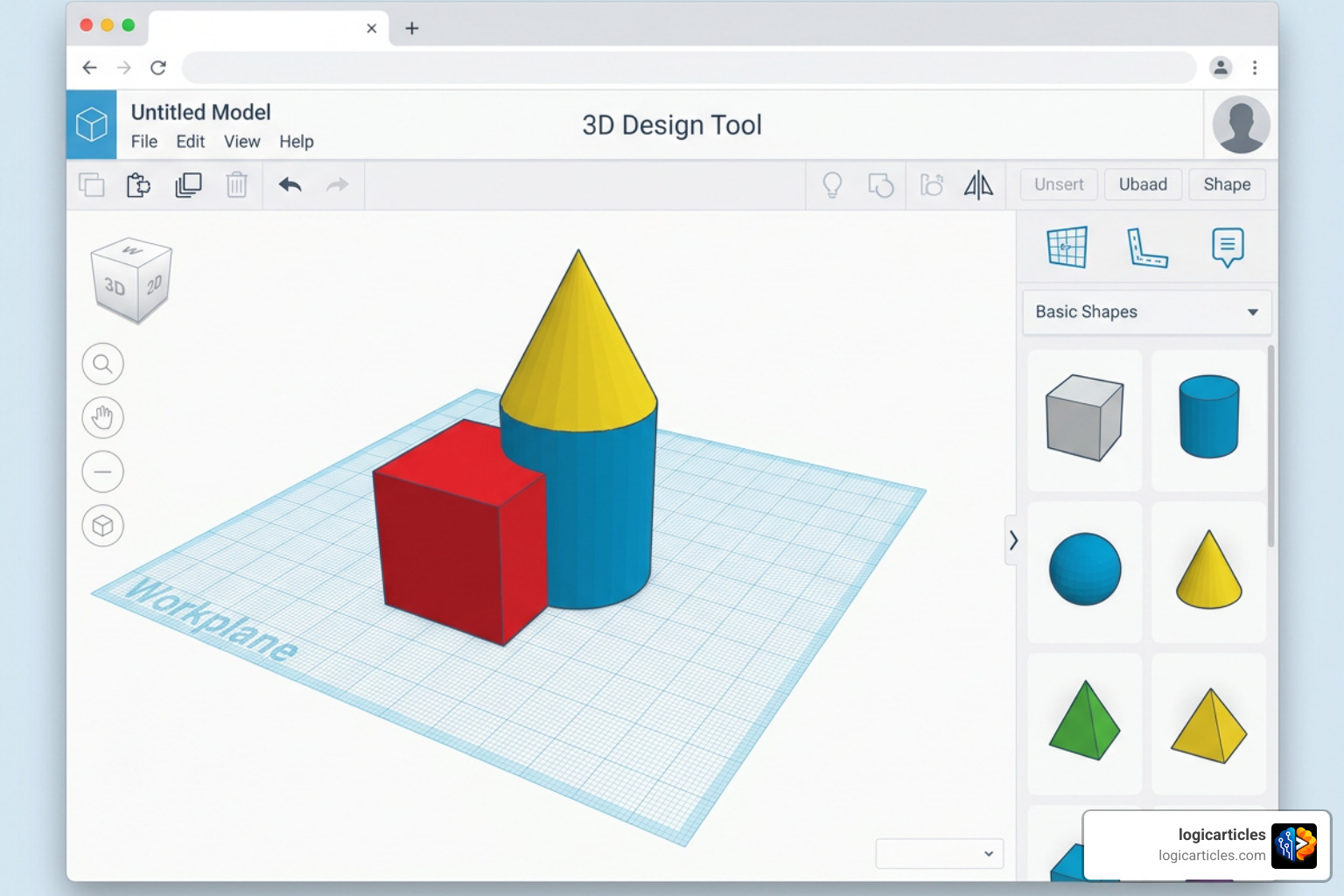
Instead of sketching lines and defining complex math, Tinkercad uses a block-based, drag-and-drop system. You construct models by combining basic primitive shapes—like cubes, cylinders, and spheres—and designating them as either “solids” or “holes.” For example, to make a simple pencil holder, you drag a solid cylinder onto the workplane, drag a slightly smaller “hole” cylinder into the center, and group them together.
Tinkercad is so intuitive that most absolute beginners can design and export a printable STL file in about 30 minutes. It is perfect for rapid prototyping of simple objects like name tags, basic organizational boxes, and custom brackets. However, you will quickly hit a wall if you try to design complex mechanical assemblies, curved ergonomic surfaces, or highly detailed functional parts. When you reach those limits, it is time to upgrade to a dedicated tool, which you can read about in our guide to the Best 3D Modeling Software For 3D Printing.
FreeCAD: The Ultimate Open-Source Parametric Modeler
For those who want professional-grade parametric power without any corporate strings attached, FreeCAD: Your own 3D parametric modeler is an outstanding solution. FreeCAD is a multiplatform (Windows, Mac, and Linux) open-source parametric 3D modeler with absolutely no licensing fees, no subscription pop-ups, and no vendor lock-in.
Because it is fully open-source, you own your data entirely, and you can even use it to design commercial products to sell without paying a dime. FreeCAD operates using specialized “workbenches” tailored to different tasks. For 3D printing functional parts, beginners will spend almost all of their time in the Sketcher and Part Design workbenches. You can learn more about its extensive capabilities on the FreeCAD Features page.
While FreeCAD is incredibly powerful, it does have a reputation for a steep learning curve. Unlike commercial software that handles some of your design assumptions automatically behind the scenes, FreeCAD requires explicit instructions for almost every operation. If a single geometric constraint is contradictory or redundant, the solver will throw an error. However, with the release of Version 1.0 and the subsequent updates in 2026, the user interface has become significantly more polished and stable. If you are willing to spend a few hours following the official Basic Part Design Tutorial, you will unlock a lifetime of unrestricted, high-level CAD modeling.
Fusion 360 and Onshape: Comparing Free Tiers for Hobbyists
Fusion 360 (by Autodesk) and Onshape (created by the original developers of SolidWorks) are the two heavyweights of modern parametric CAD. Both offer incredibly generous free tiers for hobbyists, but they come with very different design philosophies and limitations.
| Feature | Autodesk Fusion 360 (Personal Plan) | Onshape (Free Plan) | FreeCAD (Open-Source) |
|---|---|---|---|
| Platform | Local installation (Windows/Mac) | Browser-based (Any OS) | Local installation (Win/Mac/Linux) |
| Internet Required? | No, supports offline work | Yes, always online | No, fully offline |
| Privacy | Private files (up to 10 active) | All files are completely public | 100% private, local storage |
| Commercial Use? | No, personal use only | No, personal use only | Yes, completely unrestricted |
| File Formats | STL, 3MF, STEP, etc. | STL, 3MF, STEP, etc. | STEP, IGES, STL, OBJ, DXF, etc. |
Fusion 360’s Free Personal Plan is arguably the most powerful free tool available for hobbyists. It gives you access to near-professional-level parametric tools, assembly design, and even basic manufacturing workspaces. The main catch is that Autodesk limits you to 10 active, editable documents at any given time (though you can make older files “read-only” to free up space). It is a fantastic option for complex mechanical assemblies, but be aware that Autodesk has historically modified its free tier terms, which makes some users nervous about long-term platform lock-in.
Onshape’s Free Plan offers an identical feature set to its multi-thousand-dollar commercial version. Because it runs in the cloud, its performance is lightning-fast even on cheap laptops or Chromebooks. The major caveat here is privacy: every file you create on the free plan is added to a public database. While the search function for public documents is somewhat basic—meaning it is highly unlikely someone will stumble across your custom shelf bracket—it is not suitable for proprietary or sensitive designs.
For those looking for a commercial-style desktop experience without cloud requirements, some Windows users also experiment with hobbyist licenses like SolidWorks for Makers, though these often require a small annual fee and only run locally on Intel-based Windows machines.
Transitioning from Simple Tools to Advanced Parametric CAD
Every 3D printing enthusiast eventually hits a point where Tinkercad’s simple shapes feel too limiting. If you find yourself trying to align dozens of tiny boxes to create a complex grid, or struggling to add a precise chamfer to a curved edge, you have officially outgrown block-based modeling.
Transitioning to a parametric modeler like Fusion 360 or FreeCAD can feel overwhelming at first. You are moving from a world of “drag, drop, and scale” to a world of “sketch, constrain, and extrude.”
To overcome this initial hurdle, we recommend changing your mindset:
- Don’t try to learn every tool at once: When you open a parametric CAD program, ignore 90% of the buttons. Focus exclusively on learning how to create a 2D sketch, apply dimensions, and use the “Extrude” or “Revolve” tools.
- Embrace constraints: Constraints (like making lines horizontal, vertical, or tangent) are your friends. They ensure your model behaves predictably when you change a dimension.
- Use community resources: The 3D printing community is incredibly supportive. There are thousands of step-by-step video tutorials specifically geared toward designing 3D-printable parts in FreeCAD and Fusion 360.
Choosing the Best Free CAD Software for Beginners 3D Printing Projects
Different 3D printing projects demand different software tools and materials. Matching your CAD software to your printing method is key to getting the best results.
If you are printing functional mechanical parts using an FDM (Fused Deposition Modeling) filament printer (using materials like PLA, PETG, or ABS), you should design your models in FreeCAD or Fusion 360. These tools allow you to design with precise clearances (often 0.15mm to 0.3mm) so that moving parts, threads, and snap-fits work correctly right off the print bed.
On the other hand, if you are printing highly detailed miniatures, jewelry, or organic sculptures on a UV Resin printer, parametric CAD is usually the wrong tool. Instead, look to a mesh modeler like Blender. Blender is an open-source powerhouse that acts as a digital sculpting suite, letting you pull and carve details into a model as if it were clay.
Once your design is complete, you will need to import it into a slicer to prepare it for printing. We highly recommend using PrusaSlicer to slice your models, as it is free, open-source, and incredibly reliable. If you are looking for a lightweight, direct modeling alternative to transition from 2D to 3D, you can also check out the Creo Elements/Direct Modeling Express 6.0 Download | PTC , which offers a unique direct-modeling approach for up to 60 unique parts.
Frequently Asked Questions about Free CAD for 3D Printing
Can I use free CAD software to design and sell commercial 3D prints?
It depends entirely on the software’s license agreement. Fully open-source tools like FreeCAD, Blender, and OpenSCAD have no commercial restrictions whatsoever; you can design, print, and sell your creations freely. However, commercial free tiers like Fusion 360 Personal and Onshape Free explicitly forbid commercial use. If you plan to sell your prints on Etsy or start a small business, you must either upgrade to their paid licenses or stick to open-source alternatives.
Do I need both CAD software and a slicer to 3D print?
Yes, you need both because they do completely different jobs.
CAD software is used to design the 3D geometry and export it as a solid, watertight mesh file (like an STL or 3MF). The slicer software (like PrusaSlicer, Bambu Studio, or Cura) takes that 3D mesh, slices it into hundreds of flat, horizontal 2D layers, and generates a file containing G-code. G-code is the actual machine language that tells your 3D printer exactly where to move, how fast to go, and how much plastic to extrude.
What are the hardware requirements for running free CAD software?
The system requirements depend heavily on whether the software runs locally or in the cloud:
- Browser-Based (Tinkercad, Onshape): Extremely low hardware requirements. If your computer can run Google Chrome and stream a video, it can run these tools. They work great on older laptops, Macs, and even Chromebooks.
- Locally Installed (FreeCAD, Fusion 360): These require a decent desktop or laptop. You will want a modern multi-core processor (Intel i5/i7 or AMD Ryzen 5/7), at least 8GB to 16GB of RAM, and a dedicated graphics card (GPU) for smooth performance on complex assemblies. FreeCAD is exceptionally lightweight and runs surprisingly well on older hardware and Linux machines.
Conclusion
Finding the best free cad software for beginners 3d printing comes down to matching the tool to your current project and your learning goals. If you want a model ready to print in under an hour, start with Tinkercad. If you want to build functional, long-lasting mechanical parts with total privacy and no licensing worries, take the time to learn FreeCAD.
If you want to explore other creative avenues, check out our guides on the Best Free Drawing Software In 2026 7 Top Tools Artists Love or the 7 Best Free Alternatives To Photoshop In 2026 Tested to expand your digital toolkit. For more software comparisons and deep-dives, visit our main Software Hub. Happy printing!