When Your Mac Takes Forever to Start Up
If you’re trying to figure out how to fix slow boot mac issues, here are the three steps that solve most cases:
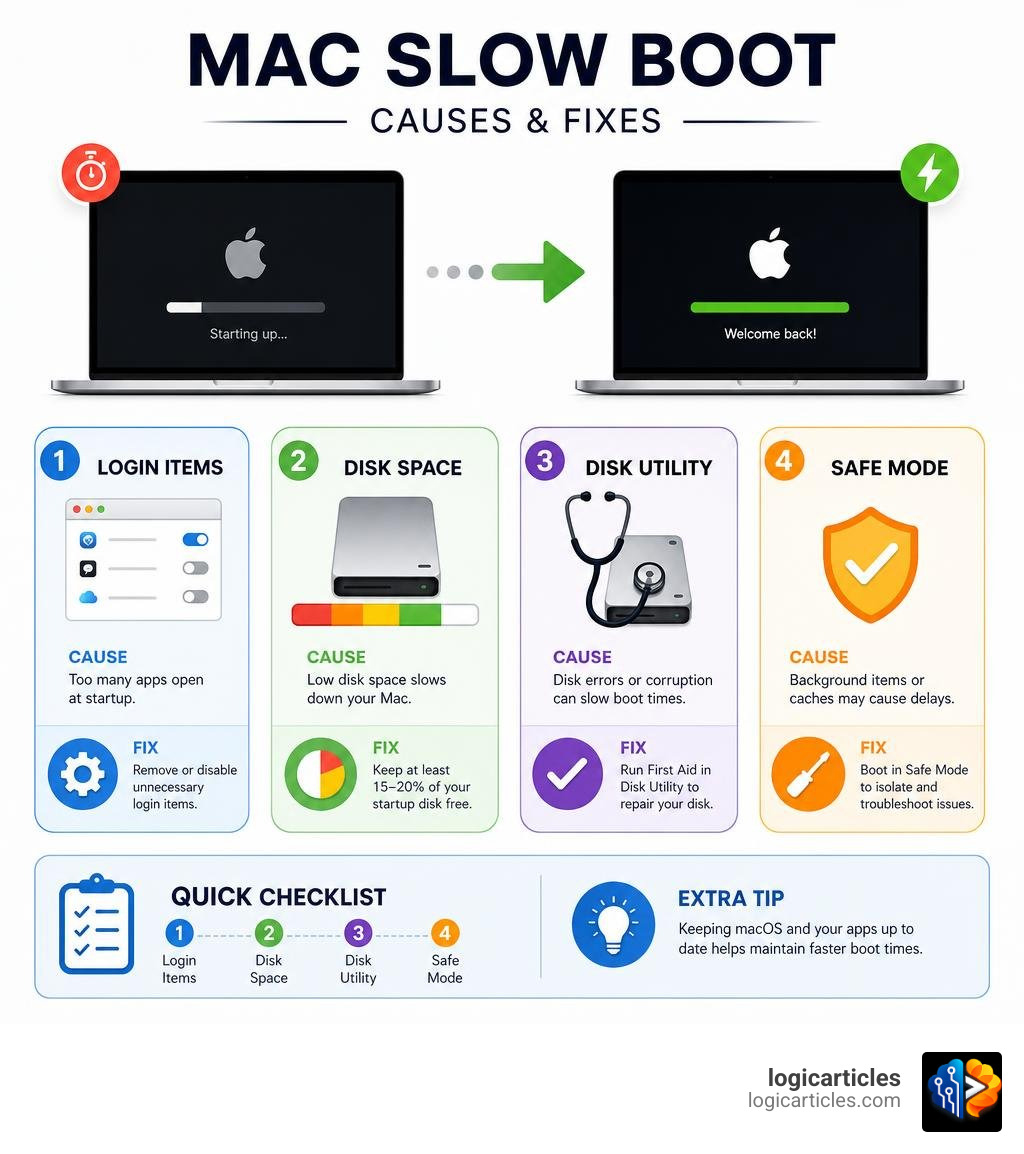
- Remove unnecessary login items — Go to System Settings > General > Login Items and disable apps you don’t need at startup
- Free up disk space — Keep at least 15–20% of your startup disk free for virtual memory and system caches
- Run Disk Utility First Aid — Open Disk Utility, select your startup disk, and click First Aid to repair errors
Those three steps fix the majority of slow boot problems. Read on for the full details.
A slow-starting Mac is genuinely frustrating. Some users report waiting 10 to 15 minutes just to reach their desktop — time that should be spent actually getting things done.
The good news? Most slow boot problems are software issues, not hardware failures. That means you can fix them yourself, often in under 30 minutes, without spending a cent.
A nearly full startup disk, too many apps launching at login, and corrupted caches are the most common culprits. macOS also needs free disk space to manage virtual memory and temporary files during startup — when that space runs low, boot times suffer dramatically.
Even a recent macOS update can trigger the problem. After a major update, macOS runs background tasks like Spotlight reindexing and cache rebuilding that can slow your first few boots for hours.
This guide walks you through exactly what to do — step by step.
Why is My Mac Booting So Slowly?
To solve startup lag, we first need to understand what happens when your Mac powers on. A slow startup is rarely a single, isolated bug. Instead, it is usually the result of your system fighting through a mountain of digital clutter, outdated configurations, or hardware bottlenecks before it can show you a usable desktop.
When diagnosing your system, we always recommend starting with Safe checks for slow startup to gather evidence before making any major system changes. By collecting data first, we avoid wasting time on unnecessary system tweaks.
To pinpoint the exact bottleneck, we can leverage several built-in and reputable third-party diagnostic tools:
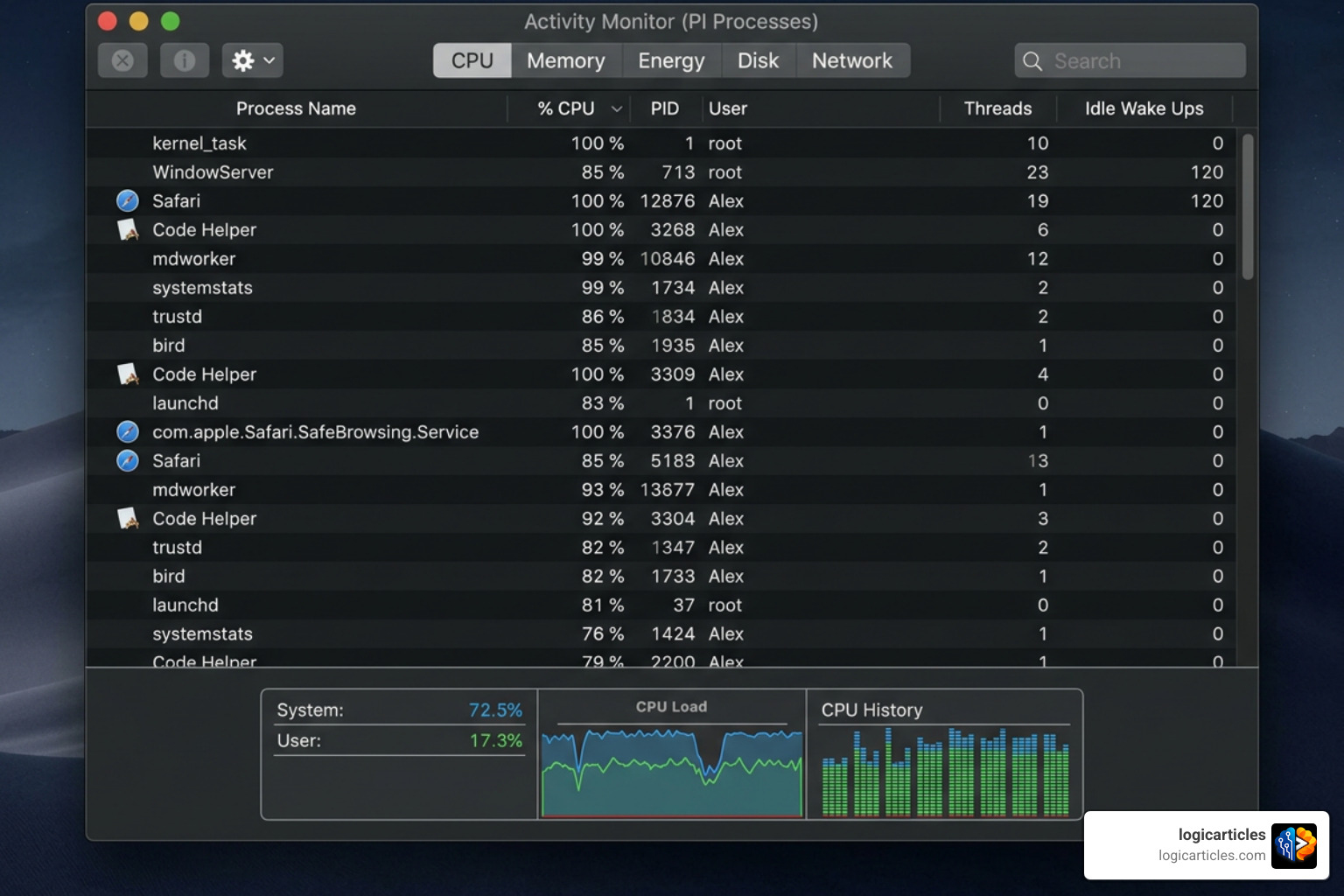
- Activity Monitor: This is our go-to tool for real-time diagnostics. By opening Activity Monitor right after login, we can sort processes by
% CPU,Memory, andBytes Writtento see exactly which background apps are hogging resources. - Disk Utility: A built-in utility that lets us check the health of our startup volume and repair directory structures.
- EtreCheck: A highly respected diagnostic tool in the Mac community that generates a comprehensive system report. It highlights major issues like failing hardware, low disk space, and dead launch agents without compromising your privacy.
Why Your Mac Boots Slowly: Understanding How to Fix Slow Boot Mac
So, what are the primary culprits behind a sluggish start? In our experience, they almost always fall into one of these categories:
- Saturated Startup Disk: macOS relies heavily on free space to write temporary virtual memory (swap files) and system caches. If your SSD or HDD is nearly full, the operating system has to constantly compress and move data around just to boot up, turning a 15-second boot into a multi-minute ordeal.
- Excessive Login Items: Every app that is allowed to “Open at Login” begins loading its assets the moment you enter your password. If you have more than 5 to 8 of these items, your processor and memory will choke under the sudden workload.
- Hidden Background Processes (LaunchAgents & LaunchDaemons): Many apps install background helpers that launch at startup even if the main app isn’t running. These are often left behind even after you think you have uninstalled the parent application.
- Incompatible Kernel Extensions (Kexts): Older third-party software uses deep-level system drivers called kernel extensions. When macOS updates, these legacy extensions can create severe compatibility friction, forcing the system to hang during boot. For a comprehensive overview of startup volume problems, check out this guide on How to Fix Slow Mac Boot.
Distinguishing Slow Boot vs. Slow Login
One of the most important diagnostic distinctions we must make is separating a slow boot from a slow login. Knowing where the delay occurs tells us whether we are dealing with a core system issue or a user-account configuration problem.
- Slow Boot (Pre-Login Delay): This occurs from the moment you press the power button until you see the login screen. If your Mac hangs on the Apple logo, a progress bar, or a black screen for minutes, the issue is likely hardware-related, firmware-related, or caused by a corrupted core macOS file. FileVault encryption can also slightly lengthen this phase as it decrypts the drive.
- Slow Login (Post-Login Delay): This occurs after you enter your password. If the login screen appears quickly, but entering your password triggers a spinning beachball, a frozen menu bar, or an unusable desktop for several minutes, you have a slow login. This is almost always caused by user-specific login items, background sync tools (like Dropbox, OneDrive, or Google Drive), and external peripherals trying to mount and scan files all at once.
Speaking of external peripherals, a faulty USB-C hub, a slow external SSD, or a legacy hard drive connected to your Mac can cause the boot loader to pause as it attempts to communicate with these devices. Unplugging all external accessories is one of the easiest ways to isolate this issue.
How to Fix Slow Boot Mac in 3 Easy Steps
Now that we know what is causing the slowdown, let’s look at how to fix it. We have compiled a table showing the real-world boot times of various Mac configurations before and after applying our optimization steps.
| Mac Model & Storage Type | Boot Time (Before Optimization) | Boot Time (After Optimization) | Primary Fix Applied |
|---|---|---|---|
| MacBook Air M2 (SSD) | 1 min 15 sec | 14 seconds | Trimmed Login Items & Caches |
| iMac Intel 2019 (HDD) | 12 min 40 sec | 45 seconds | Freed 20% Storage & Ran First Aid |
| MacBook Pro M3 (SSD) | 48 seconds | 11 seconds | Resolved Post-Update Spotlight Lag |
| MacBook Pro 2015 (HDD) | 15 min 10 sec | 22 seconds | Upgraded from HDD to SSD |
To achieve these dramatic improvements on your own machine, we recommend following these 9 Proven Fixes for Slow Boot broken down into our three simple, highly effective steps.
Step 1: Trim Startup Items and Launch Agents
The single most effective way to cure a post-login slow startup is to stop apps from opening automatically.
First, let’s clean up your primary Login Items:
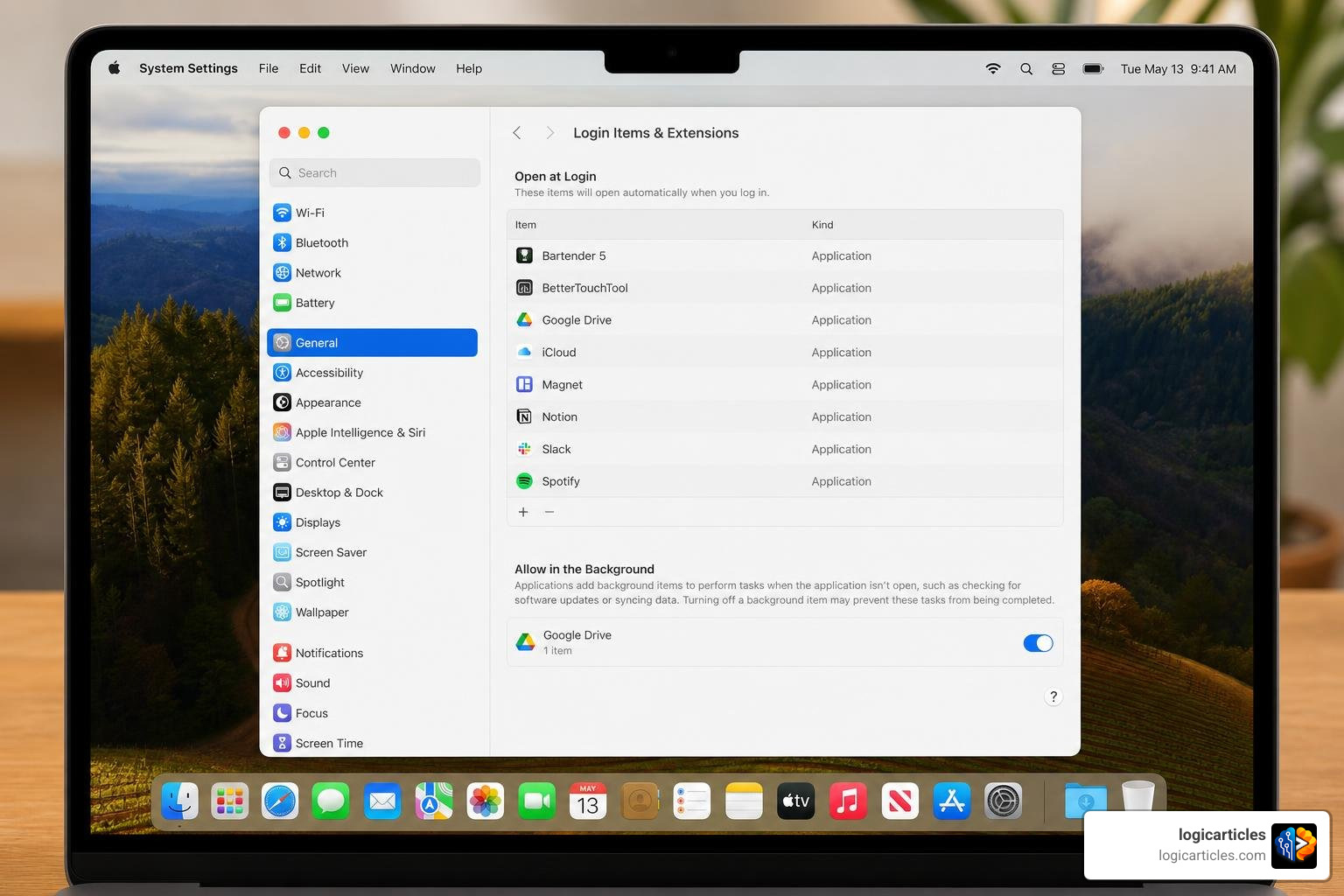
- Open System Settings (click the Apple menu in the top-left corner).
- Navigate to General > Login Items & Extensions.
- Under the Open at Login section, select any non-essential application and click the minus (-) button to remove it. We recommend keeping only essential security tools or lightweight utilities here.
Next, we must target the hidden background processes: LaunchAgents and LaunchDaemons. These are configuration files (.plist files) that tell macOS to run helper processes in the background. Often, when you delete an app, these files are left behind, trying to launch software that no longer exists.
To clean them out safely:
- Open Finder and select Go > Go to Folder… from the menu bar.
- Type in
~/Library/LaunchAgentsand press Enter. - Look for files associated with apps you no longer use (they will have names like
com.developer.appname.plist). Move these to the Trash. - Repeat this process for
/Library/LaunchAgentsand/Library/LaunchDaemons(note the lack of the tilde~, which searches system-wide directories).
Note: Be careful not to delete any file unless you are certain of its origin. If you are cleaning up leftover software files, you might also want to read our guide on How To Uninstall Shotscribus On Mac to ensure no orphaned agents remain on your disk.
Step 2: Reclaim Disk Space and Optimize Storage
Your startup volume is not just a storage locker; it is an active workspace. When macOS boots, it creates swap files to act as virtual memory when physical RAM is fully occupied. If your drive has less than 10% free space, macOS will struggle to write these files, resulting in severe lag and system instability.
For optimal boot times, we strongly advise keeping at least 15% to 20% of your disk space free.
To check your storage and start cleaning:
- Go to System Settings > General > Storage.
- Review the color-coded bar to see what is taking up space.
- Use the built-in optimization tools to empty the Trash automatically, store files in iCloud, or identify large files that are safe to delete.
- Manually clean out your Downloads folder, delete unused applications, and move massive media libraries (like Photos or videos) to an external drive.
Keeping this cushion of free space ensures your SSD has the breathing room it needs to perform at peak speeds. For more storage-clearing strategies, check out this guide on How to Fix Slow Boot Mac.
Step 3: Run Disk Utility First Aid and Clear System Caches
Over time, file system directories can become slightly corrupted, and cache files can get bloated or out of sync. Running Disk Utility First Aid and clearing temporary caches is an excellent way to restore system order.
To run First Aid:
- Open Disk Utility (found in Applications > Utilities).
- Select your main startup volume (usually named Macintosh HD).
- Click the First Aid button at the top of the window and select Run.
- Disk Utility will scan your drive’s directory structure and repair any errors it finds.
For a deeper disk repair, we recommend booting your Mac into Recovery Mode (more on this in the next section) and running First Aid from there, working your way from the innermost volume up to the physical disk.
To clear user and system caches manually:
- Open Finder and select Go > Go to Folder…
- Type
~/Library/Cachesand hit Enter. - You can safely drag the contents of this folder to the Trash (do not delete the folder itself).
- Restart your Mac immediately. The next boot may take slightly longer as macOS rebuilds fresh, uncorrupted caches, but subsequent boots will be significantly faster.
For a comprehensive look at how system caches and disk health tie into daily performance, read this analysis on how to Speed Up Boot & Overall Performance.
Advanced Troubleshooting: Resets, Safe Mode, and Post-Update Fixes
If the three basic steps didn’t fully resolve your slow boot issues, it is time to look at deeper system configurations, recovery tools, and firmware behaviors.
One of our absolute favorite troubleshooting methods is booting into Safe Mode. When you boot into Safe Mode, macOS performs a directory check of your startup volume (similar to First Aid), deletes system and kernel caches, and prevents all third-party launch items and non-essential extensions from loading.
- How to Boot in Safe Mode on Apple Silicon (M1, M2, M3, M4): Shut down your Mac. Press and hold the Power button until you see “Loading startup options.” Select your startup disk, press and hold the Shift key, and click Continue in Safe Mode.
- How to Boot in Safe Mode on Intel Macs: Restart your Mac and immediately press and hold the Shift key until the login window appears.
Once in Safe Mode, let your Mac sit for a few minutes, then restart normally. This simple cycle often clears out stubborn cache corruption that standard restarts cannot touch.
How to Fix Slow Boot Mac After a macOS Update
It is incredibly common for users to notice their Mac is running sluggishly or taking a long time to boot immediately after installing a macOS update. In most cases, this is completely normal post-update behavior.
When you update macOS, the system has to perform several heavy background tasks:
- Spotlight Reindexing: The search database must scan every single file on your drive to update its index.
- Photos Library Rebuilding: The Photos app re-analyzes your library to apply new facial recognition or object-detection algorithms.
- Cache Rebuilding: System and app caches are recompiled to run on the updated OS architecture.
These tasks place a massive load on your CPU and disk I/O, which can cause temporary startup and performance lag. We recommend leaving your Mac plugged into power and connected to the internet for 1 to 3 hours (or even overnight) to let these background tasks finish. If you want a deeper technical breakdown of this process, see this guide on how to Fix a Slow Mac After an Update.
Resetting SMC, NVRAM, and Reindexing Spotlight
If post-update indexing seems stuck, or if your hardware is behaving erratically (e.g., fans spinning loudly, battery not charging correctly, or startup disk selection being forgotten), resetting your hardware controllers can help.
Resetting NVRAM/PRAM (Intel Macs Only)
NVRAM (Non-Volatile Random-Access Memory) stores settings like speaker volume, screen resolution, and startup disk selection. To reset it:
- Shut down your Mac.
- Press the Power button, then immediately hold down Option + Command + P + R.
- Keep holding these keys for about 20 seconds. You can release them after the second startup chime or after the Apple logo appears and disappears for the second time.
Resetting the SMC (Intel Macs Only)
The System Management Controller (SMC) manages physical attributes like power, battery management, fans, and system lights. The method to reset it varies:
- MacBooks with non-removable batteries: Shut down, hold Shift + Control + Option on the left side of the keyboard, then press the Power button. Hold all keys for 10 seconds, then release them and turn your Mac back on.
- Desktop Intel Macs (iMac, Mac mini): Shut down, unplug the power cord for 15 seconds, plug it back in, wait 5 seconds, and power on.
Note: Apple Silicon Macs do not have an SMC or traditional NVRAM settings that require manual resets. These modern chips handle these hardware resets automatically during a standard restart.
Force Spotlight to Reindex
If Spotlight indexing is stuck and causing high CPU usage (mds or mdworker processes in Activity Monitor), you can force it to start fresh:
- Go to System Settings > Siri & Spotlight > Spotlight Privacy (at the bottom).
- Drag your main hard drive (Macintosh HD) into the list to stop Spotlight from searching it.
- Wait 10 seconds, select the drive in the list, and click the minus (-) button to remove it.
- Spotlight will now cleanly rebuild its index from scratch.
Frequently Asked Questions About Mac Boot Times
How long should a healthy Mac take to boot in 2026?
In 2026, boot benchmarks depend heavily on your hardware architecture:
- Apple Silicon Macs (M-series): A healthy MacBook Pro or MacBook Air should boot in 10 to 25 seconds. Because these chips are designed for near-instant startup, any boot time over 45 seconds points to a software issue.
- Intel Macs with SSDs: These older models typically take 25 to 50 seconds to reach a usable desktop.
- Older Intel Macs with HDDs: Traditional spinning hard drives are significantly slower. Normal boot times can range from 1 to 3 minutes. If your HDD-based Mac is taking over 5 minutes to start, upgrading to an SSD will deliver a transformational performance gain.
Does FileVault slow down Mac startup?
Yes, FileVault encryption adds a small amount of overhead to the boot sequence. Because FileVault encrypts your entire startup disk, the system must load a minimal bootloader to accept your password and decrypt the drive before the rest of macOS can load. This usually adds about 5 to 15 seconds to the pre-login phase. However, for the vast majority of users, the exceptional security FileVault provides is well worth this minor delay.
How much free space does macOS need to boot quickly?
At an absolute minimum, macOS needs 10% of your disk space free to function without crashing. However, to maintain fast boot times and prevent application lag, we highly recommend keeping 15% to 20% free space (for example, at least 51GB free on a 256GB drive, or 102GB free on a 512GB drive). This ensures the operating system has plenty of room to write temporary swap files and run background maintenance scripts.
Conclusion
Taking care of your Mac doesn’t require a degree in computer science. By establishing a few healthy maintenance habits, you can keep your machine running as fast as the day you unboxed it.
We recommend restarting your Mac fully at least once a week to clear system memory, review your login items once a month, and perform a quick disk cleanup quarterly. Keeping your storage clutter-free and running Disk Utility First Aid occasionally will prevent slow boot issues from creeping back.
At logicarticles, we want to help you get the absolute most out of your hardware and software. If you found this guide helpful, we invite you to Explore more productivity software guides to streamline your digital workspace and boost your daily efficiency!