Why Keeping Up With HP Software and Driver Downloads Matters
HP software and driver downloads are the fastest way to fix performance problems, restore missing features, and keep your HP device running at its best. Here’s a quick overview of how to get them:
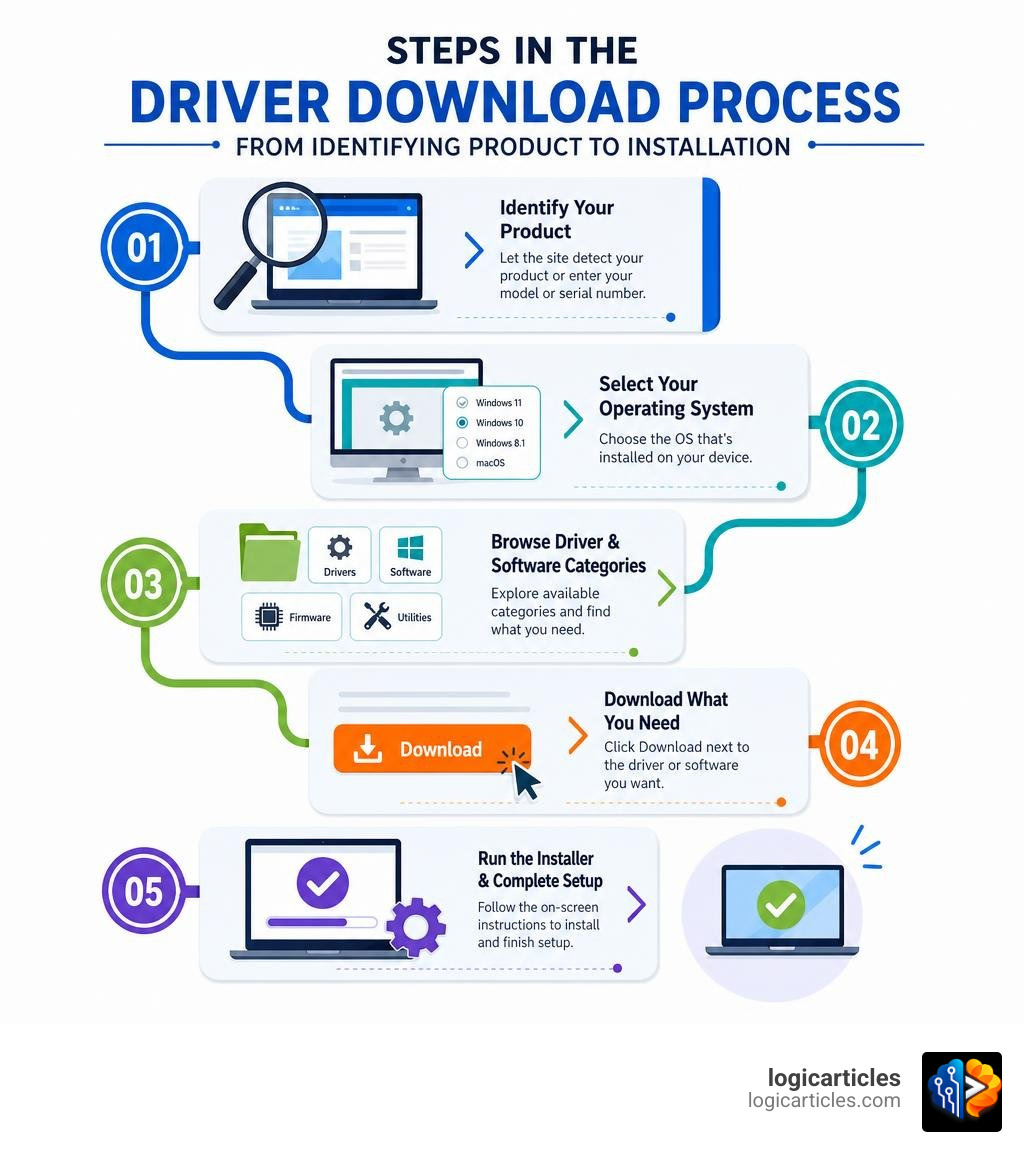
How to download HP drivers and software (quick steps):
- Go to support.hp.com/drivers
- Let HP detect your product automatically, or type your model number or serial number
- Select your operating system
- Browse the driver and software categories
- Click Download next to what you need and follow the installer
Every HP device — laptops, desktops, printers, and more — depends on drivers to communicate with your operating system. Without the right driver, a device might stop working entirely, behave erratically, or lose access to key features.
Outdated drivers are behind up to 30% of device performance issues on Windows PCs. That’s a significant number, and most users never think to check.
HP releases drivers, firmware, and software updates regularly to:
- Fix bugs and compatibility issues
- Improve print quality, speed, and hardware performance
- Add support for new operating systems like Windows 11
- Patch security vulnerabilities
The good news? Getting the right files is straightforward — as long as you go to the right place and know what to look for.
Why Official HP Software and Driver Downloads Matter
To understand why downloading official files is so critical, it helps to understand what these components actually do.
A driver is a small piece of software that acts as a translator between your computer’s operating system (like Windows 11) and its hardware components (like a graphics card, Wi-Fi adapter, or printer). If the operating system speaks English and your printer speaks French, the driver is the interpreter standing between them making sure the document actually prints instead of throwing a confusing error code.
But what about firmware? If you have ever wondered about the difference, check out our guide on Firmware vs Software. In short:
- Software refers to programs you interact with (like HP Printer Assistant).
- Firmware is coded instructions programmed directly onto a hardware chip (like the internal controller of your printer or your PC’s BIOS).
When drivers or firmware fall out of date, communication breaks down. This leads to frustrating performance issues, system crashes, and slow performance. If you have been wondering, “Is Your Laptop Running Slow?“, an outdated chipset or graphics driver is one of the most common culprits.
The Danger of Third-Party Driver Sites
When searching for hp software and driver downloads, you will encounter dozens of third-party websites claiming to host the “latest HP drivers.” We strongly advise avoiding these.
Downloading drivers from non-official sources exposes your system to malware, spyware, and driver corruption. Third-party packages often bundle unwanted adware or install poorly optimized drivers that cause the dreaded Blue Screen of Death (BSOD). Always get your files directly from the Official HP® Drivers and Software Download | HP® Support portal to guarantee security and system stability.
How to Identify Your HP Product for the Correct Drivers
HP supports thousands of legacy and modern devices. To get the exact driver your hardware needs, you must correctly identify your product. Installing a driver meant for a slightly different model can cause the component to stop working entirely.
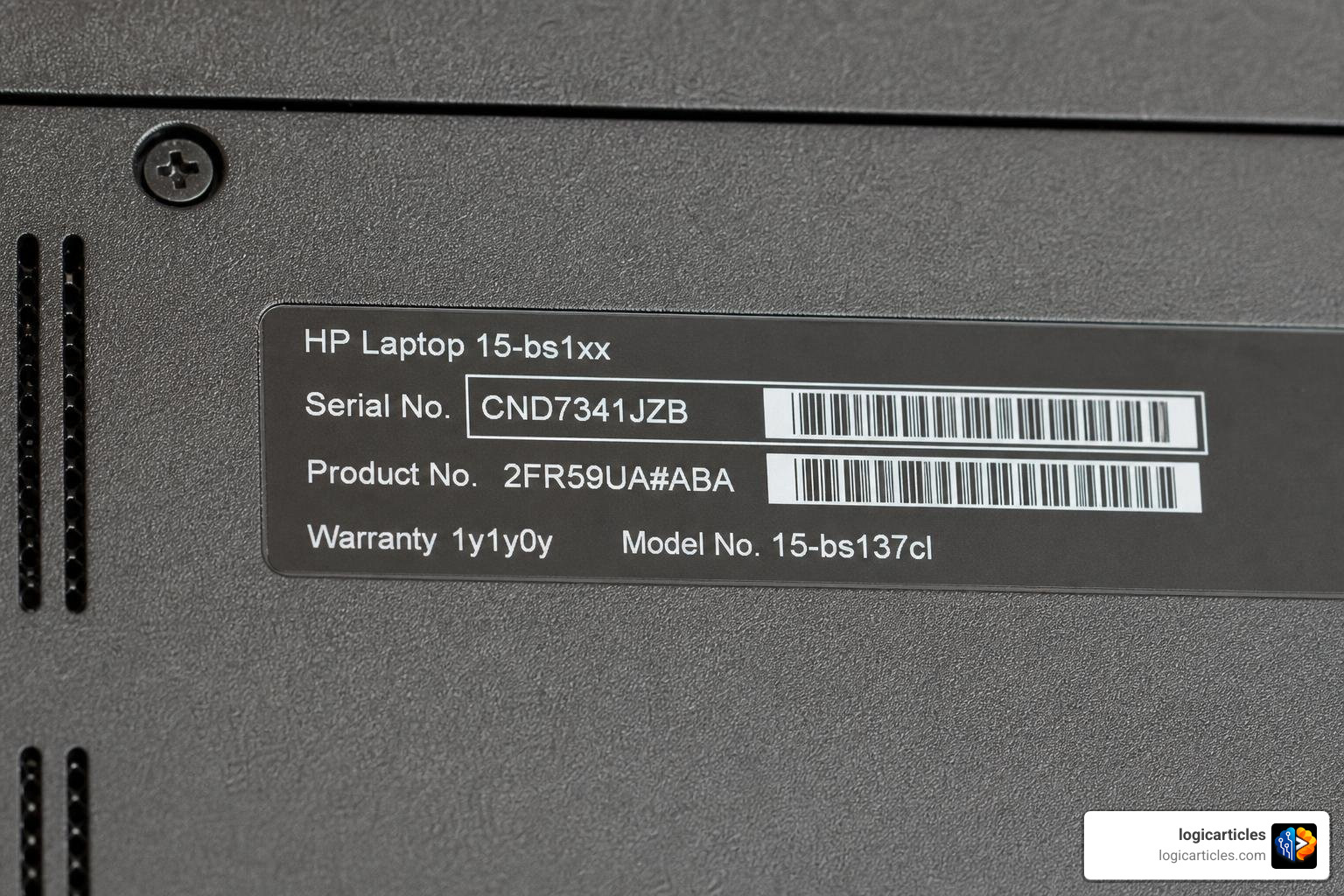
Here are the easiest ways to identify your HP device:
- Product Label Identification: Look at the physical casing of your device. On laptops, this is usually on the bottom cover or inside the battery compartment. On printers, it is typically on the back or inside the cartridge access door. You are looking for the Serial Number (S/N) and the Product Model (e.g., LaserJet Pro P1102w or HP Spectre x360).
- Keyboard Command Shortcut: If your HP laptop is running, press
Fn + Esc(orCtrl + Alt + Son some models) to open the HP System Information window. This displays your exact model name and serial number instantly. - Automated Product Detection: When you visit the official support page, you can click Identify or Detect My Product. This installs a small, secure helper utility that reads your hardware configuration and redirects you to the correct download list.
- HP Account Dashboard: If you sign in or create an HP account, you can register your owned products. This gives you a personalized dashboard with instant access to the exact driver updates your registered devices need.
Step-by-Step Guide to Downloading and Installing HP Software
Once you have identified your device, grabbing the files is a simple process. Here is how to do it manually from the official website.
To make sure you get the best experience, we recommend using a desktop or laptop computer to perform these steps rather than a mobile device.
- Go to the official HP PCs – Downloading or updating software and drivers page.
- Select your product type (Laptop, Desktop, Printer, or Other).
- Enter your serial number or model name in the search bar.
- On the driver results page, verify that the detected Operating System matches your current setup (e.g., Windows 11 or Windows 10 64-bit). If it doesn’t, click Choose a different OS to adjust it.
- Browse the categorized list and click Download next to the driver you need.
- Locate the downloaded file (usually an
.exefile in your Downloads folder) and double-click it to start the installation wizard. Follow the on-screen instructions, and restart your computer if prompted.
Finding Your Specific HP Software and Driver Downloads Manually
Sometimes, the automated tools won’t detect everything you need, or you might be downloading a driver for a different computer. In these cases, manual navigation is your best friend.
When you land on the manual driver list, you will see several categories:
- Chipset Drivers: These are the most important drivers for your motherboard. They allow the CPU to communicate with other components. If your USB ports, audio, or network cards aren’t working after a clean Windows install, install the chipset drivers first!
- Graphics and Audio Drivers: Essential for display resolution, smooth video playback, and sound.
- Network/Wireless Drivers: Keeps your Wi-Fi and Bluetooth connections stable.
- Diagnostic and Management Software: Optional utilities to help monitor system health.
Simply expand the category you need, check the release date, and download the latest version.
Installing HP Printer Software and Universal Print Drivers
Setting up a printer requires a slightly different approach than a PC component.
To get your printer up and running:
- Navigate to the Official HP® Drivers and Software Download | HP® Support page.
- Enter your printer model (e.g., HP DeskJet 2700).
- You will typically be prompted to download the HP Smart App or the HP Printer Assistant (for models released after 2010). These apps handle printing, scanning, faxing, and ink/toner monitoring.
- HP Universal Print Driver (UPD): If you are in an office environment with multiple HP printer models, download the UPD. Instead of installing a separate driver for every single printer, the UPD acts as a single, versatile translator that works across almost all HP LaserJet and InkJet models.
- Printer Firmware: Printer firmware controls the actual mechanical parts, print heads, and network connections. Keep this updated to resolve connectivity drops and print-quality issues.
- Critical Warning: Never turn off your printer during a firmware update. Interrupting a firmware flash can permanently damage (brick) the printer’s internal motherboard.
How to Update Existing HP Drivers and Firmware
If your system is already running but experiencing glitches, you don’t always have to download files manually. You can update your existing setup using built-in Windows tools or official HP automation.
1. Windows Update
Microsoft collaborates with HP to deliver stable driver packages directly through Windows.
- Open Settings > Update & Security (or Windows Update on Windows 11).
- Click Check for updates.
- Be sure to check the Advanced options > Optional updates section, as many hardware-specific HP drivers are categorized as optional.
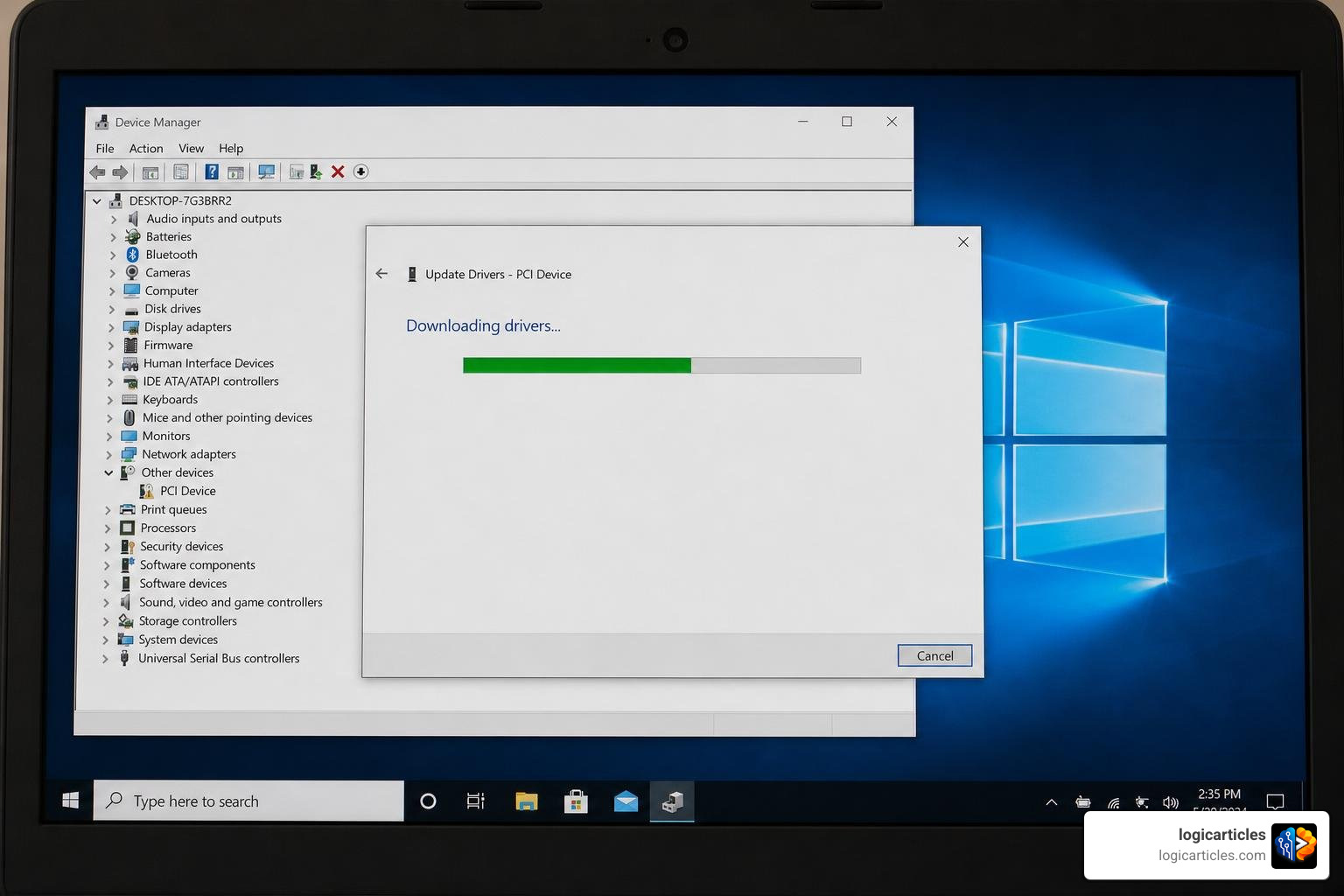
2. Device Manager
If a specific component (like your webcam or sound card) is acting up:
- Right-click the Start menu and select Device Manager.
- Find the problematic hardware, right-click it, and select Update driver.
- Choose Search automatically for drivers.
3. BIOS Updates
Your BIOS (Basic Input/Output System) initializes your hardware before the operating system even boots. Outdated BIOS versions can cause system instability or compatibility issues with newer hardware.
- Find your current BIOS version by pressing
Fn + Escor typingmsinfo32in the Windows search bar. - Go to the HP driver website, locate the BIOS category for your PC model, and compare the version numbers.
- If an update is available, download and run the installer. Ensure your laptop is plugged into a power source and do not turn off the computer during this process, as a failed BIOS update can prevent your computer from starting up at all.
Automating HP Software and Driver Downloads with HP Support Assistant
If you don’t want to spend time manually checking for updates, HP provides a brilliant automated tool: HP Support Assistant.
- Availability: It comes pre-installed on new HP Windows laptops and desktops. If you don’t have it, you can download it directly from HP.
- How it works: The tool runs in the background, periodically scanning your hardware against HP’s database. When a new patch, driver, or firmware update is released, it notifies you and installs it with a single click.
- Chrome OS & Mobile: If you are running Chrome OS, there is a dedicated Chrome extension (optimized for Chrome OS M99 or higher). Mobile apps are also available for iOS and Android to manage your registered printers and devices.
Enterprise Driver Management and Driver Packs
For IT professionals and system administrators managing a fleet of business computers (like HP EliteBooks, ProBooks, or ZBooks), updating PCs individually is highly inefficient.
HP provides specialized enterprise tools to streamline deployment:
- HP Driver Packs: These are standardized collections of Microsoft Windows drivers in
.INFformat. They are designed to work seamlessly with corporate deployment tools like Microsoft System Center Configuration Manager (SCCM). You can find them on the Client Management Solutions – HP Driver Packs | HP® Official Site page. - 64-Bit Matrices: For deployment across modern 64-bit operating systems, refer to the Driver Packs (64-bit) | HP Client Management Solutions catalog to find combined Driver and UWP (Universal Windows Platform) packs.
- HP Client Management Script Library (CMSL): HP recommends using CMSL via PowerShell to programmatically build custom driver packs containing only the most current, verified drivers for your specific network environment.
Troubleshooting HP Support Website and Driver Issues
Sometimes, technology gets in its own way. If you run into issues while trying to download or install your drivers, use these quick troubleshooting steps.
The Indefinite Spinning Icon Issue
A common complaint on support forums is that the HP driver download page sometimes spins indefinitely or fails to load results, even on high-speed internet connections.
- Clear Browser Cache: Overloaded temporary files can conflict with HP’s product database scripts. Clear your browser’s cookies and cache, then reload the page.
- Switch Browsers: If Google Chrome or Safari is stalling, try using Microsoft Edge. Users frequently report that Edge handles HP’s database queries more reliably.
- Disable Ad Blockers: Aggressive script-blocking extensions can prevent HP’s product detection tools from communicating with your computer.
Network Firewalls and Security Software
If your driver downloads keep failing or getting flagged as interrupted, your network firewall or third-party antivirus software might be blocking the connection to HP’s FTP servers. Temporarily disable your antivirus or whitelist the HP support domain to complete your downloads safely.
If your computer is taking a long time to start up even after you’ve updated your drivers, you may have too many background programs launching at startup. Learn how to optimize your boot times with our guide on How to Fix Slow Startup on Windows.
Frequently Asked Questions about HP Drivers
How do I find the current BIOS version on my HP computer?
You can easily find your BIOS version by pressing Fn + Esc on your keyboard to open the HP System Information window. Alternatively, type System Information in the Windows search bar, open the app, and look for the BIOS Version/Date row in the System Summary dashboard.
What should I do if the HP driver download page spins indefinitely?
Clear your browser’s cache and cookies, disable any active ad-blocking extensions, or try accessing the page using Microsoft Edge. If you are looking for a critical BIOS update, you can also search the HP Support Community forums for direct SoftPaq download links.
Why are my network or sound drivers missing after an OS upgrade?
During an operating system upgrade (such as moving from Windows 10 to Windows 11), older drivers can sometimes be removed due to compatibility issues. To fix this, download and install the Chipset Driver for your model first. The chipset driver enables your operating system to recognize motherboard components, which often restores your network and sound drivers immediately.
Conclusion
Keeping your HP devices updated with the latest hp software and driver downloads is one of the easiest ways to ensure system stability, maintain peak performance, and extend the lifespan of your hardware. Whether you choose to download updates manually or let HP Support Assistant handle the heavy lifting, staying proactive will save you from future technical headaches.
While this guide focuses on HP Windows PCs, we also have resources for other platforms. If you also manage Apple devices in your household or office, check out our guides on How to Fix a Slow Mac and How to Fix Slow Boot on Mac.
For more actionable tech guides and tips to keep your digital workspace running smoothly, explore our resources to Optimize Your Productivity Tools!