Is Your Mac Running Slow? Here’s How to Fix It Fast
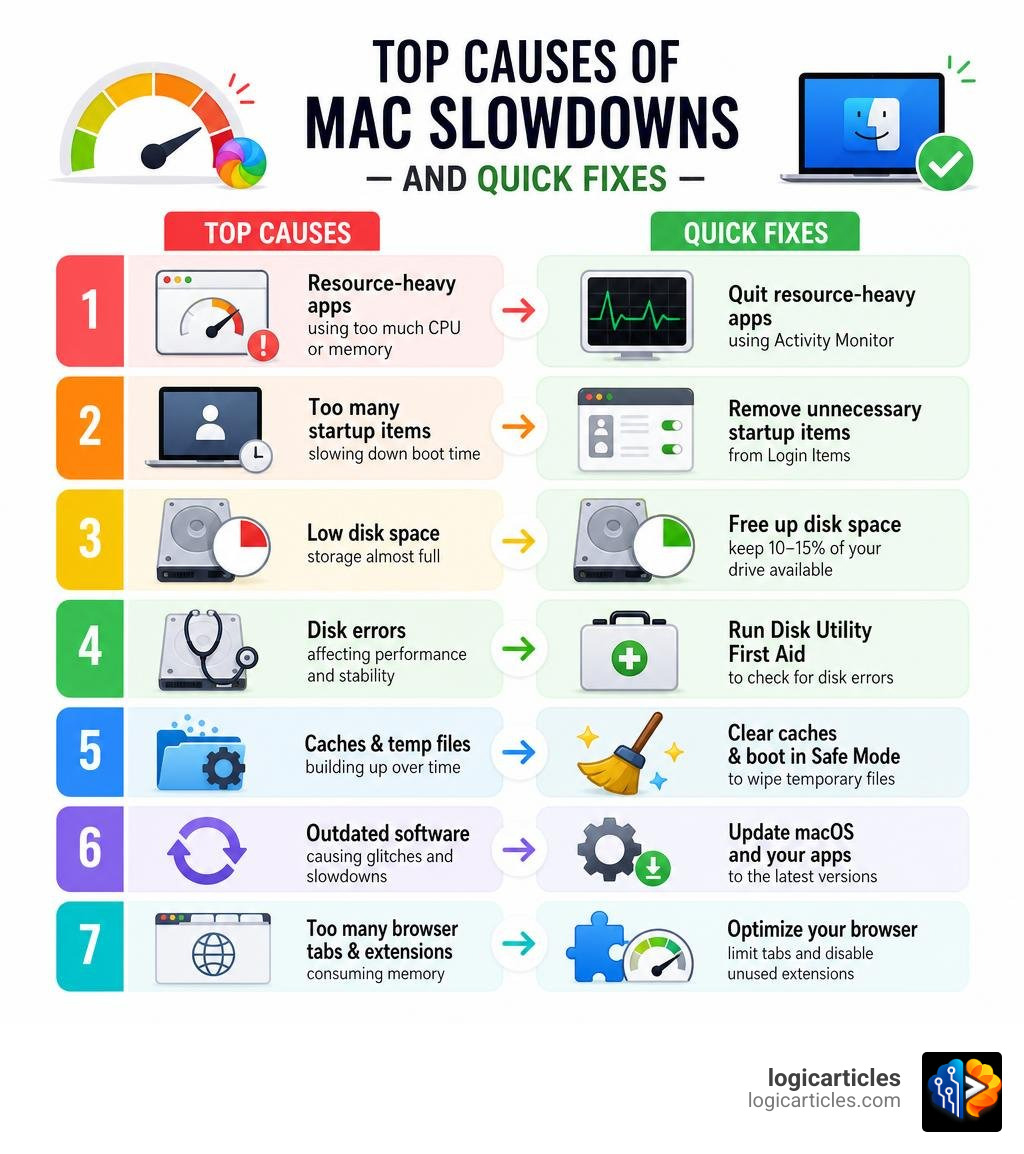
If you want to how to fix slow Mac performance quickly, here are the seven steps that work for most users:
- Quit resource-heavy apps using Activity Monitor
- Remove unnecessary startup items from Login Items
- Free up disk space — keep at least 10–15% of your drive available
- Run Disk Utility First Aid to check for disk errors
- Clear caches and boot in Safe Mode to wipe temporary files
- Update macOS and your apps to the latest versions
- Optimize your browser by limiting tabs and disabling unused extensions
That spinning rainbow beachball. You click something simple — opening a PDF, switching tabs — and your Mac just freezes for a few seconds. It’s frustrating, especially when the machine used to feel snappy.
The good news? Most slow Macs are fixable without spending a cent.
Slowdowns usually come from a short list of repeat offenders: too little free storage, apps running in the background, too many startup programs, or software that hasn’t been updated. In some cases — like after a major macOS update — even a fast Mac with plenty of RAM can feel sluggish while the system finishes background tasks.
This guide walks you through seven proven steps to diagnose and fix the problem using only built-in macOS tools.
Why is Your Mac Running Slow?
Before we dive into the fixes, we need to understand what is actually happening under the hood. When a Mac transitions from a snappy machine into a sluggish one, it is rarely due to a single, catastrophic hardware failure. Instead, performance degradation is usually the result of multiple minor software issues accumulating over time.
Here are the primary culprits behind a laggy Mac:
- High Memory Pressure: Your Mac uses Random Access Memory (RAM) to run active applications. When you run out of physical RAM, macOS is forced to write temporary data to your startup disk. This process is known as “swapping.” Even with modern, ultra-fast solid-state drives (SSDs), virtual memory swap is orders of magnitude slower than physical RAM.
- Low Free Storage Space: Your startup disk requires breathing room to function. If your drive is nearly full, macOS cannot manage temporary system files, cache directories, or virtual memory swap files efficiently.
- Runaway Background Processes: Many applications install background helpers (daemons) that launch automatically when you boot your computer. These hidden processes quietly consume CPU cycles and memory without your knowledge.
- Thermal Throttling and
kernel_task: If your Mac’s internal cooling vents are blocked or the processor is working too hard, the system will protect itself from overheating. macOS does this by launching a process calledkernel_task, which intentionally monopolizes your CPU to prevent other apps from running hot, allowing your hardware to cool down. - Post-Update System Indexing: If you have recently updated your operating system (such as to the recent macOS Tahoe update), your Mac will perform deep background indexing for Spotlight search and Apple Intelligence. This process can run heavily for 24 to 48 hours, causing temporary system-wide lag.
If you suspect your system is experiencing these issues, you can consult Apple’s official troubleshooting guide to understand how system requirements and hardware limitations affect overall responsiveness.
How to Fix Slow Mac in 7 Simple Steps
We believe in using native macOS tools before turning to third-party utility software. Many commercial “Mac cleaning” tools run constant background processes that can actually worsen your system’s performance. By using the built-in diagnostic features already installed on your Mac, you can safely optimize your system without risking your data.
Let’s go through our step-by-step framework to restore your Mac’s original speed.
Step 1: Identify and Quit Resource-Heavy Apps to Fix Slow Mac
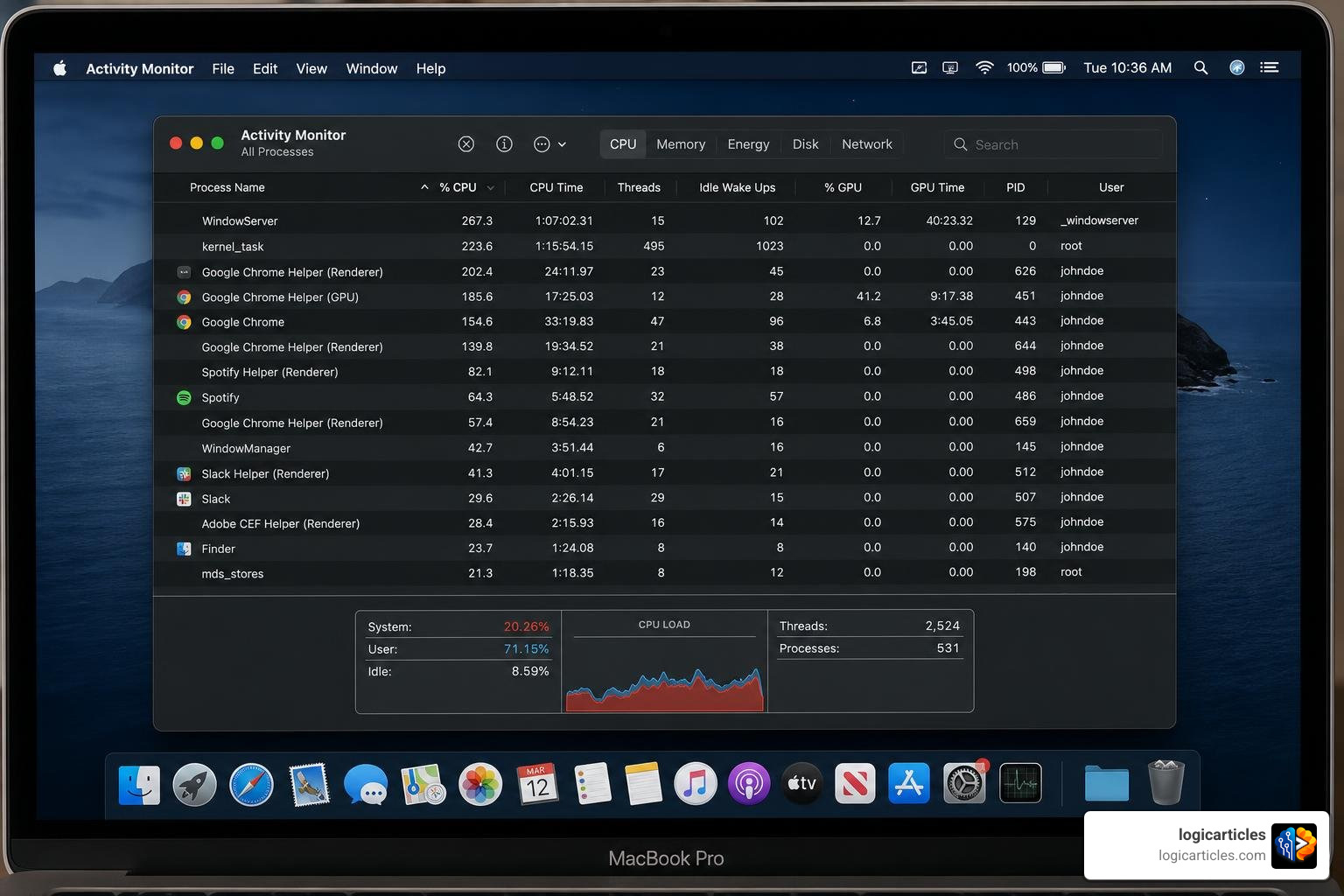
The fastest way to regain system responsiveness is to find and terminate the specific applications that are hogging your CPU and RAM. To do this, we will use a built-in diagnostic tool called Activity Monitor.
- Open Finder, navigate to Applications > Utilities, and launch Activity Monitor (or simply press
Command + Spaceto open Spotlight, type “Activity Monitor,” and press Enter). - Click on the CPU tab at the top of the window.
- Click the % CPU column header to sort the active processes in descending order. This will place the most resource-heavy applications at the very top of the list.
- If you see an app using a disproportionate amount of CPU (for example, a browser helper process or a frozen application exceeding 50%), select it and click the “X” button in the top-left corner of the Activity Monitor window. Select Force Quit to close it.
Next, we need to analyze your RAM usage:
- Click on the Memory tab in Activity Monitor.
- Look at the Memory Pressure graph at the bottom of the window.
- Green: Your Mac has plenty of free memory and is running efficiently.
- Yellow: Your system is beginning to run low on physical RAM.
- Red: Your Mac has run out of physical memory and is actively using swap space on your hard drive. This is a clear indicator of a memory bottleneck.
- If the graph is yellow or red, look at the list of processes, sort by the Memory column, and quit any non-essential apps that are consuming massive amounts of RAM.
Note on post-update slowdowns: If you recently updated to macOS Tahoe, you may notice processes like mds or mdworker consuming high CPU. These are Spotlight indexing services. We recommend leaving your Mac plugged in and awake overnight to let this process finish naturally rather than attempting to force-quit it.
Step 2: Manage Startup Items and Background Daemons
Every time you boot your Mac, several applications silently launch themselves in the background. This “startup tax” can significantly increase your boot times and drain system resources from the moment you turn on your machine.
To audit and trim your startup list:
- Click the Apple Menu in the top-left corner of your screen and select System Settings.
- Navigate to General > Login Items.
- Under the Open at Login section, review the list of applications. These are apps that open visibly when you log in. To remove an application, select it and click the minus (-) button at the bottom of the list. We recommend keeping this list limited to 5 or 6 essential apps.
- Below that, look at the Allow in Background section. This lists background daemons and helpers that run silently. Toggle off any software that you do not need running constantly (such as updater helpers for apps you rarely use).
Reducing these background items will noticeably improve both your daily system responsiveness and your initial boot speed. For a deeper dive into resolving slow startup times, check out our comprehensive guide on How To Fix Slow Boot On Mac.
Step 3: Free Up Disk Storage Space to Fix Slow Mac
As a general rule of thumb, you should always maintain at least 10% to 15% (or 20 GB to 30 GB) of your startup disk as free space. When your drive is fuller than this, macOS cannot create the temporary swap files required to manage virtual memory, causing your entire interface to stutter.
To check your storage and optimize your space:
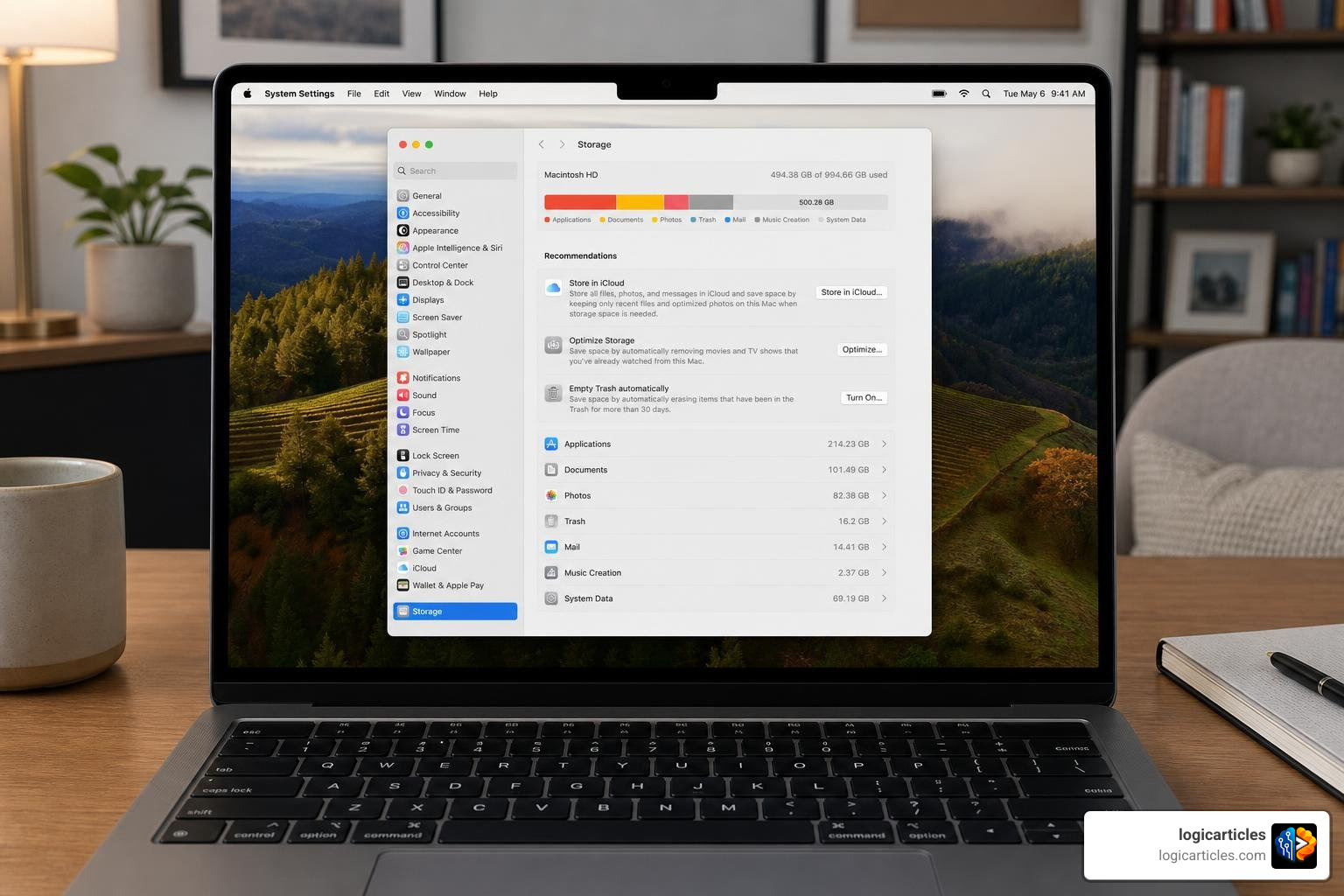
- Open System Settings > General > Storage.
- Look at the color-coded bar at the top to see how much free space you have left.
- Review the Recommendations section directly below the storage bar. Here, you can enable Optimize Storage to automatically remove watched Apple TV movies or store large files in iCloud.
- Scroll down and click the info icons next to categories like Applications, Documents, and System Data to review and delete large, unwanted files.
Often, old, bulky applications that you no longer use continue to take up valuable gigabytes of storage space. For example, if you have large media creation tools or heavy software packages installed that you no longer need, it is highly beneficial to remove them. If you need a walkthrough on how to completely remove complex software and its hidden library files, see our guide on How To Uninstall Shotscribus On Mac.
Step 4: Run Disk Utility First Aid
Over time, file system permissions can become corrupted, and directory structures can develop minor errors. These issues can cause file access delays and system instability. You can check for and repair these problems using macOS’s built-in Disk Utility.
To run a disk check:
- Open Finder and go to Applications > Utilities > Disk Utility.
- Select your startup disk (usually named Macintosh HD) from the left-hand sidebar.
- Click the First Aid button at the top of the window, then click Run.
- Disk Utility will scan your volume for directory errors, corrupted system files, and allocation issues. If it finds any minor errors, it will repair them automatically.
Running First Aid is one of the most reliable, Apple-approved methods to repair disk-level performance bugs. For more advanced tips on structural system optimization, you can read about these proven steps to restore Mac speed to get your machine running like new again.
Step 5: Clear System Caches and Boot in Safe Mode
Your Mac stores temporary files in cache folders to help apps load faster. However, if these caches become bloated or corrupted, they can have the opposite effect — dragging down system performance and causing application crashes.
While you can manually delete files in ~/Library/Caches, the safest and most thorough way to clear system-level caches is by booting your Mac into Safe Mode.
When you boot into Safe Mode, your Mac performs a directory check of your startup disk, clears system caches, deletes temporary database files, and prevents third-party login items from launching.
For Apple Silicon Macs (M1, M2, M3, M4):
- Shut down your Mac completely.
- Press and hold the Power button until you see “Loading startup options” on the screen.
- Select your startup disk.
- Press and hold the Shift key, then click Continue in Safe Mode.
- Log in to your Mac. You will see “Safe Boot” in the top-right corner of the menu bar.
For Intel-based Macs:
- Restart your Mac and immediately press and hold the Shift key.
- Release the key when you see the login window.
Once you are in Safe Mode, let the Mac sit idle for a few minutes to allow it to complete its background database repairs. After that, simply restart your Mac normally. It will boot back into the standard macOS environment with clean, refreshed system caches. For a complete, long-term maintenance blueprint, check out these highly recommended Mac cleanup and maintenance tips.
Step 6: Update macOS and Applications
Running outdated software is a major contributor to system slowdowns. Apple frequently releases point updates to patch memory leaks, fix compatibility issues, and optimize GPU rendering.
For example, the initial release of macOS Tahoe caused system-wide stuttering and typing lag for some users due to an Electron app rendering bug. Apple quickly resolved this with the release of subsequent updates (such as macOS 26.2), which restored smooth performance across the board.
To check for operating system updates:
- Open System Settings > General > Software Update.
- If an update is available, click Update Now to install it.
Additionally, make sure to update your third-party applications. Open the App Store and click Updates in the sidebar to install any pending application patches. For software downloaded directly from the web, open the app and use its built-in “Check for Updates” tool. Keeping your system fully updated ensures you are running the most efficient code possible, in line with Apple performance recommendations.
Step 7: Optimize Browser Performance and Tab Usage
For many of us, the web browser is where we spend 90% of our computer time. If your Mac feels slow specifically when surfing the web, your browser is likely exhausting your system resources.
Browsers like Google Chrome are notoriously resource-intensive. Keeping 40, 50, or 100 tabs open simultaneously can easily consume 8 GB to 16 GB of RAM, causing your Mac to rely heavily on virtual memory swap space.
To optimize your browsing habits:
- Limit Your Active Tabs: Try to keep your active tabs under 30 or 40. Use bookmark folders or reading lists to save pages for later instead of keeping them open indefinitely.
- Audit Your Extensions: Browser extensions run constantly in the background. Open your browser’s extension settings and remove any ad blockers, password managers, or tools that you do not use regularly.
- Clear Browser Cache: Periodically clear your cached images and files to prevent database bloat.
- Use Safari for Better Efficiency: Safari is deeply integrated into macOS and is highly optimized for Apple hardware, consuming significantly less battery and RAM than third-party alternatives.
Implementing these simple browser habits can instantly free up gigabytes of system memory. For further strategies on optimizing your browsing and overall system configuration, explore these 20 ways to optimize your Mac.
Hardware Upgrades vs. Software Fixes: When to Upgrade
If you have tried all of the software steps above and your Mac still struggles with basic daily tasks, you may be hitting the physical limitations of your hardware.
Historically, upgrading a slow computer was simple: you bought more RAM or swapped your mechanical hard drive for a solid-state drive (SSD). However, modern Apple Silicon Macs (M1, M2, M3, M4) have their RAM and storage soldered directly onto the main system board, meaning they cannot be upgraded after purchase.
If you own an older Intel-based Mac (such as a 2017 iMac), upgrading from a traditional hard disk drive (HDD) to an SSD will make an astronomical difference in performance.
| Performance Metric | Traditional Hard Drive (HDD) | Solid-State Drive (SSD) |
|---|---|---|
| Typical Boot Time | 1 to 5 minutes | 10 to 30 seconds |
| File Read/Write Speed | 80 to 150 MB/s | 500 to 6,000+ MB/s |
| App Launch Latency | High (frequent beachballs) | Instantaneous |
| Durability & Noise | Moving parts, noisy, fragile | Silent, shock-resistant |
If you are on an older, upgradeable machine, transitioning to an SSD is the single best investment you can make. However, if you are on a non-upgradeable Apple Silicon Mac and your Memory Pressure graph in Activity Monitor remains consistently red during your normal workflow, it is likely time to consider upgrading to a newer Mac model with more unified memory to match your productivity demands.
Frequently Asked Questions About Mac Performance
How much free storage space does my Mac need to run fast?
We recommend keeping at least 10% to 15% of your total drive capacity free. macOS relies heavily on this empty space to manage virtual memory (swap files), unpack system updates, and write temporary cache databases. If your drive has less than 20 GB of free space, you will likely experience noticeable system slowdowns.
Does closing an app window with the red button fully quit the app?
No. In macOS, clicking the red dot in the top-left corner of an app window merely closes that specific window. The application itself continues to run in the background, consuming CPU and RAM. To fully quit an application, you must press Command + Q on your keyboard, or right-click the app’s icon in the Dock and select Quit.
Why is my Mac slow even though I have plenty of free RAM?
Even if Activity Monitor shows free physical RAM, your Mac can feel slow due to processor bottlenecks (high CPU usage), low disk storage, or heavy GPU load from advanced visual effects. Additionally, macOS is designed to actively use your available RAM for file caching to speed up system tasks. Rather than looking at “free” memory, always check the Memory Pressure graph; as long as that graph is green, your RAM configuration is not the source of your slowdown.
Conclusion
Restoring a slow Mac to its former glory doesn’t require expensive hardware upgrades or risky third-party cleaning utilities. By systematically cleaning up your startup items, keeping your storage drive light, monitoring your memory pressure, and performing occasional maintenance tasks like booting in Safe Mode, you can keep your machine running smoothly for years to come.
We recommend making these quick checks a part of your quarterly routine. A well-maintained Mac remains a powerful, reliable tool that supports your daily workflow without interruption.
For more expert guides on optimizing your devices and streamlining your digital workspace, explore our library of More productivity tips and guides at logicarticles!