Why Your Computer Won’t Recognize Your Logitech Unifying Receiver
Why won’t my computer recognize my Logitech Unifying Receiver? — this is one of the most common frustrations for wireless Logitech users, and the good news is that it’s almost always fixable.
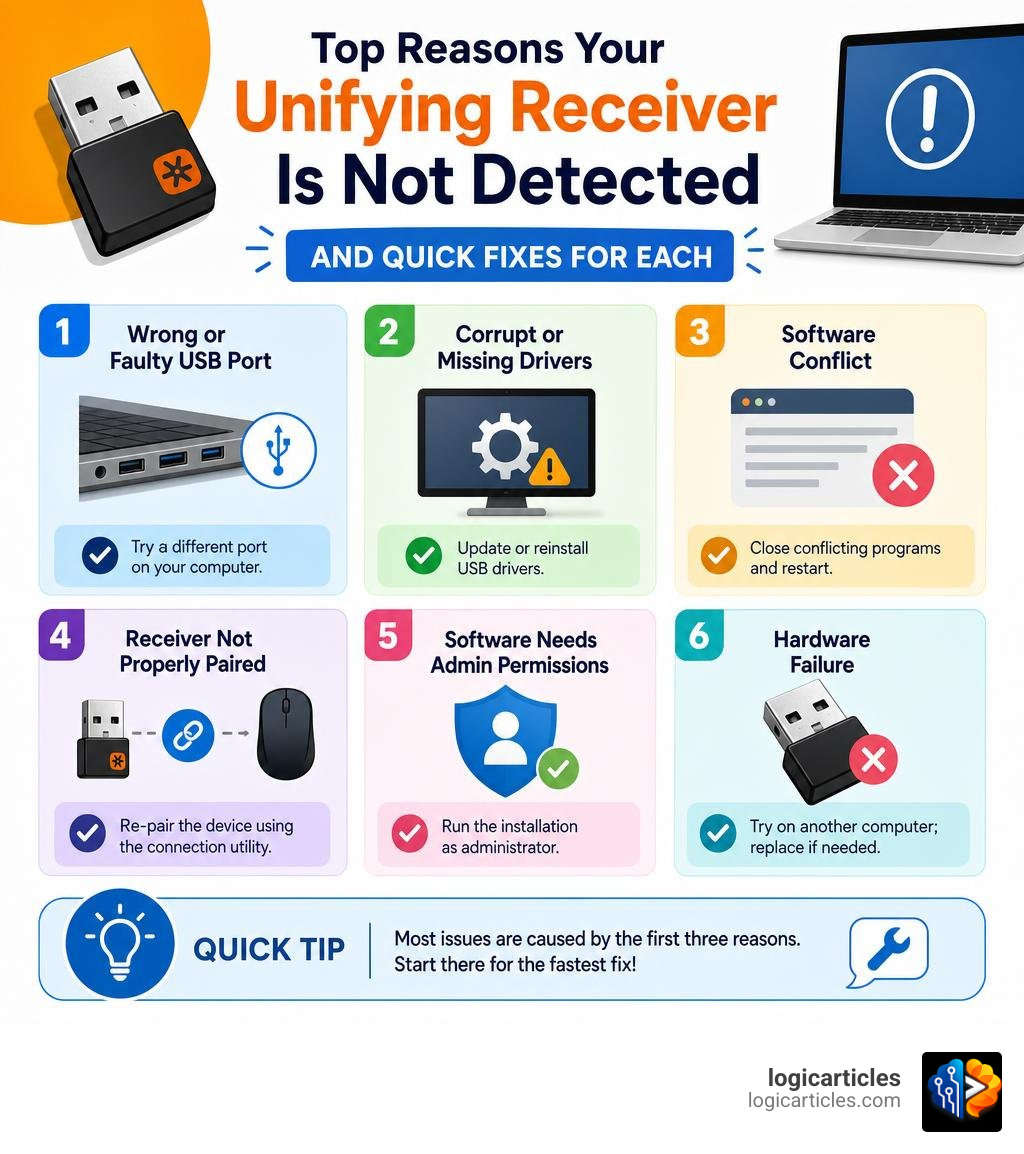
Here are the most common reasons your computer isn’t detecting the receiver:
- Wrong or faulty USB port — try a different port, ideally directly on your computer (not a hub)
- Corrupt or missing USB drivers — Windows may be missing the driver files the receiver needs
- Software conflict — programs like MotionInJoy can block the receiver from being recognized
- Receiver not properly paired — the device may have lost its pairing with the receiver
- Software needs admin permissions — Logitech software sometimes fails to install drivers without administrator rights
- Hardware failure — rarely, the receiver itself is physically damaged or worn out
Most cases fall into the first three categories. In fact, switching USB ports alone fixes the problem about 40% of the time.
Over 14,000 users have searched for help with this exact issue — so if it’s happening to you, you’re far from alone.
What is a Logitech Unifying Receiver and How Does It Work?
Before we dive headfirst into the digital toolbox to fix this issue, let’s take a quick second to understand what this tiny piece of plastic and metal actually does.
The Logitech Unifying Receiver is a proprietary USB dongle that operates on a 2.4 GHz radio frequency (RF) band. Released way back in 2009, its primary superpower is consolidation. Instead of cluttering your precious USB ports with a different receiver for your mouse, keyboard, and trackball, a single Unifying Receiver can connect up to six compatible Logitech wireless peripherals simultaneously.
You can easily identify a Unifying-compatible device by looking for the distinct orange star logo (which looks like a little sunburst or asterisk) printed on the receiver itself and on the bottom of your Logitech mouse or keyboard.
In recent years, Logitech introduced a newer wireless standard called Logi Bolt. It is highly secure, built on Bluetooth Low Energy (BLE) technology, and designed for modern, high-interference enterprise environments. However, these two technologies are entirely incompatible. You cannot pair a Unifying device with a Logi Bolt receiver, or vice versa.
Here is a quick breakdown of how these two receiver types compare:
| Feature | Logitech Unifying Receiver | Logi Bolt Receiver |
|---|---|---|
| Wireless Technology | 2.4 GHz RF (Proprietary) | Bluetooth Low Energy (BLE) |
| Max Connected Devices | Up to 6 devices | Up to 6 devices |
| Logo Identifier | Orange Star / Sunburst | Light Green Bolt |
| Security Standards | Standard Encrypted Link | High Security (Federal Information Processing Standards) |
| Backward Compatible? | Yes, with older Unifying gear | No, only works with Bolt-enabled devices |
If you need to set up or troubleshoot the pairing of your devices, the best place to start is the official Logitech support guide. This guide explains how the receiver translates wireless signals into standardized USB inputs that your operating system can understand without lagging.
Why Won’t My Computer Recognize My Logitech Unifying Receiver?
It is the classic modern-day tragedy: you sit down to work in June 2026, plug in your trusty receiver, and… absolutely nothing happens. Or worse, you get a nagging Windows notification stating, “USB device not recognized.”
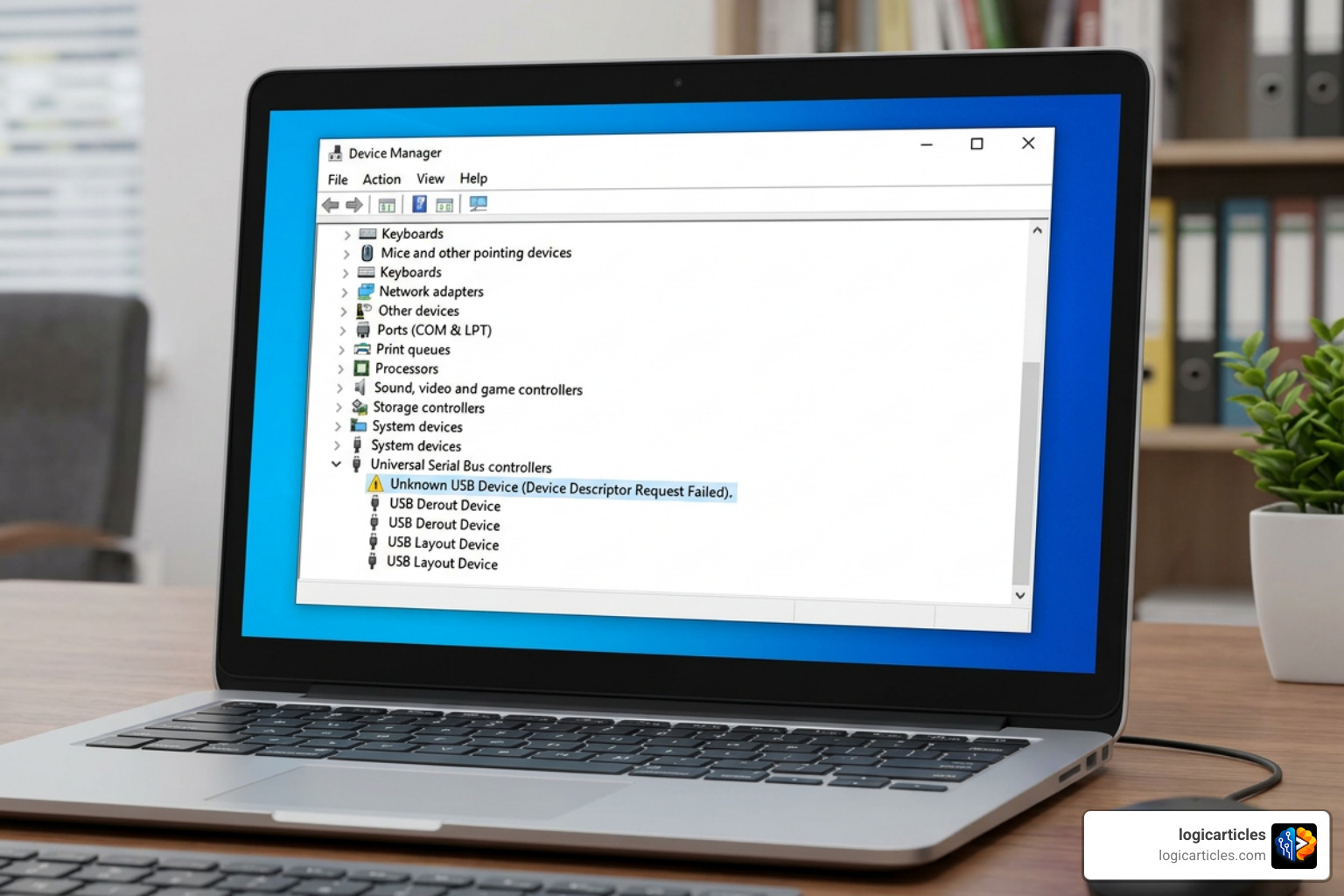
When your computer refuses to acknowledge the receiver, the issue is typically a breakdown in communication between the hardware, your operating system’s USB controllers, and the Logitech software. Let’s look at the primary culprits:
- USB Port Failure or Power Issues: Sometimes, the USB port itself is dirty, loose, or not delivering enough power. This is especially common with front-panel ports on desktop PCs or unpowered USB hubs.
- Missing or Corrupted System Drivers: Operating systems rely on generic USB hub and human interface device (HID) drivers to talk to the receiver. If these files are corrupted or missing, your computer will treat the receiver like a piece of useless metal.
- Wireless RF Interference: USB 3.0 ports are notorious for emitting radio frequency noise on the 2.4 GHz band. If your receiver is plugged directly next to an active USB 3.0 device (like an external hard drive), the wireless signal can get completely choked out.
- Software Conflicts: Third-party drivers (like those installed by PlayStation controller emulators) can aggressively hijack USB inputs, preventing your Logitech receiver from claiming its rightful virtual port.
For a deeper dive into how environmental factors and hardware configurations affect your wireless setup, check out the official Logitech guide on troubleshooting wireless devices.
Why won’t my computer recognize my Logitech unifying receiver on Windows 11?
Windows 11 is a fantastic operating system, but its aggressive update cycles and strict driver signature requirements can sometimes cause unexpected hardware hiccups. At least 20 users reported the same Logitech Unifying Receiver detection issue on Microsoft Q&A immediately after completing a fresh Windows 11 installation.
When Windows 11 updates, it occasionally overwrites older, stable USB composite device drivers with generic system drivers that fail to initialize the receiver correctly. Additionally, Windows 11’s modern power management settings can put USB ports into a “sleep” state to save power, effectively turning off the receiver when you need it most.
If your operating system is acting sluggish or taking an eternity to load your startup applications (including your Logitech control software), it can delay or completely block the receiver’s initialization process. If you are experiencing general system slowdowns alongside your USB issues, check out our guide on How To Fix Slow Startup On Windows to optimize your PC’s boot routine.
Why won’t my computer recognize my Logitech unifying receiver on Mac?
Mac users are not immune to the silent treatment from their USB peripherals. If you are using a modern MacBook or iMac, you have likely run into the physical limitation of only having USB-C ports. This means you must rely on third-party USB-A to USB-C dongles or multi-port adapters.
Cheap, unpowered USB-C hubs are the number one cause of Unifying Receiver failure on macOS. They often fail to supply consistent power or create severe electromagnetic interference. Furthermore, macOS’s strict security settings (especially on Apple Silicon Macs) require you to manually grant input monitoring and accessibility permissions to Logi Options+ before the software can communicate with the receiver.
If your Mac is struggling to recognize basic hardware inputs, it might be a symptom of a larger system-level slowdown. To get your Mac back in peak shape, take a look at our troubleshooting steps on How To Fix A Slow Mac as well as our deep dive on How To Fix Slow Boot On Mac.
Step-by-Step Troubleshooting to Fix Detection Issues
Now that we know why the issue happens, let’s roll up our sleeves and fix it. We recommend going through these steps in order, starting with the simplest physical checks before moving on to software and driver configurations.
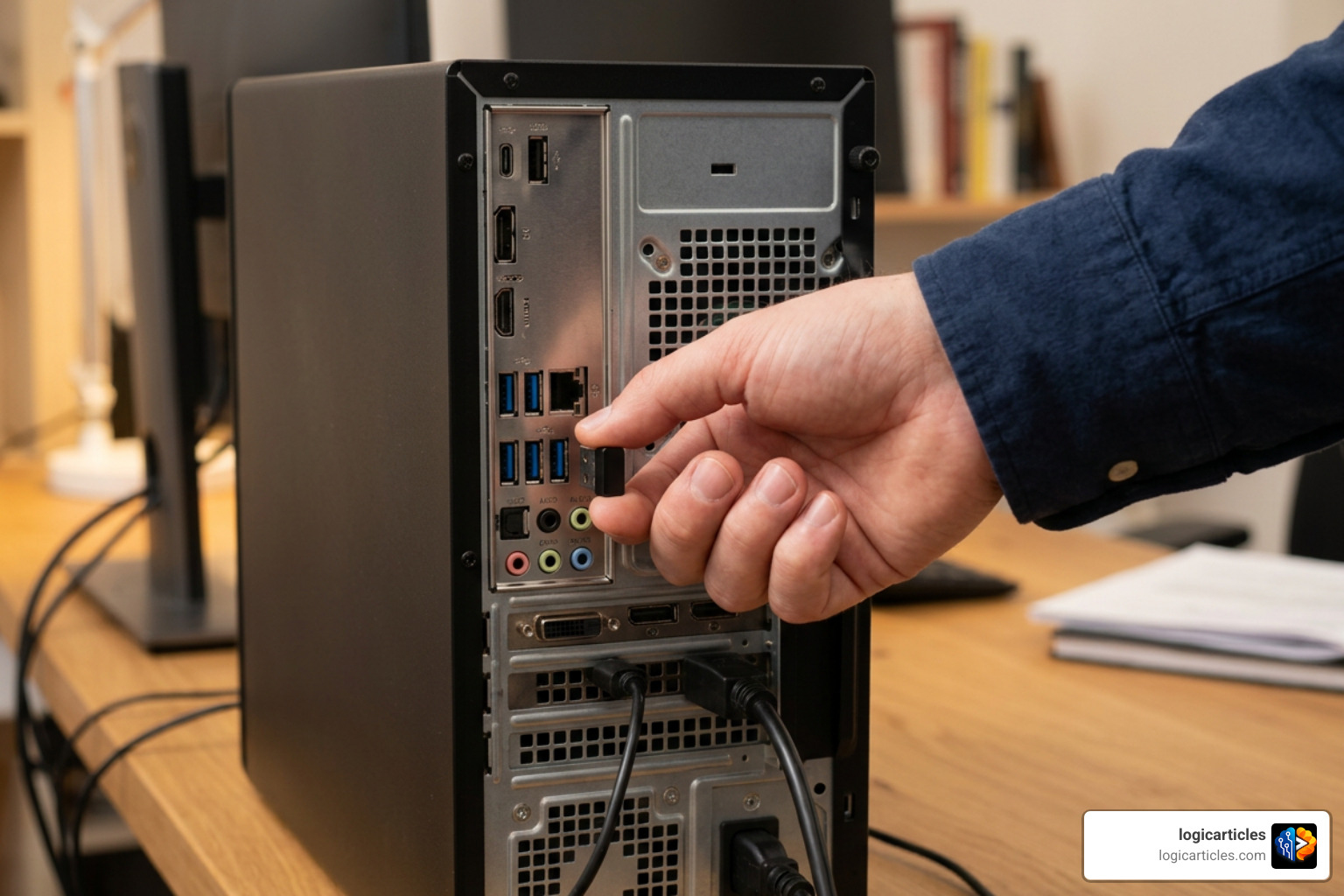
Step 1: Check the Physical Connection (The 40% Fix)
As noted by troubleshooting data, up to 40% of all receiver detection issues are resolved by simply changing how and where the receiver is plugged in.
- Bypass USB Hubs: Always plug the Unifying Receiver directly into a USB port on your computer. Avoid KVM switches, unpowered USB hubs, and monitor pass-through ports.
- Use USB 2.0 Ports: If your computer has both blue ports (USB 3.0) and black/gray ports (USB 2.0), plug the receiver into a USB 2.0 port. USB 3.0 ports generate wireless noise that can disrupt 2.4 GHz signals.
- Use the Back of the PC: If you are using a desktop computer, plug the receiver into the ports directly on the motherboard (located on the back of the tower) rather than the front-panel ports, which have longer internal cables and are prone to signal degradation.
- The “Paper Trick” for Loose Fits: Over time, the metal casing of the USB receiver can wear down, leading to a loose physical connection inside the USB port. If the receiver feels wiggly, you can place a tiny, thin strip of paper on the non-contact side of the receiver plug before inserting it to create a snug, secure fit.
For more information on resolving basic software-side detection issues, the Gloobia troubleshooting article offers excellent step-by-step guidance.
Reinstalling and Updating USB and Receiver Drivers
If the physical connection is solid but Windows still refuses to cooperate, the problem lies within your system drivers. Sometimes, the core Windows driver files responsible for USB communication become corrupted or go missing entirely.
One famous fix popularized on tech forums like Superuser involves restoring missing system driver files. If your Windows installation is missing the usb.inf and usb.PNF files (which can happen after a major system update or a corrupt disk image), your PC won’t be able to install any new USB composite devices.
To fix this and refresh your drivers, follow these steps:
- Press
Windows Key + Xand select Device Manager. - Scroll down and expand the Universal Serial Bus controllers section.
- Look for any device with a yellow exclamation mark, or look for USB Composite Device.
- Right-click the problematic device and select Uninstall device. Confirm the uninstallation.
- Unplug your Logitech Unifying Receiver.
- Restart your computer.
- Once your computer boots back up, plug the receiver into a different USB port. Windows will be forced to scan for hardware changes and reinstall a clean copy of the driver.
Note: If Windows still fails to recognize the device, you may need to copy the usb.inf and usb.PNF files from a working computer’s C:\Windows\System32\DriverStore directory and paste them into your own C:\Windows\INF folder, then repeat the steps above.
Running Logitech Software with Administrator Privileges
Sometimes, the Logitech Unifying Software or the newer Logi Options+ application is running fine, but it lacks the system-level permissions required to write new driver configurations to your operating system. Running the software as an administrator bypasses these security blocks.
At least 44 users found the Driver Easy guide for Logitech Unifying Receiver not detected helpful, which heavily emphasizes this specific sequence:
- Unplug your Logitech Unifying Receiver from your computer.
- If you are using older Logitech hardware, download and install the latest Logitech SetPoint software. If you are using modern hardware, download Logi Options+.
- Close the application completely (make sure it isn’t still running silently in your system tray).
- Right-click the desktop shortcut for the Logitech software and select Run as administrator.
- Once the application is running with elevated admin rights, insert your Unifying Receiver into a direct USB port. The software will now have the permissions it needs to automatically install and configure the necessary drivers.
Resolving Software Conflicts and MotionInJoy Issues
Are you a PC gamer who likes to use older PlayStation controllers on your computer? If so, you might have installed a tool called MotionInJoy. While handy for gaming, MotionInJoy is notorious in the tech community for aggressively hijacking USB drivers. It installs a custom driver that overrides generic USB ports, frequently causing your Logitech Unifying Receiver to stop working entirely.
To resolve this conflict:
- Open your Windows Control Panel and navigate to Uninstall a Program.
- Locate MotionInJoy (or similar controller mapping software) and uninstall it completely.
- Because MotionInJoy leaves behind stubborn driver files in your system registry, you should also open Device Manager, click on View at the top, and select Show hidden devices.
- Look under Mice and other pointing devices or Universal Serial Bus controllers for any leftover MotionInJoy or “MijX” drivers, right-click them, and select Uninstall device (making sure to check the box that says “Attempt to remove the driver for this device”).
- Restart your computer and replug your Unifying Receiver.
How to Properly Pair or Re-Pair Your Logitech Devices
If your computer finally recognizes the USB receiver itself, but your mouse or keyboard still isn’t responding, the wireless connection between the peripheral and the receiver has likely been broken. You will need to manually re-pair them.
To pair your devices properly:
- Download and open either the classic Logitech Unifying Software or the modern Logi Options+ app.
- Click on Add Device and select Unifying Receiver.
- Follow the on-screen prompt to power cycle your device. Locate the physical power switch on the bottom or side of your Logitech mouse or keyboard.
- Turn the device OFF, wait three seconds, and then turn it back ON.
- The software should instantly detect the power cycle, pair the device, and prompt you to test the connection by moving your cursor or typing a few characters.
If you run into any hurdles during this process, consult the official Logitech pairing guide for advanced pairing steps.
Frequently Asked Questions about Logitech Receivers
How many devices can I connect to one Unifying receiver?
You can connect up to six compatible Logitech wireless mice and keyboards to a single Unifying Receiver. This allows you to keep multiple devices connected without taking up all the USB ports on your laptop or desktop. That you must use the Logitech Unifying Software or Logi Options+ to pair each new device to the receiver first.
What is the difference between Unifying and Logi Bolt?
The primary differences lie in security and wireless protocols. The Unifying Receiver uses a proprietary 2.4 GHz radio frequency, which is great for everyday personal use but can occasionally suffer from wireless interference.
Logi Bolt uses highly secure Bluetooth Low Energy (BLE) technology, which complies with strict federal security standards and is designed to cut through heavy wireless noise in busy office spaces. The two systems are completely incompatible; you cannot mix and match Unifying and Bolt hardware.
When should I replace my Logitech Unifying receiver?
If you have tested your Unifying Receiver on multiple different computers, tried several USB ports, verified that your system has the correct usb.inf files, and the receiver still fails to light up or show up in Device Manager, it has likely suffered a hardware failure.
Because these dongles are frequently plugged in and unplugged, the internal solder joints or the gold USB contacts can wear down over time. Fortunately, replacement Unifying Receivers are inexpensive and widely available online. Once you get a replacement, you can easily pair your existing mice and keyboards to it using the Unifying software.
Conclusion
A computer that refuses to recognize your Logitech Unifying Receiver can bring your productivity to a grinding halt. However, by systematically checking your physical connections, ensuring your system drivers are intact, running your configuration software with administrator privileges, and clearing out pesky software conflicts like MotionInJoy, you can get your wireless desk setup back up and running in no time.
If you find that your computer is struggling with more than just USB ports—perhaps your entire operating system feels sluggish or your laptop is running incredibly hot—the issue might be broader than a simple driver glitch. Take a look at our comprehensive guide on Is Your Laptop Running Slow to diagnose and clean up system-level performance bottlenecks.
For more expert guides on optimizing your digital workspace, upgrading your computer’s performance, and finding the absolute best tools for your workflow, visit our Best Software Category at logicarticles!