Why Your PC Fans Need Better Control Than Default Settings
The best fan control software makes a real difference — whether your PC sounds like a jet engine at idle or you just want cooler temps during heavy workloads.
Here’s a quick answer to help you choose:
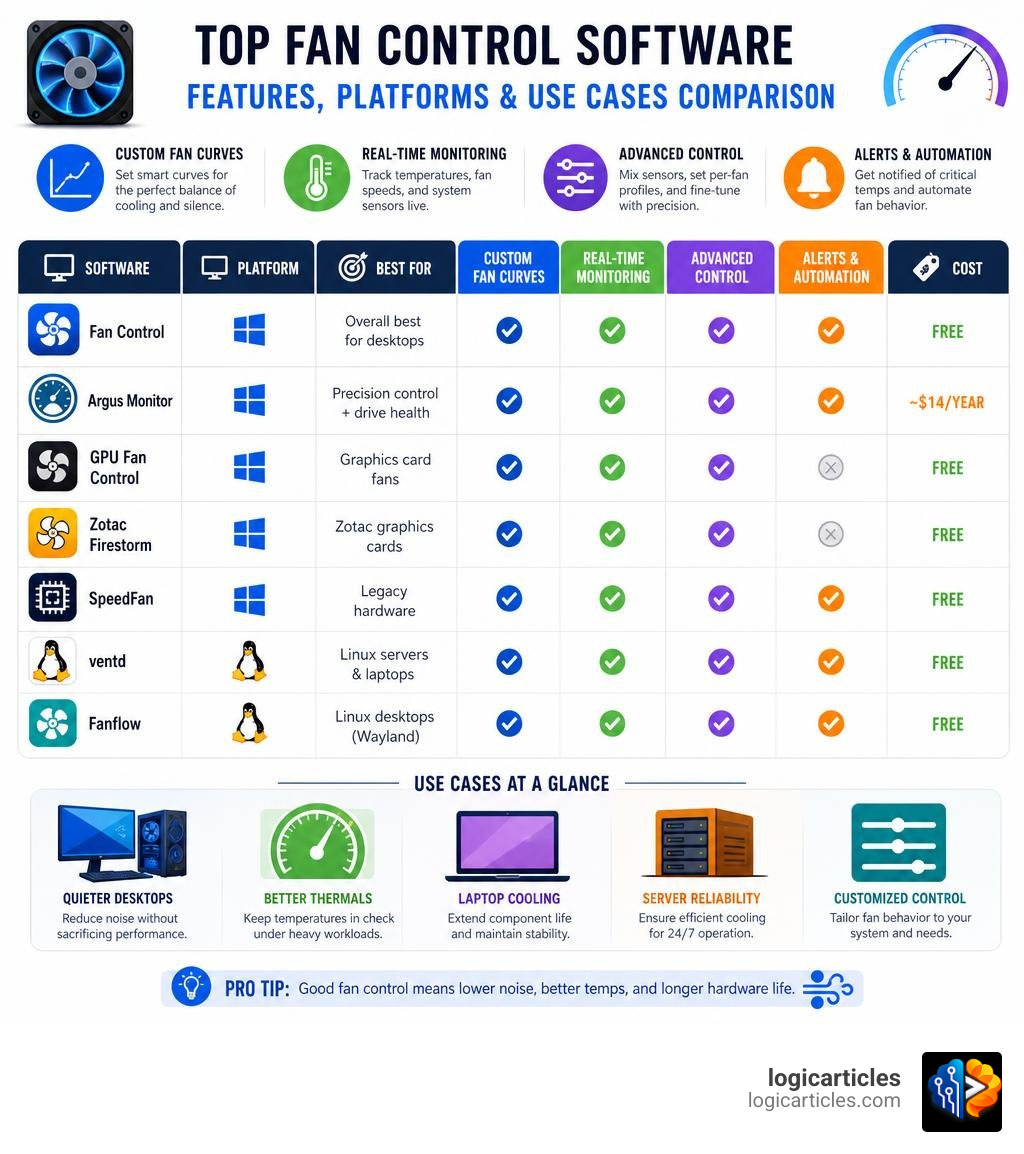
| Software | Best For | Cost | Platform |
|---|---|---|---|
| Fan Control | Overall best, desktop | Free | Windows |
| Argus Monitor | Premium precision + drive health | ~$14/year | Windows |
| MSI Afterburner | GPU fans only | Free | Windows |
| Zotac Firestorm | Zotac GPU fans | Free | Windows |
| SpeedFan | Legacy hardware | Free | Windows |
| ventd | Linux servers/laptops | Free | Linux |
| Fanflow | Linux desktops (Wayland) | Free | Linux |
Most PCs ship with fans set to run faster than they need to. The result? Unnecessary noise, and sometimes even worse cooling — because aggressive fan ramp-ups create turbulence rather than airflow.
Your motherboard BIOS has basic fan controls. But software tools give you much more: custom curves, sensor mixing, per-fan tuning, and real-time monitoring — all without rebooting into BIOS every time you want to make a change.
One user described it simply: fans were running full speed, but with the right software, they could be “toned down a bit” — and that’s exactly what these tools deliver.
The good news? Most of the best options are completely free.
Why Use Third-Party Best Fan Control Software?
Many PC builders ask why they should bother with third-party utilities when their motherboard BIOS already includes built-in fan curve tools. While a BIOS-level fan curve is incredibly stable and runs independently of your operating system, it is highly limited.
First, adjusting a BIOS curve requires restarting your PC, entering the UEFI menu, making blind adjustments, and booting back into Windows to test the acoustic results. It is a tedious trial-and-error process.
Second, BIOS fan curves are generally restricted to a single temperature sensor. For example, your CPU fan header can only look at your CPU temperature, and your chassis fan headers are often locked to motherboard or CPU sensors. This is a massive issue for modern gaming PCs. In June 2026, many heavy gaming workloads place a massive thermal load on the GPU while the CPU remains relatively cool. If your case fans are only monitoring your CPU, they will stay at whisper-quiet idle speeds while your graphics card chokes on its own hot air inside a stagnant case.
Third-party fan utilities solve this by introducing advanced logic, including:
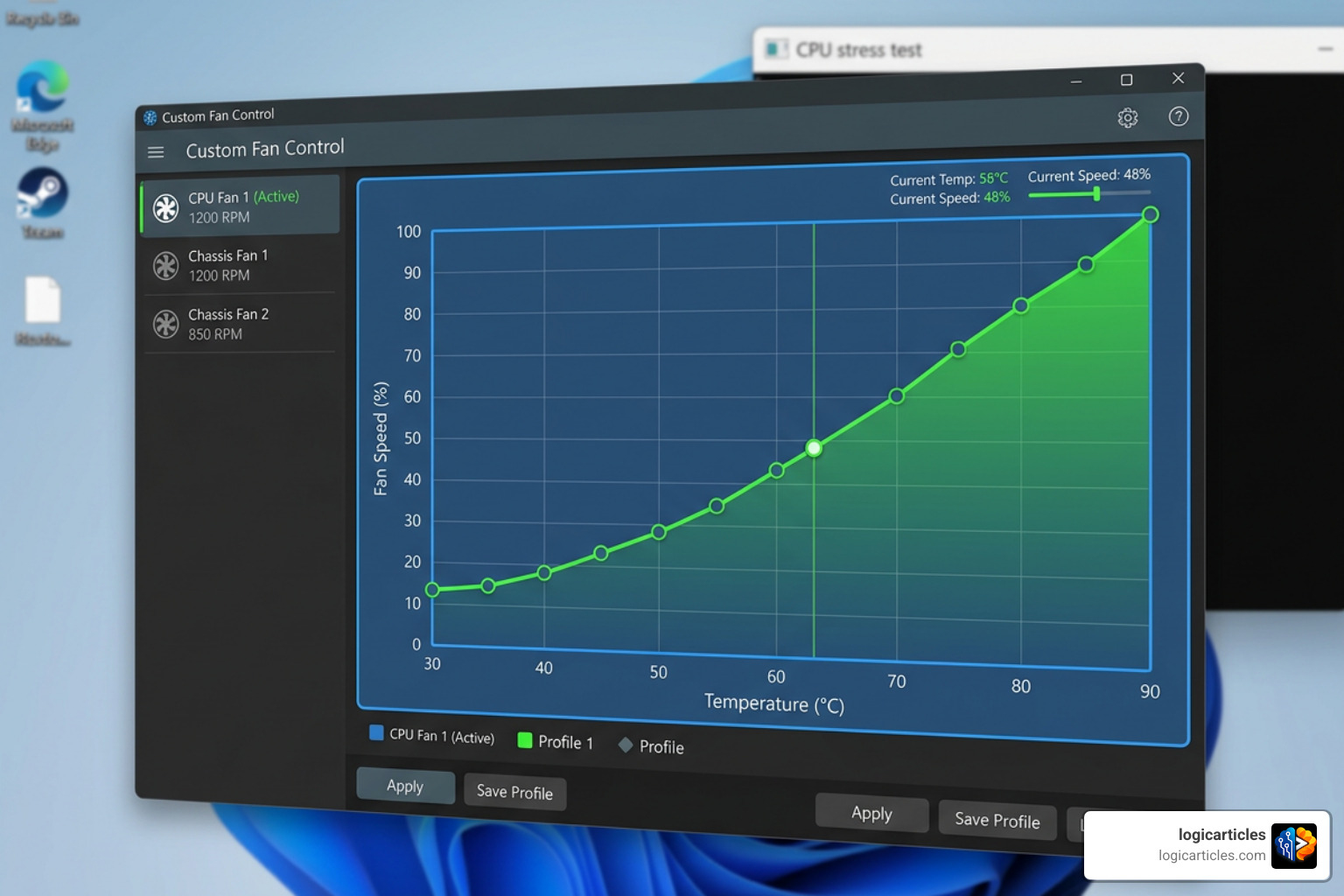
- Hysteresis: This acts as a buffer for your fan speeds. Instead of your fans immediately revving up the second your CPU spikes to 65°C for a split second, hysteresis tells the software to wait and see if the temperature stays elevated before ramping up the RPM. It also slows the fans down gradually when temperatures drop, preventing annoying “revving” noises.
- Sensor Mixing: This allows you to create a “mixed” temperature source. You can tell your case fans to look at both your CPU and GPU temperatures, and target whichever component is running hotter.
- Response Times (Step Up/Step Down): You can set exactly how many seconds a fan should take to transition from 30% speed to 80% speed, smoothing out the acoustic profile of your workspace.
Using these tools is just as essential for modern PC optimization as finding the Best Gaming Software In 2026 to maximize your in-game frame rates.
Top Fan Control Tools for Windows and Linux
When looking for the best fan control software, your choice will largely depend on your operating system, hardware configuration, and whether you prefer an open-source tool or a premium commercial suite. Below, we break down the top tools available across Windows 11 and various Linux distributions, focusing on resource usage and hardware compatibility.
Fan Control: The Best Fan Control Software Overall
If you ask any hardware community for a recommendation, the overwhelming consensus points to one specific application: Fan Control. Created by independent developer Rem0o, this lightweight, highly focused program is widely considered the absolute best fan control software on the market.
At its core, Fan Control is built on LibreHardwareMonitor, which is an open-source fork of the classic OpenHardwareMonitor. This backend gives it incredibly broad hardware compatibility, allowing it to read sensors from almost any modern motherboard, CPU, and graphics card.
Some of its standout features include:
- Mix Fan Curves: You can combine multiple fan curves together using functions like maximum, minimum, or average. For example, you can create a curve for your CPU, a curve for your GPU, and mix them so your case fans run at the speed demanded by the hottest component.
- 7 Curve Types: It supports linear, graph, target, trigger, flat, mix, and file-based fan curves.
- Extensible Plugin System: Because of its open-source backend, developers can write custom plugins to support niche hardware. You can easily add DLLs to your plugins folder to control things like EVGA graphics cards, NZXT liquid coolers, or even read sensors from third-party hardware monitoring suites.
- Ultra-Lightweight: It uses virtually zero system resources, meaning it can run quietly in your system tray without impacting your gaming performance.
To get started, you can download the application directly from the official Fan Control – Fan Control – A highly focused fan controlling software for Windows website. For advanced configuration, plugin guides, and troubleshooting, you can check out the official repository documentation at README.md at master · Rem0o/FanControl.Releases or explore the main releases page at Rem0o/FanControl.Releases .
Argus Monitor: Premium Precision and Drive Health
For those who do not mind paying a small fee for commercial-grade software, Argus Monitor is an outstanding alternative. It offers a 30-day free trial, after which a one-year license costs approximately $14 (or €14.95).
Argus Monitor is incredibly polished and focuses heavily on system health alongside fan management. Unlike basic tools, it includes built-in S.M.A.R.T. monitoring for your hard drives and SSDs, alerting you to potential drive failures before they happen.
Key features of Argus Monitor include:
- Synthetic Temperatures: You can create highly customized virtual temperature sources using mathematical equations (such as calculating the time average of your GPU temperature over 30 seconds to smooth out fan curves).
- Multi-Controller Parallel Operation: Run multiple fan controllers side-by-side and set them to respond to the highest value of several thermal sources.
- Hardware RGB Control: It features native support for controlling RGB lighting on select ASUS and EVGA RTX 3000/4000 series cards, Corsair Commander controllers, and NZXT Kraken coolers.
- Low Overhead: It is highly optimized to run with minimal memory and CPU usage.
SpeedFan: The Legacy Pioneer
We cannot talk about fan control without mentioning SpeedFan. For over a decade, SpeedFan was the undisputed king of hardware monitoring and fan speed customization. It allowed power users to access temperature sensors, adjust voltages, and run detailed S.M.A.R.T. hard drive analyses.
However, in 2026, SpeedFan is strictly a legacy tool. Development has effectively stalled, and its creator has not released a major update in years. While it is still a fantastic option for older machines running Windows 9x up to Windows 10, it struggles to recognize modern motherboard super I/O chips and newer graphics cards. If you are running older hardware and want to try this classic utility, you can download it from SpeedFan – Access temperature sensor in your computer . For modern systems, however, we highly recommend modern alternatives like Fan Control.
GPU-Only Tools: MSI Afterburner and Zotac Firestorm
If your main goal is simply to tame a loud graphics card, you do not necessarily need a system-wide fan controller. Dedicated GPU overclocking utilities are excellent for this.
- MSI Afterburner: This is the gold standard for graphics card management. It is entirely free, works with virtually any GPU brand (not just MSI), and features a highly robust custom fan curve editor. You can easily set a curve to keep your GPU silent under light loads and aggressively cool when gaming.
- Zotac Firestorm: Designed specifically for Zotac graphics cards, this utility allows you to control GPU fan speeds, adjust RGB lighting, and apply overclocks.
The main limitation of these tools is that they are strictly GPU-only. They cannot read motherboard sensors or control your case and CPU fans. Additionally, applying a custom software curve through these programs will sometimes override and disable your GPU’s physical “zero-RPM” mode, forcing the fans to spin at a minimum speed (such as 30%) even when the card is completely idle.
Linux Alternatives: Ventd and Fanflow
Linux users often face unique hurdles when it comes to fan control, as many motherboard manufacturers do not provide native Linux software, and kernel driver limitations can make hardware access tricky. Fortunately, two excellent open-source projects have emerged to bridge this gap.
- ventd: This is an adaptive Linux fan control daemon designed for users who want a hands-off, intelligent cooling setup. It runs as a single static binary with zero external dependencies, making it compatible with almost any Linux distribution. Instead of forcing you to map out complex curves manually, ventd features an experimental “Smart Mode” that learns your machine’s thermal behavior, sensor-to-fan relationships, and workload needs. It then automatically keeps your system quiet and cool in the background. You can manage it remotely via a built-in web browser interface. Learn more and read the installation guide at ventd/ventd .
- Fanflow: If you prefer a traditional desktop application with a graphical user interface on Linux, Fanflow is a superb choice. It is a lightweight manager compiled in Rust with a native HTML GUI that supports both Wayland and X11 environments. It controls motherboard fans via the standard
hwmoninterface and manages NVIDIA GPU fans via NVML (bypassing the need for Xorg). Crucially, Fanflow includes built-in safety failsafes: if the background daemon is stopped or your system shuts down, it automatically resets all fan headers back to BIOS/firmware control to prevent overheating. You can download or contribute to the project at Smokey-thc/Fanflow .
Motherboard Utilities vs. Dedicated Software
Almost every major motherboard manufacturer offers its own proprietary software suite, such as ASUS Fan Xpert (via Armoury Crate), Gigabyte Control Center, or MSI Center.
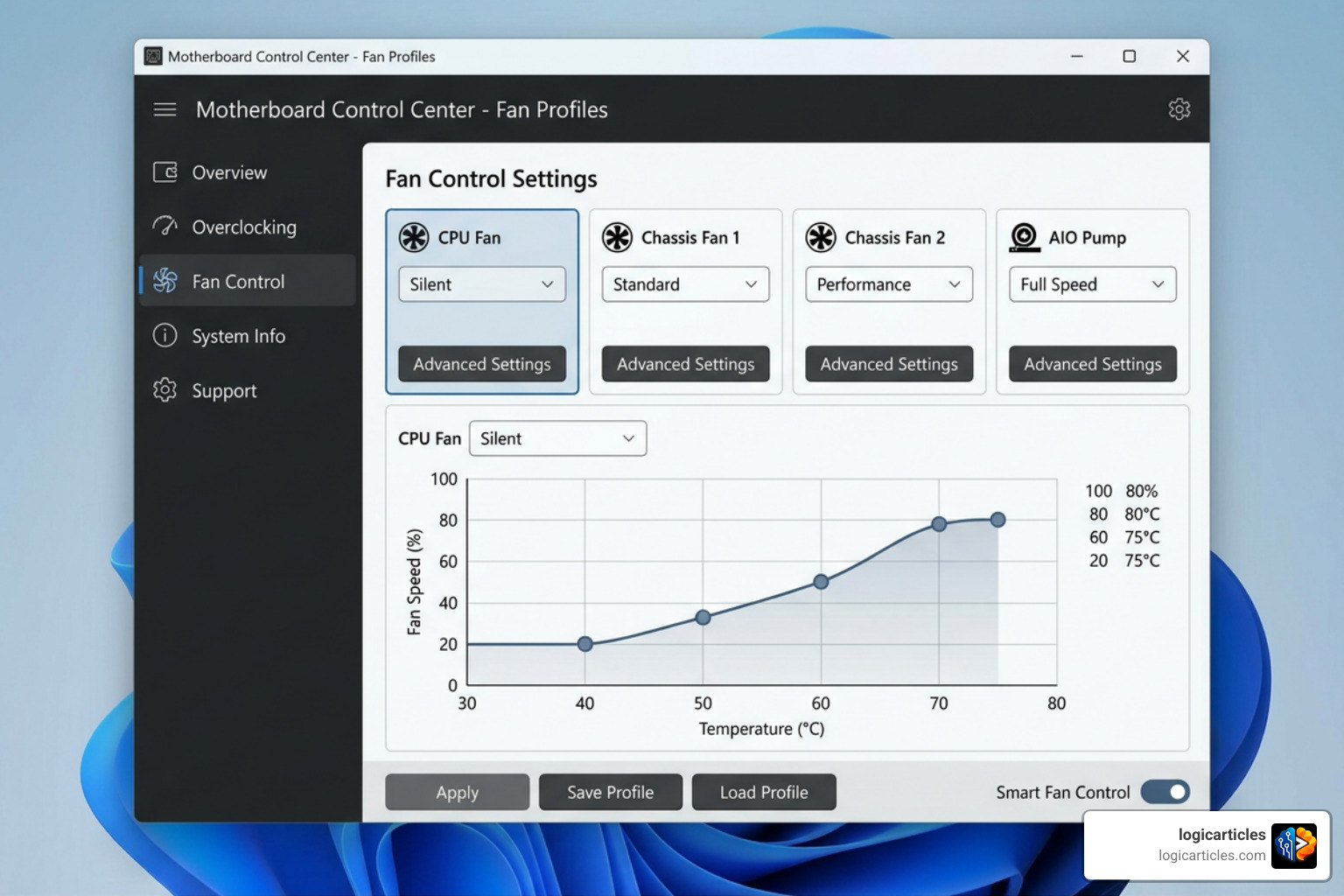
These programs have one distinct advantage: they communicate directly with your motherboard’s onboard controller, meaning they have highly reliable, native access to every physical fan header on your board.
However, they come with significant downsides:
- System Bloat: Manufacturer suites are rarely just fan controllers. They are usually massive, resource-heavy software packages filled with RGB control modules, automatic driver updaters, and promotional bloatware.
- High Resource Usage: These programs often run multiple background services that consume valuable CPU cycles and memory.
- Sensor Conflicts: Running an OEM utility alongside a third-party tool like Fan Control or Argus Monitor is a recipe for disaster. Both programs will attempt to poll the same hardware sensors simultaneously, which can cause erratic fan behavior, frozen sensor readings, or system instability.
For the best experience, we recommend choosing one approach. If you want to use a lightweight third-party tool, make sure to completely uninstall or disable your motherboard’s OEM utilities first.
Choosing the Best Fan Control Software for Laptops
Laptop users must approach fan control with realistic expectations. Laptops do not interface their fans the same way desktop motherboards do. Instead of using standardized PWM headers, laptop fans are typically managed directly by highly proprietary Embedded Controllers (EC) built into the laptop’s motherboard.
Because of this, general-purpose third-party software like Fan Control or Argus Monitor will usually not work on a laptop out of the box. Most laptop manufacturers deliberately lock these controllers to prevent third-party software from accidentally disabling the fans and causing thermal damage to the tightly packed components.
If you want to control your laptop’s fans, your best options are:
- OEM Software: Use the official software provided by your laptop manufacturer (such as ASUS Armoury Crate, Lenovo Vantage, or HP Command Center). These tools usually offer pre-configured thermal profiles (e.g., Silent, Balanced, Performance).
- Model-Specific Plugins: Some open-source communities have developed highly specific plugins for tools like Fan Control (such as dedicated Dell or ThinkPad plugins) that reverse-engineer the laptop’s EC commands. Always proceed with caution when using these, as improper settings can quickly lead to thermal throttling or hardware damage.
Frequently Asked Questions about PC Fan Control
Managing your PC’s cooling system can raise a lot of technical questions. Here are answers to some of the most common questions regarding fan control software.
Can I run multiple fan control programs at the same time?
No, you should never run multiple fan control programs simultaneously. When two different programs try to control the same hardware fan headers, they will constantly fight over command priorities. For example, if MSI Afterburner is trying to set your GPU fan to 40% while Fan Control is trying to set it to 60%, your fans may rapidly oscillate, make strange pulsing noises, or lock up entirely. Always pick one primary fan control solution and disable or uninstall the others.
Will a custom GPU fan curve disable zero-RPM mode?
In many cases, yes. Many modern graphics cards feature a physical “zero-RPM” mode where the fans stay completely still until the GPU core reaches a specific temperature (usually around 55°C to 60°C). When you apply a custom software-based fan curve through tools like MSI Afterburner, the software often overrides the graphics card’s internal firmware. This can enforce the card’s minimum physical fan speed (often 30%) at all times, preventing the fans from stopping entirely. If maintaining a true 0-RPM idle is important to you, make sure your software of choice explicitly supports zero-RPM overrides, or stick to the GPU’s default firmware curve.
Is HWMonitor or HWInfo64 a fan controller?
No. HWMonitor and HWInfo64 are strictly hardware monitoring tools. They are incredibly useful for reading temperature sensors, fan RPMs, voltages, and system clock speeds, but they do not have the ability to send control commands back to your fan headers to change their speeds. However, you can use HWInfo64 in tandem with the best fan control software (like Fan Control) by utilizing plugins that allow the fan controller to read HWInfo64’s sensor data.
Conclusion
Finding the best fan control software is one of the easiest and most effective ways to optimize your desktop PC. By moving away from restrictive BIOS menus and resource-heavy motherboard bloatware, you can create a whisper-quiet computing environment that still delivers aggressive cooling when your hardware is pushed to its limits.
Whether you choose the unmatched customizability of the free, open-source Fan Control suite, the premium drive-monitoring features of Argus Monitor, or dedicated Linux tools like ventd, taking control of your PC’s airflow is a crucial step in maintaining peak hardware performance.
For more detailed software recommendations, check out our guides on the Best Content Software, find the Best Startup Growth Tools For 2026 to streamline your workflow, or discover the Best Task Management Software In 2026 Tested to keep your projects on track. If you are an artist, you might also enjoy our round-up of the Best Free Drawing Software In 2026 7 Top Tools Artists Love.
Ready to optimize the rest of your digital setup? Explore more software guides on LogicArticles today!